


Overview#
Drippy Loading Screen is a powerful client-side customization tool designed as an extension for the FancyMenu mod. It grants players total control over the Minecraft splash screen—the screen visible while the game is booting up and loading resources. Unlike the static vanilla loading screen, Drippy allows for the addition of dynamic backgrounds, custom progress bars, animated images, and localized text.
Because it functions as a FancyMenu addon, it utilizes the same intuitive drag-and-drop editor interface, making it accessible for users without programming knowledge while remaining flexible enough for advanced modpack creators.
Accessing the Editor#
To begin customizing your loading screen, you must access the Drippy Layout Editor. This is done through the Minecraft main menu after the game has finished loading.
- Main Menu Button: Look for a button on the main menu that features a loading screen icon. Clicking this will open the Drippy customization interface.
- Customization Overlay: If the button is not visible, ensure your FancyMenu customization overlay is toggled on. The button is typically integrated into the standard FancyMenu UI layout.
- Editor Interface: Once inside, you will see a preview of your current loading screen with a grid overlay and a sidebar containing tools to add, move, and edit elements.
Layout Editor Mechanics#
The Layout Editor is the core mechanic of the mod. It allows for real-time manipulation of the loading screen's visual components.
Core Controls
| Action | Description |
|---|---|
| Right-Click | Opens the context menu for an element to edit properties, duplicate, or delete. |
| Drag & Drop | Moves elements across the screen grid. |
| Resize Handles | Allows for manual scaling of images and progress bars. |
| Ctrl + S | Quickly saves the current layout configuration. |
Element Layers
Elements are managed in a layering system. New elements are placed on top of older ones. You can adjust the 'Z-Level' or layer order via the element properties menu to ensure logos appear above backgrounds.
Customizable Elements#
Drippy Loading Screen treats UI components as the primary "items" of the mod. Each element can be customized with specific properties.
Backgrounds
The background is the foundation of the loading screen. You are no longer limited to the standard Mojang red.
- Solid Colors: Choose any hex color code.
- Images & GIFs: Upload custom PNG, JPG, or animated GIF files.
- Slideshows: Configure multiple images to cycle during the loading process.
- Animations: Support for complex frame-based animations.
Progress Bars
The progress bar tracks the game's resource loading. Drippy allows you to replace the vanilla bar entirely.
- Custom Textures: Use a custom sprite for the bar and its background.
- Directional Loading: Set the bar to fill from left-to-right, right-to-left, or center-outward.
- Color Overlays: Apply dynamic colors that change based on loading progress.
Text Elements
- Loading Status: Displays the current stage of the loading process (e.g., "Loading Textures").
- Custom Messages: Add welcome messages, modpack titles, or random "splashes" similar to the main menu.
- Memes & Random Text: Configure a list of strings to be chosen randomly each time the game starts.
Vanilla Overrides
You can modify or hide original Mojang elements:
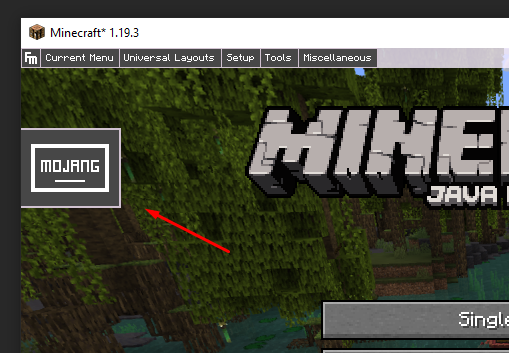
- Mojang Logo: Can be moved, resized, or replaced with a custom studio logo.
- Vanilla Progress Bar: Can be disabled or repositioned by toggling the "Vanilla Size and Position Calculation" setting.
Configuration#
Advanced behavior is controlled through the mod's configuration file, typically located in the .minecraft/config directory. These settings affect how the loading screen interacts with the game engine.
| Setting | Default | Description |
|---|---|---|
Early Fade-Out Elements |
true |
Determines if layout elements start fading out before the background during the transition to the main menu. |
Disable Vanilla Progress Bar |
false |
Completely removes the default loading bar to make room for custom ones. |
Force Custom Background |
true |
Ensures the custom background is rendered immediately upon window creation. |
Show Customization Button |
true |
Toggles the visibility of the editor button on the main menu. |
Advanced Features#
Loading Requirements
Elements can be set to only appear under certain conditions. For example, you can display a specific icon only if a certain mod is detected or if the game is loading a specific resource pack.
Animations and Transitions
Drippy supports smooth transitions between the loading screen and the main menu.
- Fade-In/Out: Elements can be configured to fade in when the game starts and fade out once loading reaches 100%.
- Movement Animations: Elements can be given simple paths to follow (e.g., a logo sliding into the center) during the loading sequence.
