Overview#
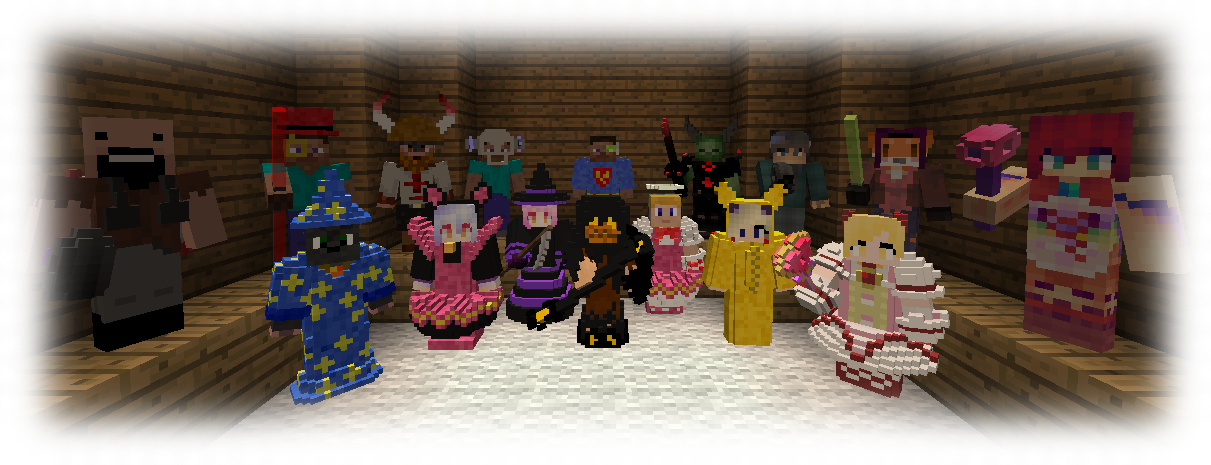
Armourer's Workshop transforms the way players customize their characters by moving beyond 2D textures into the world of 3D voxel modeling. Instead of being limited to standard armor sets, players can use the mod's specialized blocks and tools to sculpt unique designs for every piece of equipment, including helmets, chestplates, leggings, boots, swords, shields, bows, and even wings. These designs, known as Skins, are saved as files that can be shared across servers or downloaded from a global community library.
The mod is highly compatible with other equipment-based mods and provides a dedicated wardrobe system to manage cosmetic overlays without interfering with the stats of the underlying vanilla or modded armor.
Terminology#
To effectively use the mod, it is important to understand the distinction between standard Minecraft assets and the mod's custom models:
- Skin: A 3D voxel model created within the Armourer's Workshop. These are saved as
.armourfiles. - Texture: A standard 2D image (usually 64x32 or 64x64) used for vanilla character skins.
- Equipment Cube: The physical building block used to create the shape of a 3D skin.
- Skin Template: An item used to save a completed 3D model from the Armourer block into a portable item form.
Core Blocks#
The mod introduces several functional blocks that serve as the foundation for the sculpting and management process.
The Armourer
The central hub for all creation. When placed, it generates a holographic grid based on the selected equipment type (e.g., Head, Chest, Sword). Players build their models within this grid using Equipment Cubes.
Skin Library
Used to manage saved skins. It allows players to save their designs to their local computer, load existing designs back into the Armourer for editing, or share them with others on a server.
Global Skin Library
A specialized block that connects to an online database, allowing players to browse, preview, and download thousands of community-created skins directly into their game.
Dye Table (Colour Mixer)
This block is used to mix custom RGB or HSV colors. Players can place their painting tools (like Paintbrushes) inside to 'dip' them into a specific color for use on their models.
Mannequin
A display block that can be dressed in any saved skin. Mannequins can be fully posed, scaled (Adult or Child sizes), and even assigned a specific player's 2D texture using a Name Tag.
Tools and Items#
Sculpting and detailing require a variety of specialized tools found in the mod's creative tab or crafted in survival.
| Item | Function |
|---|---|
| Equipment Cube | The basic building block for all skins. Available in Normal, Glowing, Glass, and Glowing Glass variants. |
| Paintbrush | Paints a single Equipment Cube with the currently selected color. |
| Paint Roller | Paints a 3x3 area of cubes at once. |
| Colour Picker | Samples a color from an existing block, similar to an eyedropper tool. |
| Burn Tool | Gradually darkens the color of a block with each click. |
| Dodge Tool | Gradually lightens the color of a block with each click. |
| Noise Tool | Adds random color variation or 'texture' to a surface. |
| Soap | Removes paint from a block, returning it to its default state. |
| Skin Template | A blank item used in the Armourer GUI to 'record' a finished build. |
| Guide Book | An in-game manual providing basic instructions on mod usage. |
Mechanics: Creating a Skin#
Creating a custom piece of equipment follows a specific workflow:
- Setup: Place the Armourer block and right-click to open its GUI. Select the type of skin you wish to create (e.g., Sword).
- Building: A holographic frame will appear. Place Equipment Cubes within this frame to sculpt the shape of your item. Use Glass Cubes for transparency or Glowing Cubes for parts that should remain bright in the dark.
- Painting: Use the Dye Table to select a color, then use the Paintbrush or Paint Roller to color your cubes. You can use the Burn and Dodge tools to add depth and shading.
- Saving: Once finished, place a Skin Template into the Armourer's GUI, give your creation a name, and click Save. The template will transform into the finished skin item.
Mechanics: Equipping and Managing Skins#
Once a skin is saved to a template, it can be worn by the player.
The Wardrobe
Pressing the 'P' key (default) opens the Equipment Wardrobe. This GUI features slots for every type of skin. Placing a saved Skin Template into these slots will overlay the 3D model onto your character. You can toggle the visibility of your actual armor to ensure only the custom skin is visible.
Skinning Table
For weapons and tools, you can use a Skinning Table to permanently (but reversibly) apply a skin to a specific item, such as a Diamond Sword. This ensures the item retains its custom look even when dropped or placed in a chest.
Recipes#
Most core items are craftable in Survival mode to allow for full creative expression in any playstyle.
| Result | Ingredients |
|---|---|
| Armourer | 4 Stone + 4 Equipment Cubes + 1 Diamond |
| Equipment Cube (x16) | 8 Stone + 1 Coal/Charcoal |
| Skin Library | 4 Iron Ingots + 1 Chest + 2 Redstone + 2 Stone |
| Dye Table | 5 Stone + 1 Equipment Cube + 1 Red Dye + 1 Green Dye + 1 Blue Dye |
| Skin Template | 4 Equipment Cubes (arranged in a square) |
| Paintbrush | 1 Iron Ingot + 1 Wool + 1 Stick |
| Mannequin | 4 Wood Planks + 2 Sticks + 1 Stone Slab |
Commands and Configuration#
Server administrators can use commands to manage skins and enforce performance limits.
/armourers exportSkin <name>: Exports the skin currently in the Armourer to the server's skin folder./armourers setItemAsSkinnable: Allows the item currently held in hand to accept skins (useful for mod compatibility)./armourers clearDyes: Clears dye data from a skin item.
Configuration: The mod's config file allows for deep customization, including setting the maximum number of cubes allowed per skin, enabling/disabling the Global Library, and adjusting the render distance for complex models to maintain server performance.
Gallery#