


Minecraft Console Client – Text User Interface for Java Edition

 0
0 

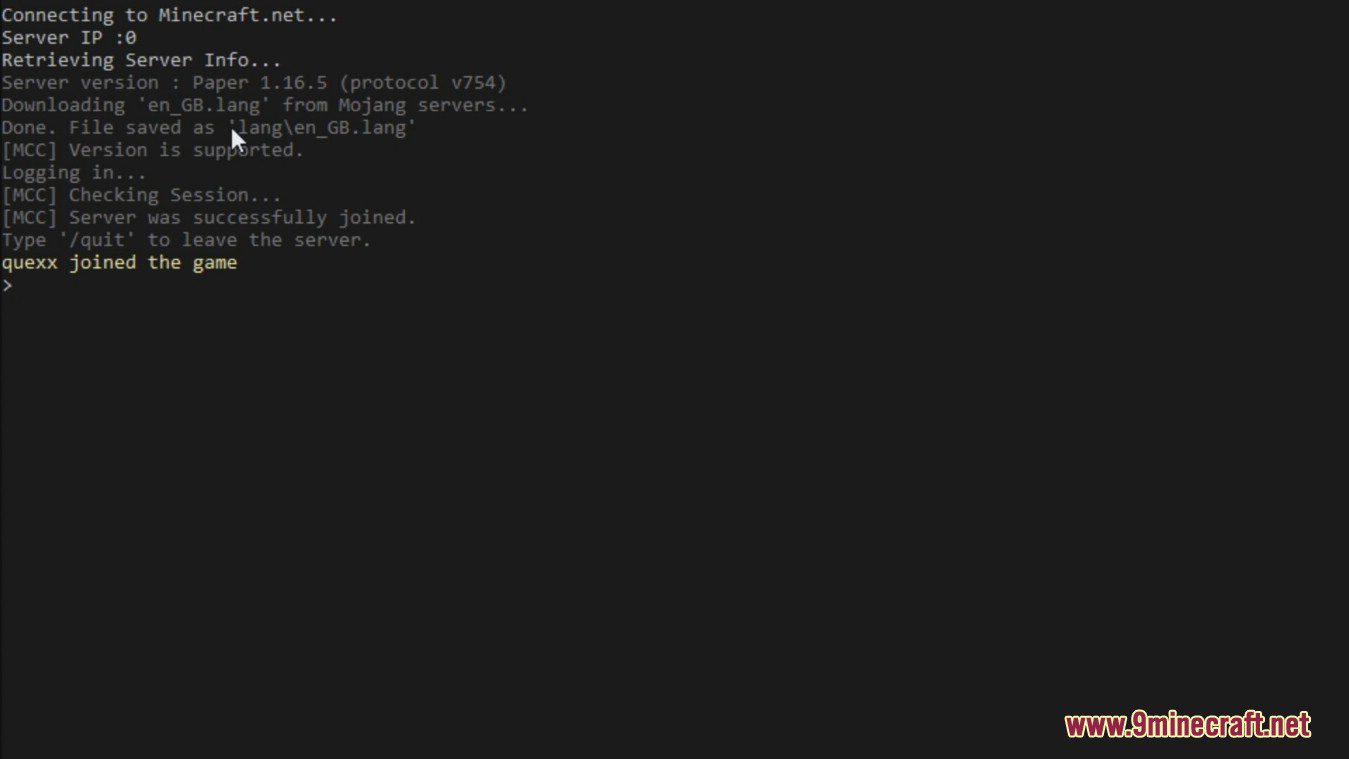
Minecraft Console Client (MCC) is a lightweight cross-platform open-source Minecraft TUI client for Java edition that allows you to connect to any Minecraft Java server, send commands and receive text messages in a fast and easy way without having to open the main Minecraft game. It also provides various automations that you can enable for administration and other purposes, as well as extensible C# API for creating Bots.
Features:
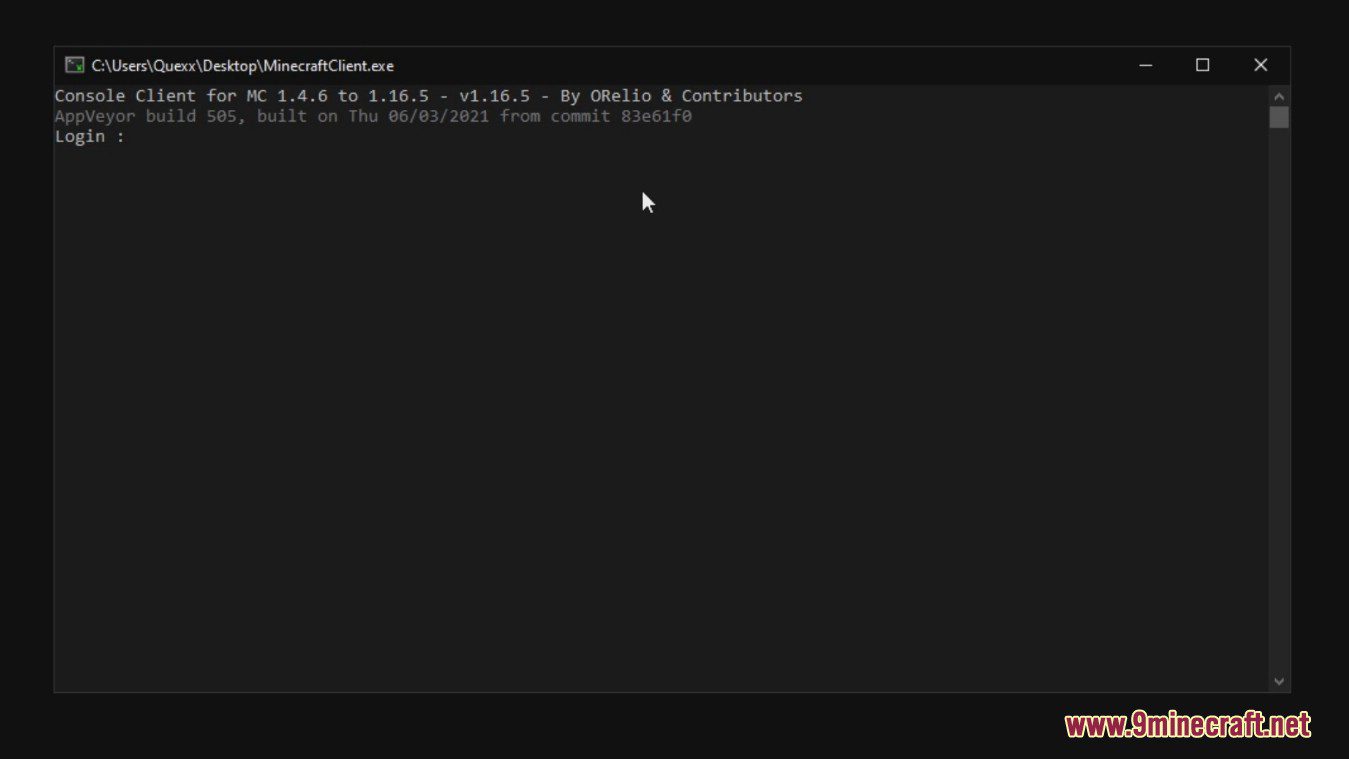
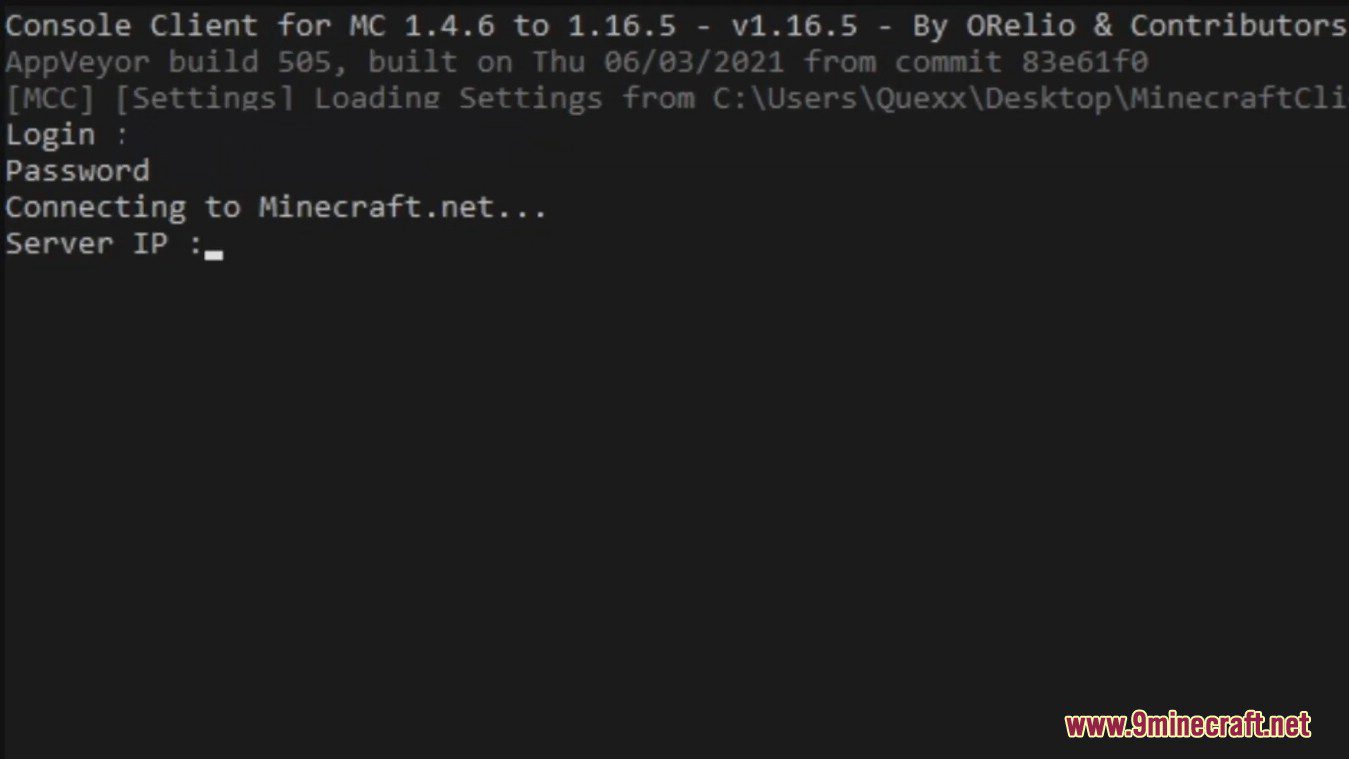
- Server Connection: Allows logging into Minecraft Java servers (both online and offline modes) using a username, password, and server IP address.
- Automation: Supports automated scripts and bots for tasks such as Anti-AFK, automatic reconnection on disconnect, or sending periodic commands.
- Low Resource Usage: Consumes approximately 10MB of RAM, suitable for running on low-spec systems or virtual private servers (VPS).
- Customization: Can be configured via the
MinecraftClient.inifile or command-line parameters, supporting features like automated bots, chat logging, or alerts for specific keywords.
Other:
- Chat
- Send and receive chat messages
- Log chat history
- Get alerted on certain keywords
- Auto Respond
- Anti AFK
- Auto Relog
- Script Scheduler
- Remote Control
- Auto Respond
- Auto Attack
- Auto Fishing
- Auto Eat
- Auto Craft
- Mailer Bot
- Auto Drop
- Replay Mod
- API for creating Bots in C#
- Docker Support
- Inventory Handling
- Terrain Traversing
- Entity Handling
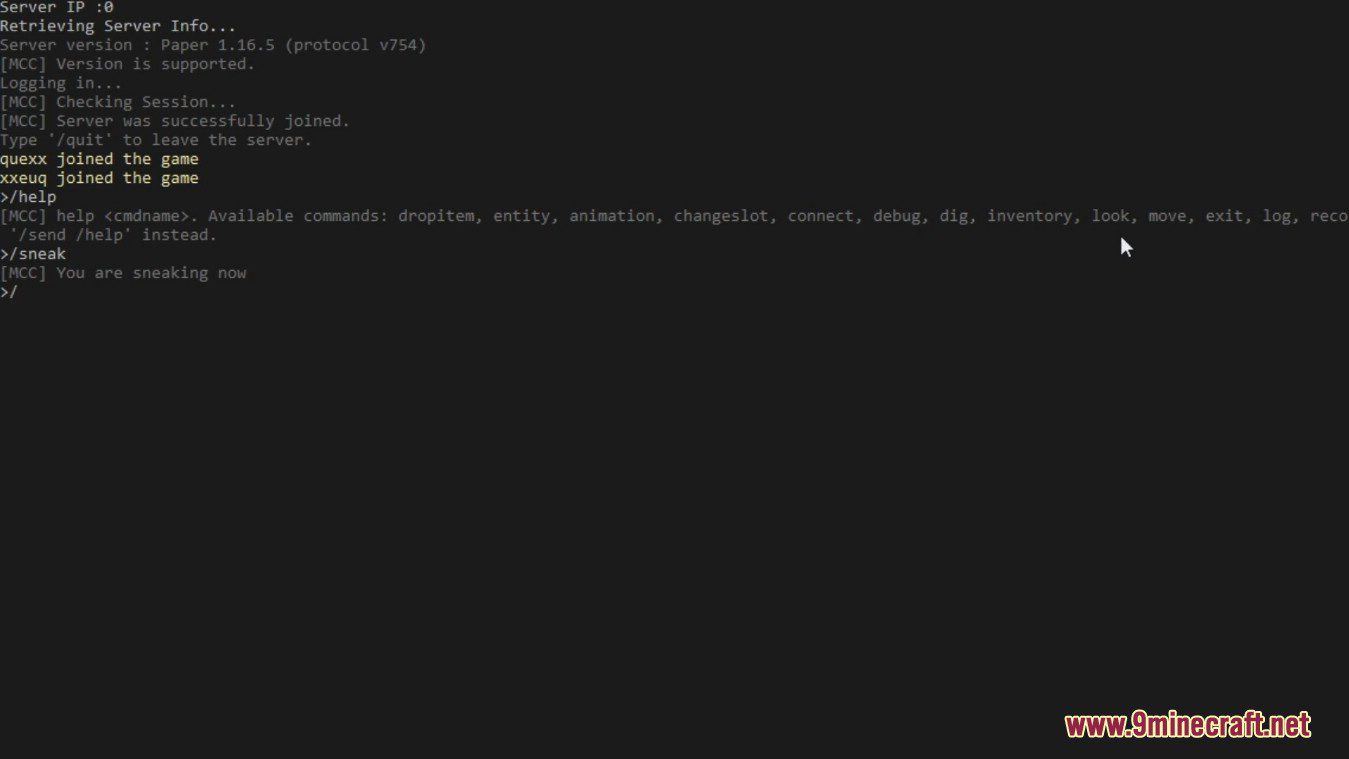
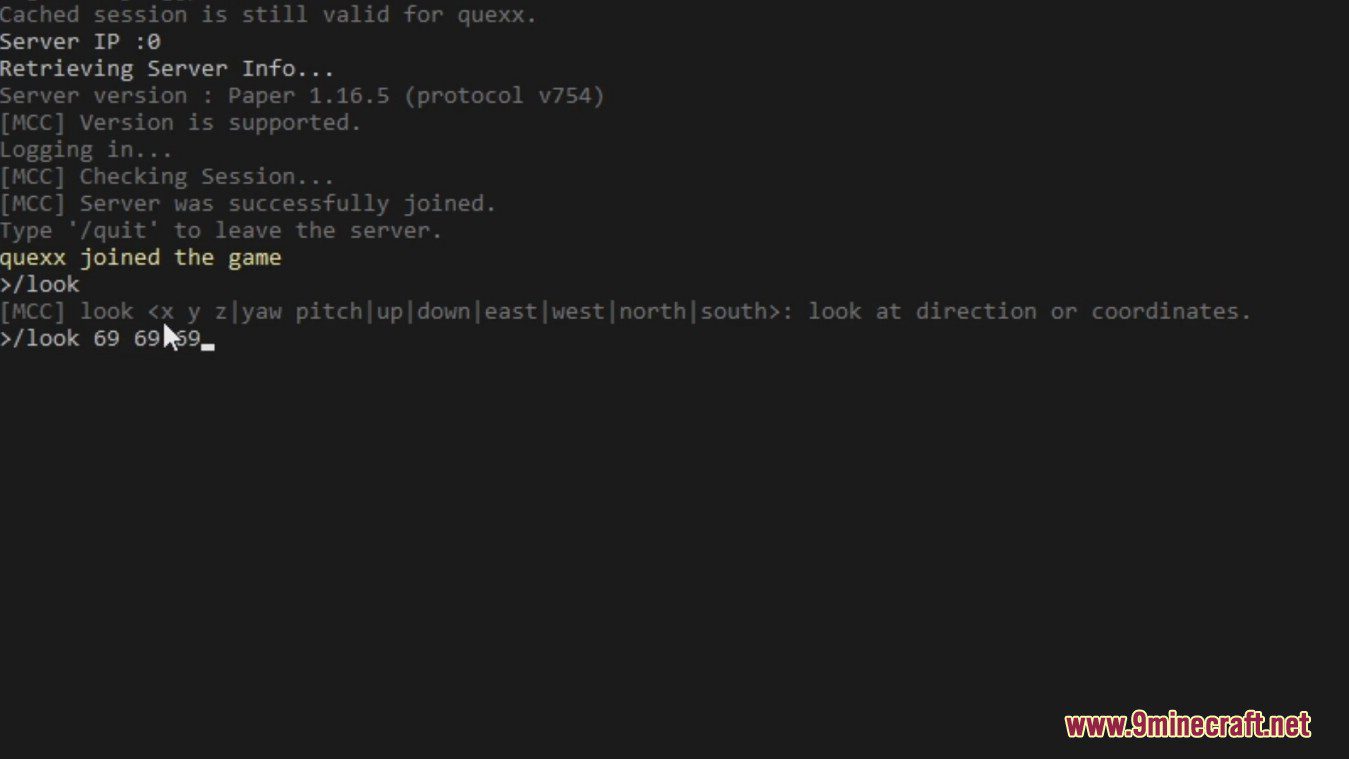
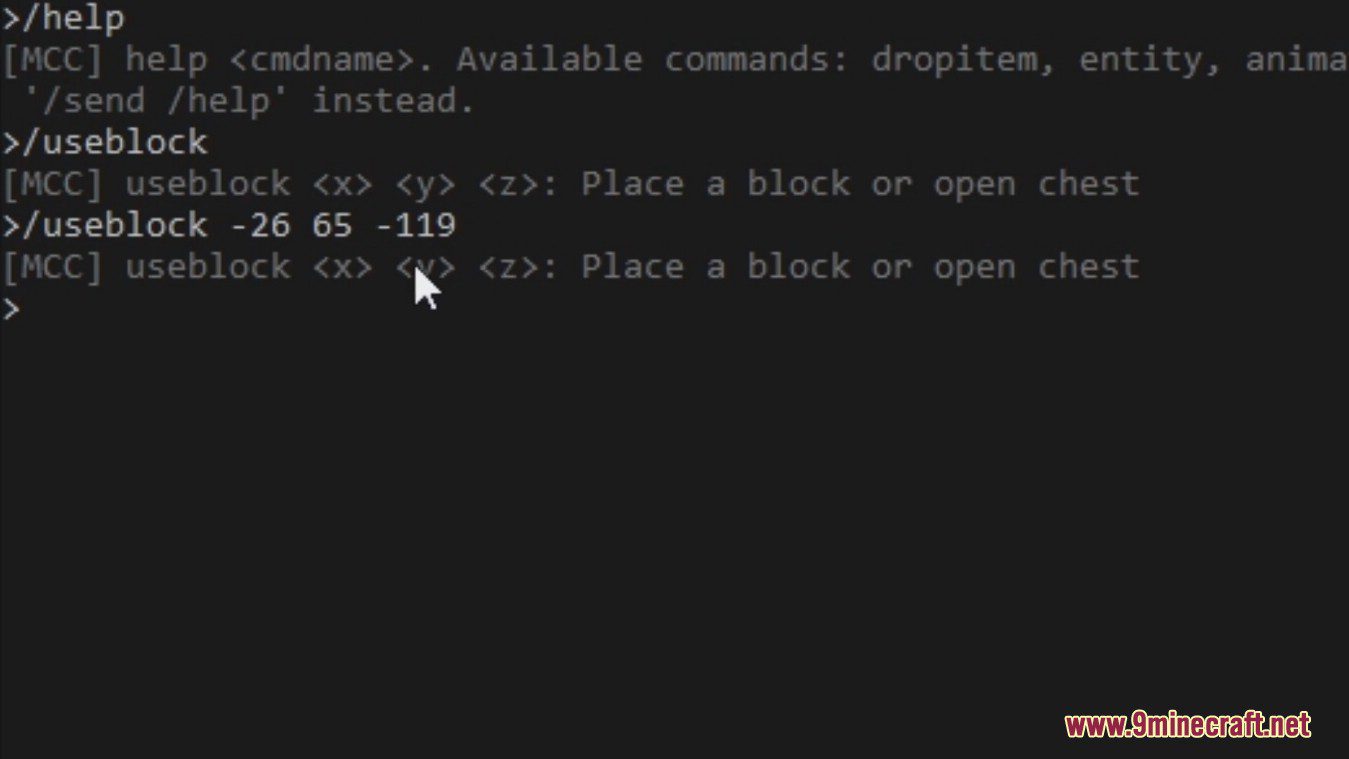
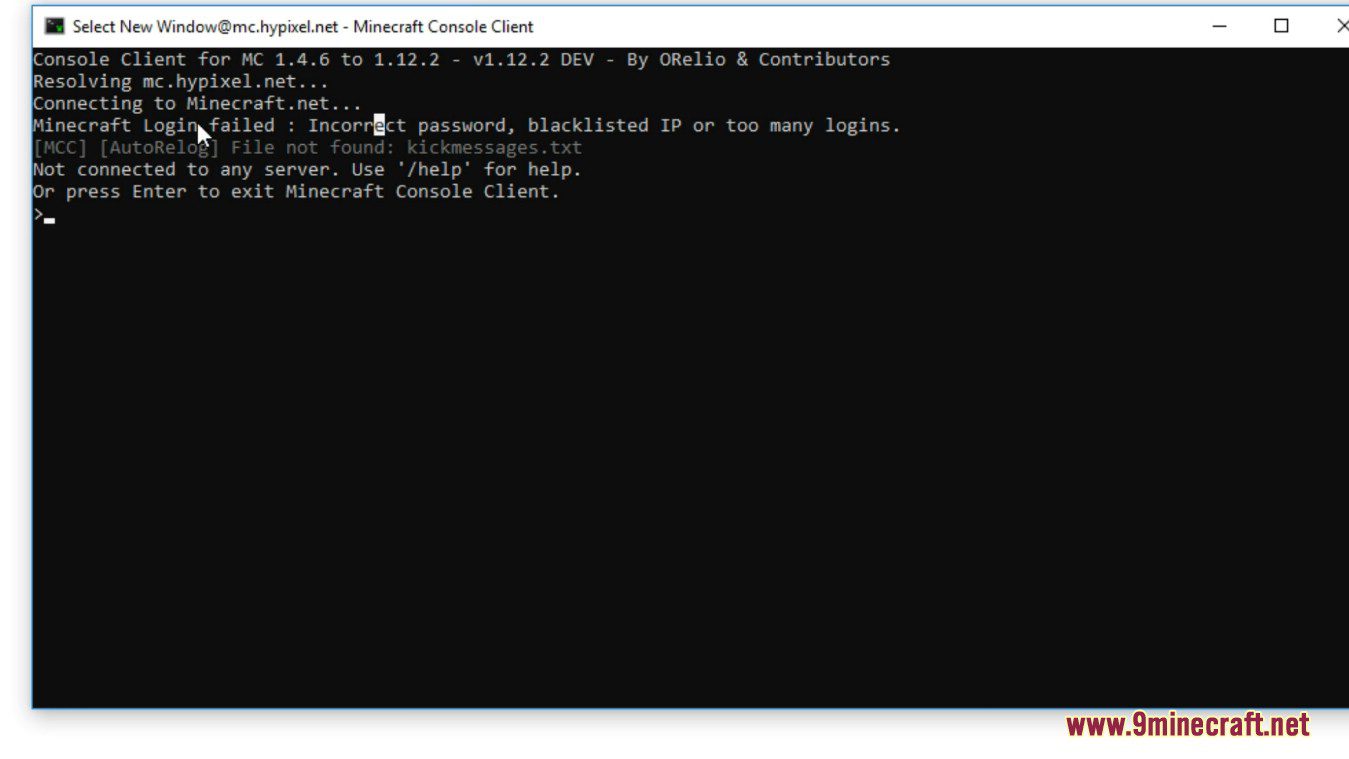
Screenshots:


Commands:
Show More
1. Basic and General Commands
/helpor/h: Displays the list of available MCC commands./exitor/quit: Exits the MCC application./reload: Reloads the configuration file (MinecraftClient.ini). Note: Some settings (e.g., ReplayBot) may not reload./reconnect: Disconnects and reconnects to the current server.
2. Movement Commands (Requires Terrain and Movements)
/move <x> <y> <z>: Moves the player to the specified coordinates (x, y, z)./move <direction>: Moves in the specified direction (e.g.,north,south,east,west,up,down)./sneak: Toggles sneaking mode./sprint: Toggles sprinting mode./jump: Performs a jump action./look <yaw> <pitch>: Adjusts the player’s view to the specified yaw (horizontal) and pitch (vertical)./dig: Starts digging at the current position./stopdigging: Stops the digging action./drop: Drops the currently held item.
3. Inventory and Item Management Commands (Requires Inventory Handling)
/use: Performs a right-click action to open menus or use an item./useitem: Uses the currently held item./click <slot>: Clicks a specific slot in the inventory./nameitem <name>: Names an item in an anvil (requires anvil GUI)./dropitem <slot>: Drops an item from a specific inventory slot./swap <slot1> <slot2>: Swaps two slots in the inventory.
4. Server Information Commands
/chunk: Displays information about the current chunk (emojis may not display properly in CMD or PowerShell 5)./tps: Retrieves the server’s Ticks Per Second (TPS) to check performance./entity: Displays information about nearby entities (requires Terrain and Movements)./list: Lists online players on the server (depends on server support).
5. Bot and Automation Commands
/script <script_name>: Runs a custom C# script (requires Scripting API)./bot <bot_name> <arguments>: Controls built-in bots. Examples include:/bot AntiAFK: Activates the AntiAFK bot to prevent being kicked for inactivity./bot AutoRelog: Activates the AutoRelog bot to reconnect after disconnection (configurable inautorelog.iniorkickmessages.txt)./bot Alerts: Activates the Alerts bot to notify on specific chat keywords./bot Log: Logs chat messages to a file./bot Hangman: Runs the Hangman game in server chat.
/stopbot <bot_name>: Stops a specific running bot.
6. Connection Management Commands
/connect <ip> [port]: Connects to a new Minecraft server with the specified IP and optional port (default: 25565)./disconnect: Disconnects from the current server without exiting MCC./proxy <type> <ip> <port>: Configures a proxy connection (supports SOCKS4, SOCKS5, HTTP).
7. Logging and Debugging Commands
/log: Toggles chat message logging (configurable to include timestamps or server colors)./debug: Toggles debug mode to display additional technical information (useful for developers or troubleshooting)./clear: Clears the MCC console screen.
8. Custom and Extension Commands
/set <variable> <value>: Sets a custom variable (AppVar) for use in scripts or bots./get <variable>: Retrieves the value of a custom variable./eval <expression>: Executes a simple C# expression (requires Scripting API).
Minecraft Console Client Download Links
For All Versions of Minecraft
For Windows 64bit: Download from Server 1 – Download from Server 2
For Windows 32bit: Download from Server 1 – Download from Server 2
For Windows ARM 64bit: Download from Server 1 – Download from Server 2
For Windows ARM 32bit: Download from Server 1 – Download from Server 2
For MACOS 64bit: Download from Server 1
For MACOS ARM 64bit: Download from Server 1
For Linux ARM: Download from Server 1
For Linux ARM 64bit: Download from Server 1
For Linux 64bit: Download from Server 1
You May Also Like








This post has no comments yet. Be the first — your comment will appear here.