


MiniHUD Mod (26.2, 1.20.1) – Mini F3 HUD

 0
0 

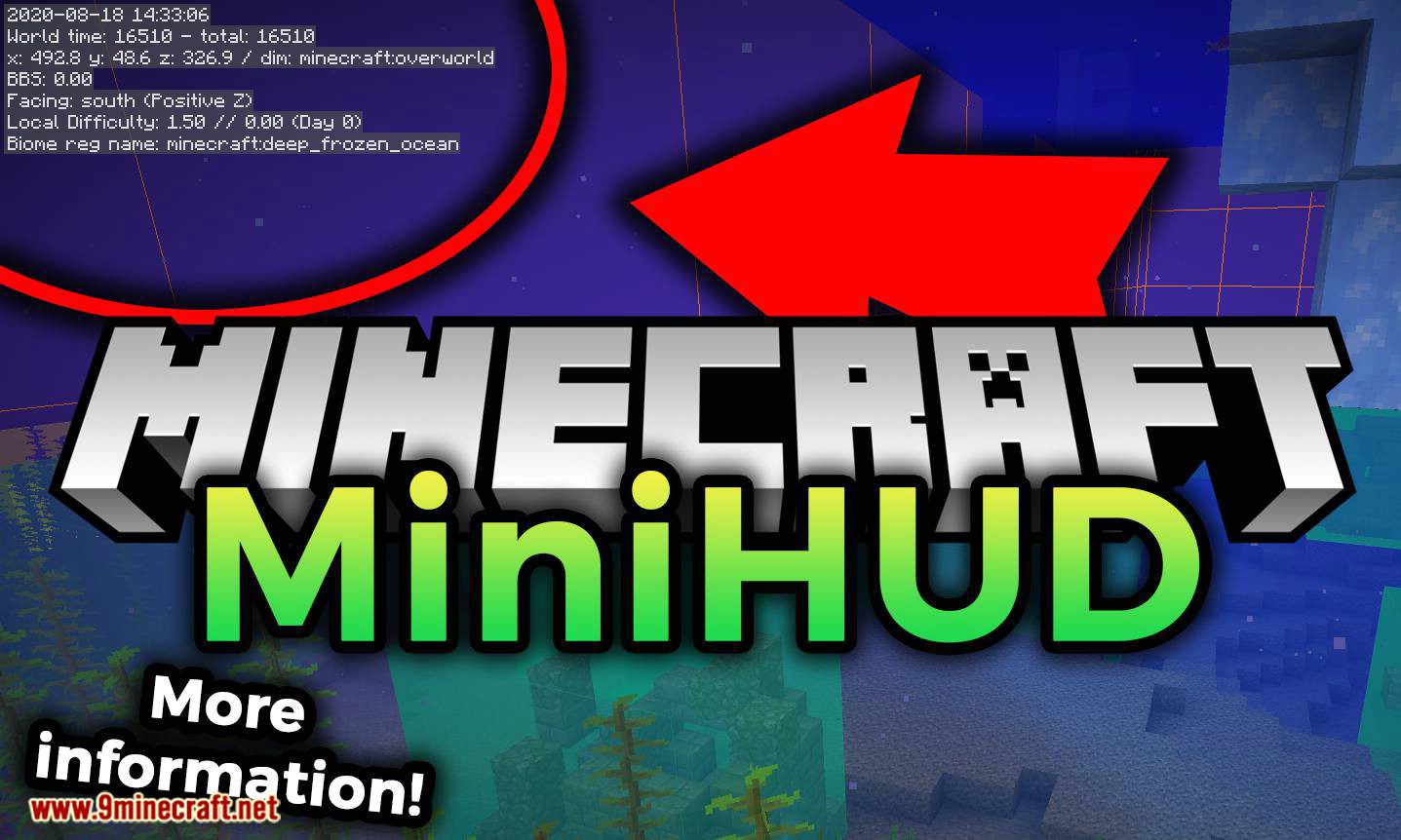
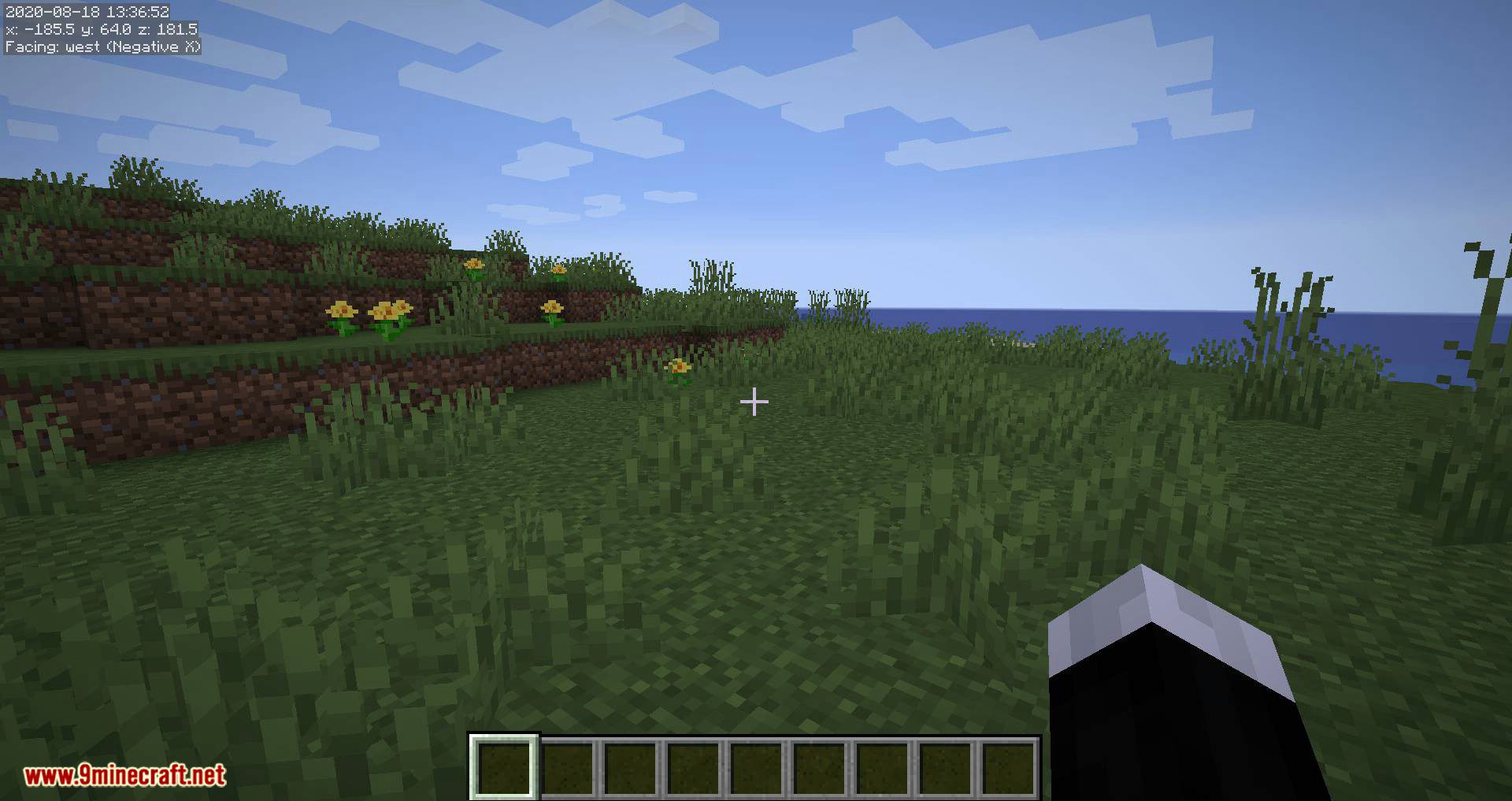
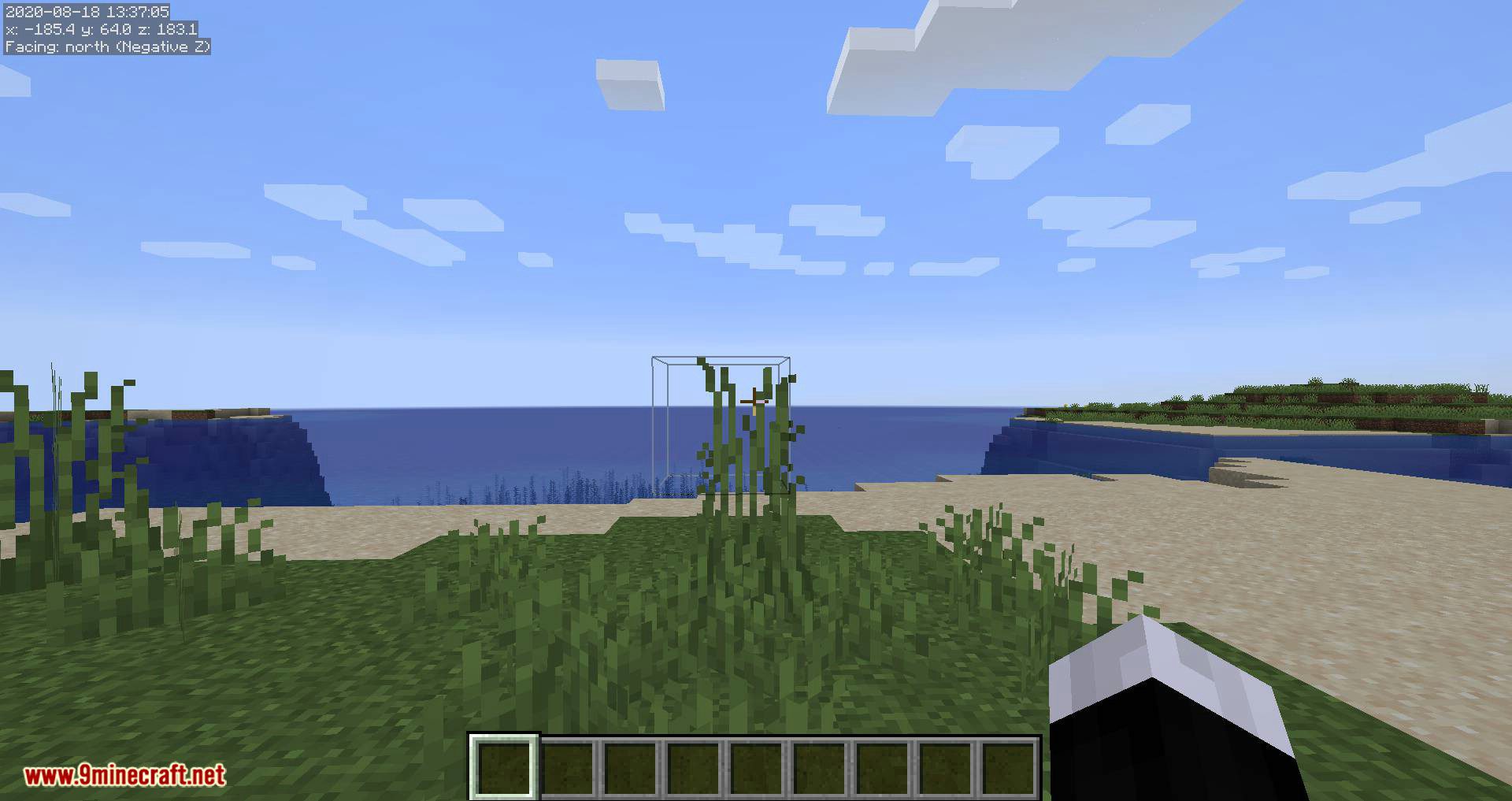
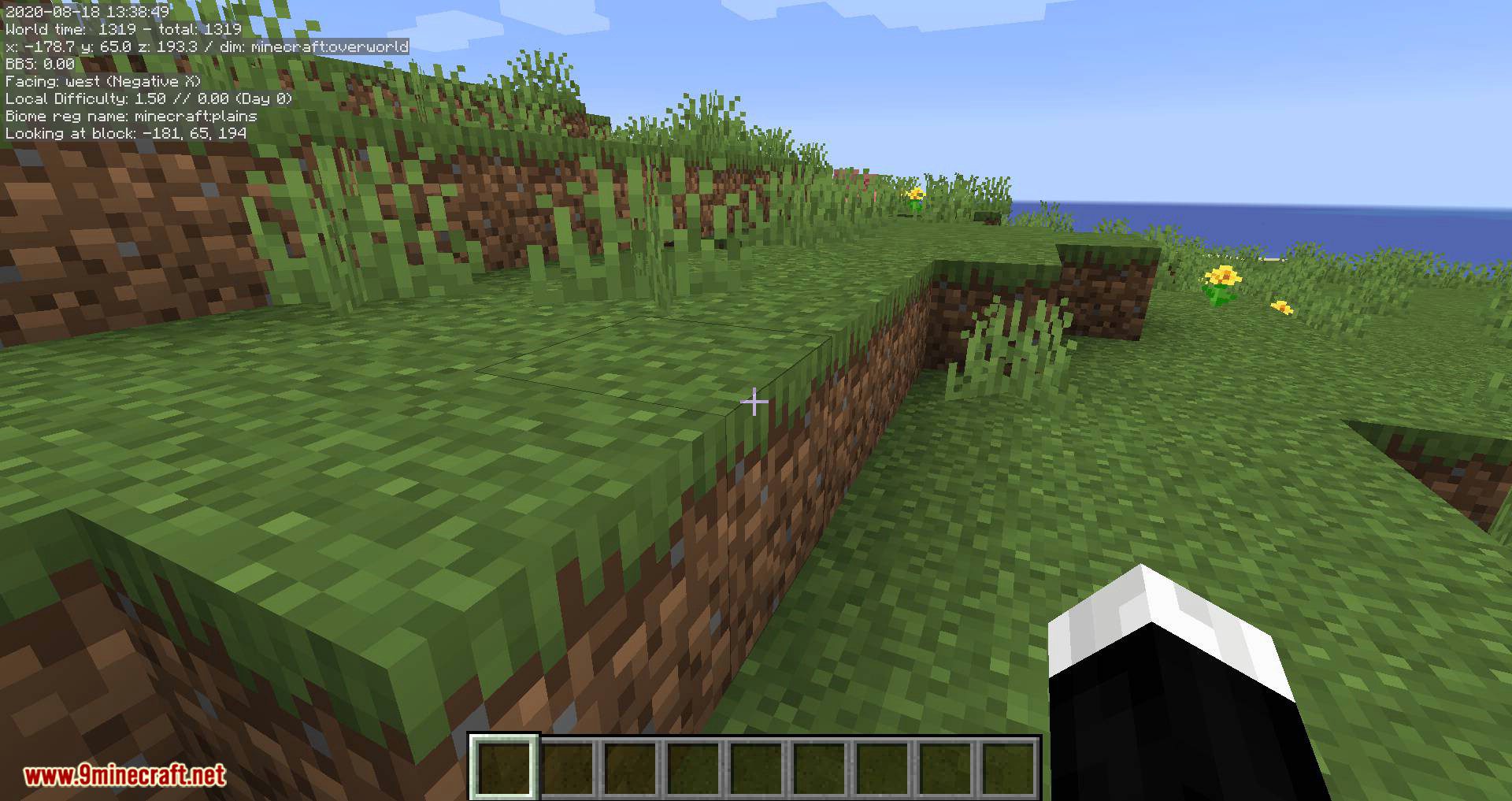
MiniHUD Mod is a client-side mod that allows displaying various “info lines” on the screen (“mini-F3”). The alignment (screen corner), background and text color and font size are configurable. Note: This is a client-side-only mod. You can’t put it on a server.
Features:
The mod also has various “overlay renderers”, such as:
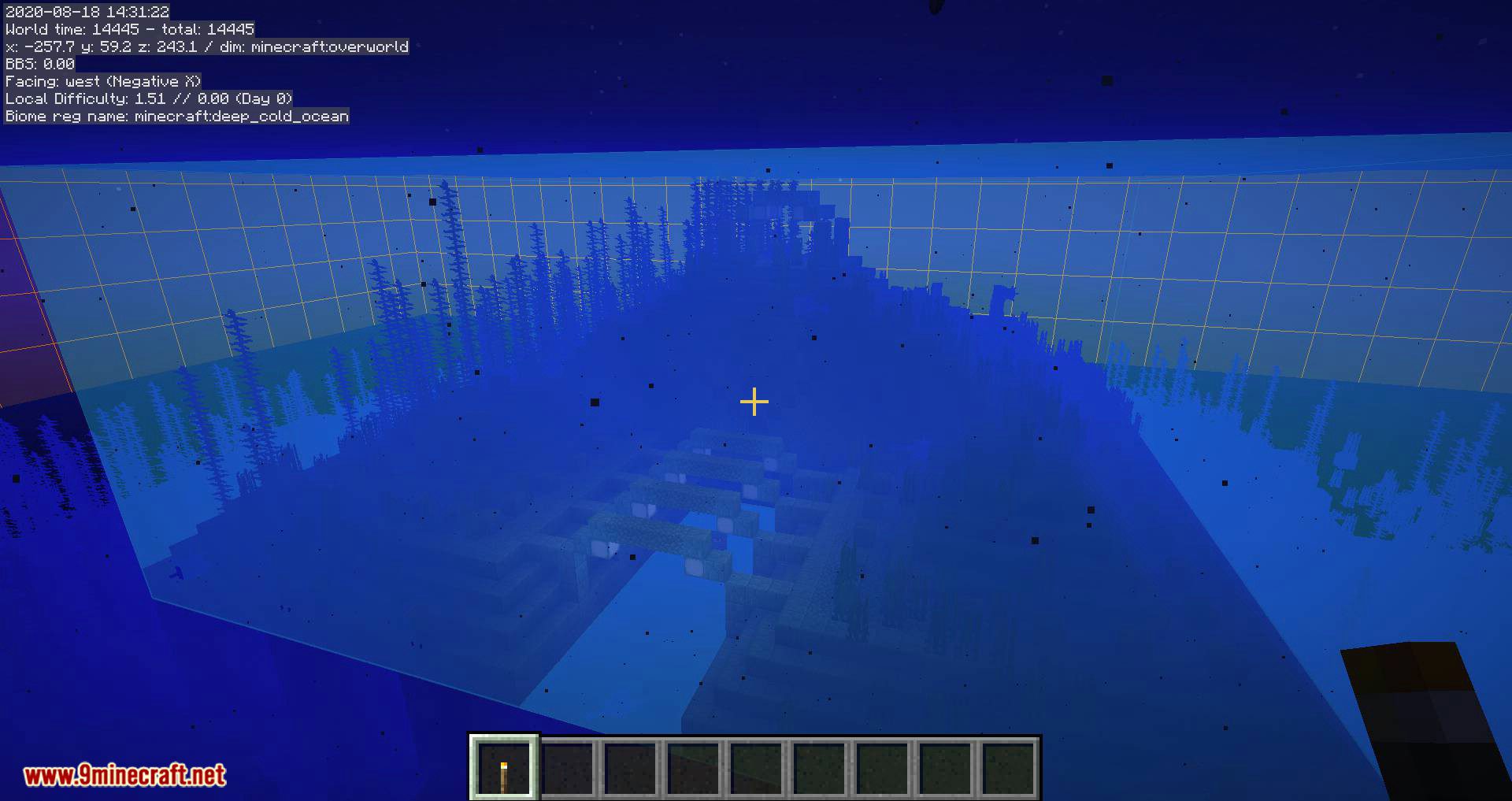
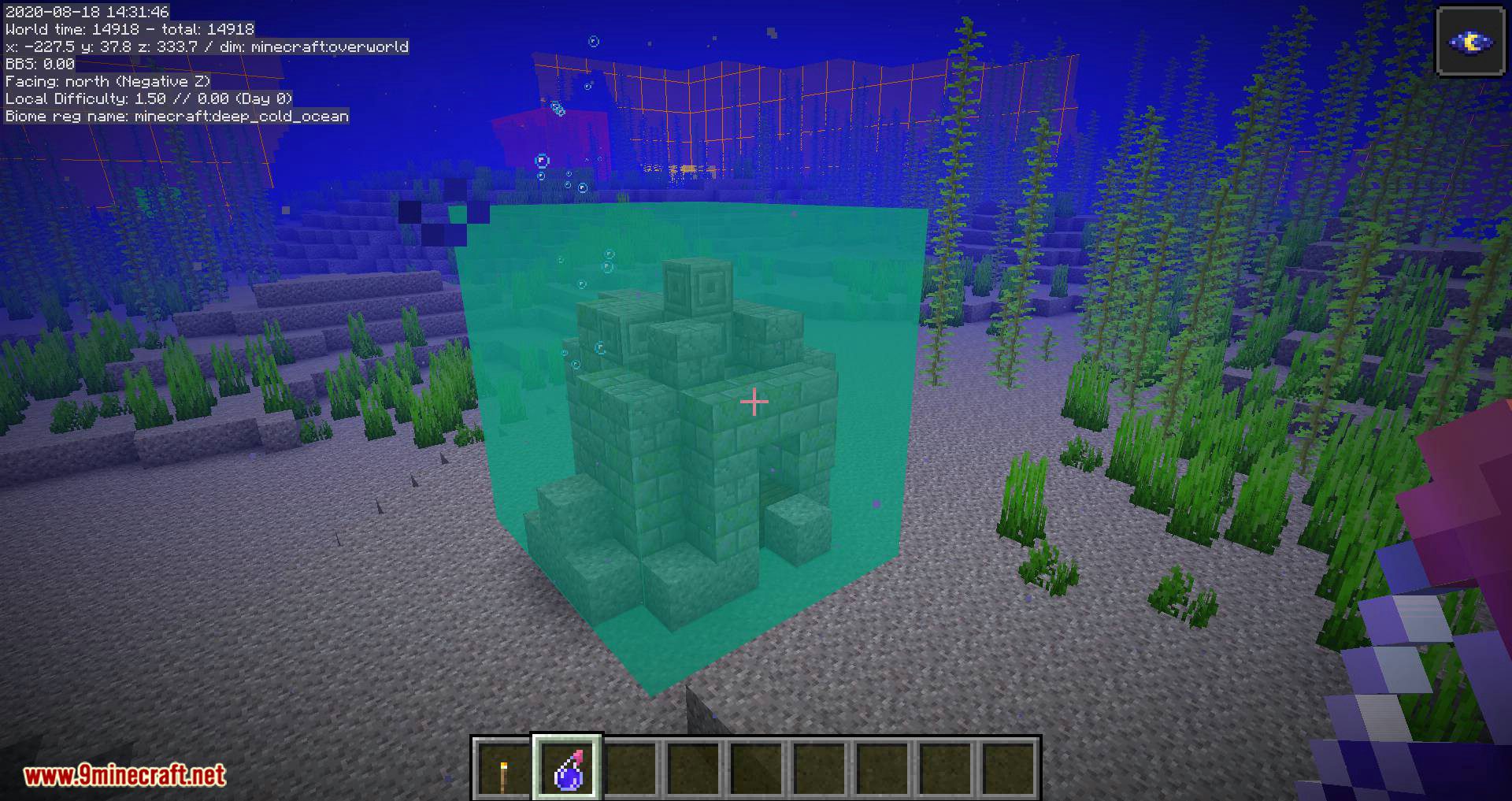
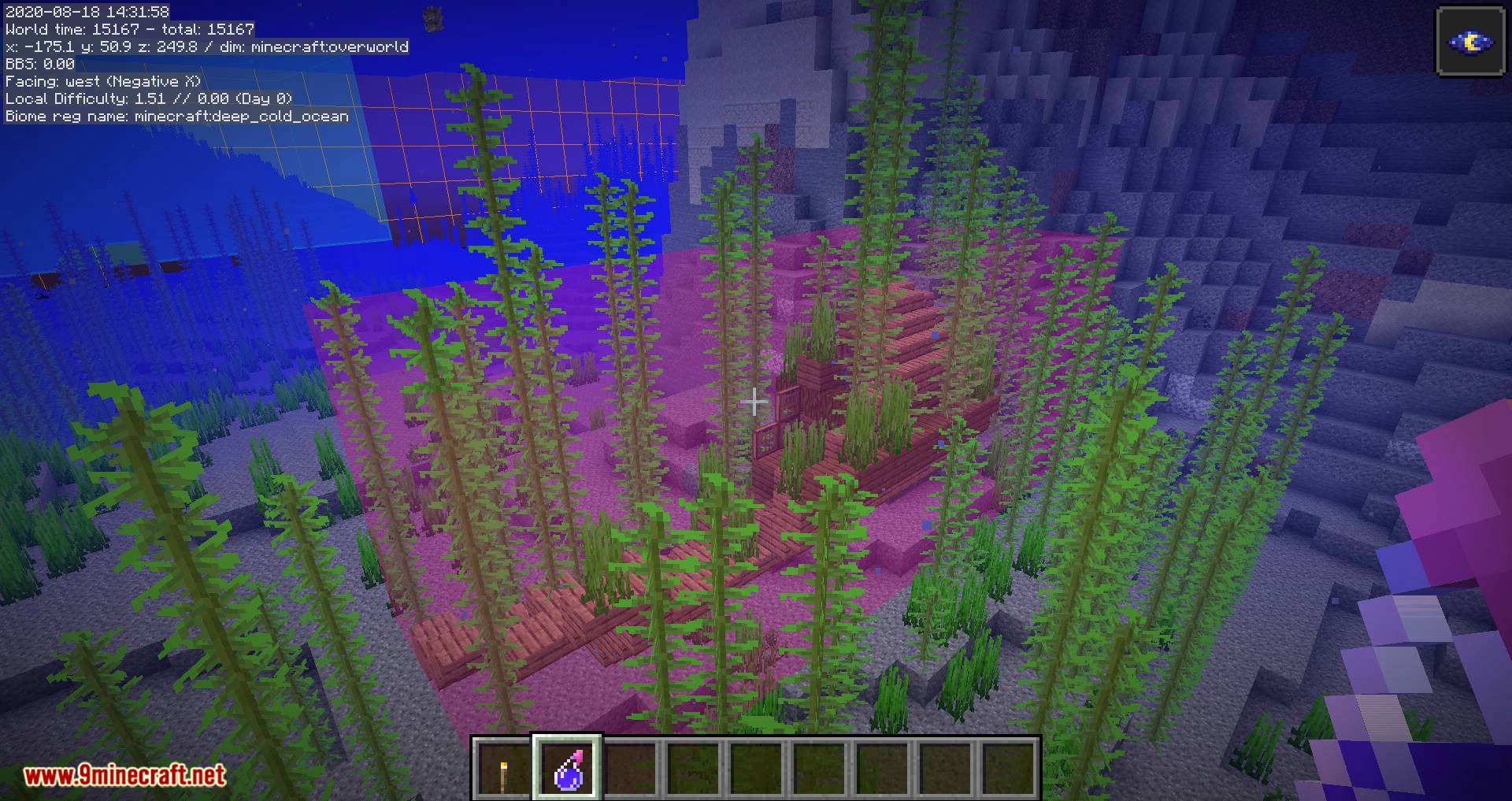
- Structure Bounding Boxes (These only work in single player, without a server-side mod! Currently the only server-side mods that send the data in a format that MiniHUD knows about are Servux and QuickCarpet. If you have FabricCarpet, then you also need Servux.
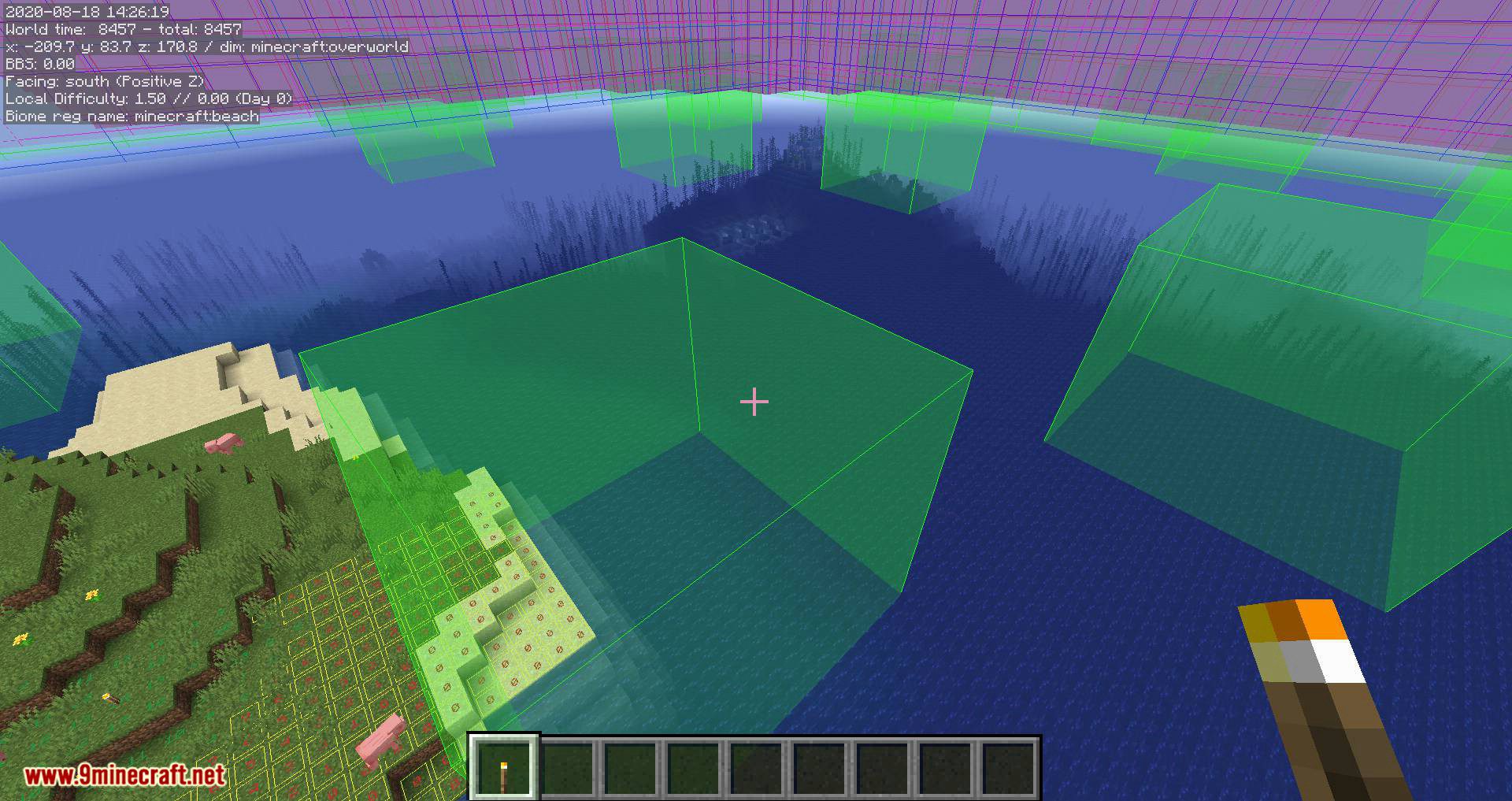
- Spawn Chunks.
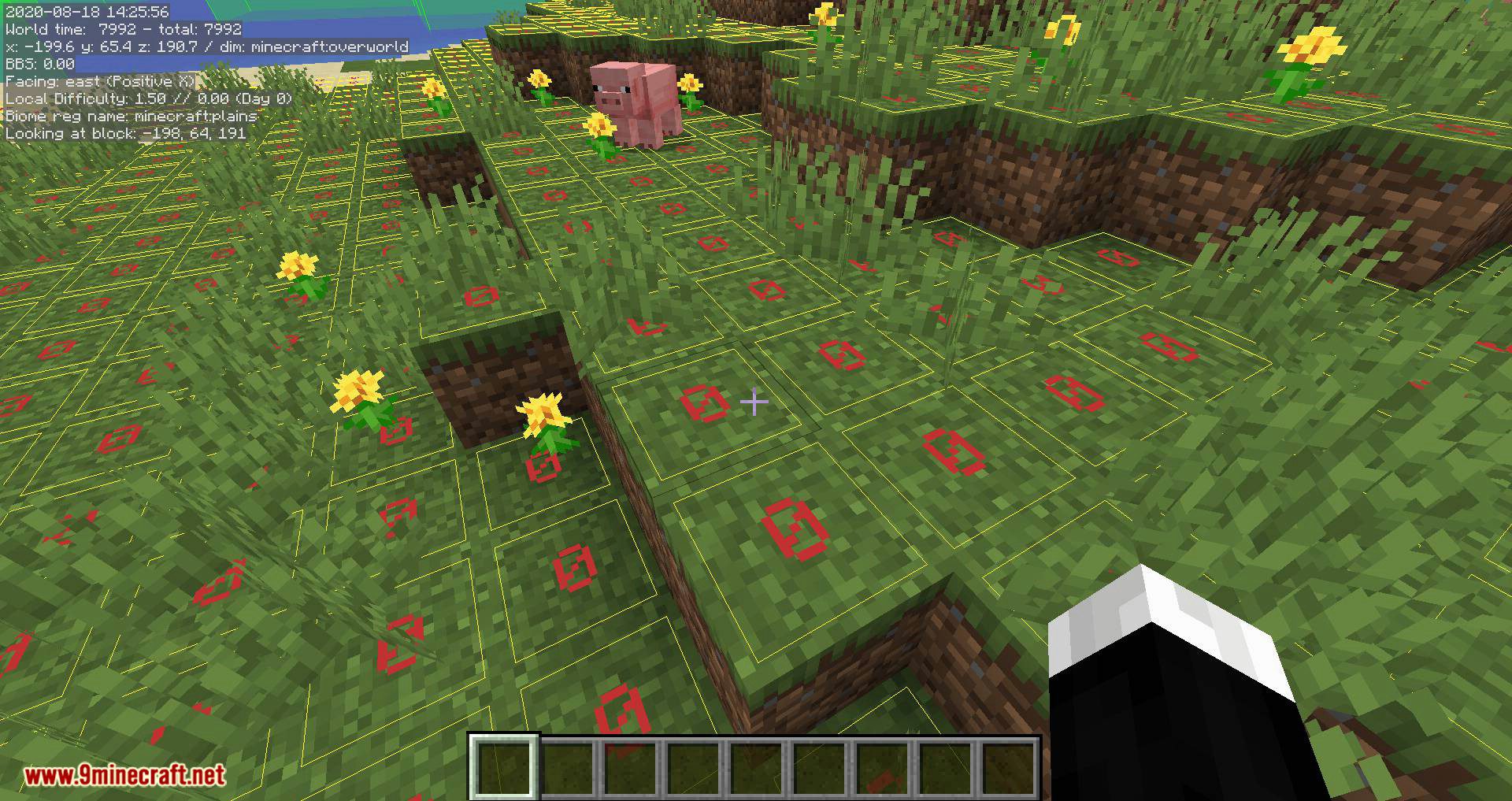
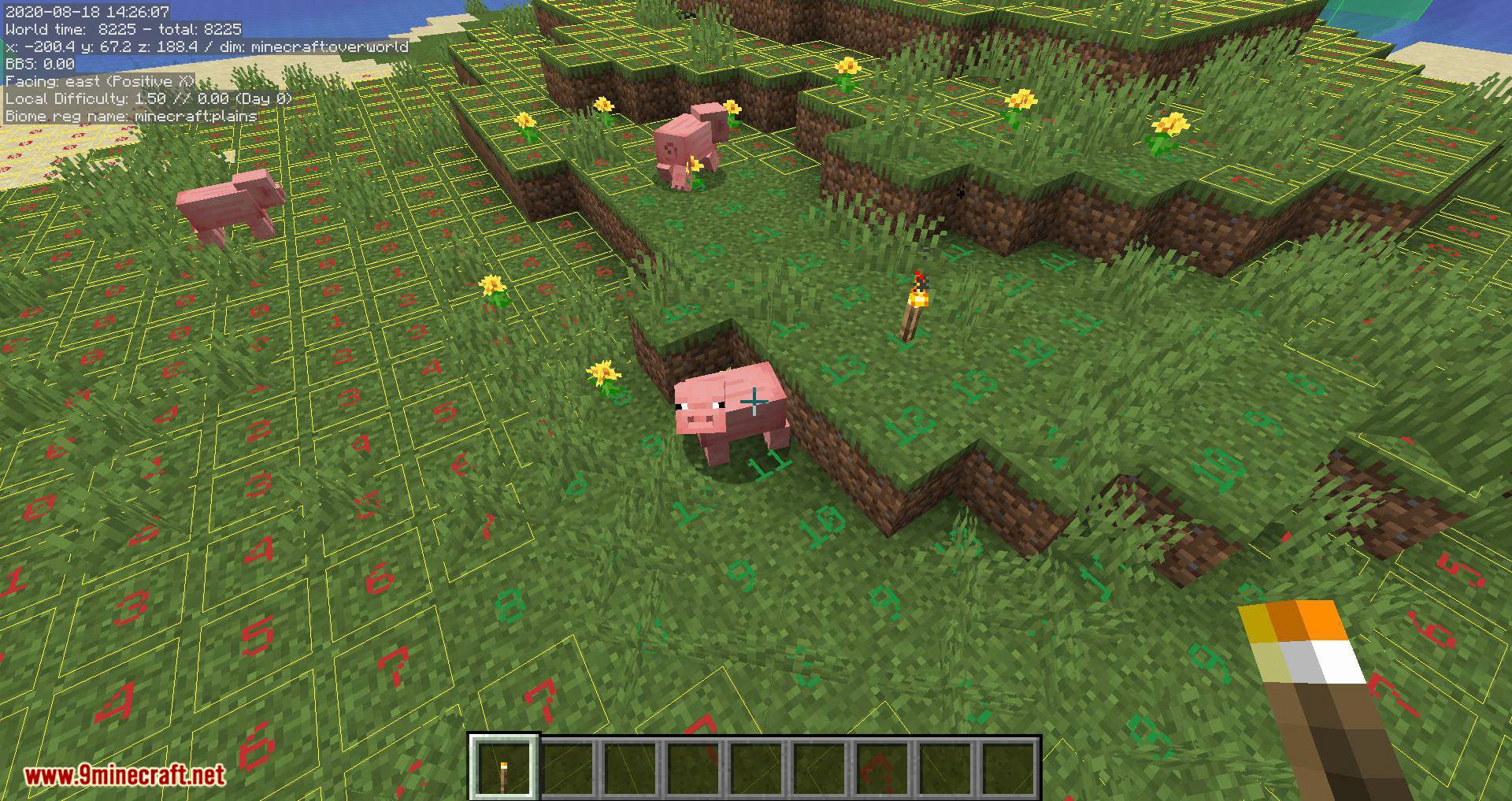
- Light Level overlay with markers and/or numbers (configurable).
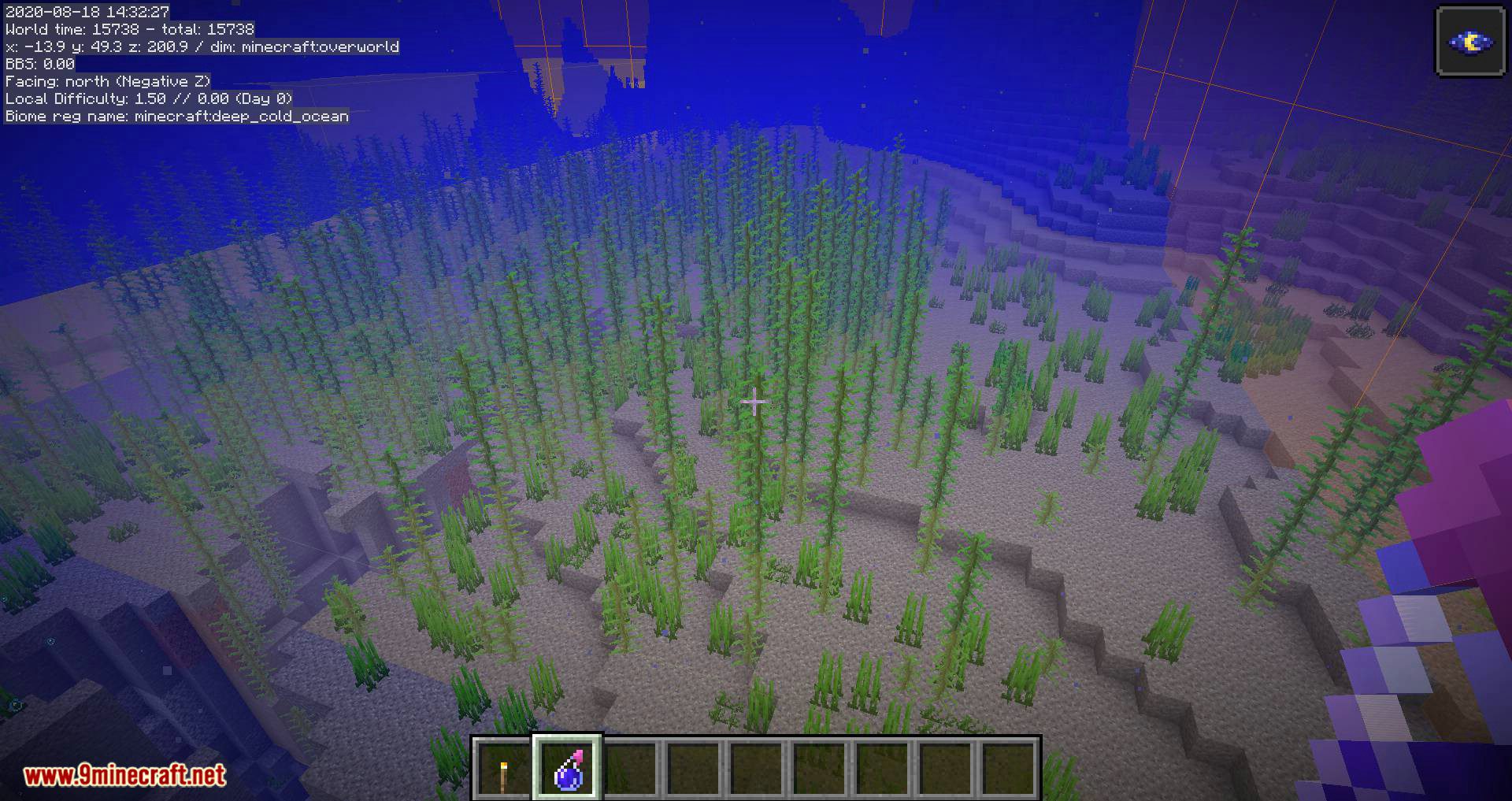
- Region File Boundaries.
- Random Tick range.
- Shapes: A mob Despawn Sphere, plus 24 and 32 block Spawn Spheres, a generic configurable radius Sphere, a Circle/Cylinder. More shapes are also planned.
- Block Grid.
- Mob spawn algorithm chunks range (< 1.14 only, in 1.14+ it’s the same as the random ticked chunks).
- Height map (used by the mob spawn algorithm).
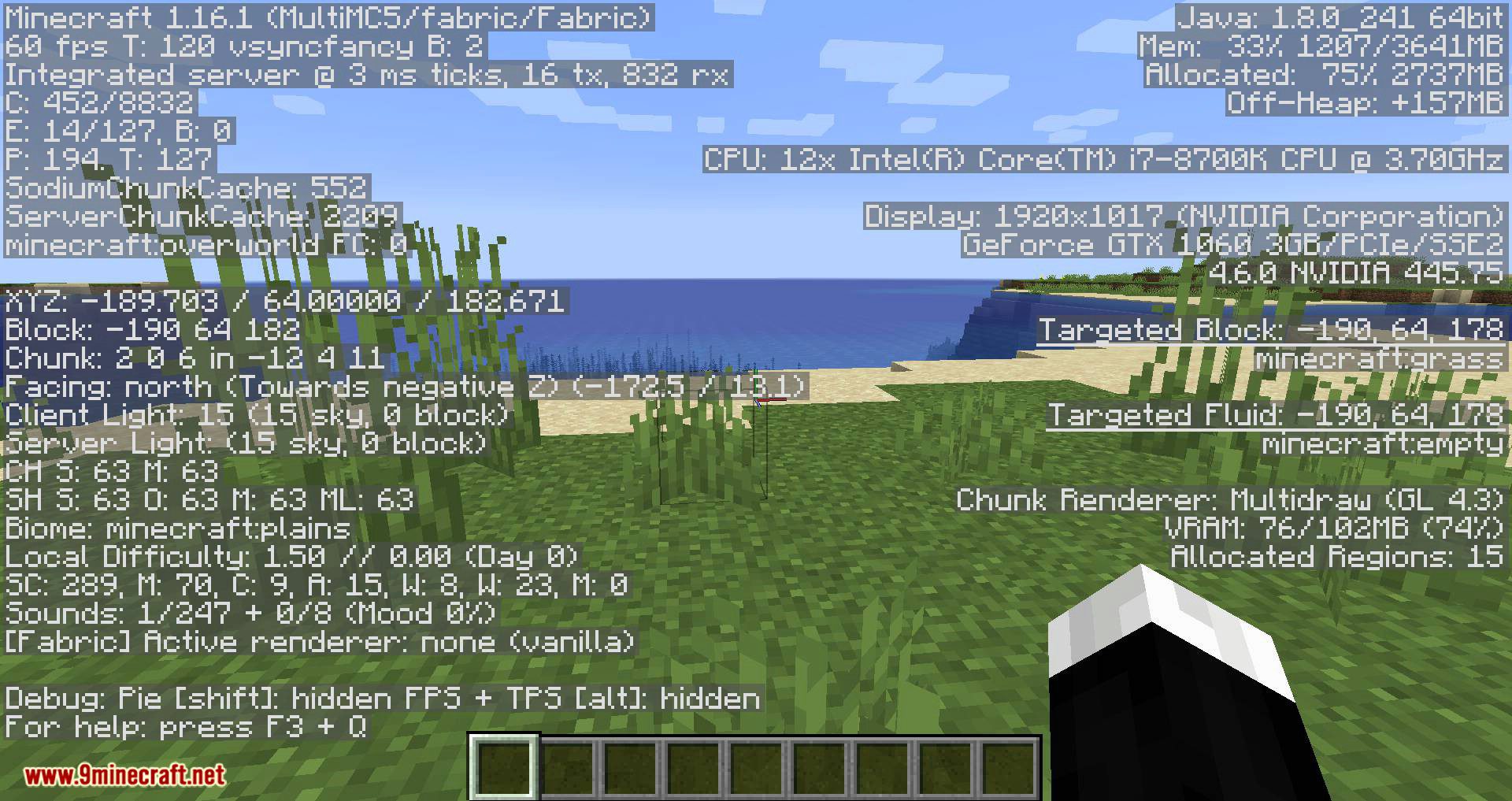
The mod also adds hotkeys for toggling on/off the vanilla debug renderers for blocks collision boxes, heightmap, entity path finding etc.
The displayed information lines can also be toggled on/off with hotkeys, and the HUD itself can be toggled ON and OFF.
Generic info:
Show More
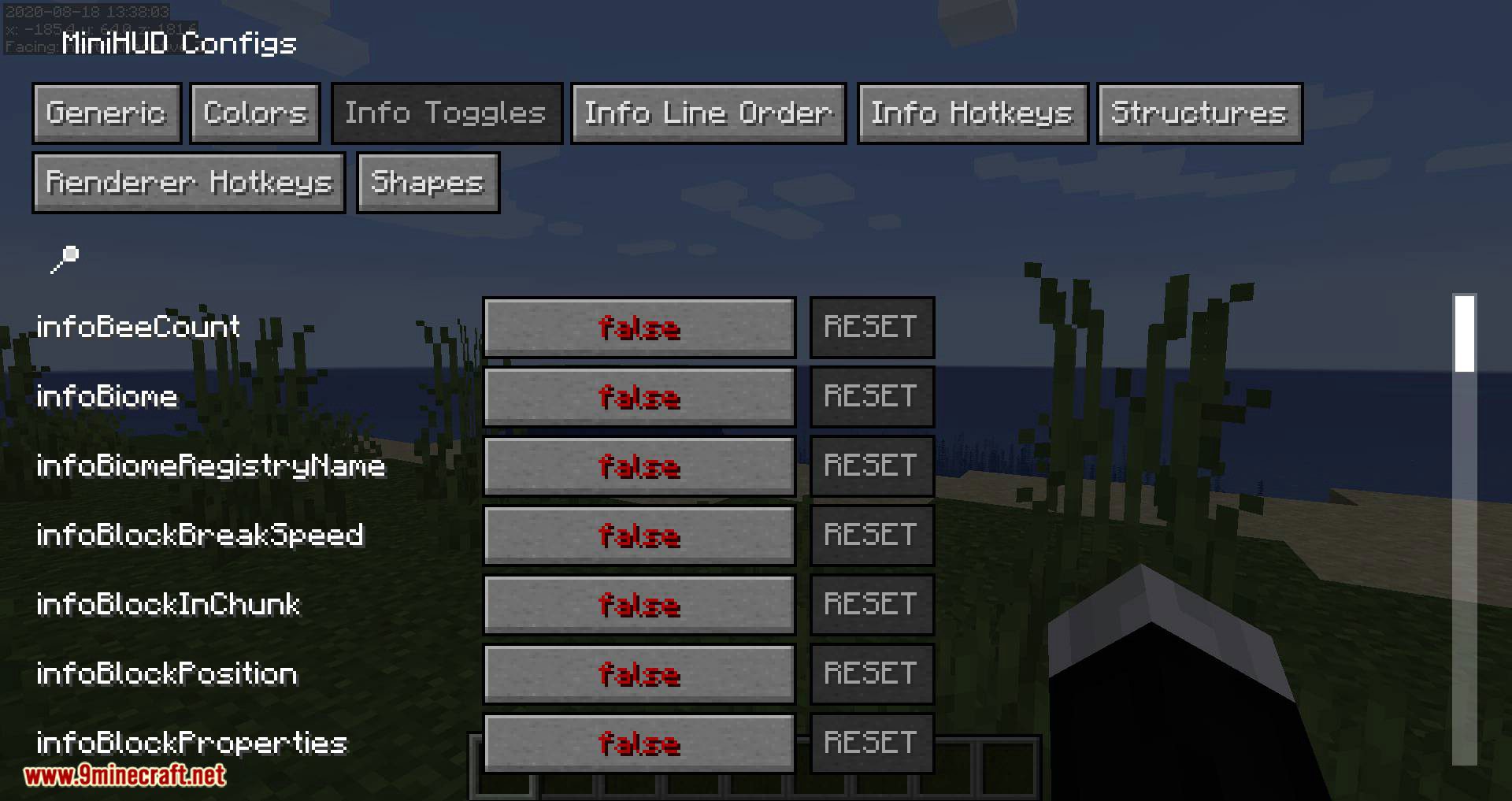
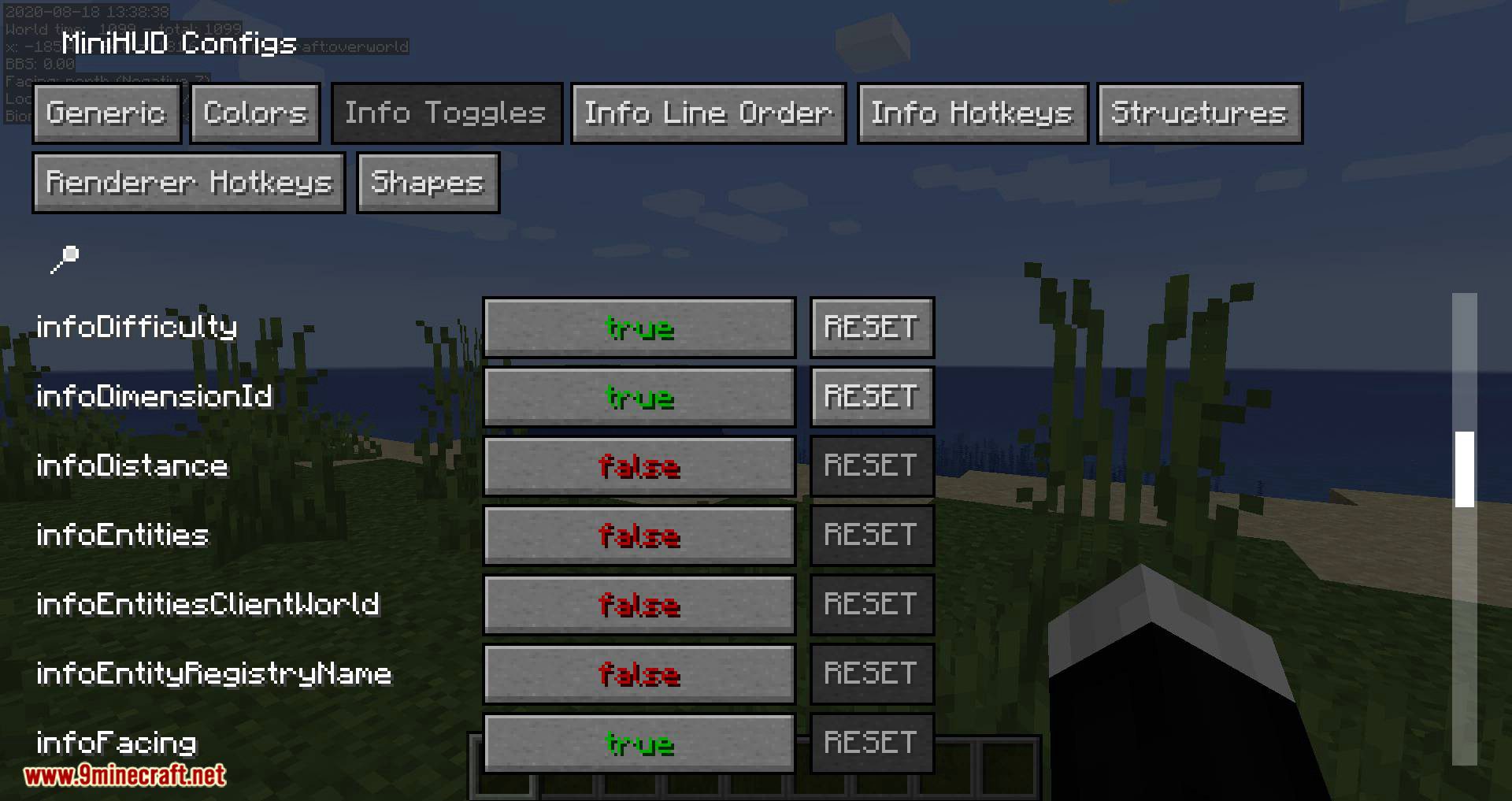
- The default in-game config menu hotkey is H + C
- The default on/off toggle key is H
- You can provide the world seed for MiniHUD (only used for the Slime Chunks info line and overlay) in multiplayer either by running the vanilla /seed command if you have the permission, or you can give it manually with a regular chat message in the form minihud-seed 12345. In single player the mod grabs the seed directly.
Key combinations:
Show More
The mod’s main rendering toggle key is by default H.
The in-game config menu hotkey is by default H + C.
Recent MiniHUD versions that use Malilib:
For the more recent versions of MiniHUD that use malilib, all the hotkeys are in MiniHUD’s own in-game config menu, which by default opens with H + C.
Old Forge versions of MiniHUD:
For the old Forge versions of the mod, the keybinds can be changed in the vanilla Controls menu.
For the old Forge versions:
- Toggle Mode key (by itself): Toggle the HUD state ON/OFF.
- Toggle Mode key + “info key”: Toggle ON/OFF the different pieces of information (the keys can be set in the mod configs).
Configuration:
Show More
There are a few things that can be adjusted either via the in-game configuration menu or in the configuration file.
- The information to be displayed on the Info Lines HUD
- Font scale factor
- The font and backgrond colors
- Whether to use a font shadow in the text rendering
- Whether to use a background color for the text
- Whether to sort the displayed information lines by their length
- Whether to reverse the above mentioned sorting order
- Whether to use a custom format string for the coordinate line, and the format string to use
- Multiple options to configure the Light Level overlay
- The colors of all the overlay renderers
Note: The custom format string for the coordinates has to have three float number format specifiers.
An example of that would be “X: %.1f Y: %.1f Z: %.1f” (without the quotes) to give an output like: X: 1234.2 Y: 64.0 Z: 4321.7.
Screenshots:
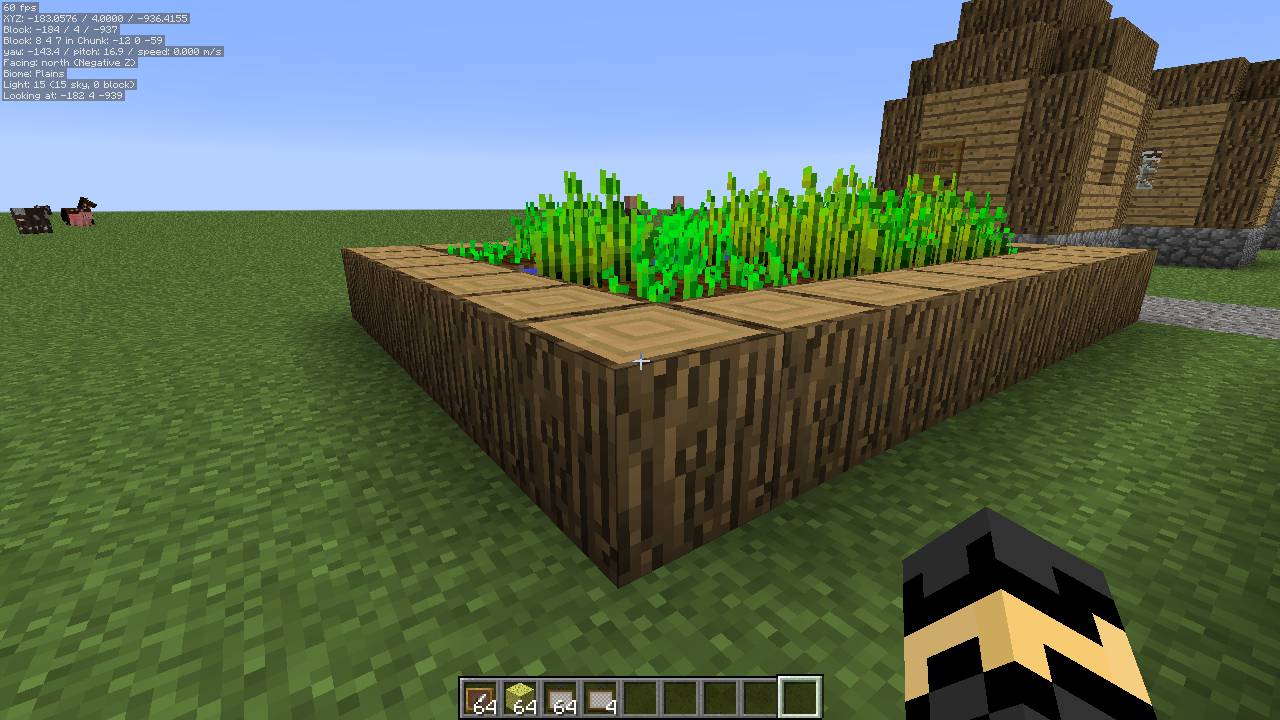
HUD Example 1: All available information displayed in 0.5x scale font using the default colors.
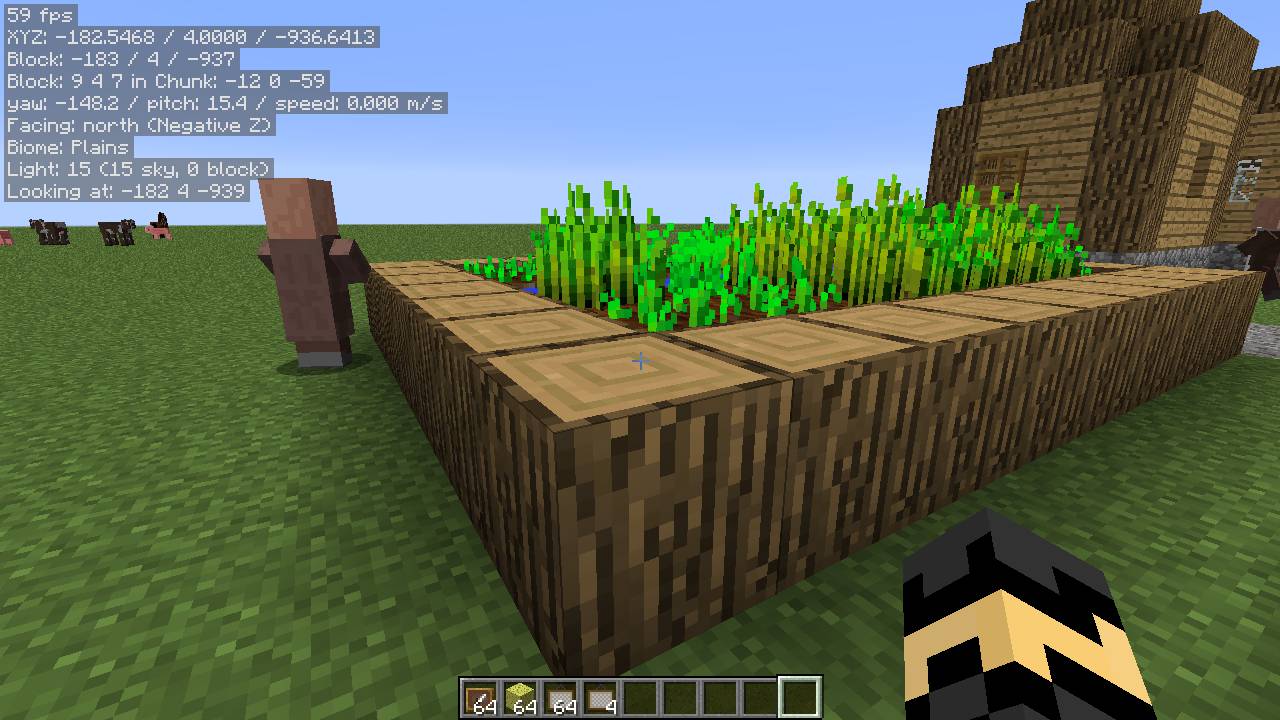
HUD Example 2: All available information displayed in the regular full-sized font using the default colors.
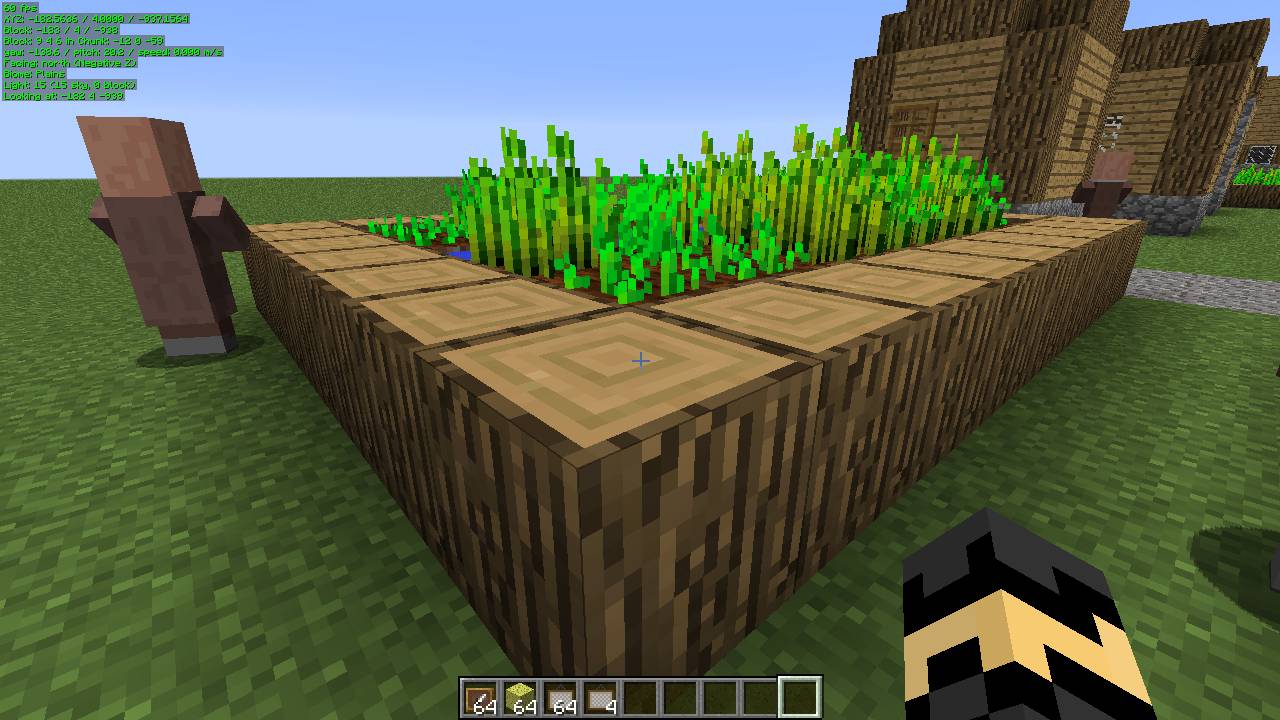
HUD Example 3: All available information displayed in 0.5x scale font using customized font color (green) with text-shadow.
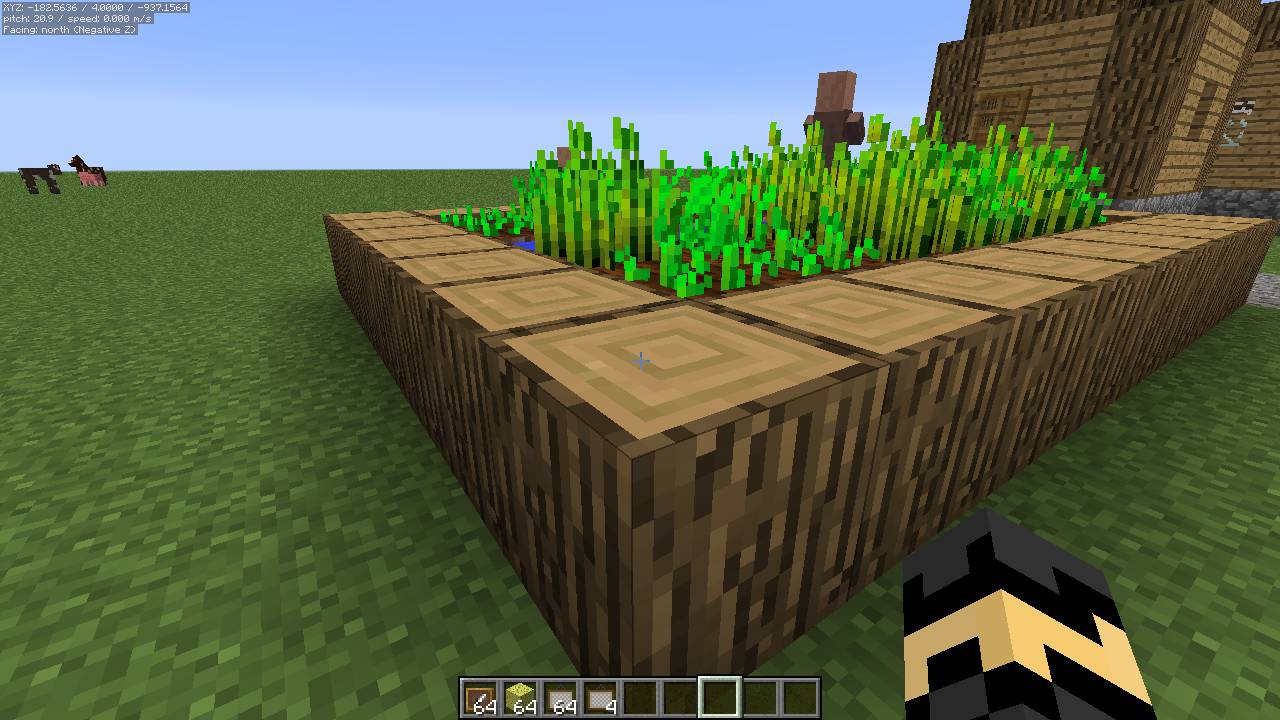
HUD Example 4: A small subset of the available information displayed in 0.5x scale font using the default colors.
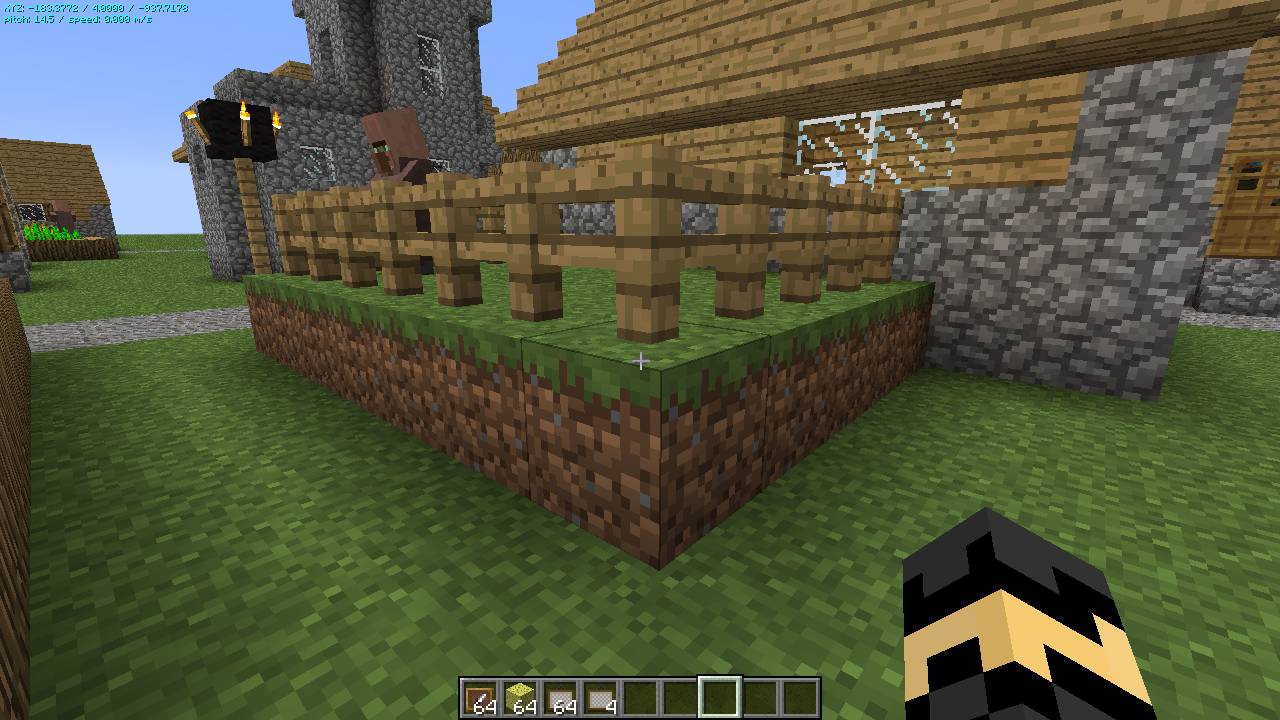
HUD Example 5: A small subset of the available information displayed in 0.5x scale font using a customized font color, with text-shadow, but without a solid background.
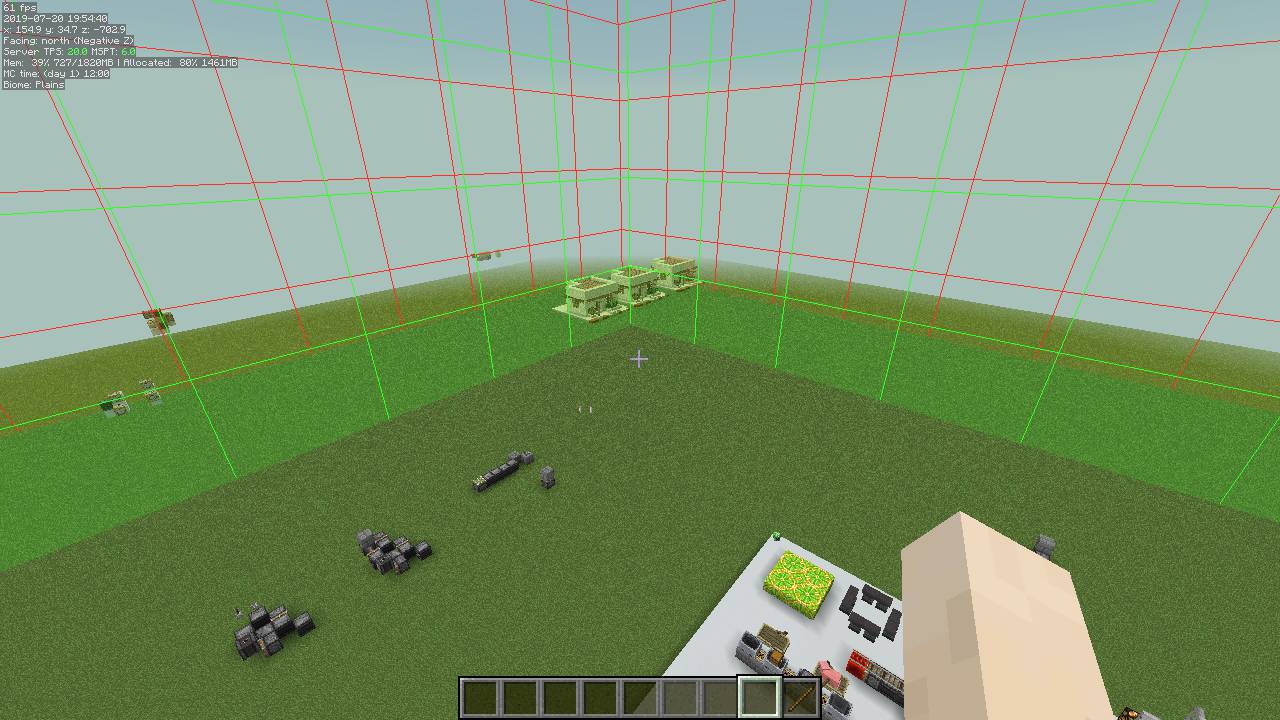
Spawn Chunks overlay
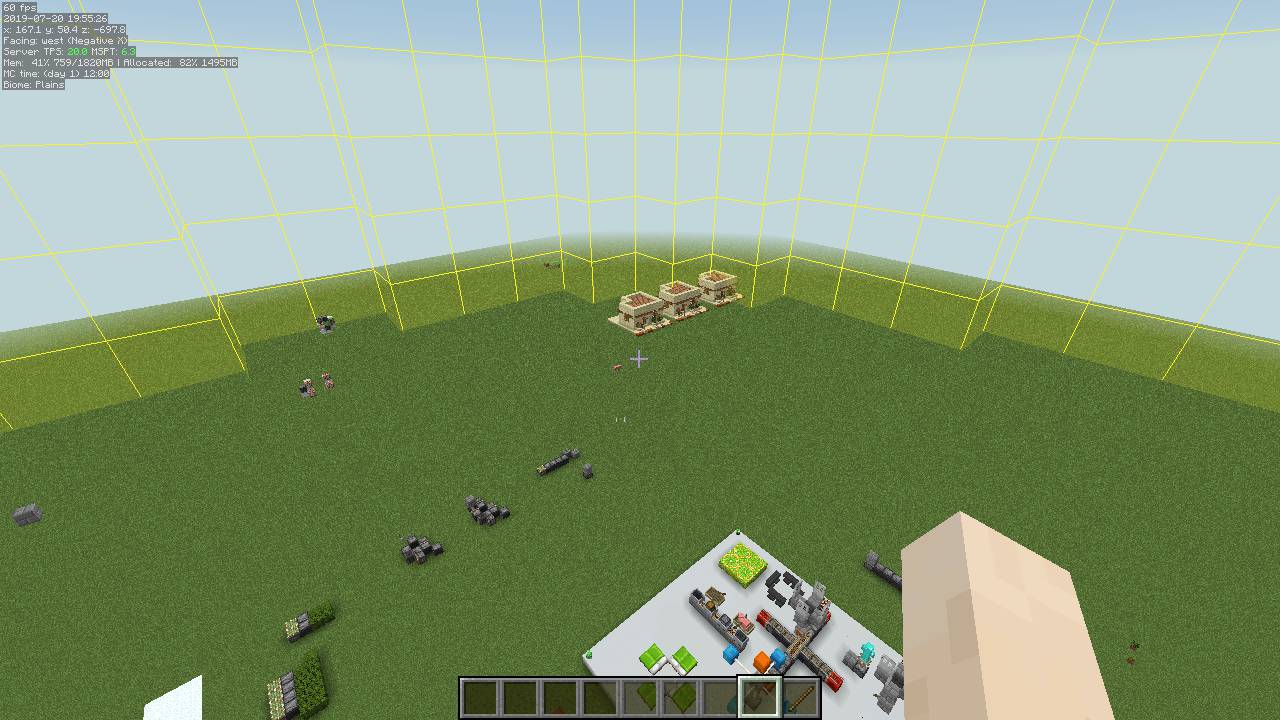
Random Tick Range overlay
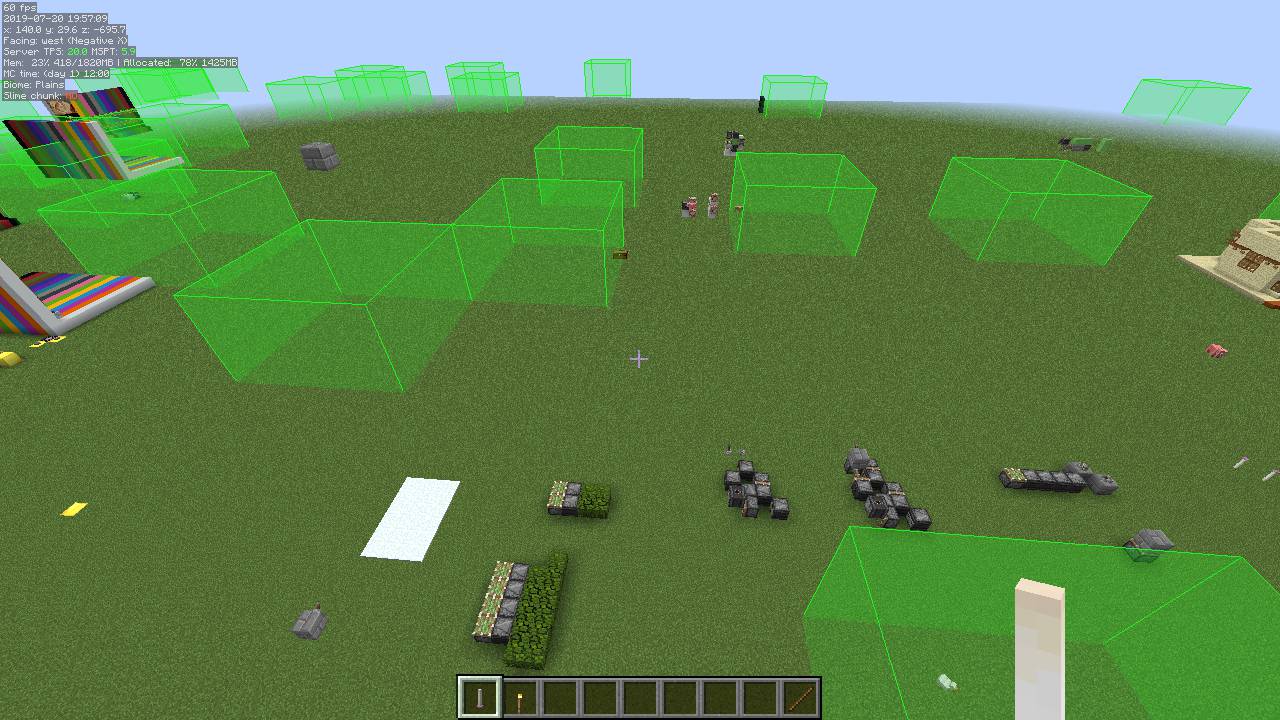
Slime Chunks overlay
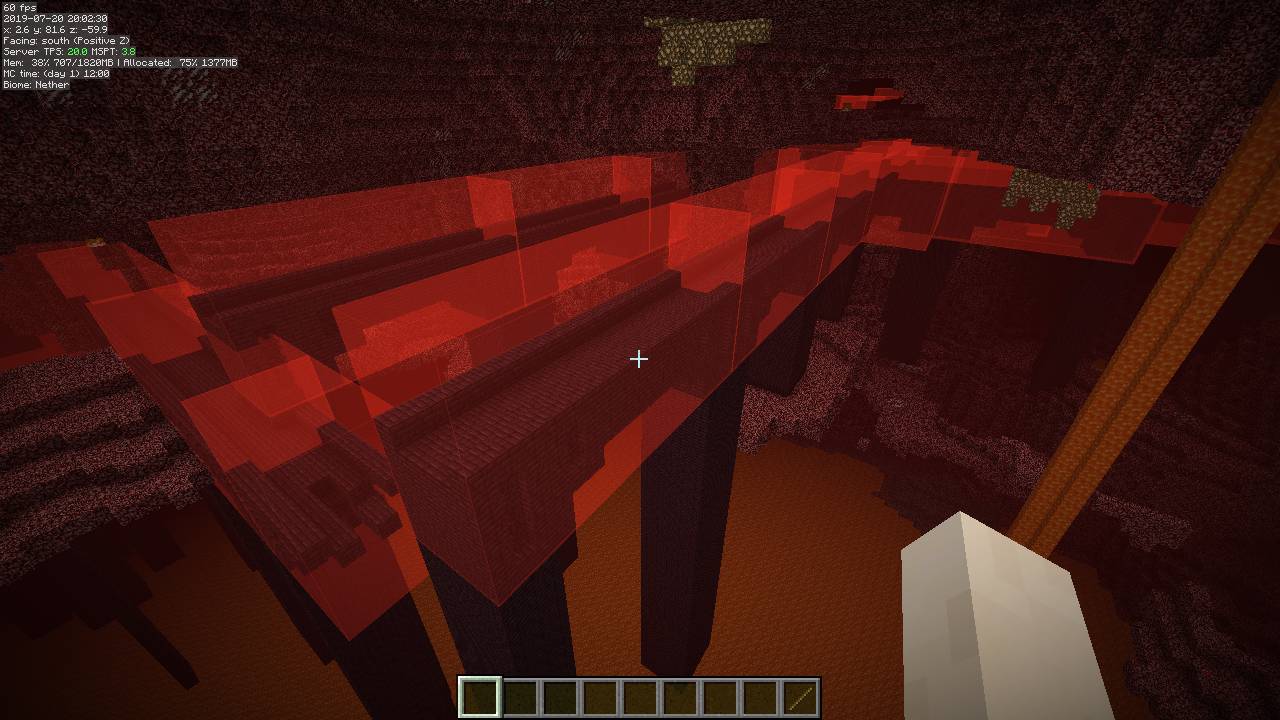
Structure Bounding Boxes overlay
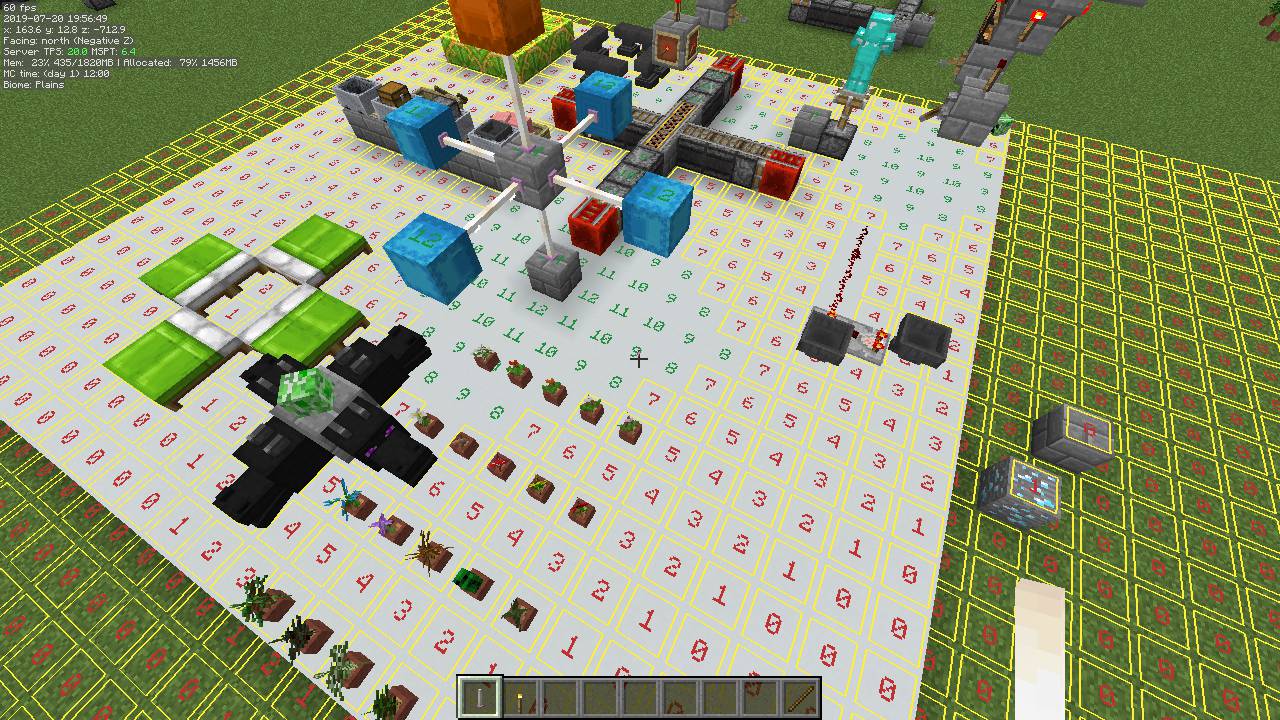
Light Level overlay
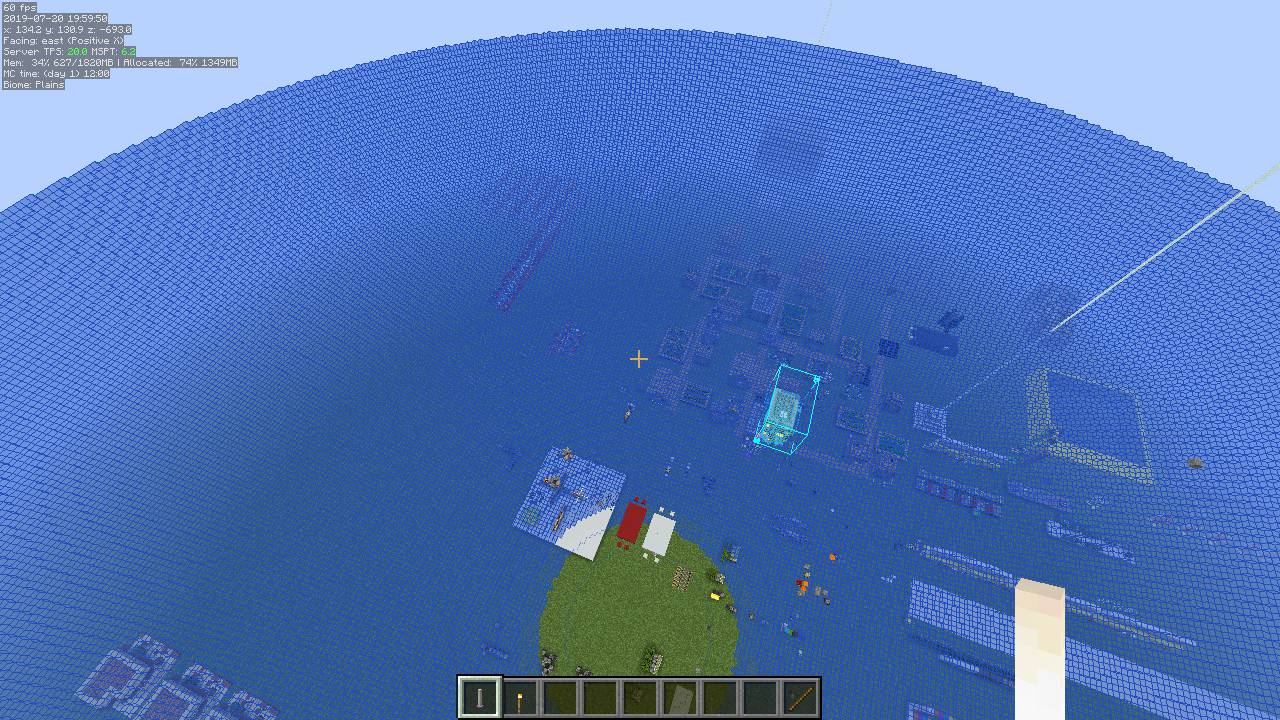
Mob Despawn Sphere shape overlay
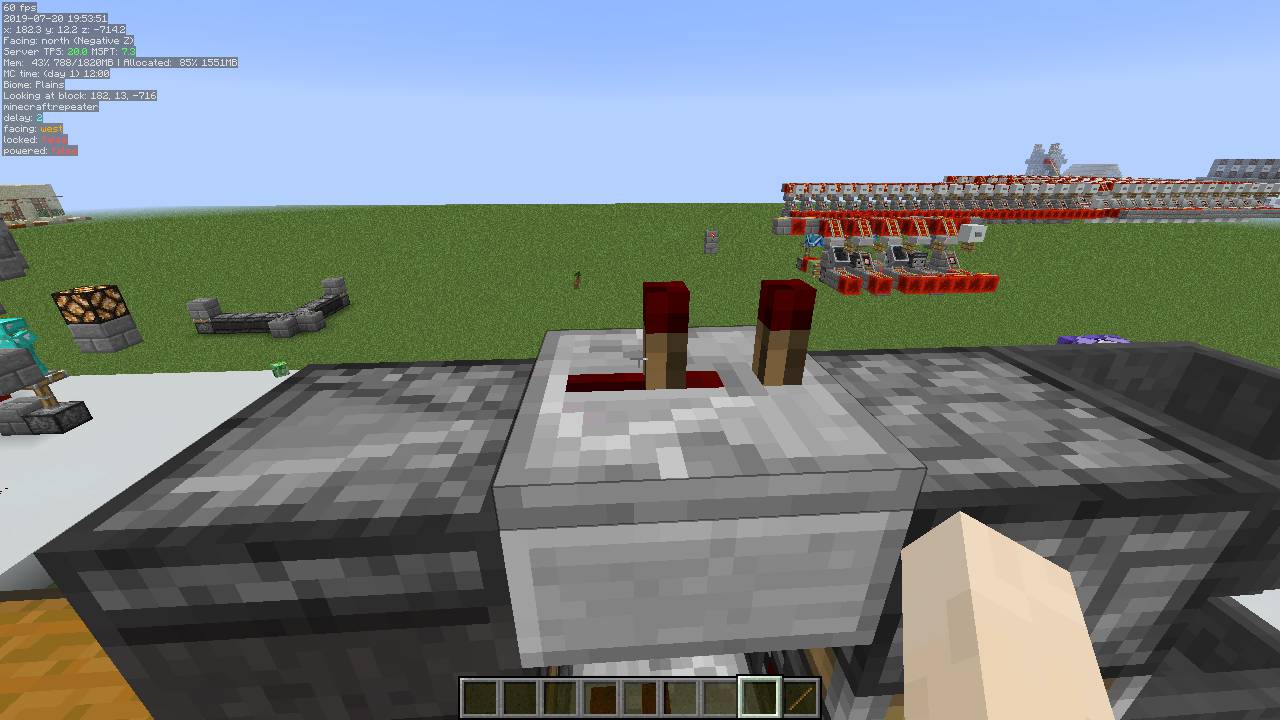
Info lines text
How to Install:
New to Minecraft? Follow our step-by-step guide to install Mods on your PC.View Guide
Requirements:
MiniHUD Mod Download Links
For Minecraft 26.2
For Minecraft 26.1.2, 26.1.1, 26.1
For Minecraft 1.21.11
For Minecraft 1.21.10, 1.21.9
For Minecraft 1.21.8, 1.21.7, 1.21.6
For Minecraft 1.21.5
For Minecraft 1.21.4
For Minecraft 1.21.3, 1.21.2
For Minecraft 1.21.1, 1.21
For Minecraft 1.20.6
For Minecraft 1.20.4
For Minecraft 1.20.2
For Minecraft 1.20.1, 1.20
For Minecraft 1.19.4
For Minecraft 1.19.3
For Minecraft 1.19.2
For Minecraft 1.19.1
For Minecraft 1.19
For Minecraft 1.18.2
For Minecraft 1.18.1
For Minecraft 1.17.1
For Minecraft 1.17
For Minecraft 1.16.5
For Minecraft 1.16.4
For Minecraft 1.16.3
For Minecraft 1.16.2
For Minecraft 1.15.2
For Minecraft 1.14.4
For Minecraft 1.12.2
For Minecraft 1.11.2
For Minecraft 1.8.9
You May Also Like

This post has no comments yet. Be the first — your comment will appear here.