
Armor Points Mod (1.20.1, 1.19.2) – Read Your True Protection in Tough Battles
 12,362
 0


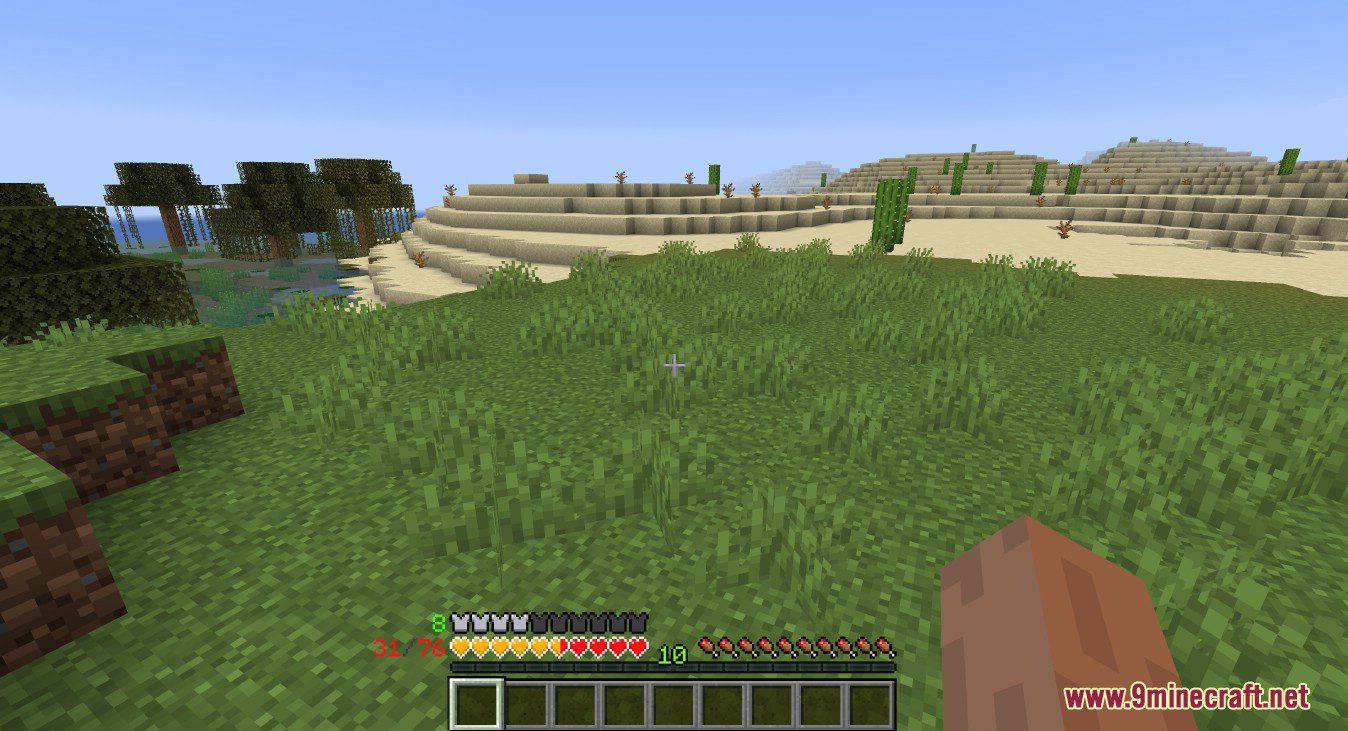
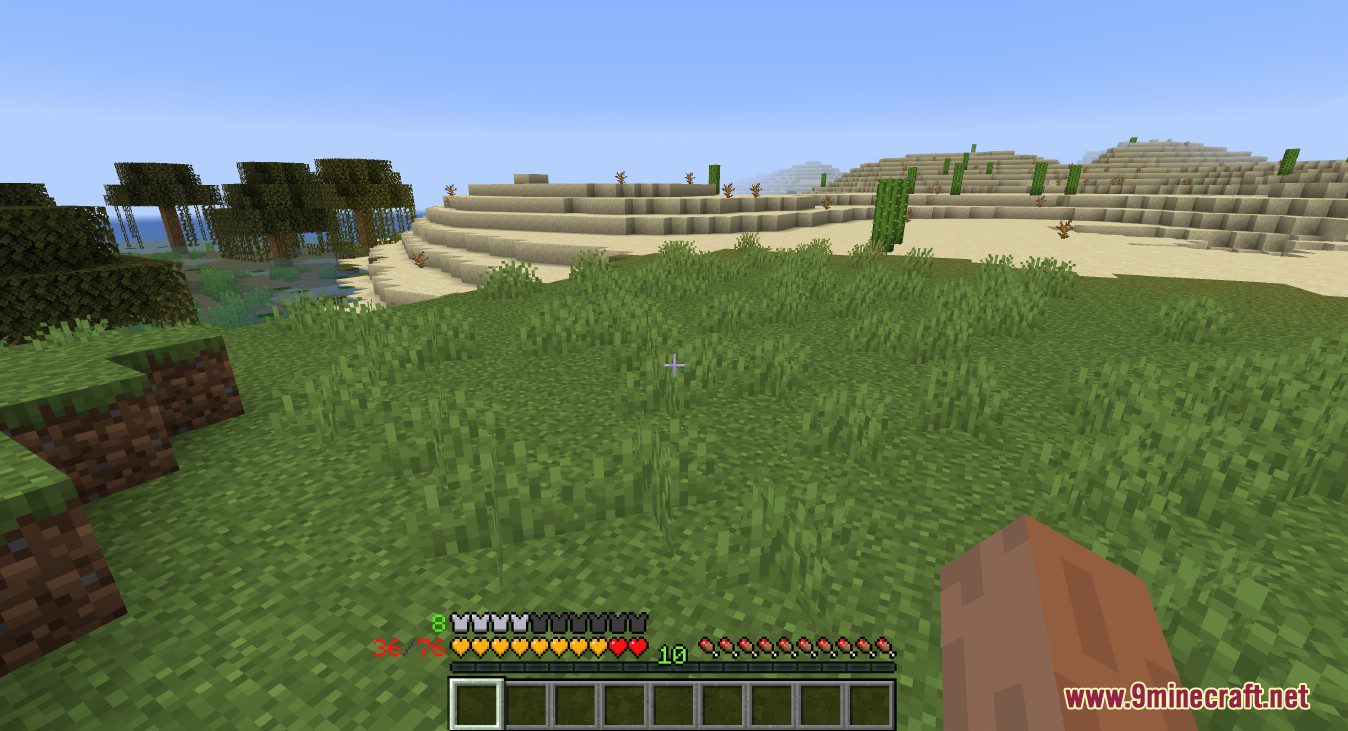
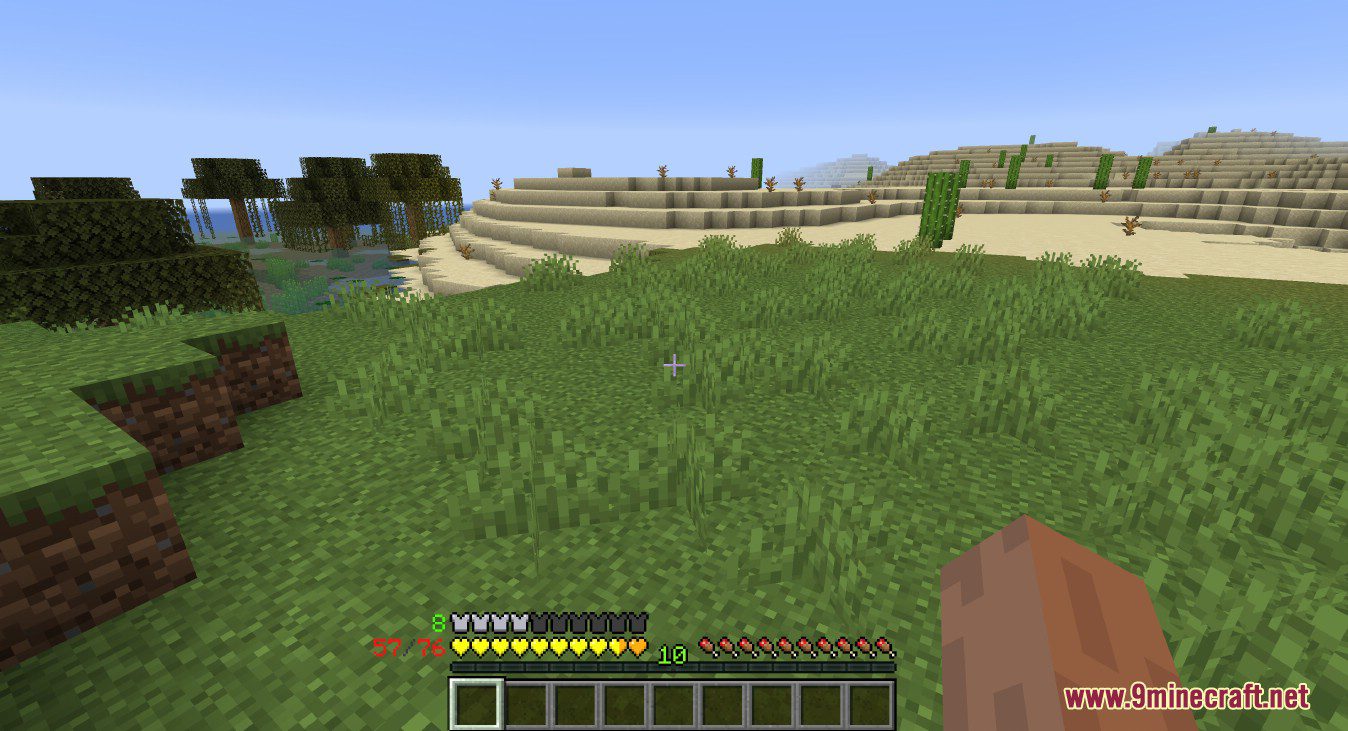
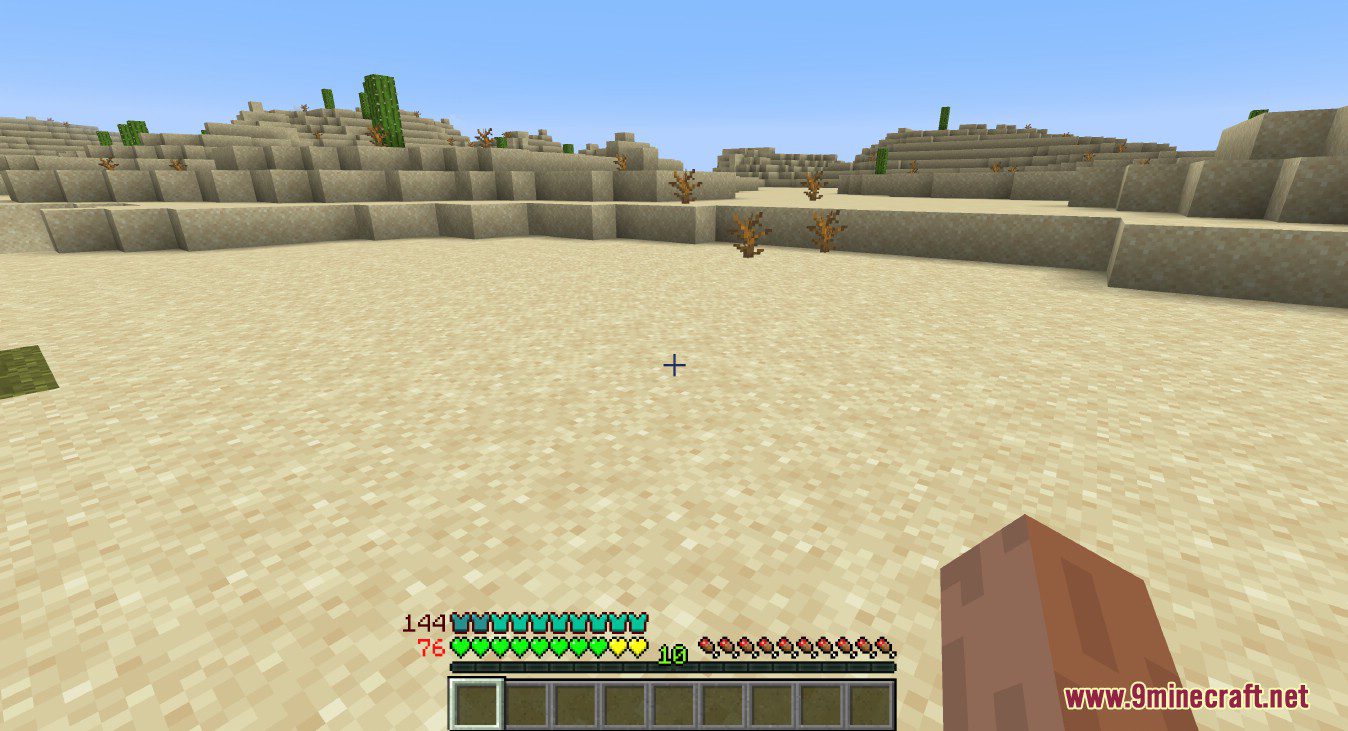
Armor Points Mod changes the vanilla HUD so you can track high armor and health stats without filling up your screen. In normal Minecraft, the armor bar stops at 20 points and extra health adds more rows of hearts. This mod puts everything onto clean, color-coded bars that show up to 240 armor points in 12 colors and stack up to 220 health points in 11 colors. It also shows exact stat numbers by your bars, adds overlays for protection enchantments and armor toughness, and draws borders around your icons for Resistance and up to 800 absorption points. You can switch armor toughness to its own bar and check your protection level without opening your inventory. The mod runs on the client side only, so servers do not need it, and it needs AttributeFix or a similar mod on newer Minecraft versions when attribute modifiers push armor past 30 points.
Features:
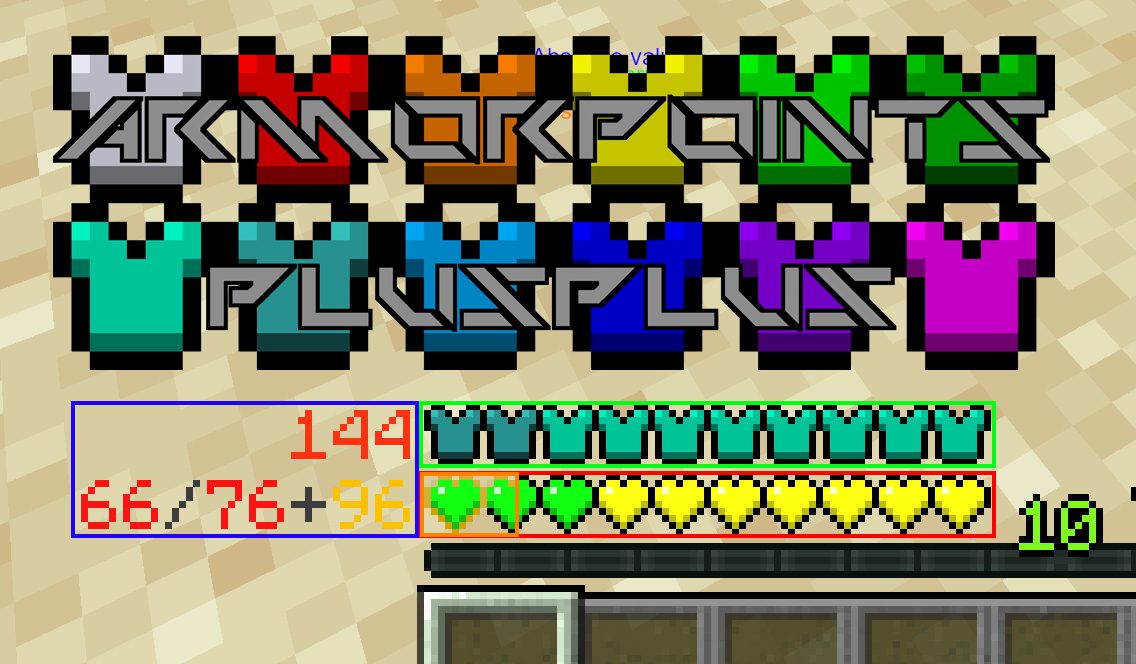
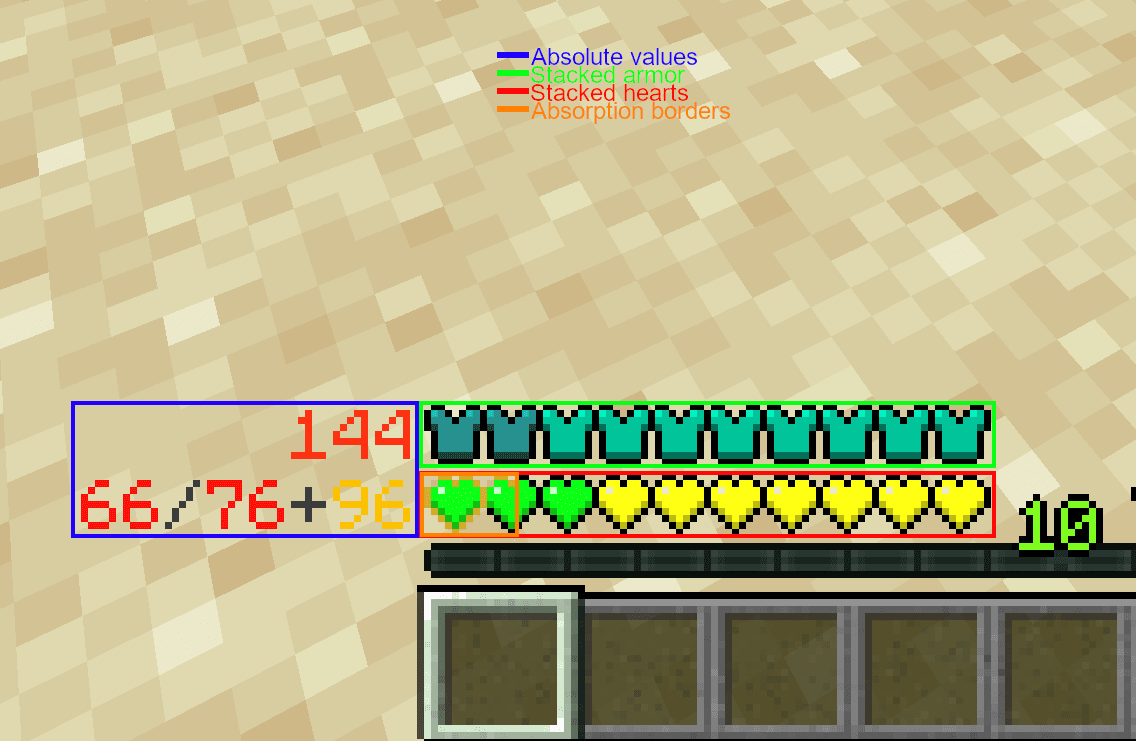
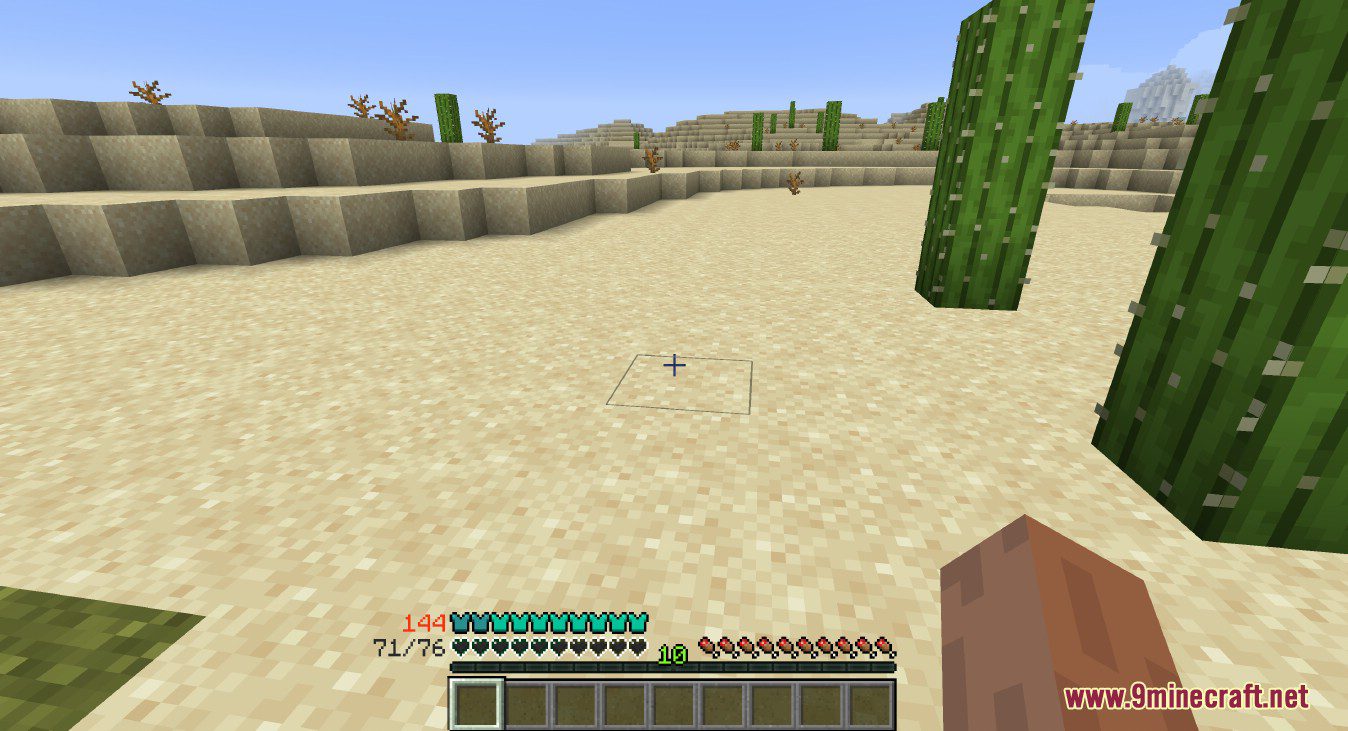
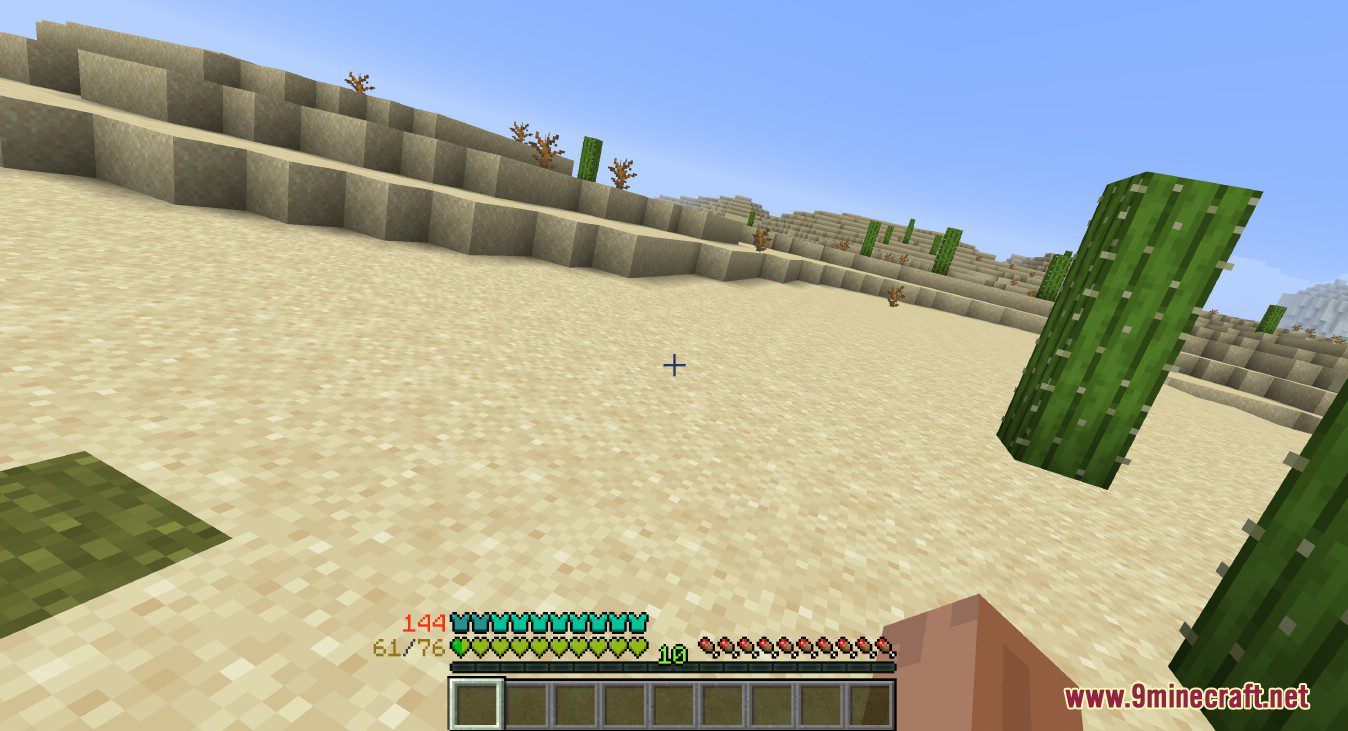
- Extended Armor Bar: Displays up to 240 armor points on a single bar using 12 different colors, switching to a new color every 20 points instead of stopping at the vanilla limit of 20.
- Stacked Health Bar: Combines extra rows of hearts from Health Boost or other mods into one colored bar with 11 colors up to 220 HP, keeping your view clear.
- Armor Toughness Display: Adds small overlay icons on top of your armor bar where two icons equal 1 or 2 toughness points (rounded up) and change color when stacked in v3.0.0 and newer, or lets you switch to a separate toughness bar that uses the same color scale as armor.
- Protection Enchantment Overlay: Shows the combined total of all protection enchantments (such as Protection and Fire Protection) on your armor right over the armor bar, with one icon for 1 or 2 points (rounded up), so you do not need to open your inventory.
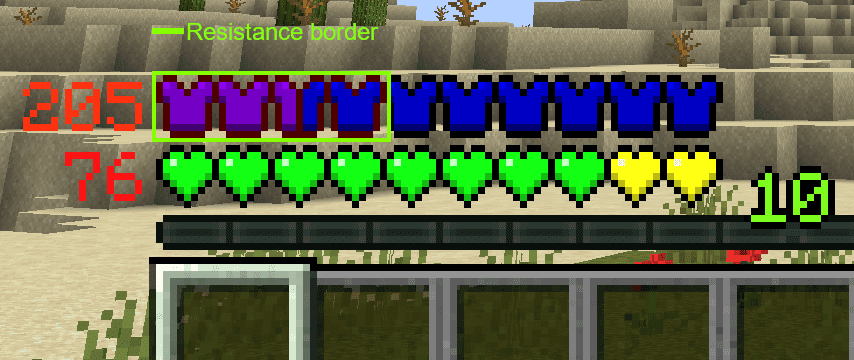
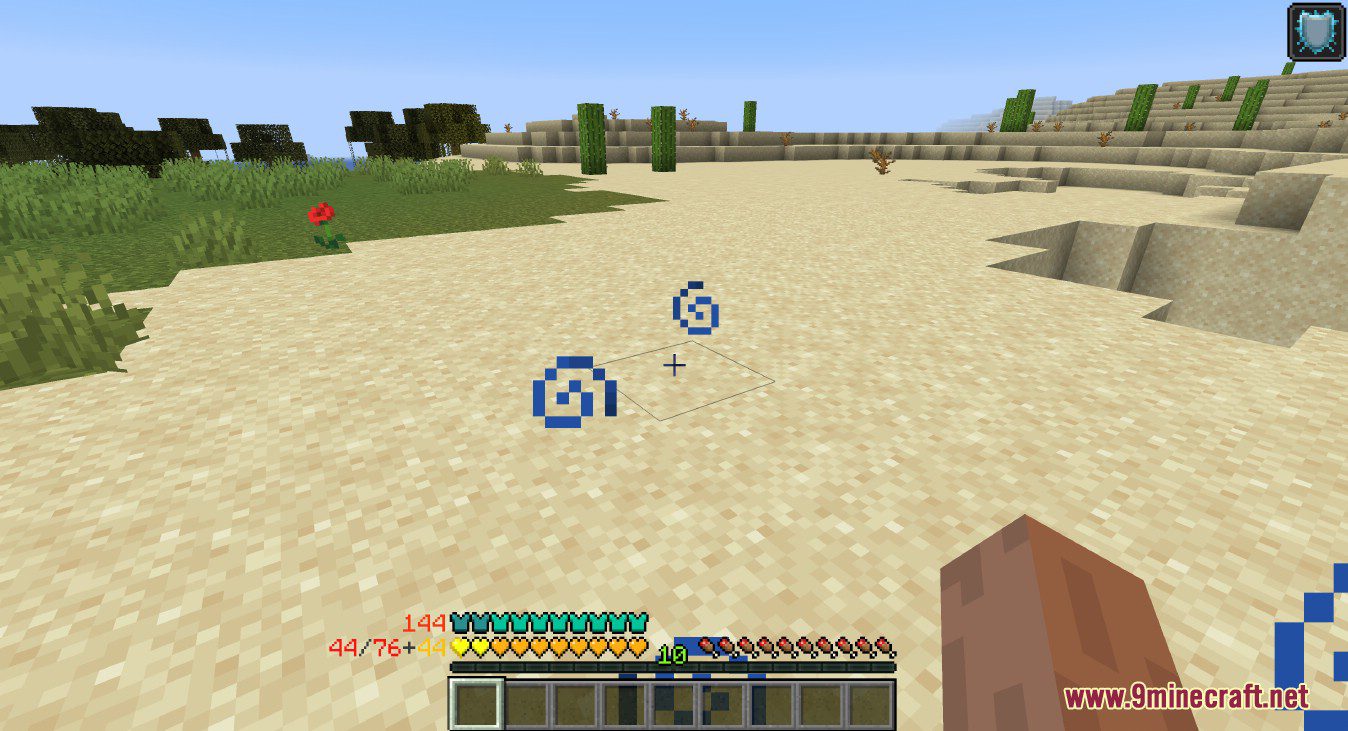
- Resistance and Absorption Borders: Draws a faint red border around armor icons for the Resistance effect (every 2 bordered icons mean 1 level, up to level 5), and turns Absorption into a border around your hearts where each pixel stands for 4 absorption HP (2 hearts), showing up to 80 points per heart or 800 points (400 absorption hearts) across the whole bar.
- Shows exact armor, health, and absorption numbers next to or beneath their bars, and lets you hide the numbers or change every text color in the config.
- Lets you change how many icons appear for 1 point of Resistance, Armor Toughness, or Protection, and how many border pixels equal one absorption heart, in the config file.
- Runs on the client side only, so you do not need to install it on a server.
- Supports resource packs using the merged
armorpointspp:textures/gui/icons.pngfile in v2.0.0 and newer (or separatearmorplusplus:textures/gui/armor.pngandarmorplusplus:textures/gui/health.pngfiles in versions before v2.0.0), plus custom texture atlases with the same layout and aspect ratio in v3.0.0 and newer. - Includes PotionCore support on Minecraft 1.12.
- Needs AttributeFix or a similar mod on newer Minecraft versions when attribute modifiers push armor past 30 points (older Minecraft versions do not need this).
- May conflict with other mods that draw over or replace the armor or health bar, which can require changing a config setting or removing the other mod.
Armor Bar Colors:
- Silver: 1 to 20 armor points (matches the vanilla armor bar).
- Orange: 21 to 40 armor points.
- Yellow: 41 to 60 armor points.
- Lime: 61 to 80 armor points.
- Green: 81 to 100 armor points.
- Turquoise: 101 to 120 armor points.
- Cyan: 121 to 140 armor points.
- Light Blue: 141 to 160 armor points.
- Blue: 161 to 180 armor points.
- Purple: 181 to 200 armor points.
- Pink: 201 to 220 armor points.
- Red: 221 to 240 armor points.
Health Bar Colors:
- Red: 1 to 20 HP (matches vanilla hearts).
- Orange: 21 to 40 HP.
- Yellow: 41 to 60 HP.
- Lime: 61 to 80 HP.
- Green: 81 to 100 HP.
- Turquoise: 101 to 120 HP.
- Cyan: 121 to 140 HP.
- Light Blue: 141 to 160 HP.
- Blue: 161 to 180 HP.
- Purple: 181 to 200 HP.
- Pink: 201 to 220 HP.
Configuration:
textureSheet: Set this option in the config file to your unique<atlas_name>to load a custom resource pack texture atlas fromassets/armorpointspp/textures/gui/<atlas_name>.png(v3.0.0 and newer).
Screenshots:
How to Install:
New to Minecraft? Follow our step-by-step guide to install Mods on your PC.View Guide
Armor Points Mod Download Links
For Minecraft 1.12.2
Forge version: Download from Server 1 – Download from Server 2
For Minecraft 1.16.5
Forge version: Download from Server 1 – Download from Server 2
For Minecraft 1.17.1
Forge version: Download from Server 1
For Minecraft 1.18.2
Forge version: Download from Server 1 – Download from Server 2
Fabric version: Download from Server 1 – Download from Server 2
For Minecraft 1.19.2, 1.19.1, 1.19
Forge version: Download from Server 1 – Download from Server 2
Fabric version: Download from Server 1 – Download from Server 2
For Minecraft 1.19.3
Forge version: Download from Server 1 – Download from Server 2
Fabric version: Download from Server 1 – Download from Server 2
For Minecraft 1.19.4
Forge version: Download from Server 1 – Download from Server 2
Fabric version: Download from Server 1 – Download from Server 2
For Minecraft 1.20.1, 1.20
Forge version: Download from Server 1 – Download from Server 2
Fabric version: Download from Server 1 – Download from Server 2
For Minecraft 1.20.2
Fabric version: Download from Server 1 – Download from Server 2
For Minecraft 1.20.4
NeoForge version: Download from Server 1 – Download from Server 2
Fabric version: Download from Server 1 – Download from Server 2
If you rent a paid server to play modded Minecraft with friends, how do you usually set it up?
24 responses · See the full results →
You May Also Like
Picked for this page
 Curios API (26.3, 1.20.1) – Library for TheIllusiveC4’s Mods
 Yes Steve Model Mod (26.1.2, 1.20.1) – Characters, Girlfriends
 Very Many Players Mod (26.3, 1.20.1) – Improve Server Performance
 Bactro Mod (26.3, 1.20.1) – QoL Utilities
 MineMenu Mod (26.1.2, 1.20.1) – Make Your Life Easier
 Global XP Mod (26.3, 1.20.1) – Never Lose Your Levels Again When You Die
 Trimmable Tools Mod (26.2, 1.20.1) – New Look for Tools and Weapons
 Vault Patcher Mod (26.2, 1.20.1) – Coverts Hard Coded Strings Into Localization Strings
 Wunderreich Mod (26.3, 1.20.1) – Advanced Mechanics and Tools
 BetterSleeping Revived Mod (1.20.1) – Sleeping Becomes More Critical
 Energy Meter Mod (1.21.1, 1.20.1) – Diagnose Your Power Grid
 Macaw’s Quark Mod (1.21.1, 1.20.1) – Compability for Quark with Macaw’s Mods
Most viewed in Mods over the last 7 days
 Ala Industrial Mod (26.3) – Run Electric Power Grids and Automated Factories
 PleasureCraft Mod (26.3, 1.21.1) – Jenny Mod Remake for Fabric
 Jennycraft Mod (26.3, 1.20.1) – Virtual Girlfriend in Minecraft
 Fapcraft Mod (26.3, 1.12.2) – Comprehensive and Detailed Content
 Jenny Mod (Fapcraft) Official Complete Guide – How to use, Tutorial
 BangCraft Mod (1.20.1) – Jenny, Ellie and Elliot
 Fabric Loader (26.3, 1.20.1) – Fabric Installer for All Minecraft Versions
 Meteor Client Mod (26.3, 1.20.1) – Xray, HUD, Fly
 The Shooting Star Demo Mod (26.3, 1.20.1) – Vaporize Terrain From Orbit
 OptiFine HD (26.3, 1.20.1) – Run Faster, FPS Boost, Shaders Support
 Aristois Client Mod (1.21.4, 1.20.1) – World Class Minecraft Utility
 SchnurriTV Mod (1.12.2) – Characters and Features
More from Mods
 Arcanism Mod (26.2) – Build Magic Factories and Program Custom Spells
 Archangel Client Mod (1.21.11) – Master Every PvP Duel with Clean Screen Stats
 Block Front Survival Patch Mod (1.21.1) – Wage Tactical Warfare in Survival
 SimpleRPGCore Mod (1.21.4, 1.21.1) – Fight with Classic RPG Stats
 Bard RPG Series Plus by Fichte Mod (1.21.1, 1.20.1) – Buff Allies in Combat
 Fabric Gui ImGui Mod (26.3, 1.21.11) – Clean Custom Menus and In-Game Control
 Multi Item Lib Mod (1.20.1) – Wield Custom Gear with Flawless Hand Animations
 Universe3090 Mod (1.20.1) – Survive Corrupted Dimensions Filled
 Wireless Automate Mod (1.21.1) – Automate Base Logistics Without Messy Pipes
 Vaskars Opus Faction War Quests & Bosses Mod (1.21.11, 1.20.1)
 Multitools and More Mod (26.3, 1.20.1) – Clear Your Hotbar and Travel
 Luxium Let There Be Light Mod (1.20.1) – Stunning Lighting on Low-End Computers

This post has no comments yet. Be the first — your comment will appear here.