


How to Install Modpacks for Minecraft Java Edition on PC: A Beginner Guide
 2,245
2,245
 6
6


Modpacks are pre-configured collections of mods bundled together, often with custom configs, textures, and scripts to deliver a complete gameplay experience. Instead of installing dozens of mods one by one, a modpack lets you set everything up in just a few clicks using a launcher like CurseForge, ATLauncher, Prism Launcher, or Modrinth App. You can browse and download hundreds of free modpacks at 9Minecraft Modpacks. Below is a simple, step-by-step guide.
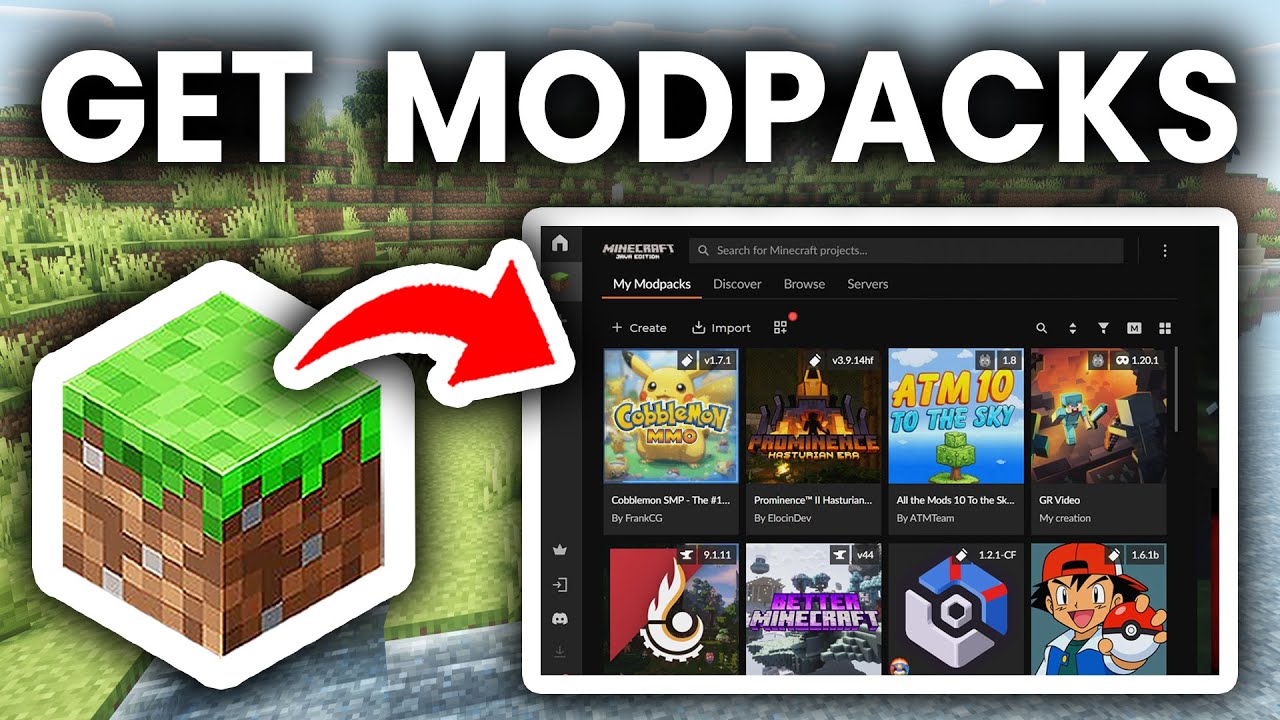
1. Preparation Before Installing Modpacks
- Install Minecraft Officially: Ensure you have a legitimate copy of Minecraft Java Edition and have run the game at least once.
- Check System Requirements: Modpacks usually contain hundreds of mods and require more RAM (4GB-8GB minimum, 8GB-16GB recommended for large packs) and a stronger CPU/GPU than vanilla Minecraft.
- Update Java: Most modern modpacks (1.17+) require Java 17 or Java 21. Older modpacks (1.12.2 and below) need Java 8. A third-party launcher can install the correct Java version automatically.
- Back Up Your Worlds: Save your existing worlds before installing a modpack to avoid data loss. The world folder is usually located at
C:\Users\[Your Name]\AppData\Roaming\.minecraft\saves.
2. Choose a Modpack Launcher
A modpack launcher handles downloading, installing, and updating modpacks automatically. The most popular launchers are:
- CurseForge App: The most widely used launcher with the largest modpack library.
- Modrinth App: A modern, lightweight, open-source launcher.
- Prism Launcher: A free, open-source launcher that supports modpacks from multiple sources.
- ATLauncher / Technic Launcher: Alternative launchers with their own modpack catalogs.
Each modpack is hosted on a specific platform, so make sure the launcher you choose supports the modpack you want to play. Most modpacks listed on 9Minecraft Modpacks include clear instructions about which launcher to use.
3. Download and Install a Modpack
- Find a Modpack:
- Browse the full modpack library on https://www.9minecraft.net/category/minecraft-modpacks/
- Check the Minecraft version, modloader (Forge, NeoForge, Fabric, or Quilt), and RAM requirements before downloading.
- Download the Modpack:
- Download the modpack file (usually a
.zipor.mrpackfile). - Do not extract the file manually – the launcher will handle it.
- Download the modpack file (usually a
- Install the Modpack:
- Open your launcher (CurseForge, Modrinth App, Prism Launcher, etc.).
- Click Create Custom Profile or Import.
- Select the downloaded modpack file (
.zipor.mrpack) to import it. - Wait for the launcher to download Minecraft, the modloader, and all included mods automatically.
- Allocate RAM:
- Open the modpack settings in your launcher.
- Set the allocated RAM based on the modpack’s recommendation (Example 6GB for medium packs, 8GB-10GB for large packs).
- Never allocate more than 50-75% of your total system RAM.
- Launch the Game:
- Click Play on the modpack profile.
- The first launch may take several minutes as the game loads hundreds of mods.
- Once in the main menu, you’ll see the modpack’s custom title screen, mod list, and new features.
4. Important Notes
- Use the Recommended Launcher: Some modpacks only work properly with a specific launcher. For example, modpacks from CurseForge work best in the CurseForge App, while
.mrpackfiles are designed for the Modrinth App or Prism Launcher. - Do Not Mix Mods: Avoid adding random mods to a modpack’s
modsfolder unless you know they are compatible – extra mods often cause crashes or conflicts with the pack’s scripts. - Keep the Modpack Updated: Pack authors release updates to fix bugs and balance issues. Update through your launcher, but back up your world first since some updates change worldgen or remove items.
- Troubleshooting Errors:
- If the game crashes on launch, check the launcher’s log file for the specific error.
- Make sure you have allocated enough RAM – most crashes on large modpacks are caused by insufficient memory.
- Confirm you are using the correct Java version for the modpack’s Minecraft version.
- Performance Tips: For smoother gameplay, consider adding performance mods that are compatible with your modpack (such as Sodium for Fabric or Embeddium for Forge/NeoForge), but only if the pack author allows it.
- Explore More Modpacks: Looking for your next adventure? Discover the latest tech, magic, exploration, and adventure modpacks at 9Minecraft Modpacks – updated regularly with packs for all Minecraft versions.

6 Comments
What do you think?
Your opinion means a lot - we'd love to hear from you.
You May Also Like

One block horror
LogloCompleta este campo
Hfcbj
FERNANDO
jhuncellunceke
iwpjhuncell
Beyond Depth
Life is goodLife is good
Time spend lifePlis chose mods in Minecraft