
How To Install Shaders on Minecraft PE
 27,066
 30
30


A shader on Minecraft Bedrock improves lighting, water and shadows for a more realistic look. On Bedrock, shaders are installed as a .mcpack and applied as a Global Resource.
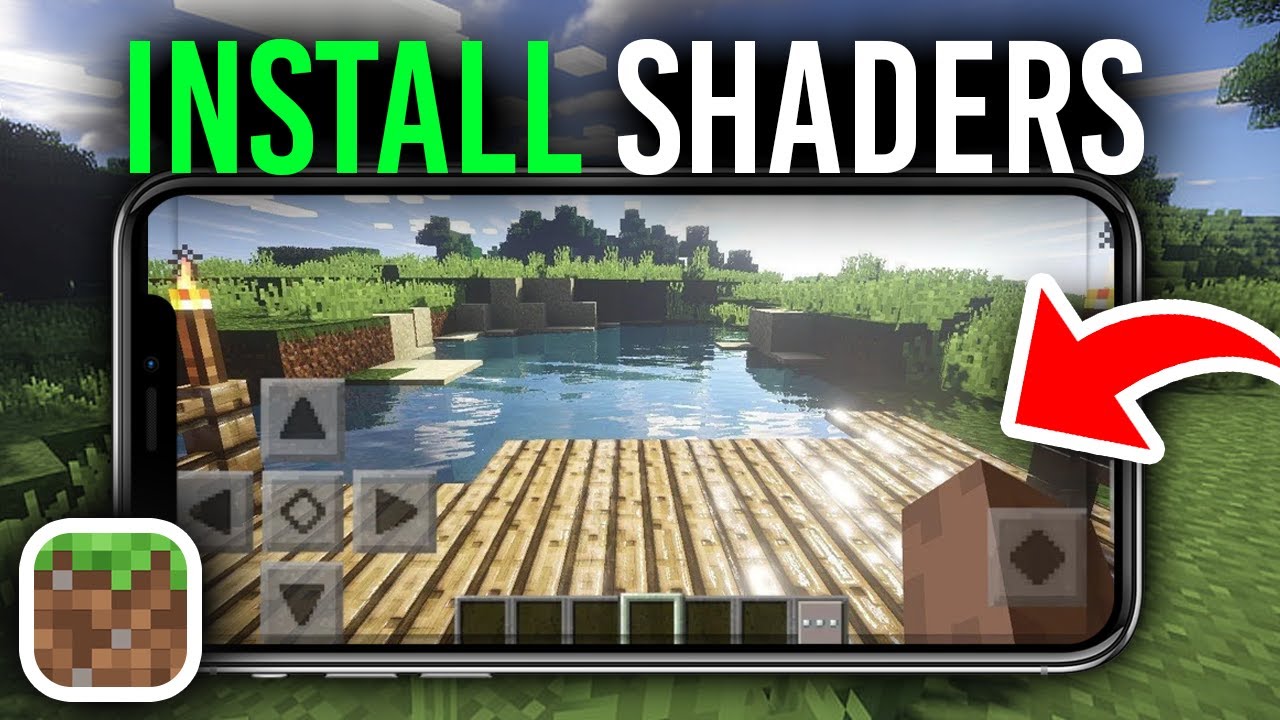
Follow these steps
From 9Minecraft › Bedrock Shaders, download a .mcpack that supports your version and Render Dragon.
Open Downloads and tap the .mcpack. Minecraft imports it automatically.
Go to Settings → Global Resources, tap your shader pack, and press Activate. Load any world to see the new lighting and water.
Fixing common problems
The shader does nothing / world looks normal
It probably isn’t Render Dragon compatible for your version. Use a shader that lists support for your exact Bedrock version, and make sure it’s activated in Global Resources.
It crashes or is extremely laggy
Shaders are demanding on phones. Use a Lite preset, lower render distance, and close background apps. Older or low-end devices may not handle heavy shaders.
Do shaders work on iOS / console?
Support varies by device and version. Android generally has the widest shader support; iOS is limited, and consoles can’t side-load shader files.
Related guides

30 Comments
What do you think?
Your opinion means a lot - we'd love to hear from you.
You May Also Like
Picked for this page
 How to Install Resource Packs for Minecraft Java Edition on PC: A Beginner Guide
 How to Install Maps for Minecraft Java Edition on PC: A Beginner Guide
 How to Install Shaders for Minecraft Java Edition on PC: A Beginner Guide
 How to Install Modpacks for Minecraft Java Edition on PC: A Beginner Guide
 How To Install Skin Packs on Minecraft PE
 How to Install Data Packs for Minecraft Java Edition on PC: A Beginner Guide
 How to Install Plugins for Minecraft Java Edition on PC: A Beginner Guide
 How to Install Seeds for Minecraft Java Edition on PC: A Beginner Guide
Most viewed in Installation Guide over the last 7 days
 How To Install Mod / Addon on Minecraft PE
 How to Install Mods for Minecraft Java Edition on PC: A Beginner Guide
- How to Install Resource Packs for Minecraft Java Edition on PC: A Beginner Guide
 How To Install Texture Packs on Minecraft PE
- How to Install Maps for Minecraft Java Edition on PC: A Beginner Guide
- How to Install Modpacks for Minecraft Java Edition on PC: A Beginner Guide
- How To Install Skin Packs on Minecraft PE
- How to Install Shaders for Minecraft Java Edition on PC: A Beginner Guide
 How To Install Map on Minecraft PE
 How To Download & Install Mods with Minecraft Forge
- How to Install Data Packs for Minecraft Java Edition on PC: A Beginner Guide
- How to Install Plugins for Minecraft Java Edition on PC: A Beginner Guide
More from Installation Guide
 How to port Java Texture Packs to MCPE/Bedrock Edition in 2023
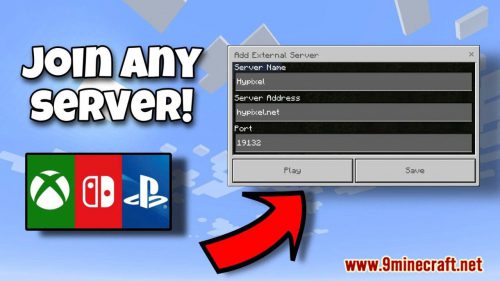 How To Join Custom Minecraft Servers On Xbox, Switch – Bedrock Together
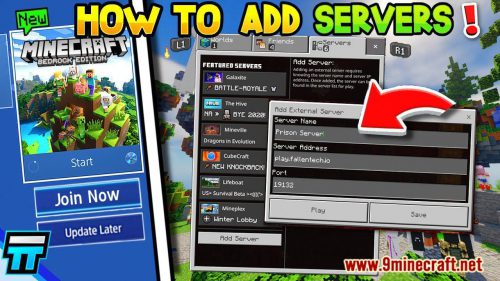 How To Add Servers On Minecraft PS4/PS5 Bedrock – Custom Servers
 How To Download & Install Modpack
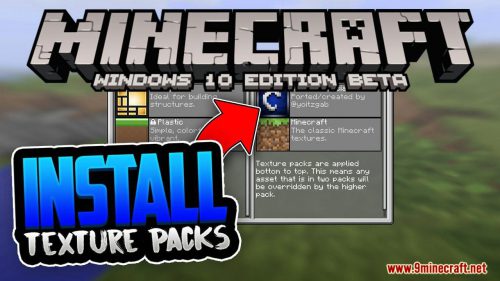 How To Install Minecraft PE Resource/Texture Packs for Windows 10 Edition
 How To Install Minecraft PE Texture/Resource Packs for iOS
 How To Install Minecraft PE Resource/Texture Packs for Android
 How To Install Minecraft PE Mods/Addons For Windows 10 Edition
 How To Install Minecraft PE Mods/Addons For iOS
 How To Install Minecraft PE Mods/Addons For Android
 How To Download & Install Mods with Quilt Loader
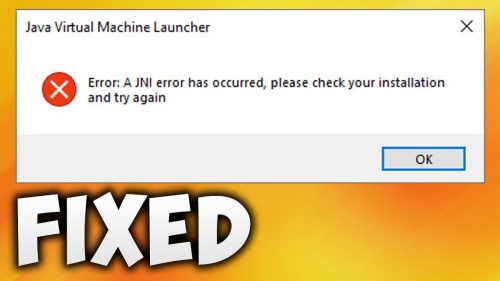 How to Fix A JNI Error Has Occurred in Minecraft

god
Op shader
Best
سووووووو
Gg
Dfjjjgree
Kaue
ဟဟဟဟဟဟဟနေလူလေးရေVtd&4+555-gvvytfv7gv.
Djsjt jVideo sea
Ini bagusBAGUSBAGUSiniBAGUSYANGPERDANADABAGUS
Gg
tusvisvdjbvd
NayAre p
yes
Hello
❤️❤️❤️❤️