
How To Install Skin Packs on Minecraft PE
 3,101
3,101
 8
8


A skin pack adds a set of new character skins to Minecraft Bedrock. Installing one is a single tap on a .mcpack file — the skins then appear in your skin picker.
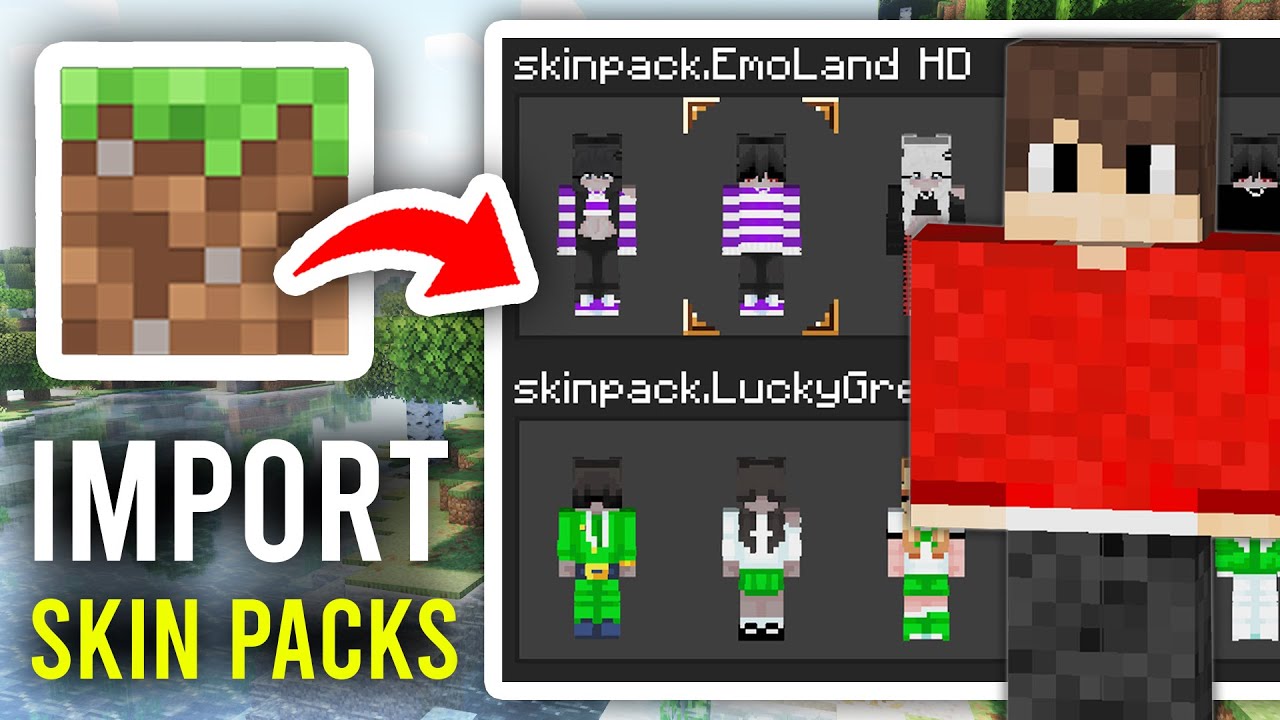
Follow these steps
From 9Minecraft › Bedrock Skin Packs, download the .mcpack file.
Open Downloads and tap the .mcpack. Minecraft launches and imports the pack automatically.
On the main menu tap the coat-hanger (Dressing Room / Profile) icon → Skins. Scroll to Owned and pick a skin from your new pack.
Fixing common problems
The .mcpack won’t open
Open it via a File Manager or “Open with → Minecraft”. Make sure Minecraft is installed and updated.
I imported it but can’t find the skins
Open the Dressing Room / Profile → Skins, then scroll down to the Owned section — imported packs appear there, below the default skins.
Can I use these skins on Java Edition?
No — .mcpack skin packs are Bedrock-only. Java uses single PNG skin files uploaded to your Microsoft account.
Related guides

8 Comments
What do you think?
Your opinion means a lot - we'd love to hear from you.
You May Also Like
Picked for this page
 How To Install Shaders on Minecraft PE
 How to Install Resource Packs for Minecraft Java Edition on PC: A Beginner Guide
 How to Install Maps for Minecraft Java Edition on PC: A Beginner Guide
 How to Install Shaders for Minecraft Java Edition on PC: A Beginner Guide
 How to Install Modpacks for Minecraft Java Edition on PC: A Beginner Guide
 How to Install Data Packs for Minecraft Java Edition on PC: A Beginner Guide
 How to Install Plugins for Minecraft Java Edition on PC: A Beginner Guide
 How to Install Seeds for Minecraft Java Edition on PC: A Beginner Guide
Most viewed in Installation Guide over the last 7 days
 How To Install Mod / Addon on Minecraft PE
 How to Install Mods for Minecraft Java Edition on PC: A Beginner Guide
- How to Install Resource Packs for Minecraft Java Edition on PC: A Beginner Guide
- How To Install Shaders on Minecraft PE
 How To Install Texture Packs on Minecraft PE
- How to Install Maps for Minecraft Java Edition on PC: A Beginner Guide
- How to Install Modpacks for Minecraft Java Edition on PC: A Beginner Guide
 How To Install Map on Minecraft PE
- How to Install Shaders for Minecraft Java Edition on PC: A Beginner Guide
- How to Install Data Packs for Minecraft Java Edition on PC: A Beginner Guide
 How To Download & Install Mods with Minecraft Forge
- How to Install Seeds for Minecraft Java Edition on PC: A Beginner Guide
More from Installation Guide
 How To Download & Install Minecraft OptiFine
 How To Download & Install Minecraft Forge
 How To Download and Install Mod Customization
 How To Download & Install Spigot Plugins
 How To Download & Install Mods with Minecraft NeoForge
 How To Install Texture Packs?
 How to port Java Texture Packs to MCPE/Bedrock Edition in 2023

Вад
Вадим
Вадис
Eu quero ter para ter skins legais no Minecraft
ดี
irfanependi751@gmail.
عيسى
ผมอยากเล่นมาก
MinecraftEu quero esse mod para o meu Minecraft