
Sprint Indicator Mod (26.3, 1.20.1) – Monitor Movement Modes on Your HUD
 2,067
 0


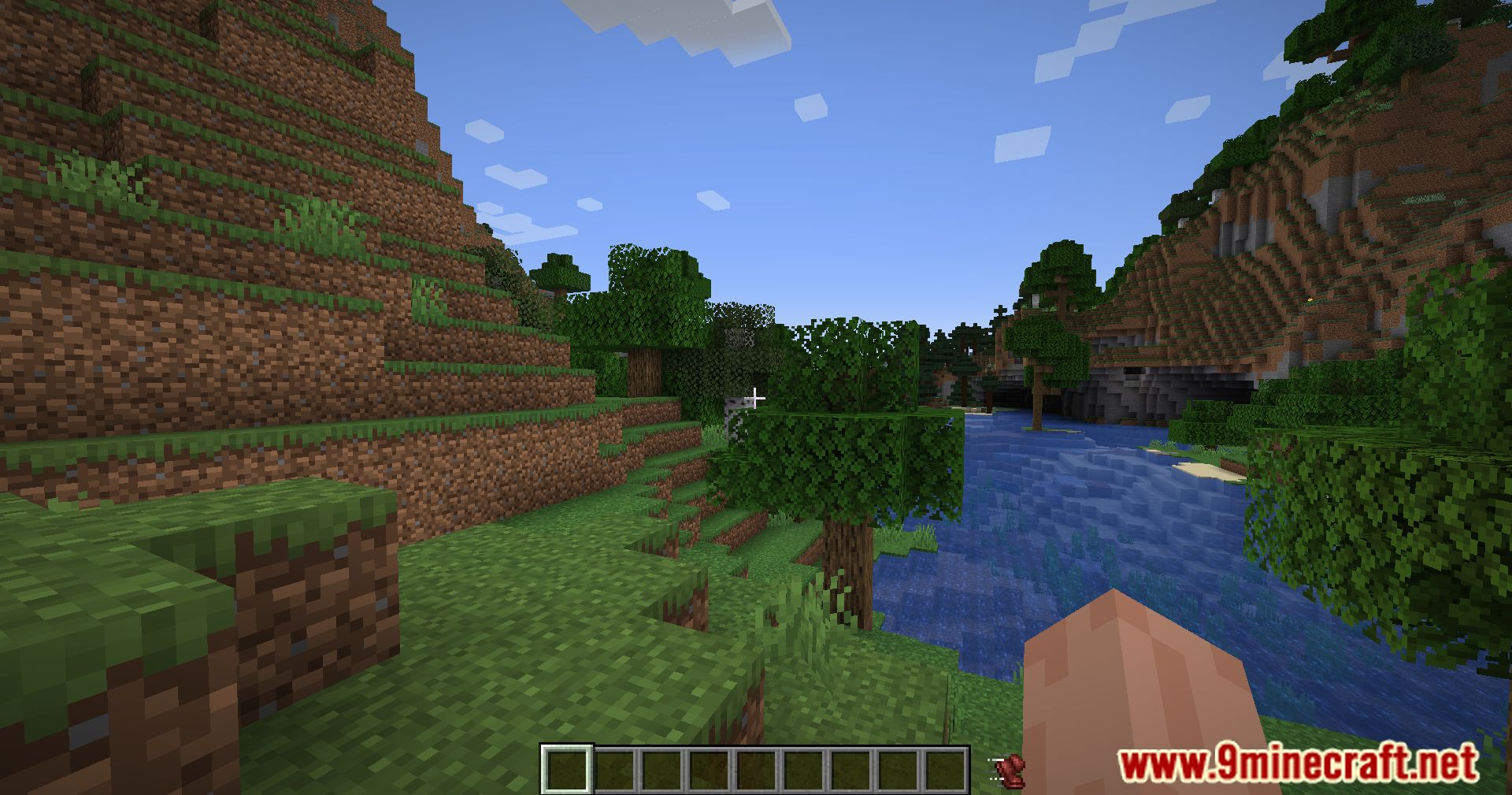
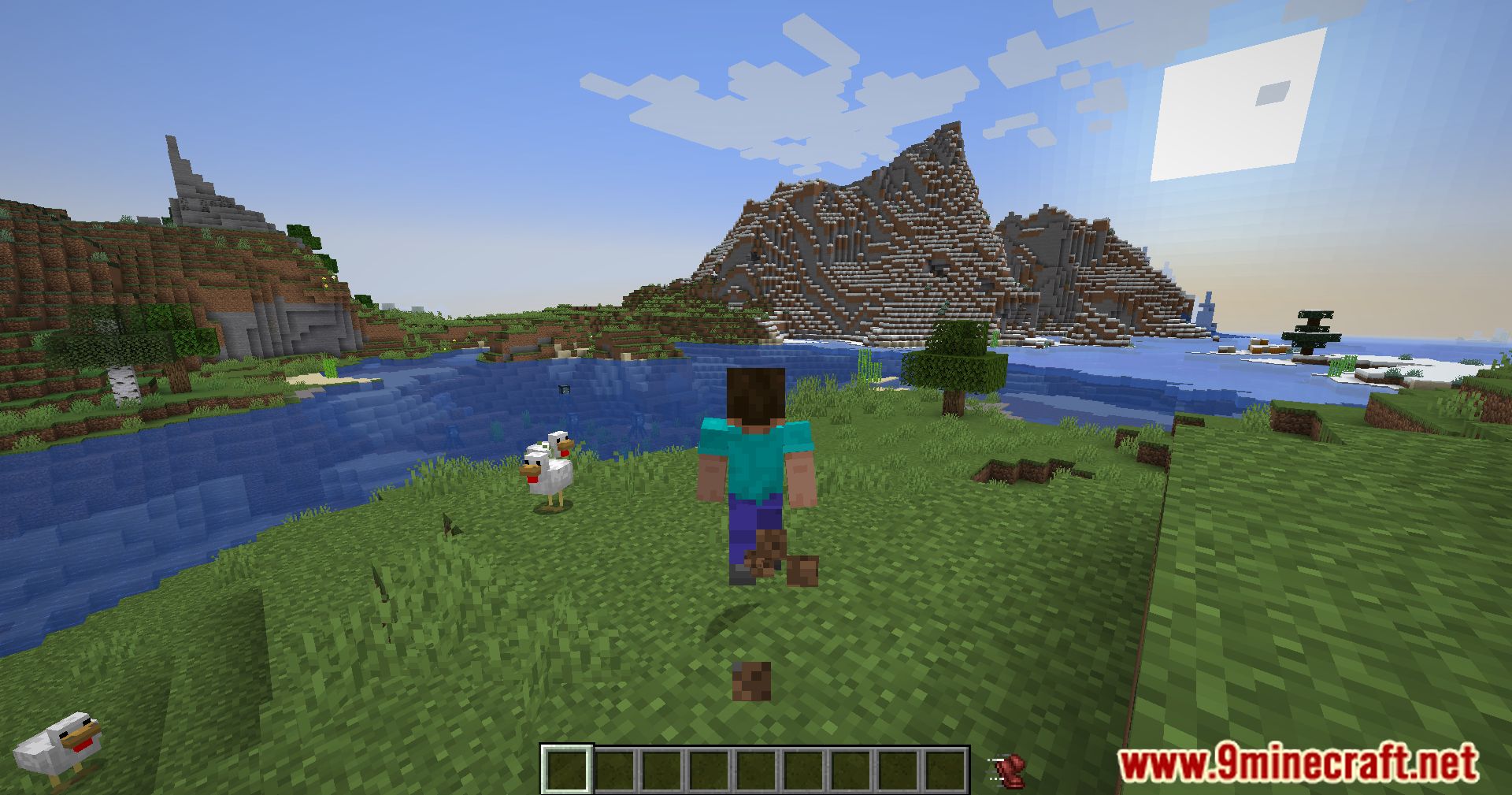
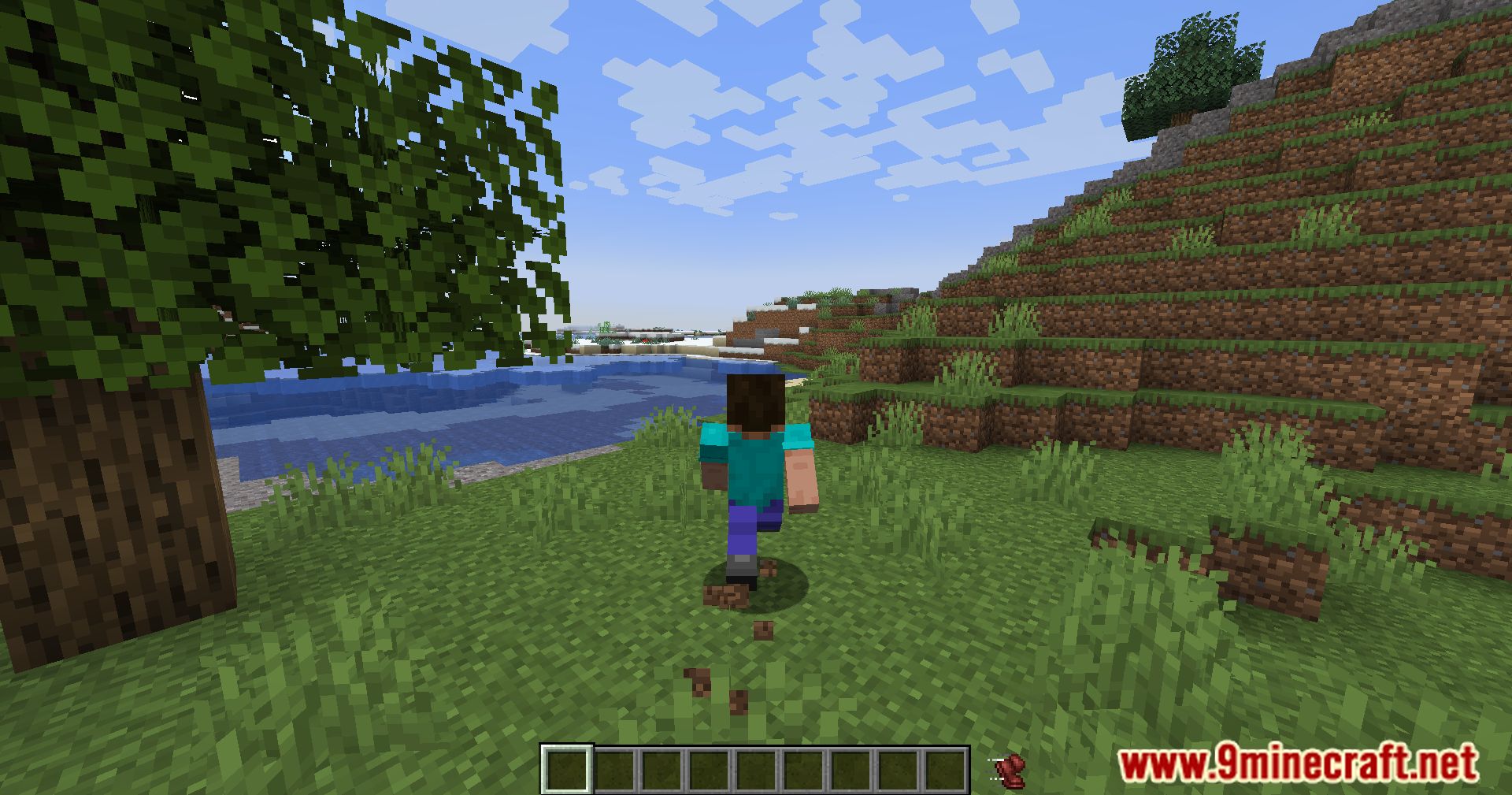
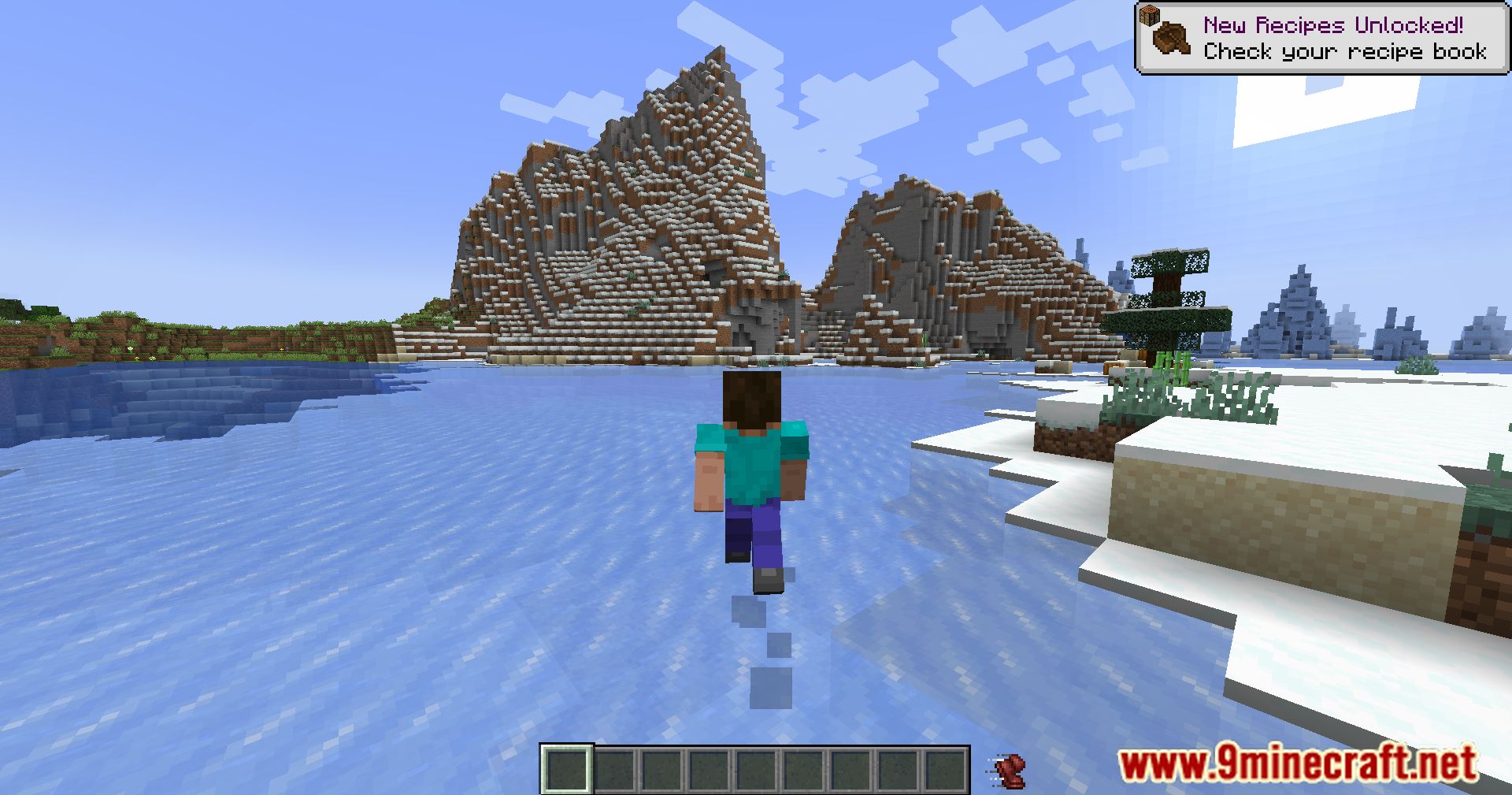
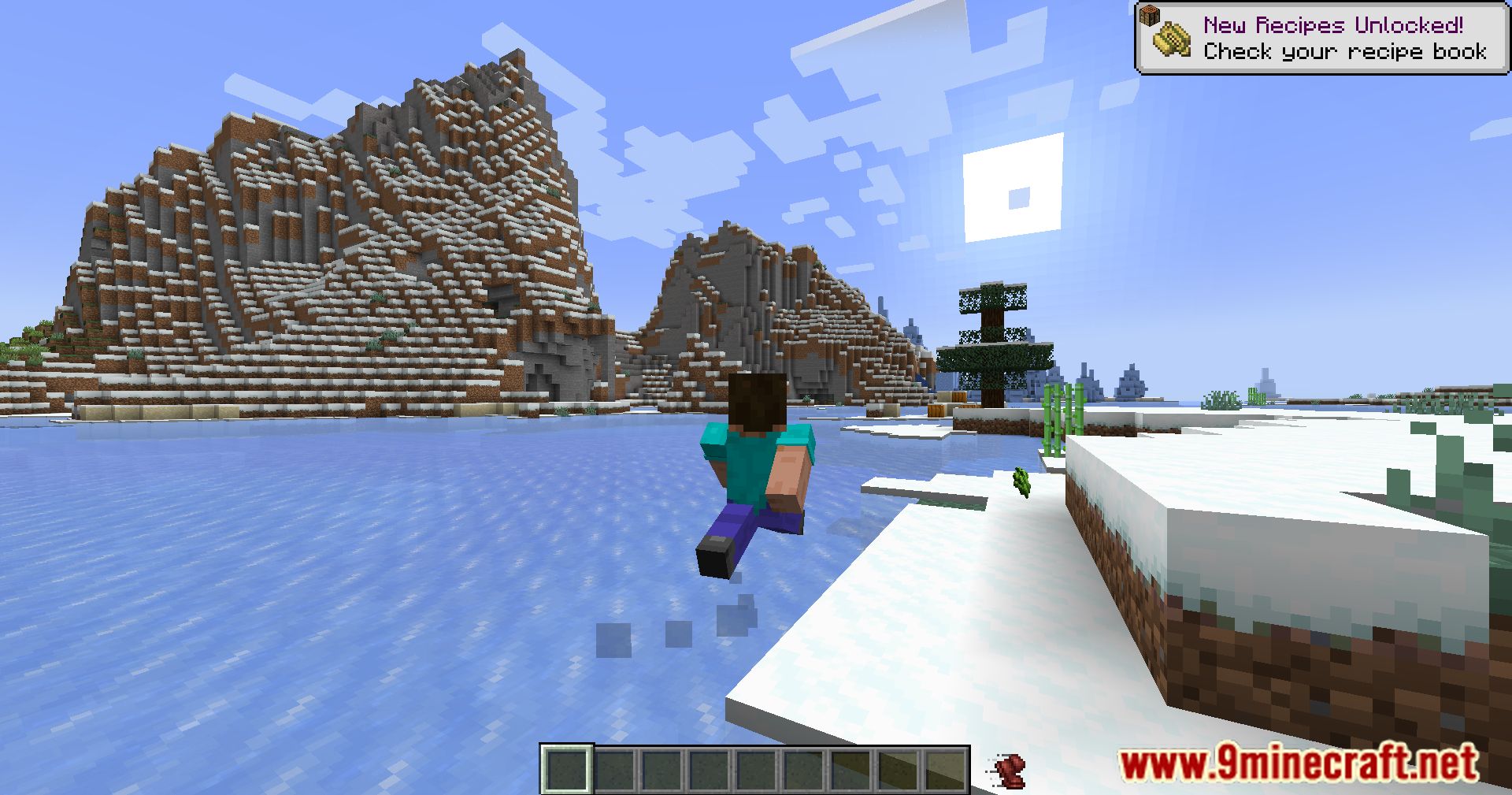
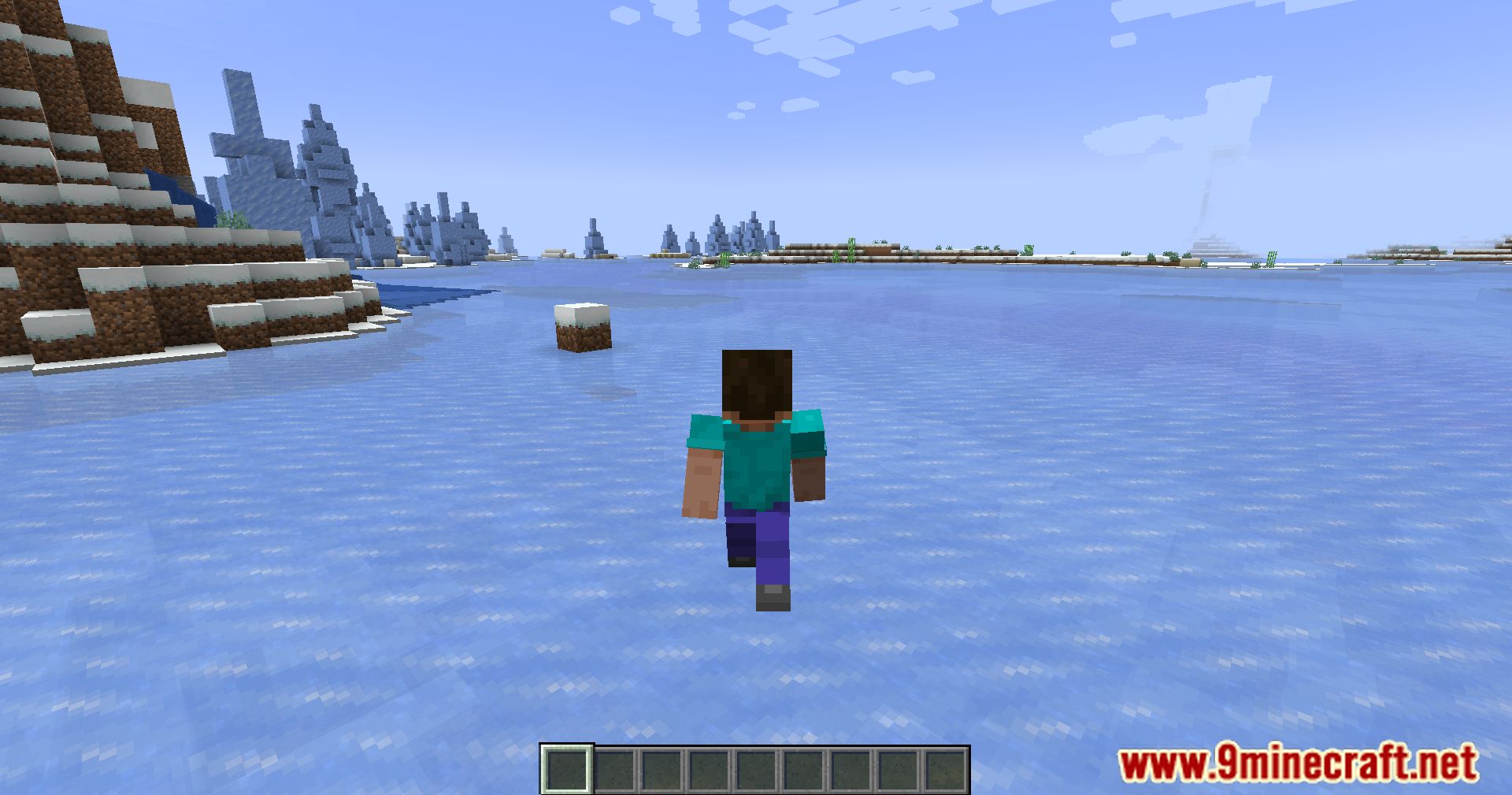
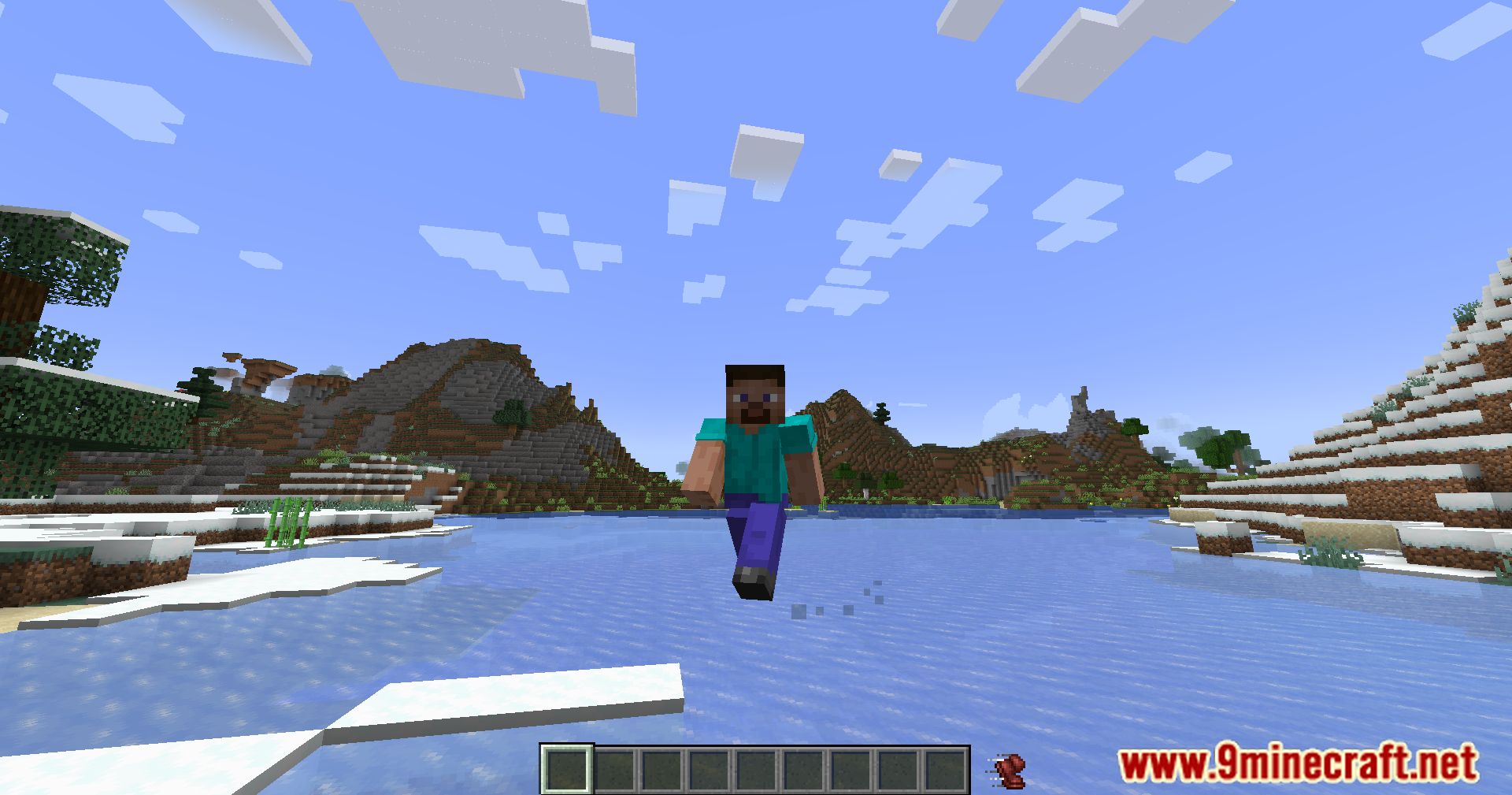
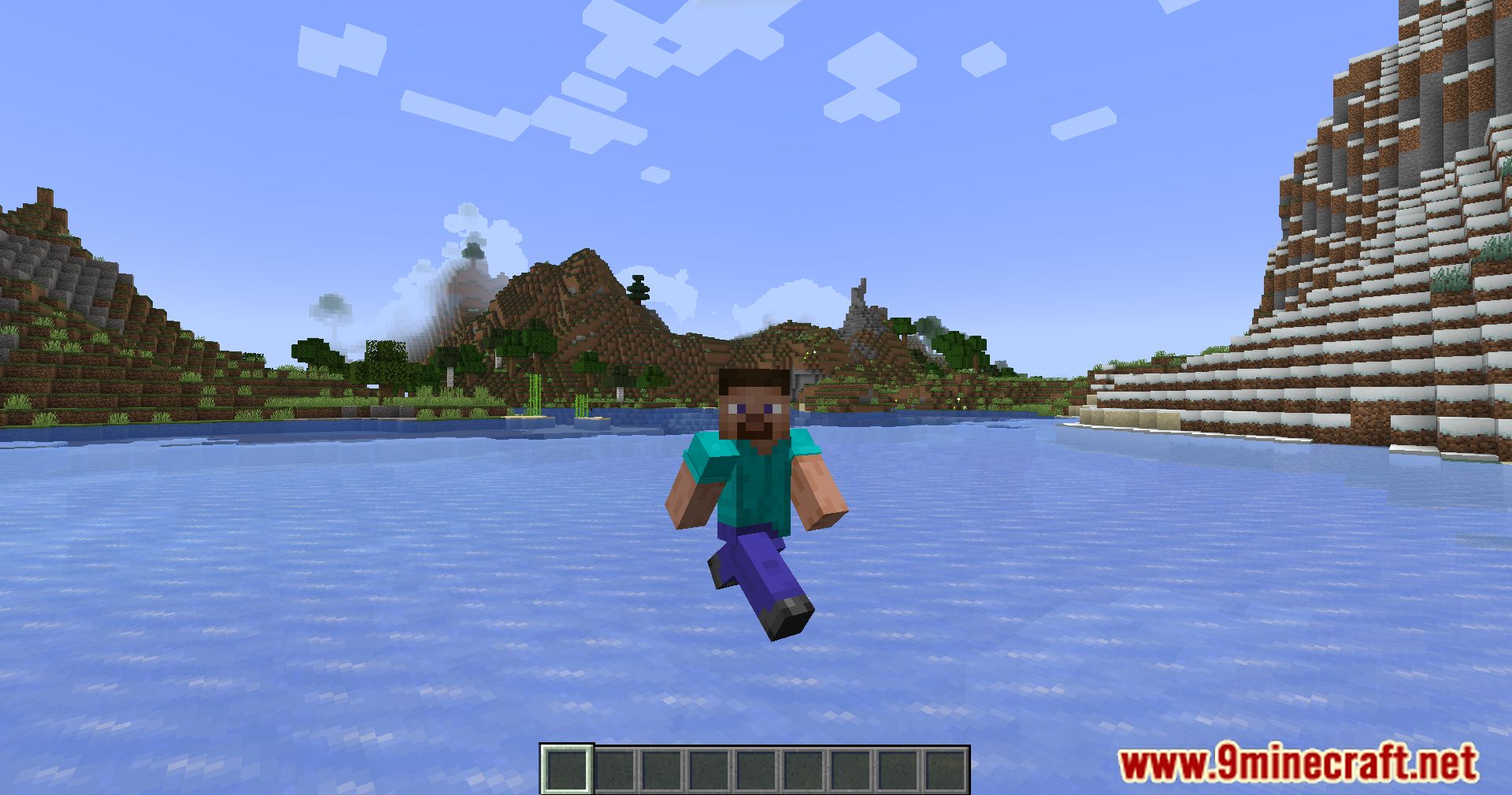
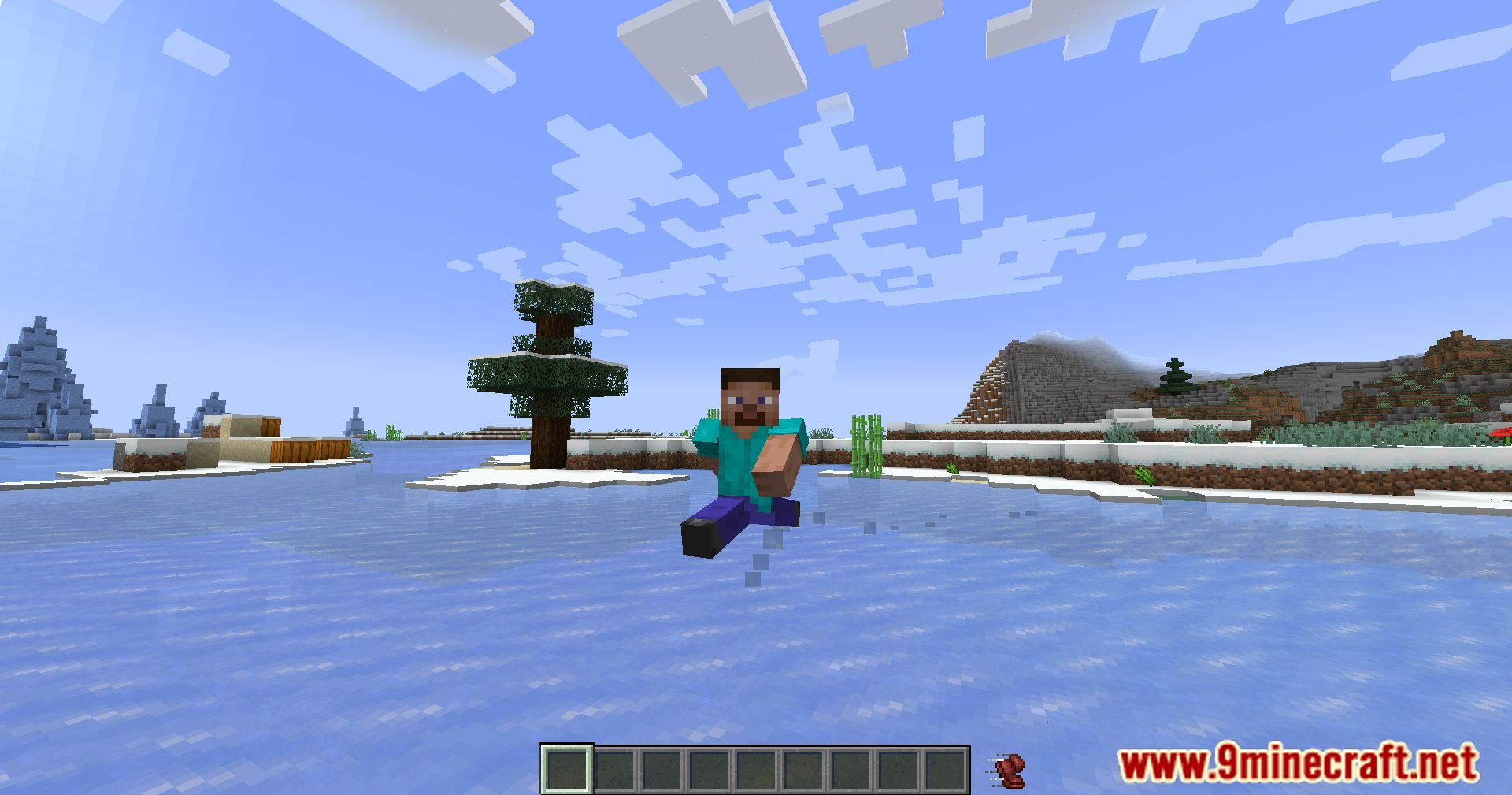
Sprint Indicator Mod adds a simple UI icon to your screen that shows when you sprint or crouch. It uses the built-in beacon speed-boost icon when you sprint and the built-in slowness icon when you crouch. The mod adjusts automatically for left-handed mode and the hotbar attack indicator, and you can tweak its settings in-game or through a config file.

Features:
- Shows a clear sprint indicator on your screen using the built-in beacon speed-boost icon.
- Displays a crouch indicator using the built-in slowness icon whenever you sneak.
- Adjusts the UI automatically for left-handed mode and hotbar attack indicator settings so everything fits together.
- Includes an option to show a dimmed sprint icon while you hold or toggle the sprint key without moving.
- Lets you turn each icon on or off, shift the attack indicator to put the icons closer to the hotbar, and move icons using x and y pixel offsets.
Configuration:
sprintEnabled: Set totrueorfalseto show or hide the icon when you sprint.sprintShowWhenActive: Set totrueorfalseto show a dimmed sprint icon while the sprint key is held or toggled on, even when you do not move.crouchEnabled: Set totrueorfalseto show or hide the icon when you crouch.offset: Sets anx,ypixel offset to move where the icons appear on your screen.adjustAttackIndicator: Set totrueorfalseto shift the attack indicator and place the sprint and crouch icons closer to the hotbar.
How to Use:
- Open the settings menu through ModMenu on Fabric, or click the Config button on the mods list on NeoForge and Forge to change options in-game.
- To edit settings manually, open the
sprintindicator.tomlfile inside your config folder and adjust the icon toggles, attack indicator shift, orx,ypixel offsets.
Screenshots:

How to Install:
New to Minecraft? Follow our step-by-step guide to install Mods on your PC.View Guide
Requirements:
Sprint Indicator Mod Download Links
For Minecraft 26.3
For Minecraft 26.2
For Minecraft 26.1.2, 26.1.1, 26.1
For Minecraft
1.21.11,
1.21.10,
1.21.9
All Versions Covered
1.21.11
1.21.10
1.21.9
1.21.8
1.21.7
1.21.6
All Versions Covered
1.21.11
1.21.10
1.21.9
1.21.8
1.21.7
1.21.6
For Minecraft 1.21.5
For Minecraft 1.21.4
For Minecraft 1.21.1, 1.21
For Minecraft 1.20.6
For Minecraft 1.20.4, 1.20.2
For Minecraft 1.20.1, 1.20
For Minecraft 1.19.4
For Minecraft 1.19.3
For Minecraft 1.19.2, 1.19.1, 1.19
Click to rate this post!
[Total: 1 Average: 5]
You May Also Like
Picked for this page
 ToLaserBlade Mod (26.1.2, 1.20.1) – Simple Sword with a Laser Blade
 Moving Elevators Mod (26.3, 1.20.1) – Fully Functional Elevators
 Lighting Wand Mod (26.1.2, 1.20.1) – Showing Light Sources
 RPGStats Mod (1.21.11, 1.20.1) – Power up your Characters
 Overhauled Village Mod (26.2, 1.20.1) – Make Exploration Rewarding
 Caverns and Chasms Mod (1.21.1, 1.20.1) – Diversifies The Underground Experience
 Text Placeholder API Mod (26.3, 1.20.1) – Simplify Text and Placeholder Handling
 Styled Sidebars Mod (26.3, 1.20.1) – Dynamic Server-side Sidebars
 Barriers Don’t Block Rain Mod (1.21.11, 1.20.1) – Build Freely With Barriers
 Sticky Notes Mod (26.3, 1.21.1) – Place Waypoints In Your World
 Better Multiplayer Sleep Mod (26.3, 1.20.1) – Let One Player Make It Daytime
 MixinTrace Reloaded Unofficial Mod (26.1.2, 1.20.1) – Find Out Which Mod
Most viewed in Mods over the last 7 days
 Ala Industrial Mod (26.3) – Run Electric Power Grids and Automated Factories
 PleasureCraft Mod (26.3, 1.21.1) – Jenny Mod Remake for Fabric
 Jennycraft Mod (26.3, 1.20.1) – Virtual Girlfriend in Minecraft
 Fapcraft Mod (26.3, 1.12.2) – Comprehensive and Detailed Content
 Jenny Mod (Fapcraft) Official Complete Guide – How to use, Tutorial
 BangCraft Mod (1.20.1) – Jenny, Ellie and Elliot
 Fabric Loader (26.3, 1.20.1) – Fabric Installer for All Minecraft Versions
 The Shooting Star Demo Mod (26.3, 1.20.1) – Vaporize Terrain From Orbit
 Meteor Client Mod (26.3, 1.20.1) – Xray, HUD, Fly
 OptiFine HD (26.3, 1.20.1) – Run Faster, FPS Boost, Shaders Support
 Aristois Client Mod (1.21.4, 1.20.1) – World Class Minecraft Utility
 Prestige Client Mod (1.21.11, 1.21.4) – Powerful Ghost Features for Crystal & Sword PvP
More from Mods
 Flint Mod (1.21.11) – Run DiamondFire Community Addons Without Crashing
 Not Just Sandwich Mod (26.3, 1.20.1) – Edibles, Sandwiches
 Waddles Mod (26.3, 1.20.1) – Make Icy Biomes Feel Alive
 Artemis’ Thin Logs Mod (26.3, 1.20.1) – Build Custom Trees and Detailed Wood
 Asterion Mod (26.3, 1.20.1) – Survive Ancient Mazes and Slay the Legendary Minotaur
 Passthrough Signs Mod (26.3, 1.20.1) – Right-Click Through Wall Signs
 Packing Tape Mod (26.3, 1.20.1) – Move Chests, Machines
 No XP Anvils Mod (26.3, 1.20.1) – Repair And Enchant Without XP
 Naruto Shippuden Mod (26.3, 1.16.5) – Immerse Yourself in The World of Ninja
 Araxer’s Bestiary Mod (26.3, 1.20.1) – Build an In-Game Encyclopedia of Every Mob
 Villagers Plus Mod (26.3, 1.20.1) – Expanded Villager Types and Villages
 Ore Excavation 9minecraft Mod (26.3) – Mine Ores and Chop Trees in a Single Swing

This post has no comments yet. Be the first — your comment will appear here.