


FTB Filter System Mod (26.1.2, 1.20.1) – Precise Control Over Items

 0
0 

FTB Filter System Mod provides a powerful item filtering system with a simple-to-use menu. This mod is designed to be used by other mods, like FTB Quests, that need a way to sort or check items. It doesn’t do much on its own but offers an API for other mods to connect with.

Features:
- Adds a single item, the Smart Filter, which you can right-click to open its configuration menu.
- Create advanced sorting rules by combining multiple filters into a single compound filter.
- Easily set up certain filters by dragging items directly from JEI into the menu.
- Match items based on specific details like NBT data, durability, item tags, or the mod they come from.
- Provides an API that lets other mods use its filtering system for their own features.
How to Use:
All settings are managed through a single item called the Smart Filter.
- Right-click the Smart Filter to open its menu. You will see buttons on the right to manage your filters.
- Click the “Add…” button to choose from a list of available filter types.
- Select a filter from the list and click “Configure…” or just double-click it to change its settings.
- Click “Delete” to remove any filter you no longer need.
- When you are finished, click “Done” to save your setup.
To quickly test if a filter is working, hold the configured Smart Filter in your main hand and the item you want to test in your off-hand. Then, sneak and right-click to see a success or failure message in the chat.
Screenshots:
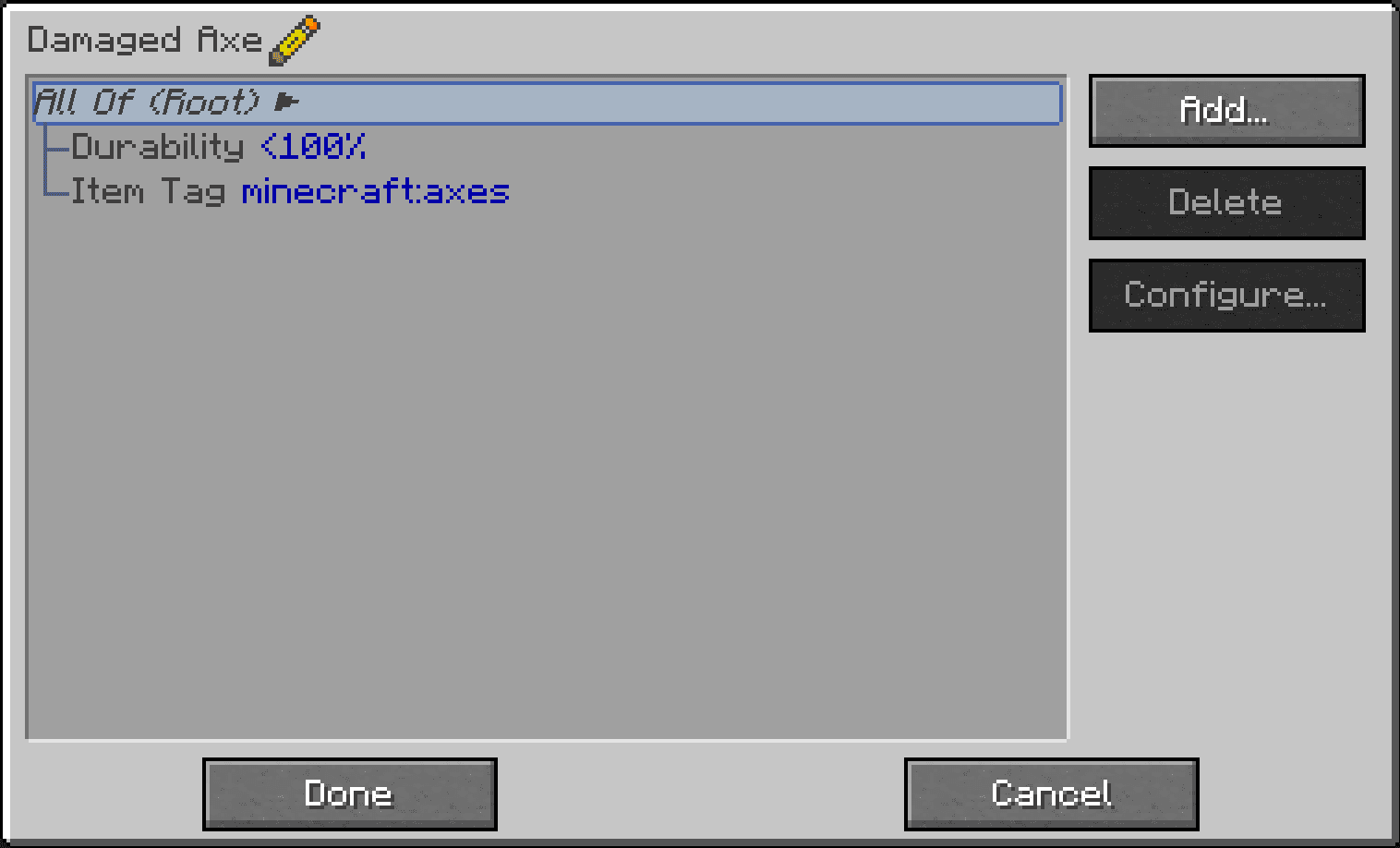
An easy to use Filter Gui: Simple GUI that allows you to build a tree of filters based on different filter types
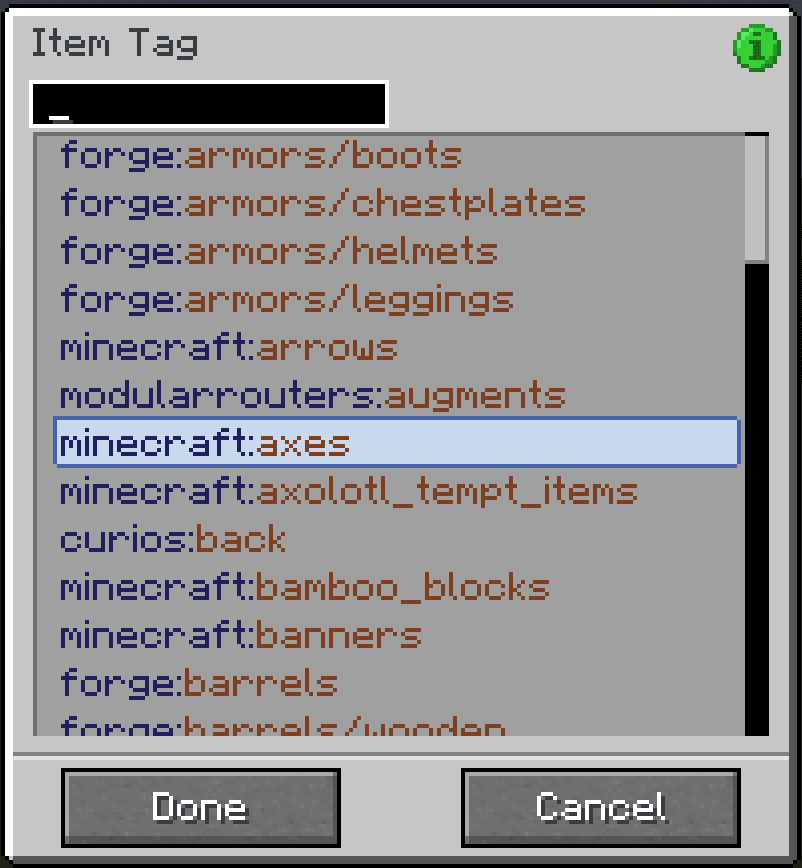
Tag filtering: You can filter by lots of different factors, like tags, durability, and NBT data
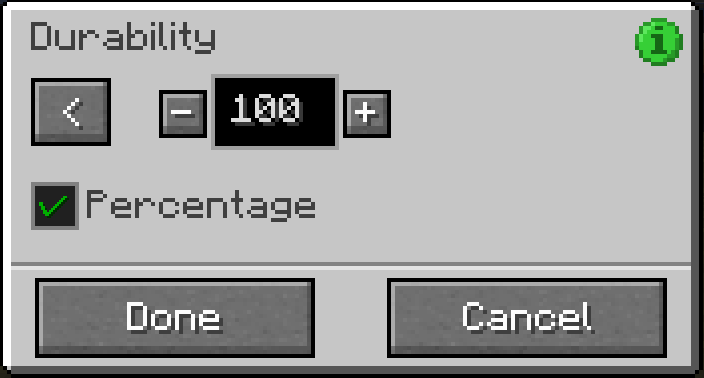
Durability filtering
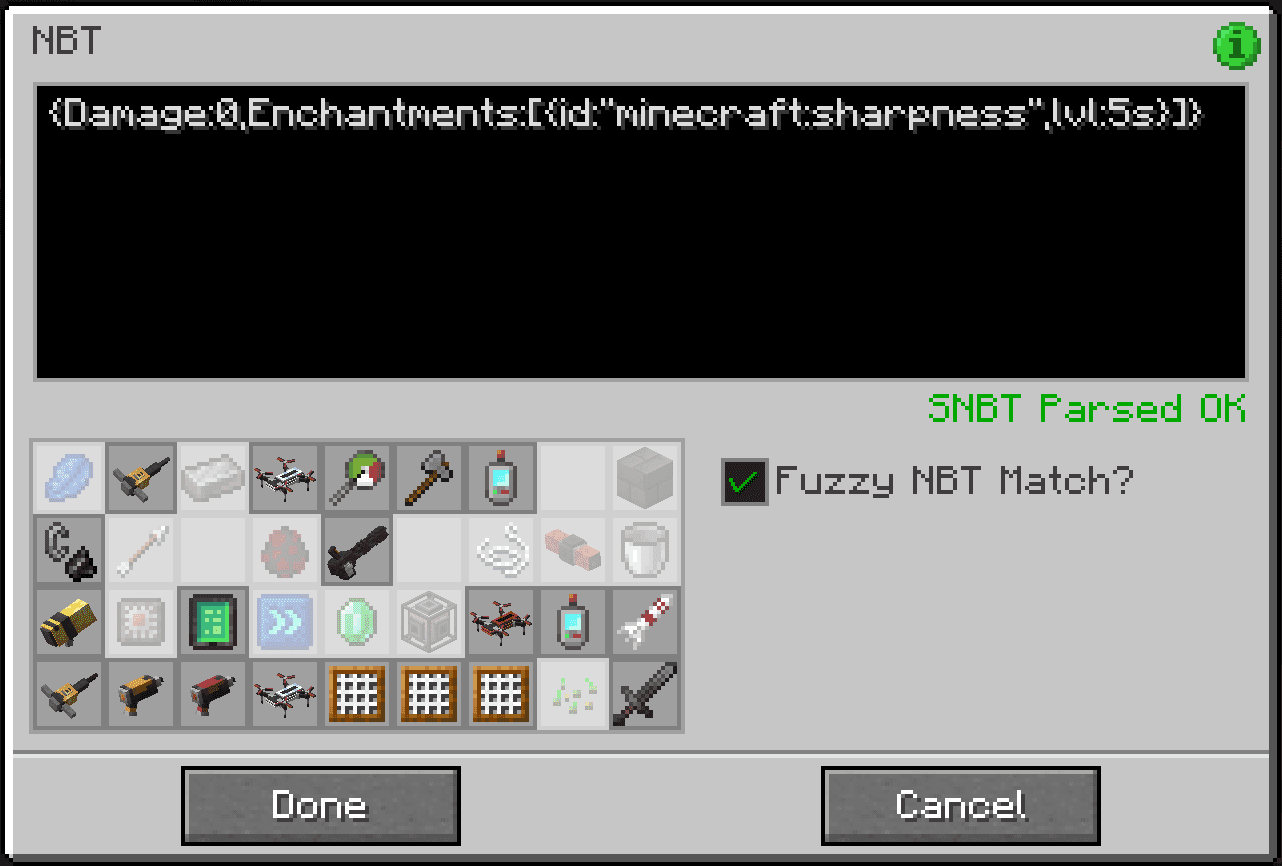
NBT filtering
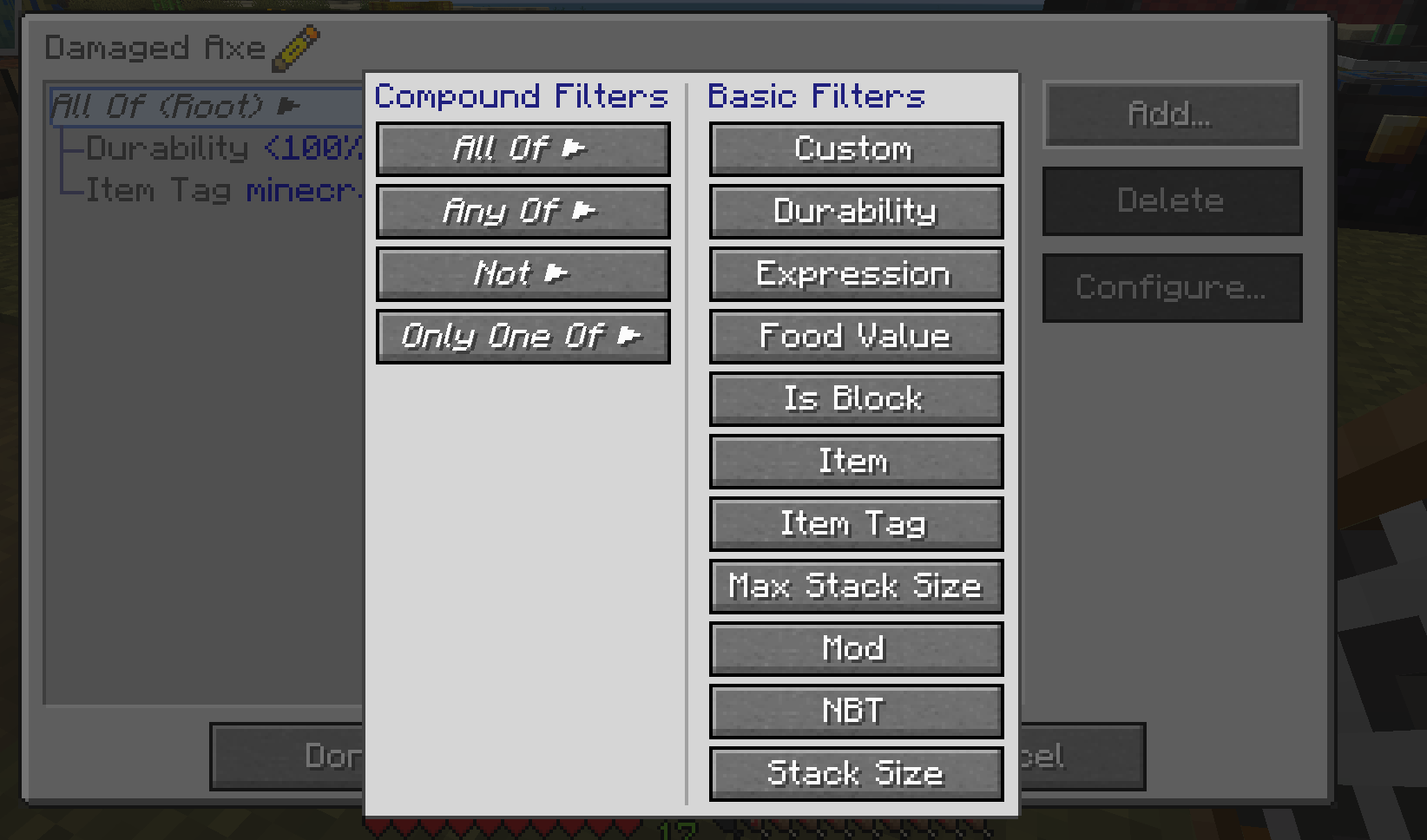
Filter types: Out of the box we support a large selection of different filtering options along with having an easy-to-use API to add more
How to Install:
New to Minecraft? Follow our step-by-step guide to install Mods on your PC.View Guide
Requirements:





FTB Filter System Mod Download Links
For Minecraft 26.1.2, 26.1.1, 26.1
For Minecraft 1.21.11
For Minecraft 1.21.1, 1.21
For Minecraft 1.20.6
For Minecraft 1.20.4
For Minecraft 1.20.1, 1.20
You May Also Like












This post has no comments yet. Be the first — your comment will appear here.