


Config Editor Render Mod (26.2, 1.20.1) – Edit Config Files Without Closing

 0
0 

🌐 Good news — we've translated this article into other languages!
Or pick the one you like:
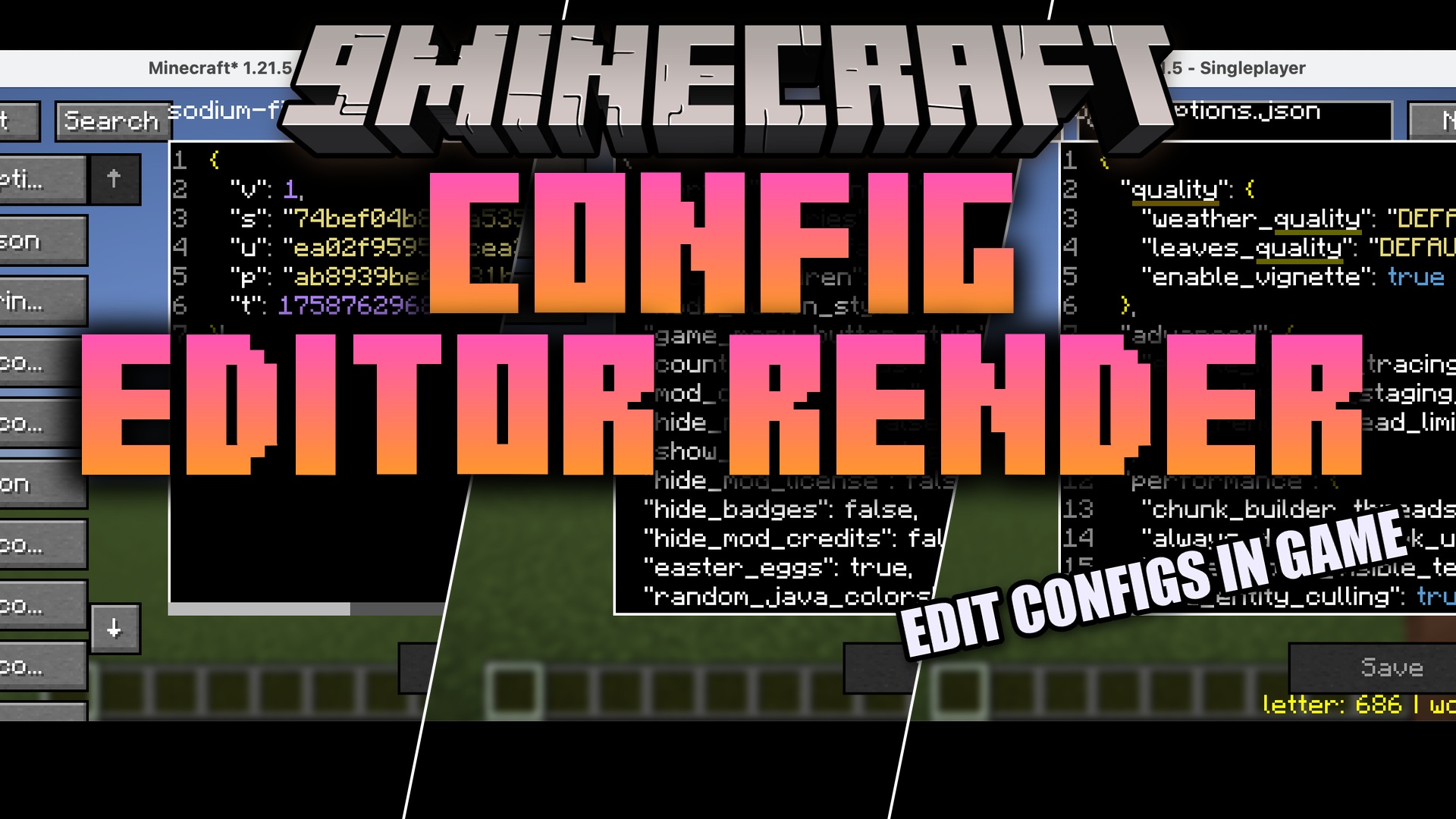
Config Editor Render Mod lets you change your game settings without ever closing Minecraft. It brings a full text editor right to your screen so you can tweak files while playing. The mod also gives you an AI helper to answer questions about your setups and shows helpful details about blocks you look at. It even cleans up your computer memory when you join a world to stop lag spikes. You save a lot of time because you no longer need to switch to a different window to fix a small setting.
Features:
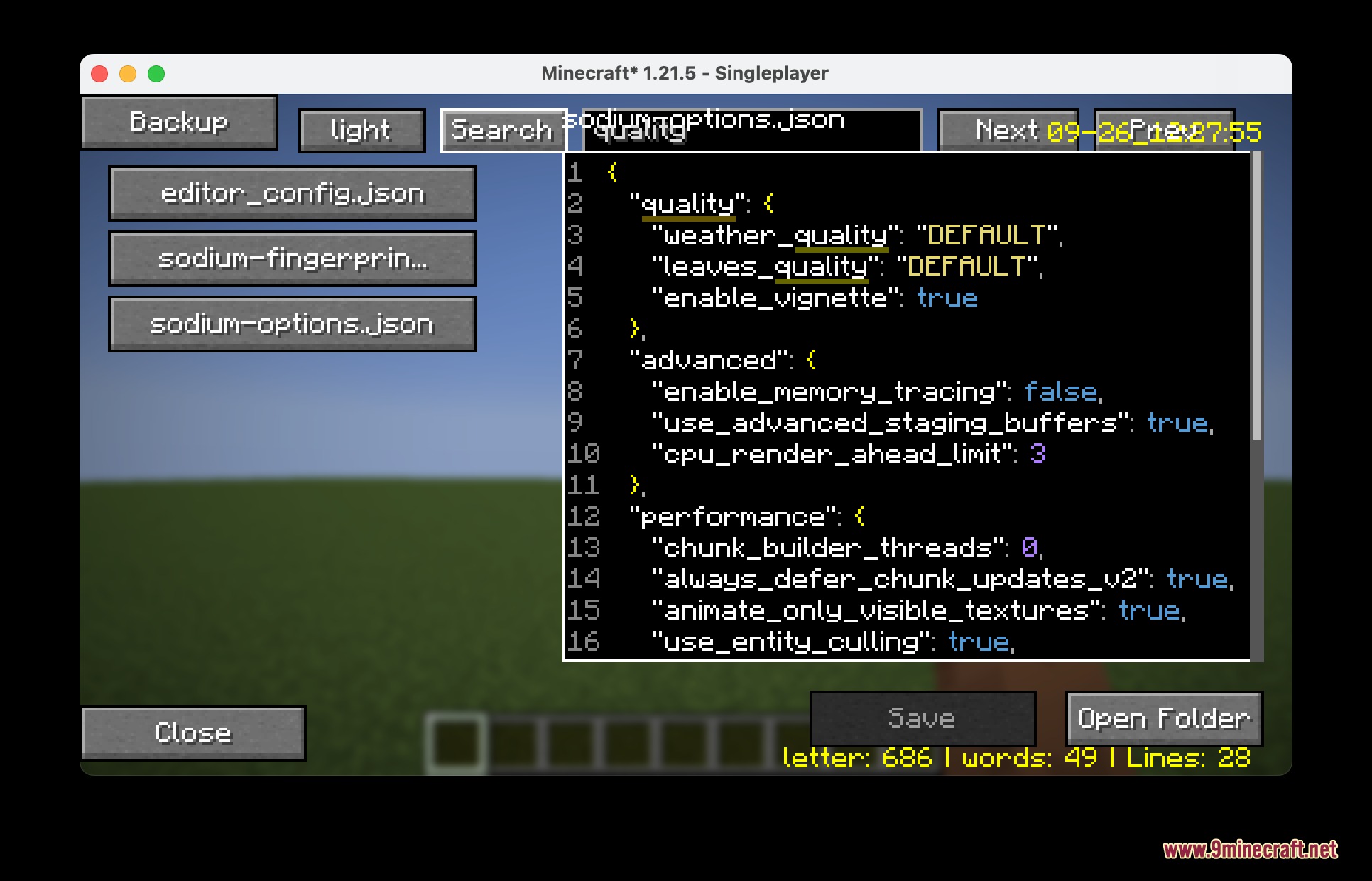
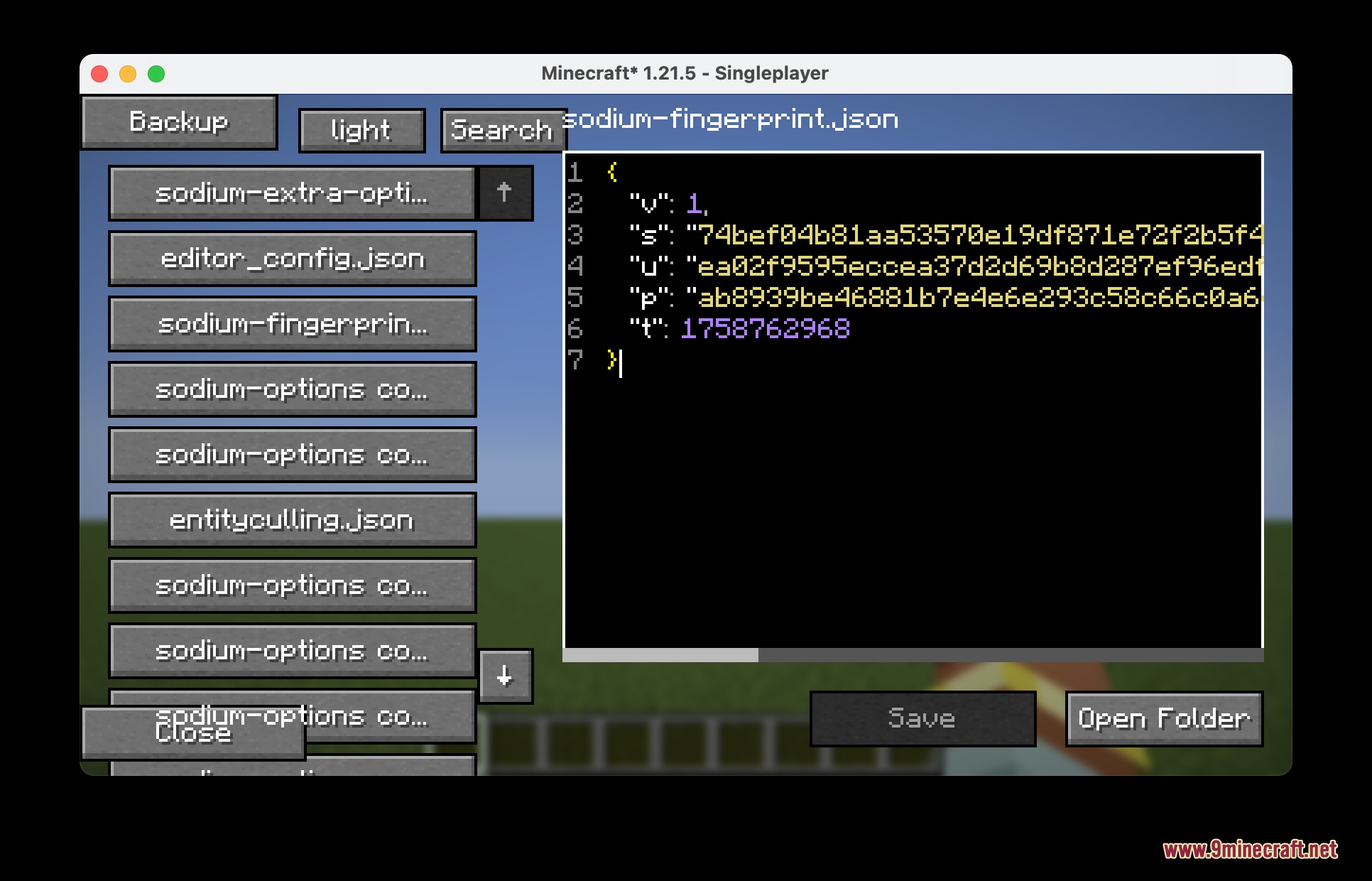
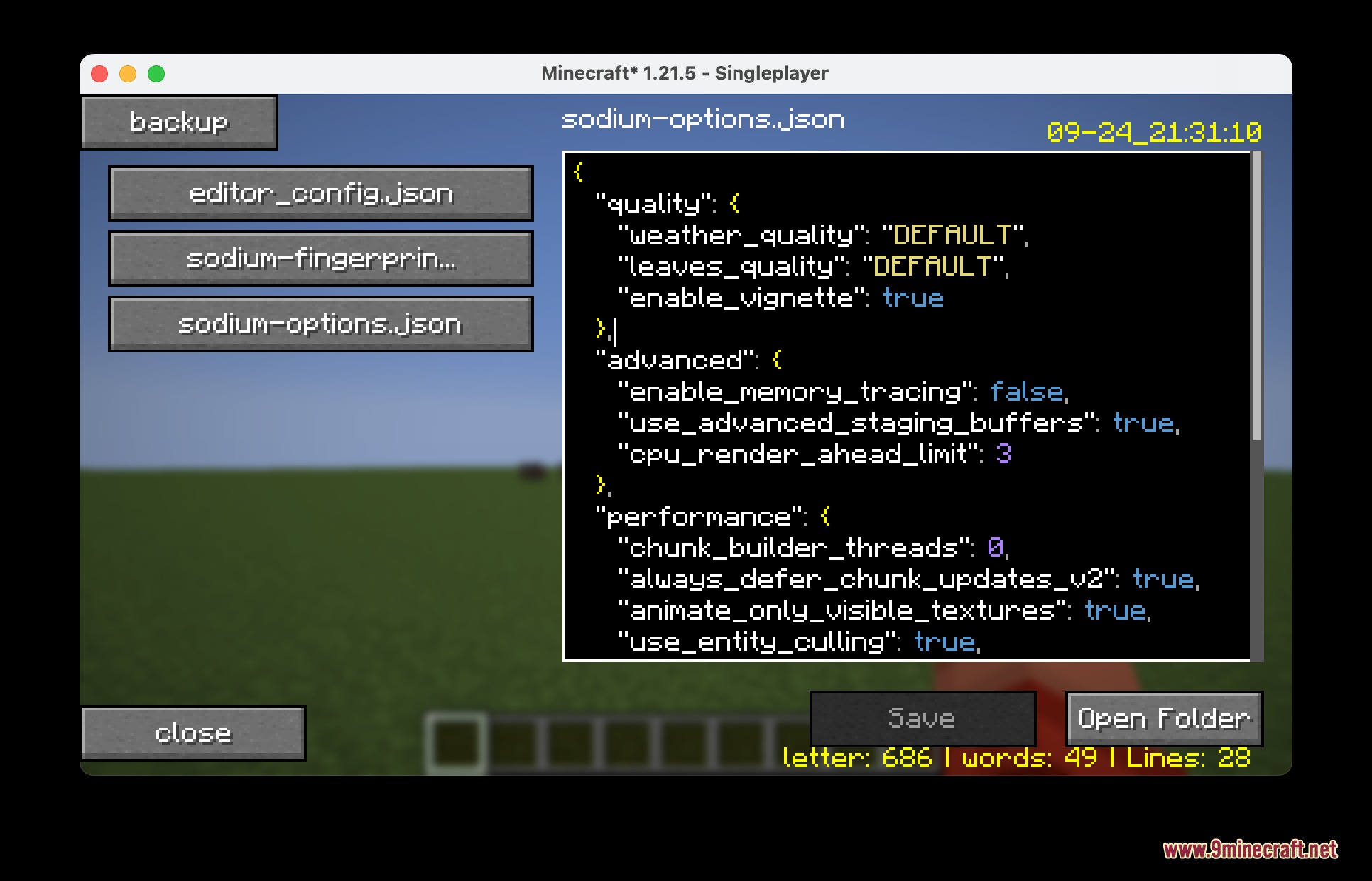
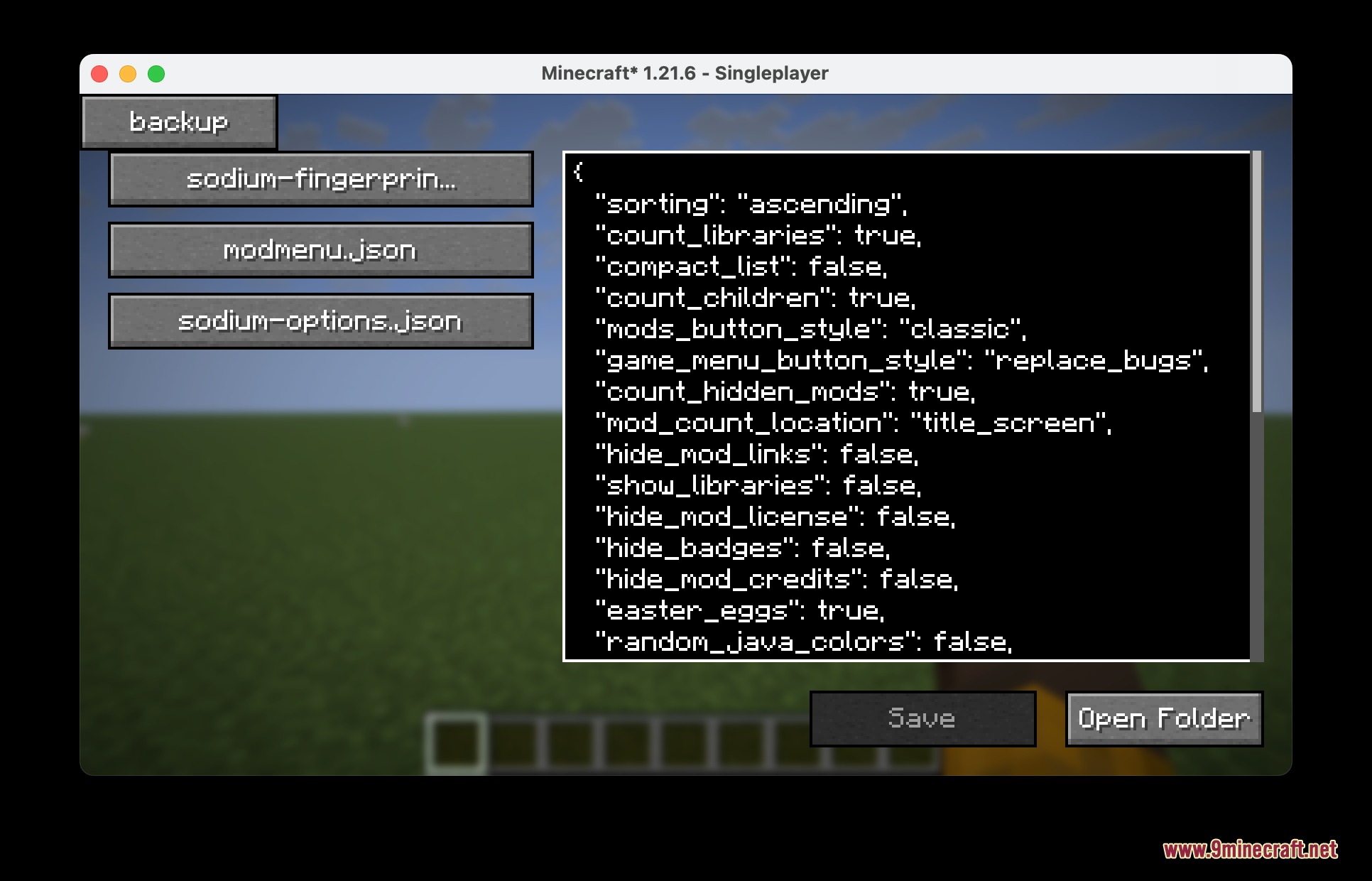
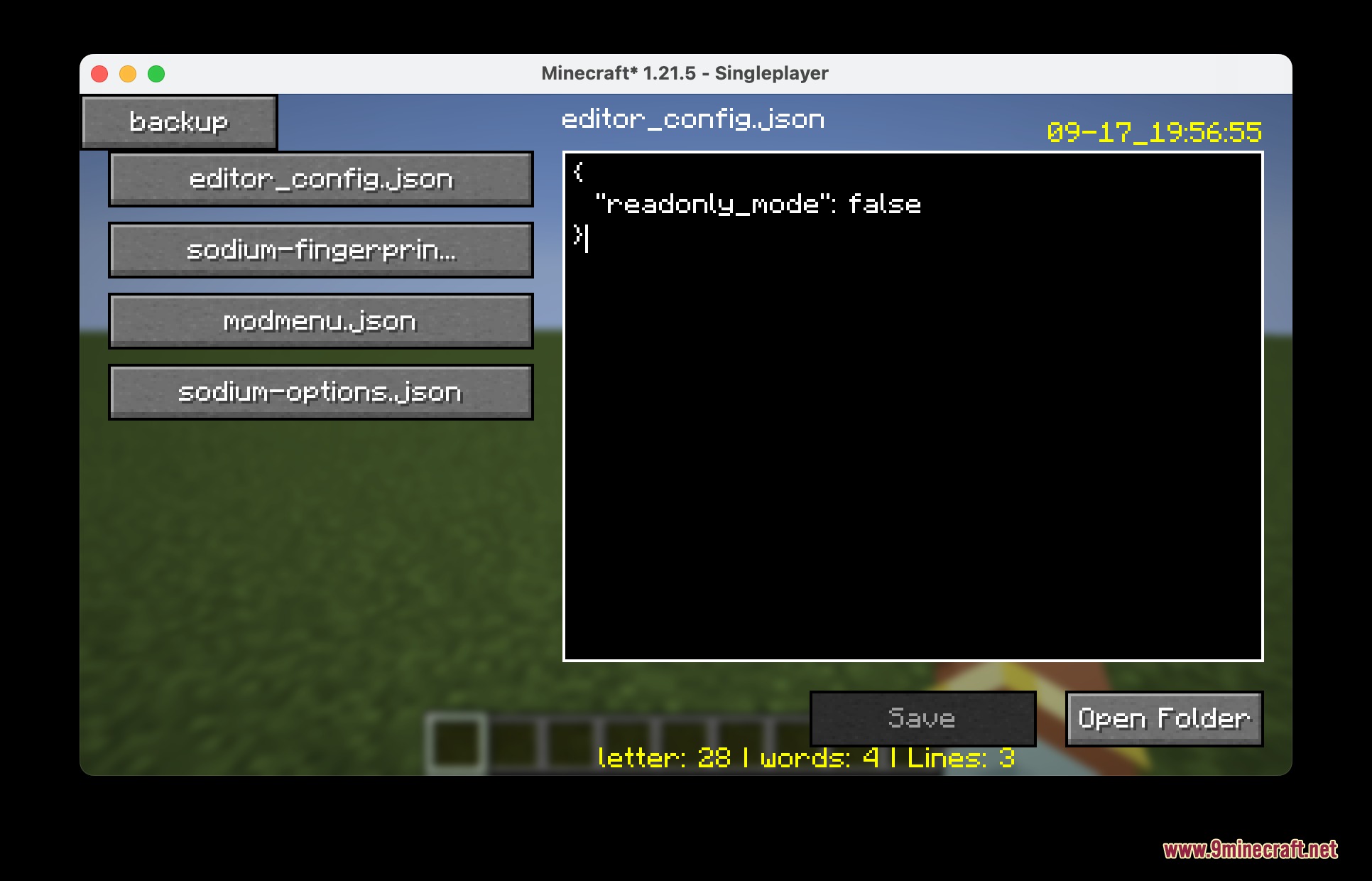
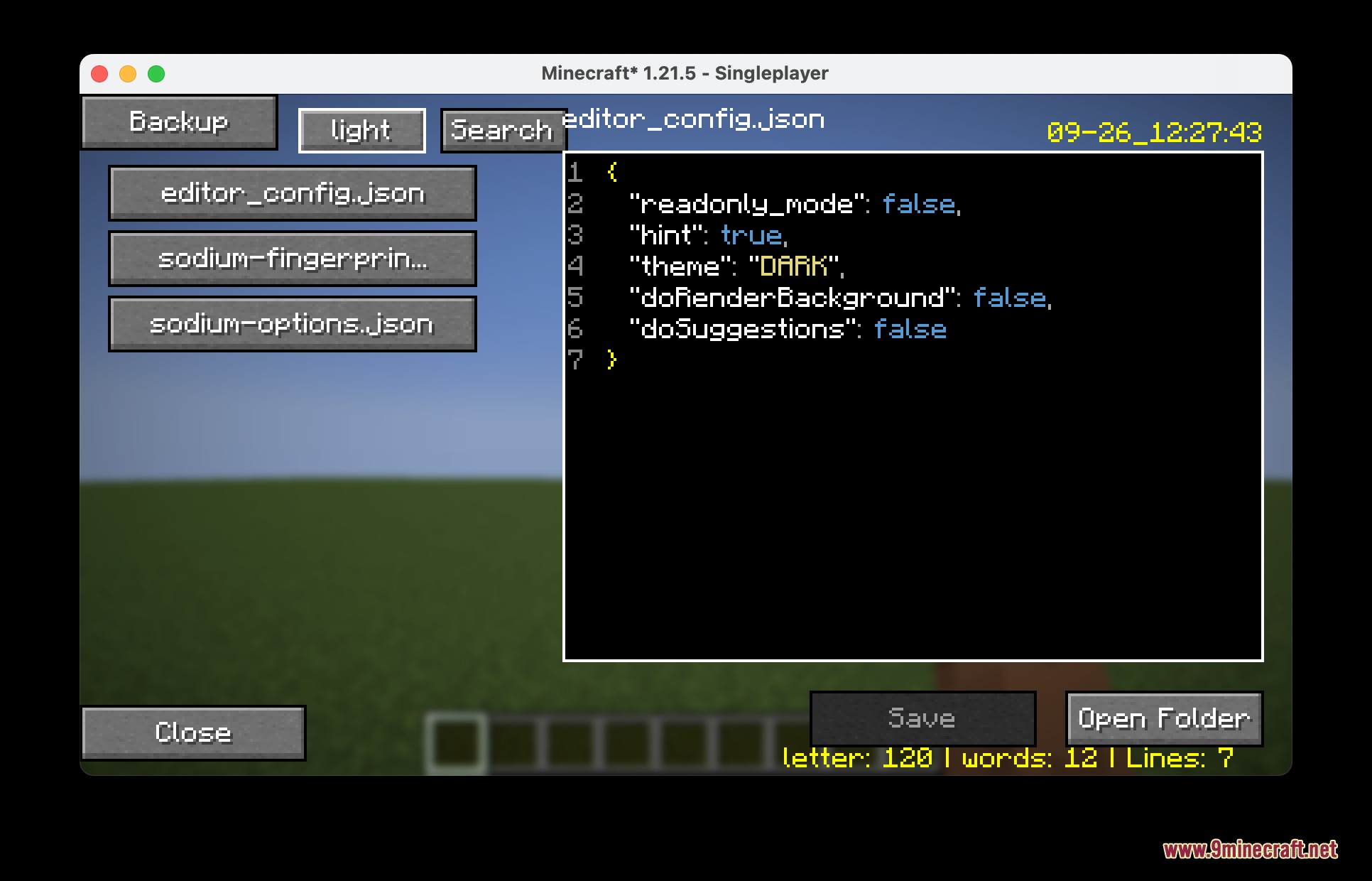
- In-Game Editing: Opens any file from your config folder directly on your screen with color-coded text and line numbers.
- Visual Menu: Gives you a simple point-and-click screen for JSON files so you do not need to type out complicated code.
- Adds an AI chat window that reads your files and answers questions if you run a local Ollama server.
- Shows a small box at the top of your screen with the name and picture of the block you are looking at.
- Lets you view and save the hidden NBT data of blocks and mobs just by pointing at them and pressing a key.
- Includes built-in tools like an undo button, a word counter, and an auto-closing bracket helper.
- Reduces lag when you join a new world by clearing out old memory and leftover particles.
- Creates a backup copy of your entire config folder with one click before you make any big changes.
Configuration:
You can change how this mod works by editing the editor_config.json file:
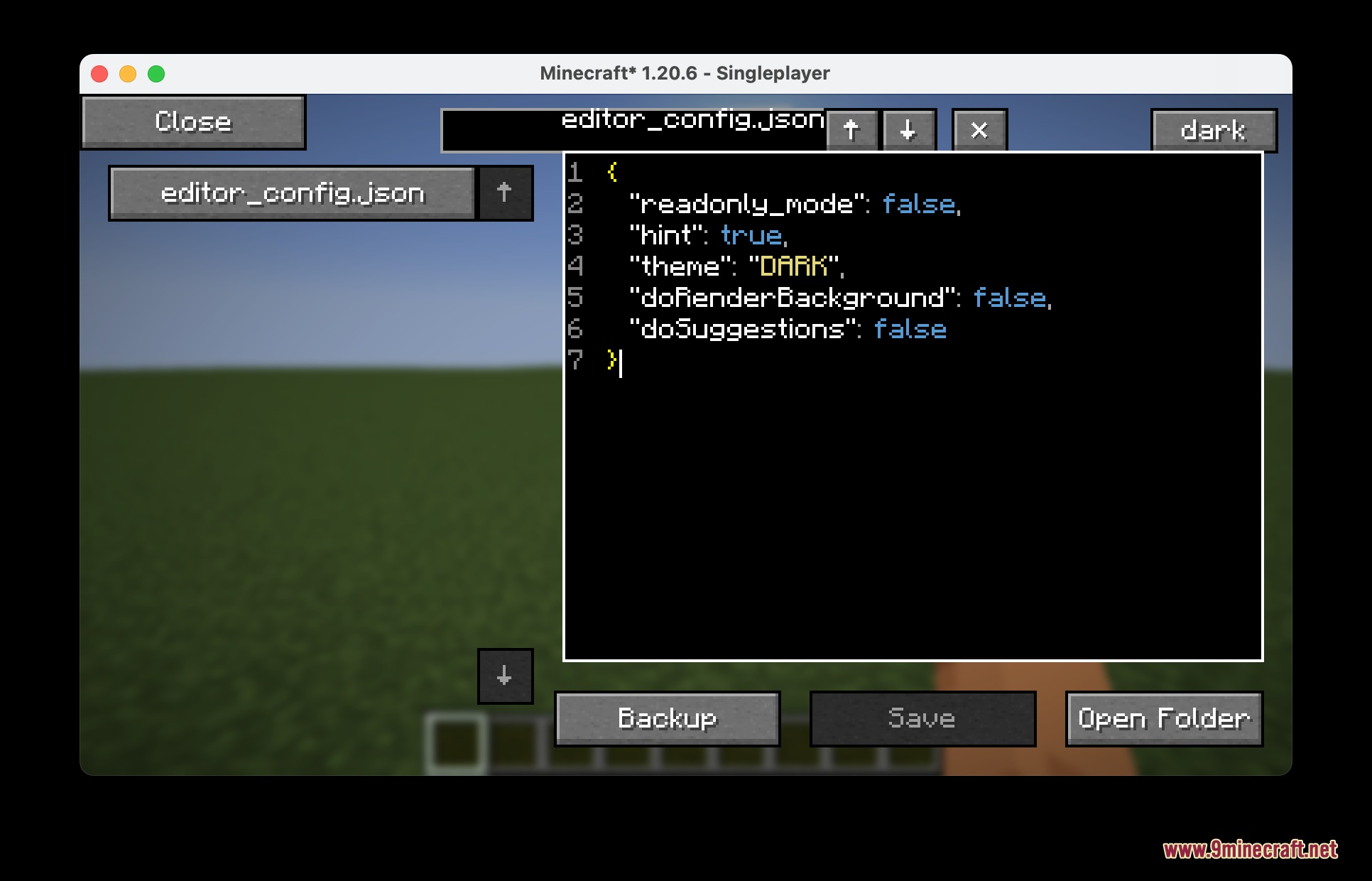
readonly_mode: stops you from saving changes if you only want to look at files.hint: turns on auto-closing for brackets and quote marks.theme: changes the colors to DARK, LIGHT, or AUTO.doRenderBackground: draws a special background behind the text window.doSuggestions: shows typing suggestions as you write.show_block_overlay: turns the block information box on or off.
{
  "readonly_mode": false,
  "hint": true,
  "theme": "DARK",
  "doRenderBackground": false,
  "doSuggestions": true,
  "show_block_overlay": true
}
How to Use:
- Go to your game options and open the Controls menu.
- Find the Gameplay section to set your keys for the editor, AI chat, and NBT viewer, as they are blank by default.
- Press your new editor key while playing to open the file menu.
- Pick a file to start making changes, or click the backup button first to keep your old settings safe.
- Point your crosshair at a chest or animal and press your NBT key to read its hidden data.
Screenshots:
How to Install:
New to Minecraft? Follow our step-by-step guide to install Mods on your PC.View Guide
Requirements:
 Fabric Loader Required
 Fabric API Required
 NeoForge Required
chat lib Required
Architectury API Required
Config Editor Render Mod Download Links
For Minecraft 26.2
For Minecraft 26.1.2, 26.1.1, 26.1
For Minecraft 1.21.11, 1.21.10, 1.21.9
For Minecraft 1.21.10, 1.21.9
For Minecraft 1.21.1, 1.21
For Minecraft 1.20.1, 1.20
Click to rate this post!
[Total: 0 Average: 0]
You May Also Like







This post has no comments yet. Be the first — your comment will appear here.