
IBE Editor Mod (1.20.4, 1.20.1) – Build Custom Mobs and Loot In-Game

 0


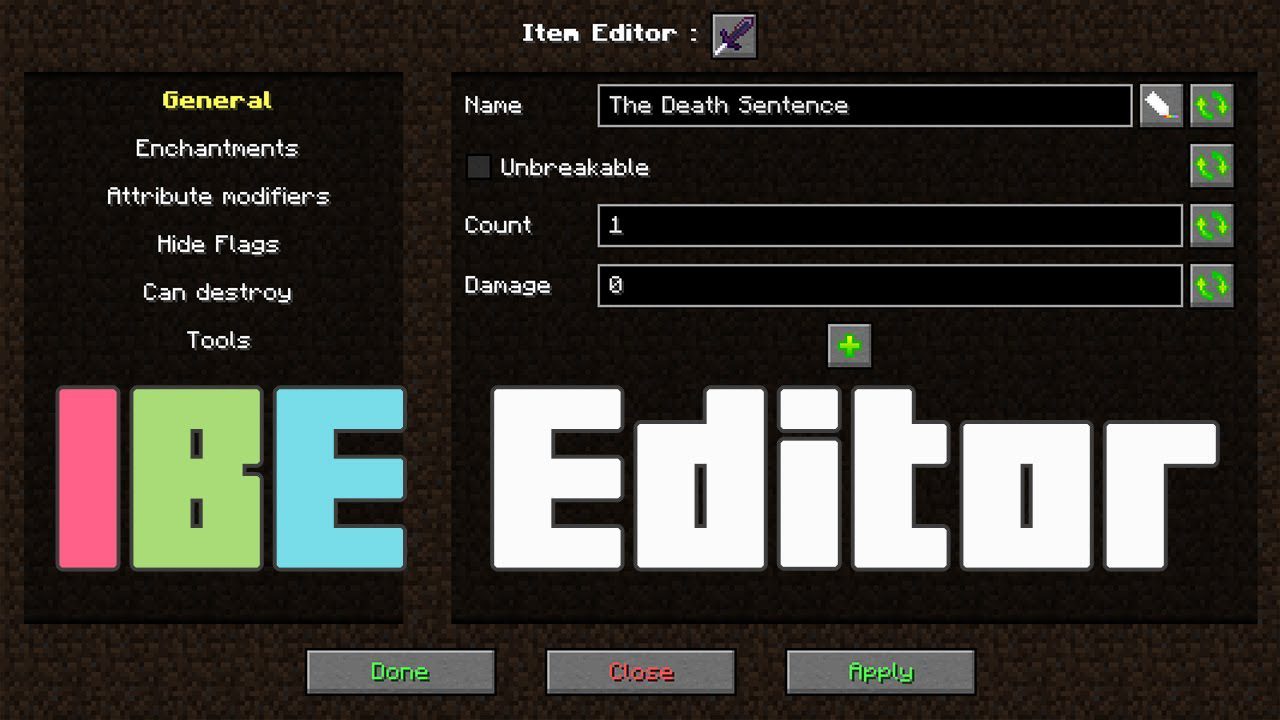
IBE Editor Mod lets you edit items, blocks, and entities right inside your Minecraft world with a simple menu. It includes five built-in tools: an Item Editor, a Block Editor, an Entity Editor, an NBT Editor, and an SNBT Editor. You can open these tools with quick keys or a chat command to change names, enchantments, potion effects, health, block states, and tags. This mod helps server admins and map makers customize their worlds fast, and the Fabric version needs Fabric API to run.
Features:
- Helps server admins and map makers edit items, blocks, and entities directly inside the game.
- Gives you a simple menu to change item, block, and entity settings quickly.
- Includes default keys to open each tool: press I for the Item Editor, N for the NBT Editor, and R for the SNBT Editor.
- Checks your input in the Standard Editor and marks invalid fields in red so you cannot save broken data.
Item Editor:
- Lets you rename items and add formatted lore text.
- Adds and edits enchantments on items.
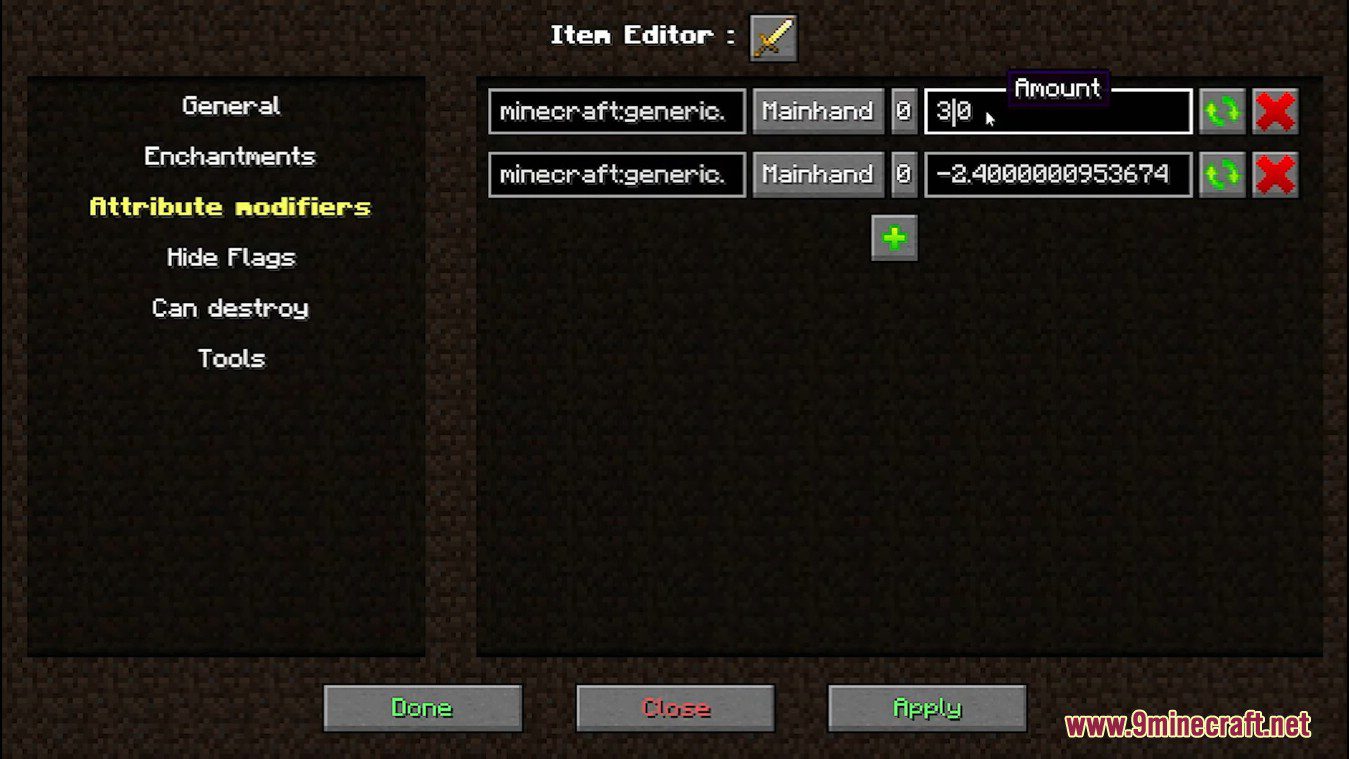
- Lets you set attribute modifiers on items.
- Controls Hide Flags on items.
- Sets which blocks an item can be placed on or destroy.
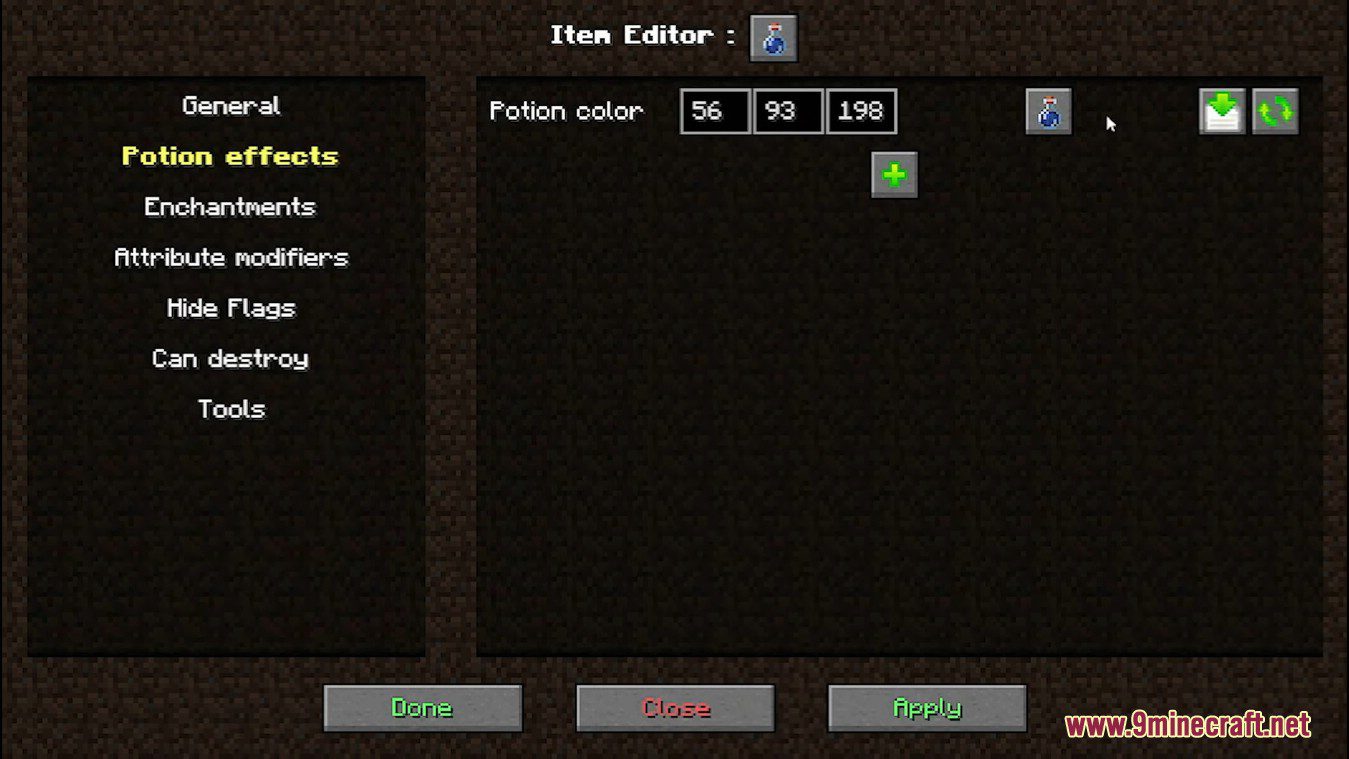
- Applies potion effects to items.
Block Editor:
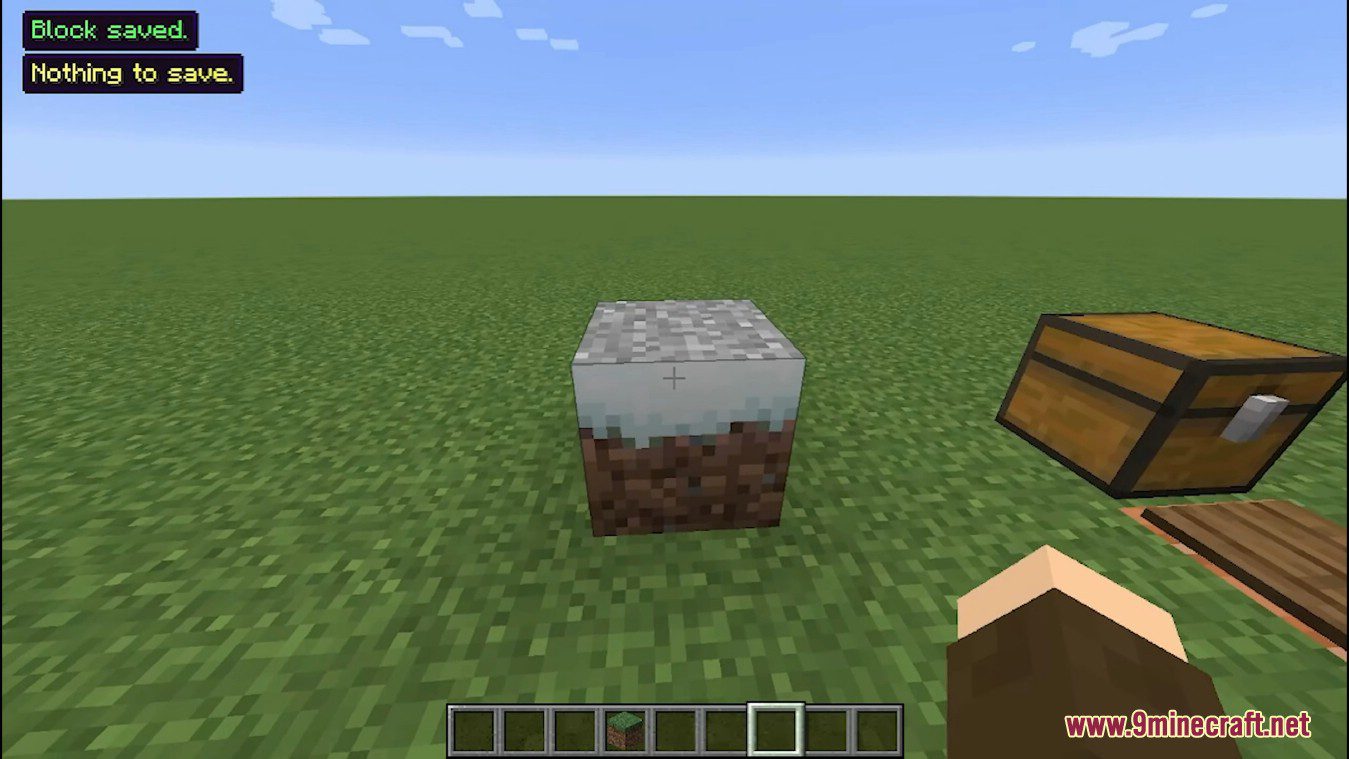
- Changes block states directly in your world.
- Sets container names and lock codes.
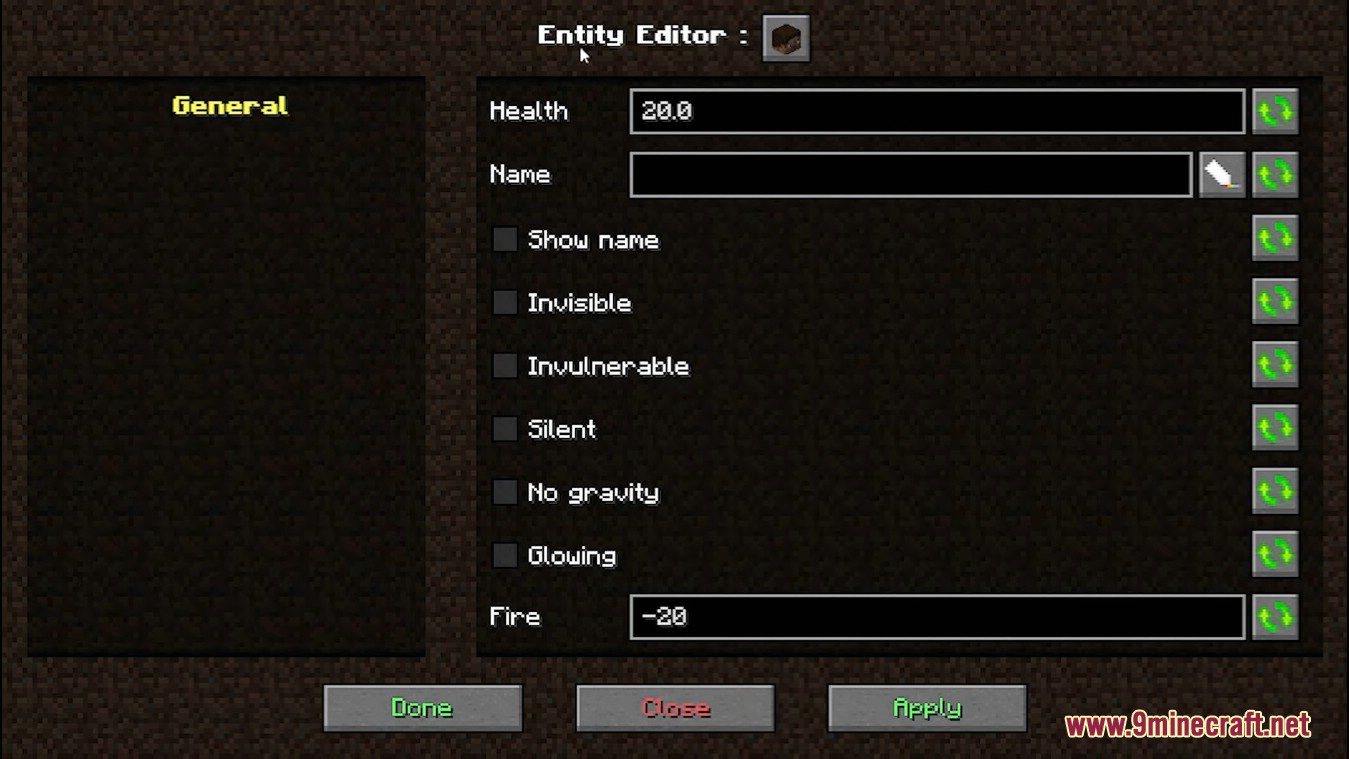
Entity Editor:
- Changes the name and health of an entity.
- Toggles extra attributes, including Invulnerable, Silent, Glowing, No gravity, and Fire.
NBT Editor:
- Edits items, block entities, and entities.
- Lets you add, remove, and edit tags.
- Supports cutting, copying, and pasting tags.
SNBT Editor:
- Edits items, block entities, and entities in SNBT format.
- Supports text formatting inside the editor.
Commands:
/ibe [target] [editor_type]: Opens an editor for the chosen target and editor type (both arguments are optional)./ibe [editor_type] [target]: Opens an editor with the two optional arguments in reverse order.target: Selects what to edit usingitem,block,entity, orself. If left out, the mod checks what your cursor points at, your main-hand item, or your own player.editor_type: Chooses which editor to open usingnbtorsnbt. If left out, the mod opens the Standard Editor.
The /ibe command only works in singleplayer or on servers where IBE Editor Mod is installed.
How to Use:
Opening an Editor with Keys
- Select what you want to edit first by hovering your mouse over an item in your inventory screen.
- To select something in the world, point your crosshair at an entity to pick that entity, or point at a block to pick that block.
- To edit the item in your main hand outside the inventory, make sure you are not pointing at any blocks or entities; if your main hand is empty, the mod selects your own player entity.
- Press I to open the Standard Editor, N to open the NBT Editor, or R to open the SNBT Editor.
Opening an Editor with Commands
- Make sure you are playing in singleplayer or on a server with IBE Editor Mod installed.
- Type
/ibein chat, with optional[target](item,block,entity, orself) and[editor_type](nbtorsnbt) arguments in either order, to open that editor right away.
Using the Standard Editor
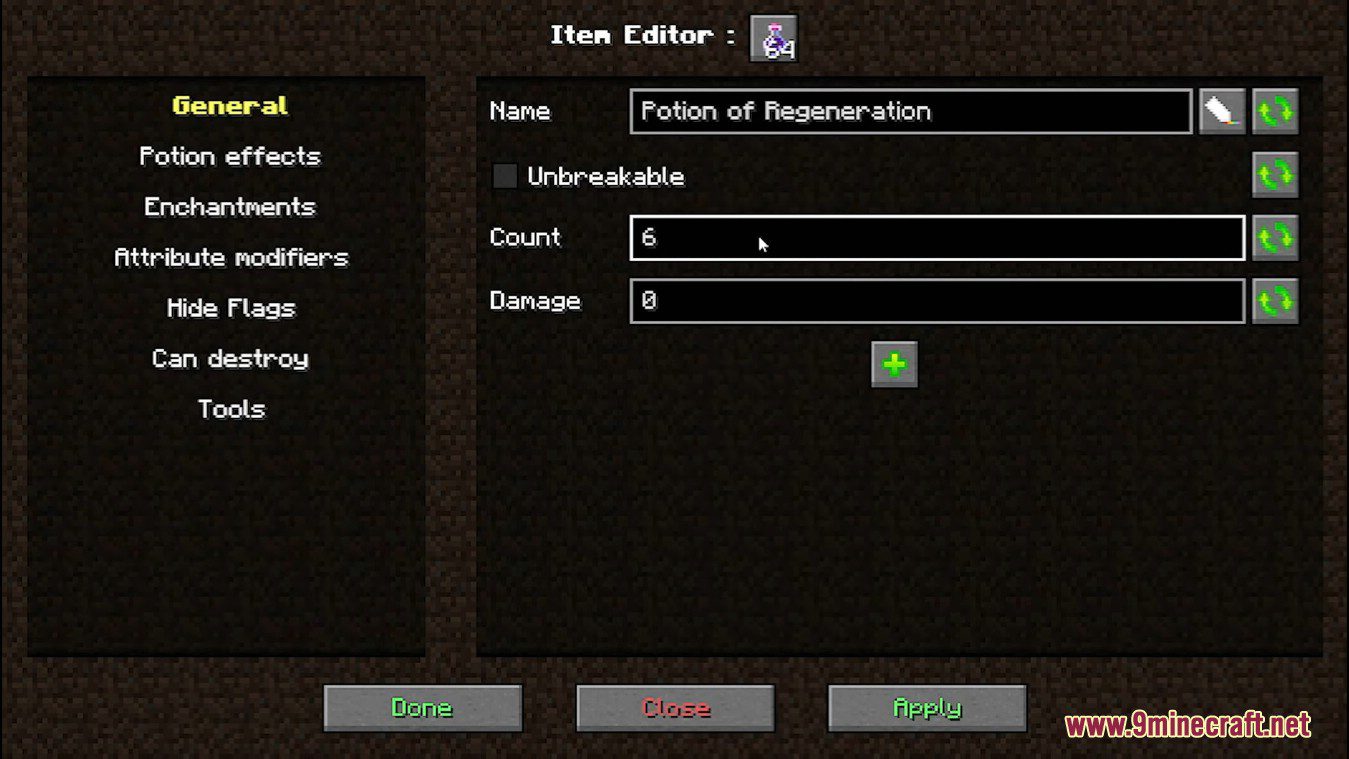
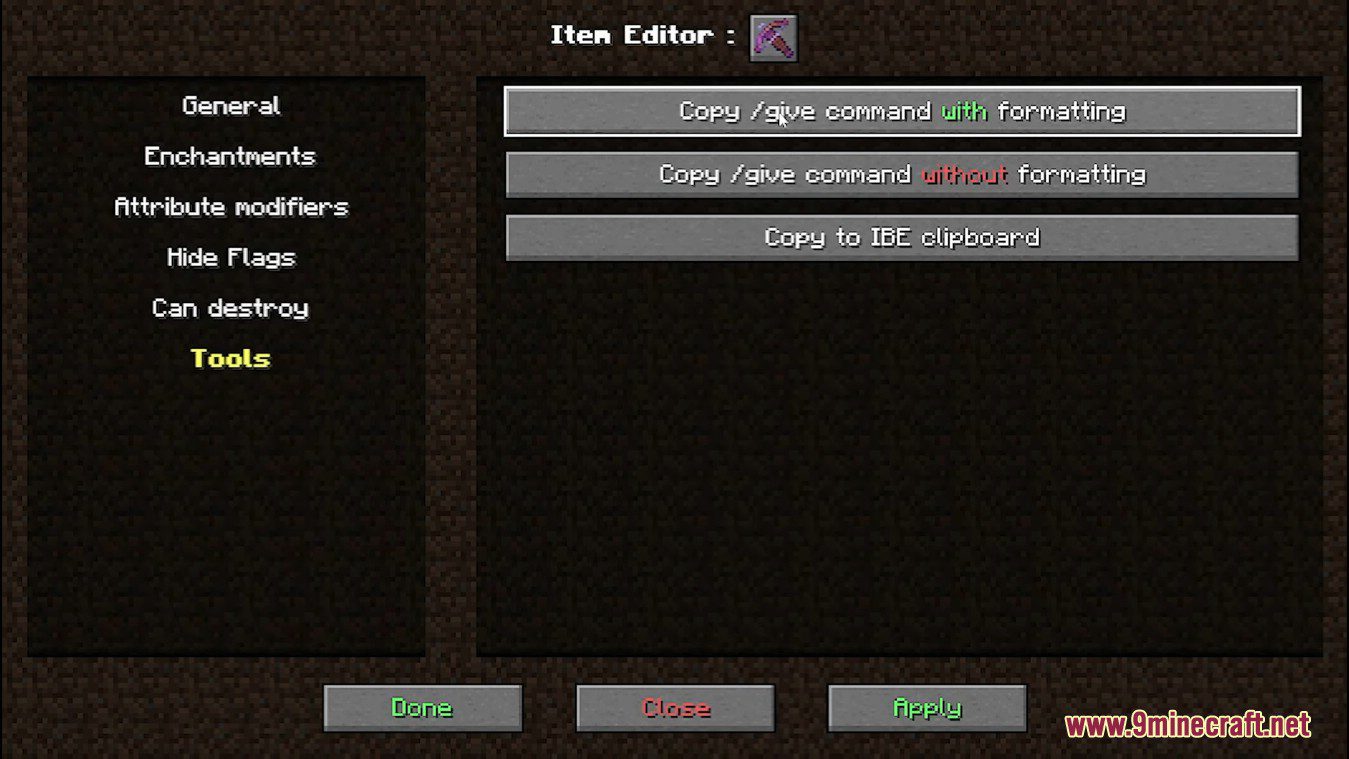
- Look at the two sides of the screen: categories are listed on the left, and editable entries are shown on the right.
- Click a category on the left to switch to it; the active category turns bold and yellow, and changes from the previous category are saved locally.
- Edit the entry values on the right. If any entry has invalid data, its input border and category name turn red, and you cannot save until you fix it.
- Click “Done” to save your changes and close the editor, or click “Cancel” to close it without saving.
Screenshots:
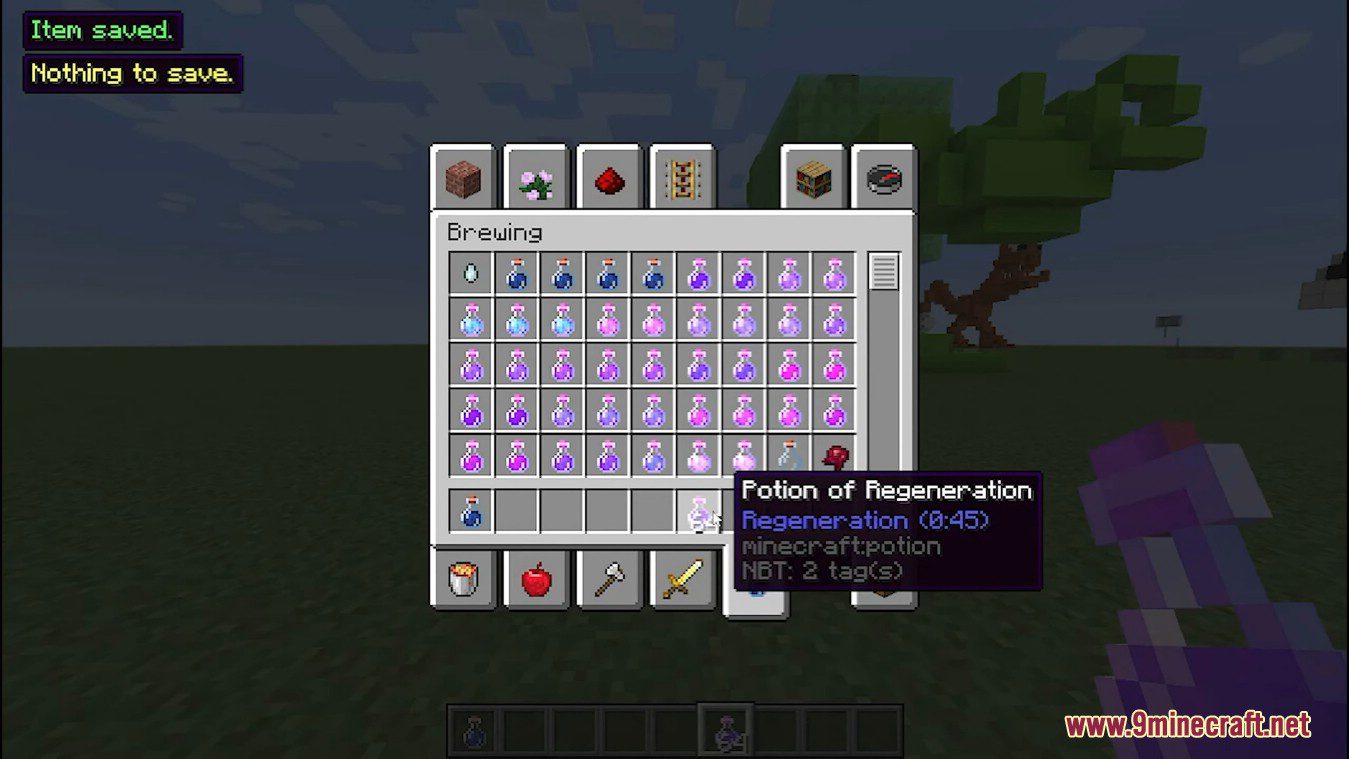
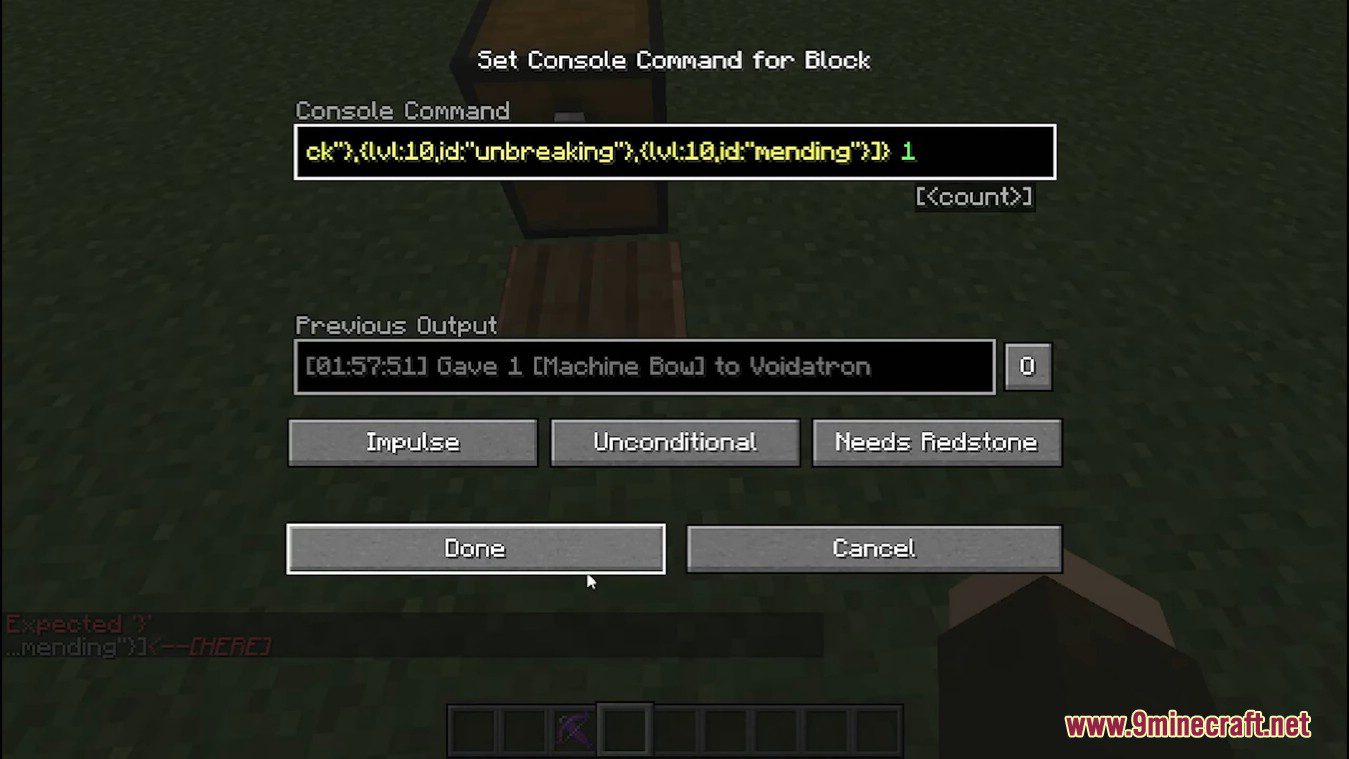
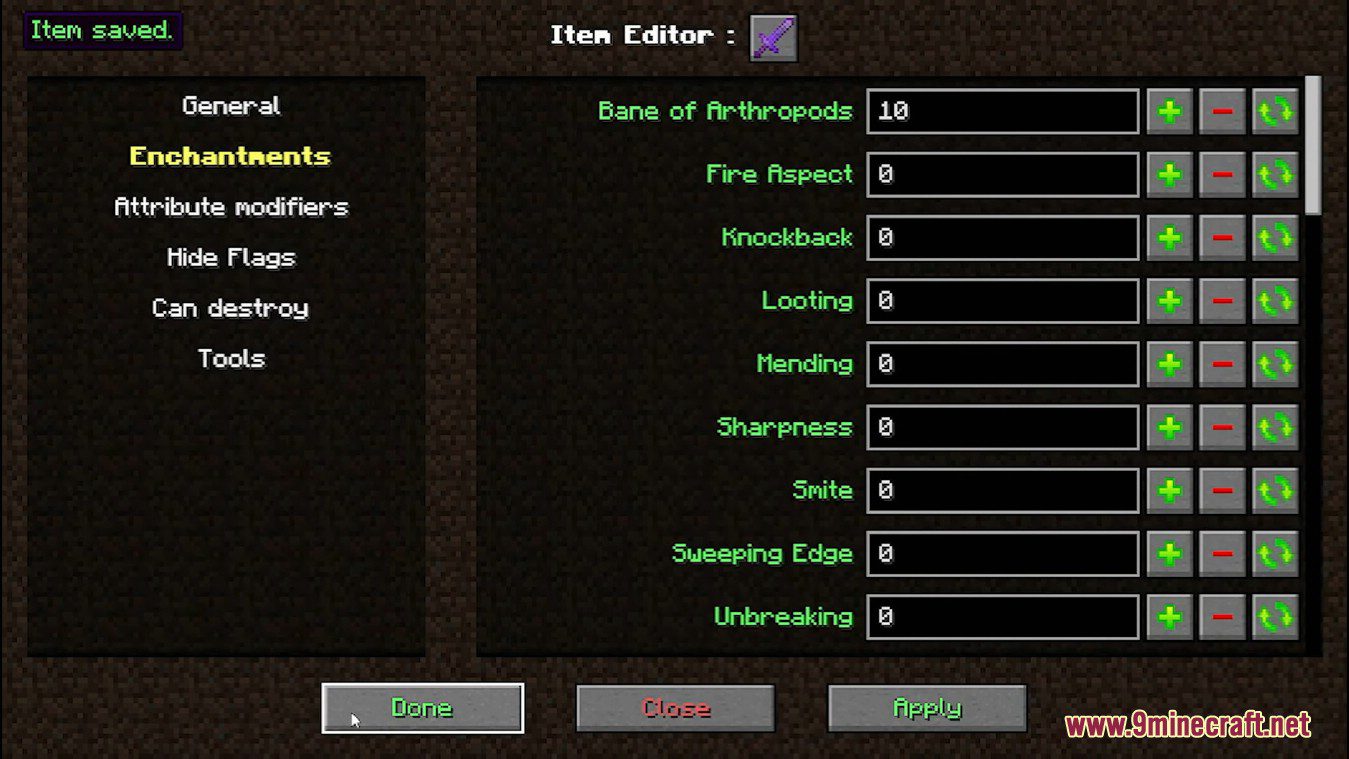
How to Install:
New to Minecraft? Follow our step-by-step guide to install Mods on your PC.View Guide
IBE Editor Mod Download Links
For Minecraft 1.16.5
Forge version: Download from Server 1
Fabric version: Download from Server 1
For Minecraft 1.17.1
Forge version: Download from Server 1
Fabric version: Download from Server 1
For Minecraft 1.18.2
Forge version: Download from Server 1 – Download from Server 2
Fabric version: Download from Server 1 – Download from Server 2
For Minecraft 1.19.2, 1.19.1, 1.19
Forge version: Download from Server 1 – Download from Server 2
Fabric version: Download from Server 1 – Download from Server 2
For Minecraft 1.19.3
Forge version: Download from Server 1 – Download from Server 2
Fabric version: Download from Server 1 – Download from Server 2
For Minecraft 1.19.4
Forge version: Download from Server 1 – Download from Server 2
Fabric version: Download from Server 1 – Download from Server 2
For Minecraft 1.20.1, 1.20
Forge version: Download from Server 1 – Download from Server 2
Fabric version: Download from Server 1 – Download from Server 2
For Minecraft 1.20.2
Forge version: Download from Server 1 – Download from Server 2
Fabric version: Download from Server 1 – Download from Server 2
NeoForge version: Download from Server 1 – Download from Server 2
For Minecraft 1.20.4
Forge version: Download from Server 1 – Download from Server 2
Fabric version: Download from Server 1 – Download from Server 2
NeoForge version: Download from Server 1 – Download from Server 2
You May Also Like
Picked for this page
 Better Animations Collection 2 Mod (26.3, 1.20.1) – Change In-Game Models
 Carpet Mod (1.21.11, 1.20.1) – Game Performance Monitoring
 Player Tracking Compass Mod (26.3, 1.20.1) – Player Targeting
 Video Player Mod (1.20.1) – Watching Mp4 in Minecraft
 GeOre Mod (26.1.2, 1.20.1) – Cultivation Of Ore Crystals
 Fusion Connected Textures Mod (26.3, 1.20.1) – Enhancing Resource Packs
 Ctrl Q Mod (26.1, 1.20.1) – Take Control Of Your Inventory
 Structures Plus II Mod (1.20.1) – More Structures in A Vanilla Style
 Styled Nicknames Mod (26.3, 1.20.1) – Nickname Customization
 Chat Tools Mod (26.3, 1.20.1) – Advanced Tools and Customization Chat Options
 Chain Crafter Mod (1.21.11, 1.20.6) – Craftable Chainmail Armor
 Extra Quests Mod (1.21.1, 1.20.1) – Quest Expansion
Most viewed in Mods over the last 7 days
 Ala Industrial Mod (26.3) – Run Electric Power Grids and Automated Factories
 PleasureCraft Mod (26.3, 1.21.1) – Jenny Mod Remake for Fabric
 Jennycraft Mod (26.3, 1.20.1) – Virtual Girlfriend in Minecraft
 Fapcraft Mod (26.3, 1.12.2) – Comprehensive and Detailed Content
 Jenny Mod (Fapcraft) Official Complete Guide – How to use, Tutorial
 BangCraft Mod (1.20.1) – Jenny, Ellie and Elliot
 Fabric Loader (26.3, 1.20.1) – Fabric Installer for All Minecraft Versions
 Meteor Client Mod (26.3, 1.20.1) – Xray, HUD, Fly
 The Shooting Star Demo Mod (26.3, 1.20.1) – Vaporize Terrain From Orbit
 OptiFine HD (26.3, 1.20.1) – Run Faster, FPS Boost, Shaders Support
 Aristois Client Mod (1.21.4, 1.20.1) – World Class Minecraft Utility
 SchnurriTV Mod (1.12.2) – Characters and Features
More from Mods
 Offgrid Mod (26.3, 1.20.1) – Furnish Compact Interiors Without Strict Grid
 Tempest Almanac Iron’s Spells ‘n Spellbooks Mod (1.21.1, 1.20.1)
 Chat Guides Mod (26.3, 1.21.11) – Never Memorize Complex Server Commands Again
 TRMT Reimagined the Roads More Travelled Mod (26.3, 1.20.1)
 Morrowless Mod (1.21.1) – Defend Your Shelter From Nightmare Creatures
 THE SLOPSTROSITY Mod (1.21.1) – Battle a Ridiculous Slime Boss
 Decoween Mod (1.21.1, 1.20.1) – Transform Ordinary Survival Bases
 Simply Light 9minecraft Mod (26.3) – Decorate Builds Without Torches
 Alex’s Caves Continued Mod (26.3, 1.20.1) – Conquer Six Massive Underground
 Anvil Uses Mod (26.3, 1.20.1) – Track Item Anvil Usage
 Animal Info Mod (26.3, 1.21.11) – Quick Stats For Your Animals
 Timber Tales Dynamic Tree System Mod (26.3, 1.20.1) – Watch Entire Trees Topple

This post has no comments yet. Be the first — your comment will appear here.