
Raw’s Visual Keybinder Mod (1.21.11, 1.20.1) – Never Struggle with Keybinds
 185
 0


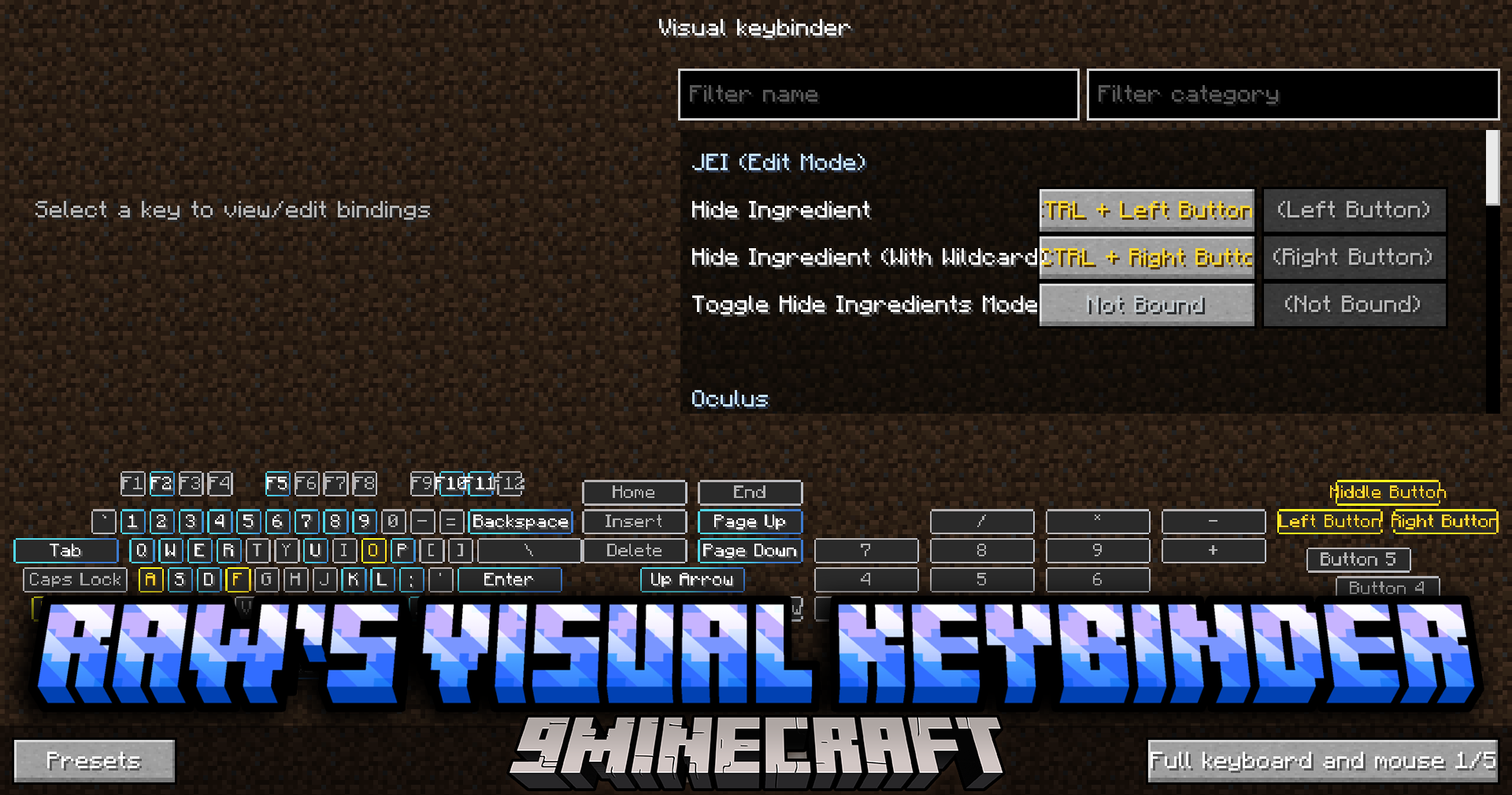
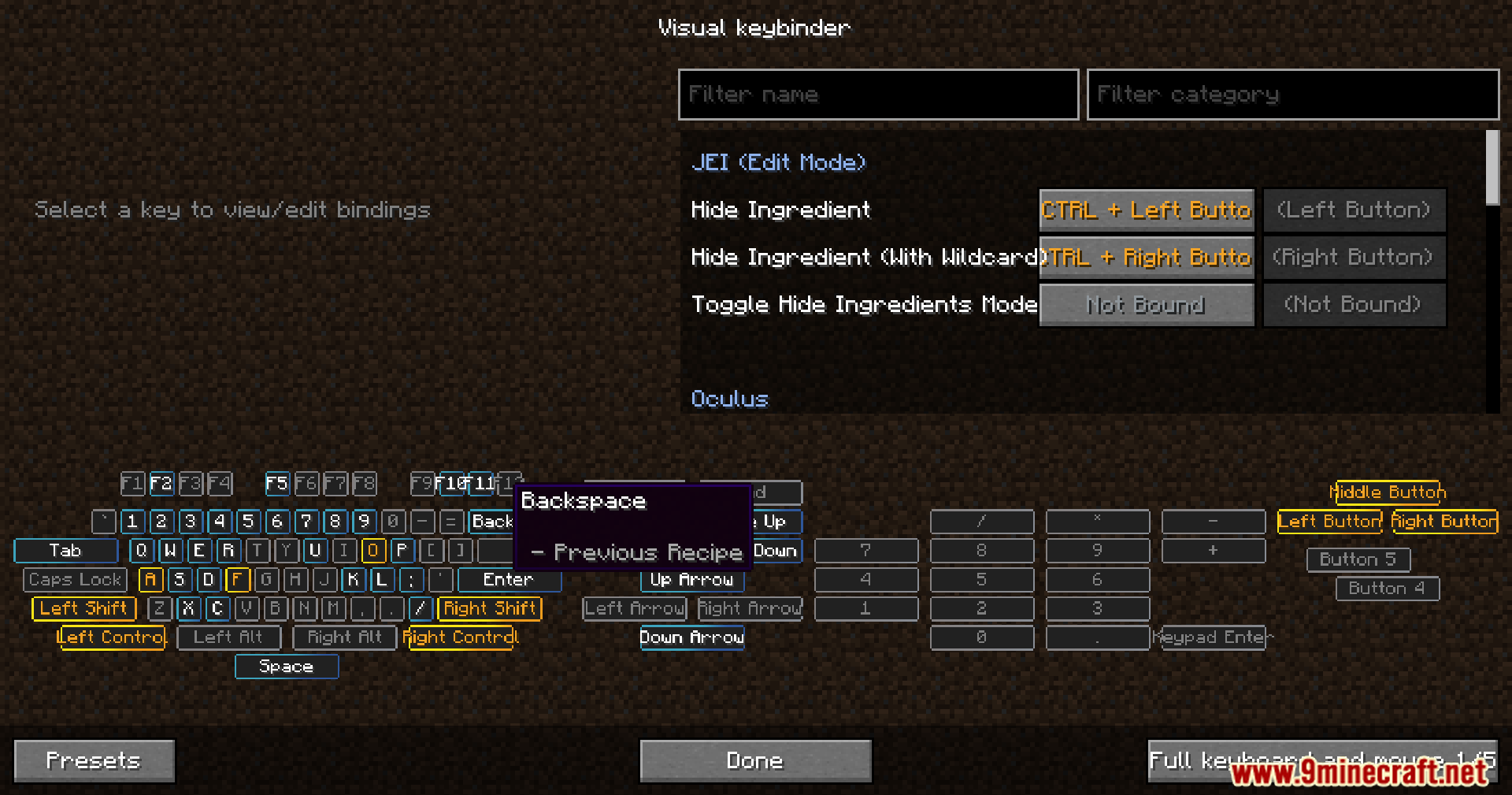
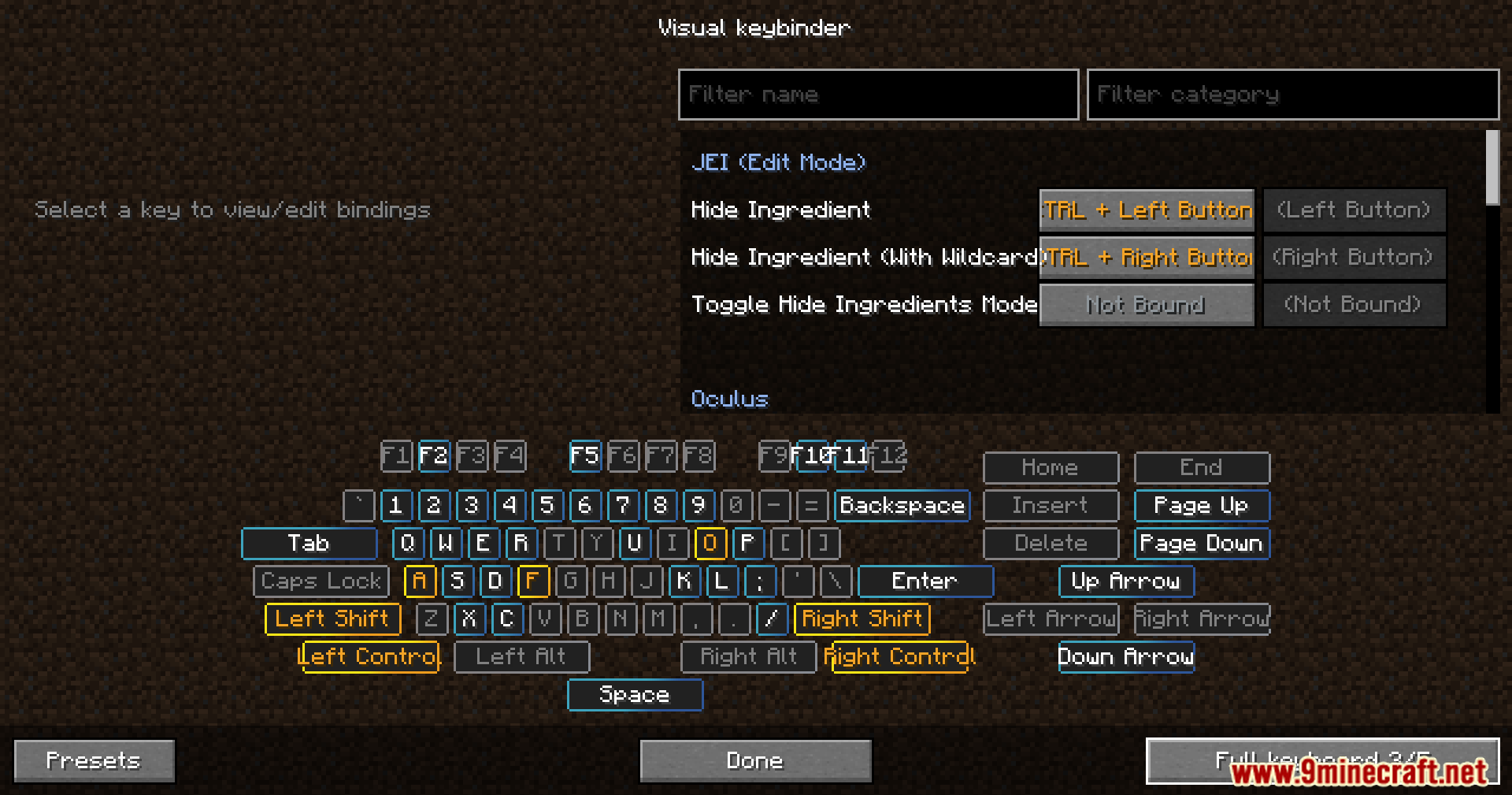
Raw’s Visual Keybinder Mod gives you a visual keyboard layout to manage controls in large modpacks. This mod highlights used and conflicting keys so you can spot open buttons right away, and it also lets you combine modifier keys with mouse buttons like Shift + Left Click. You can save and load keybind presets, switch between presets with a shortcut, and change or add keyboard layouts in the config. It is a client-side mod, so you do not need it on a server.
Features:
- Adds an extra keybind screen that you can open from a button next to the default edit keybind button in the options menu.
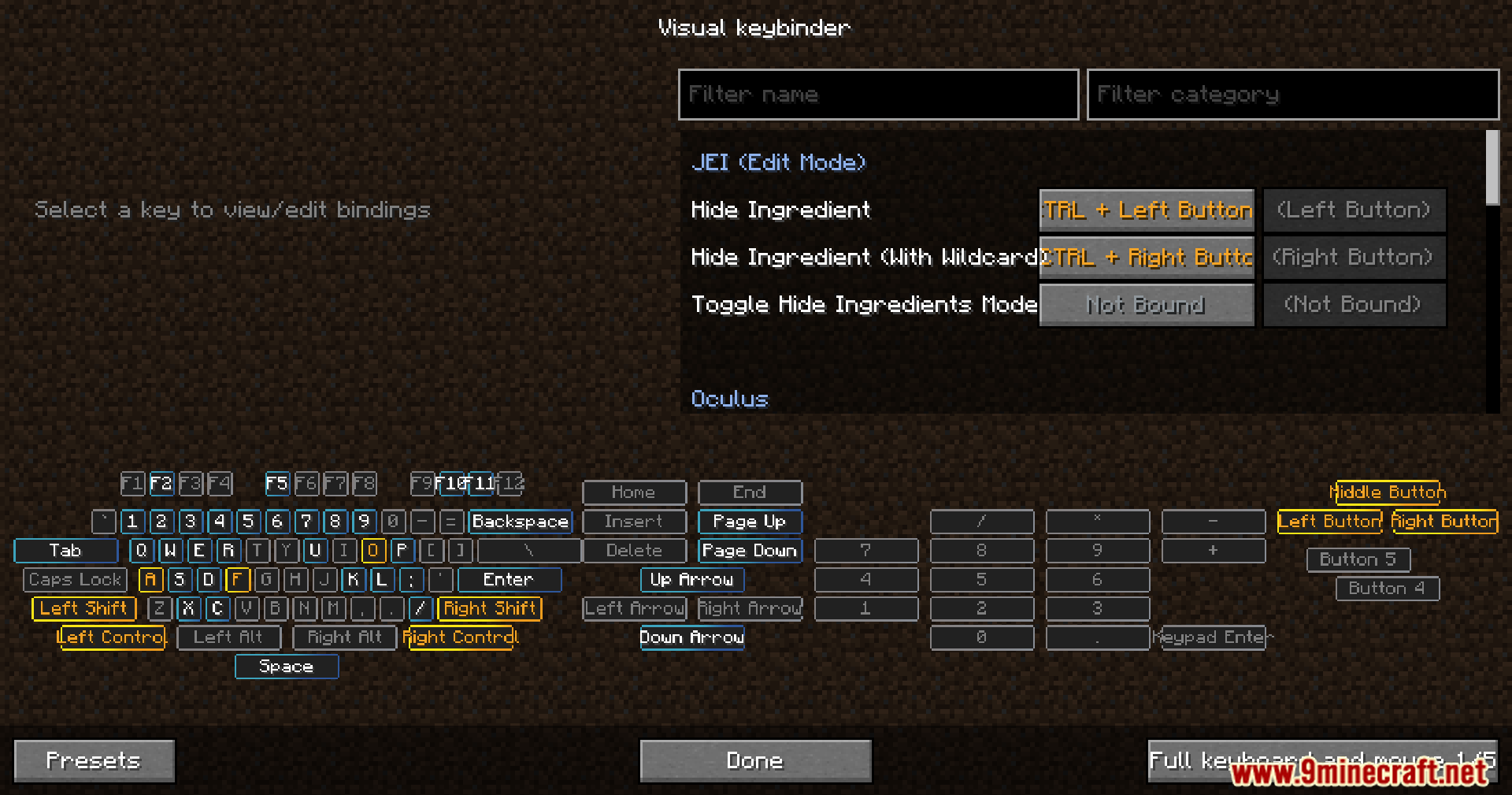
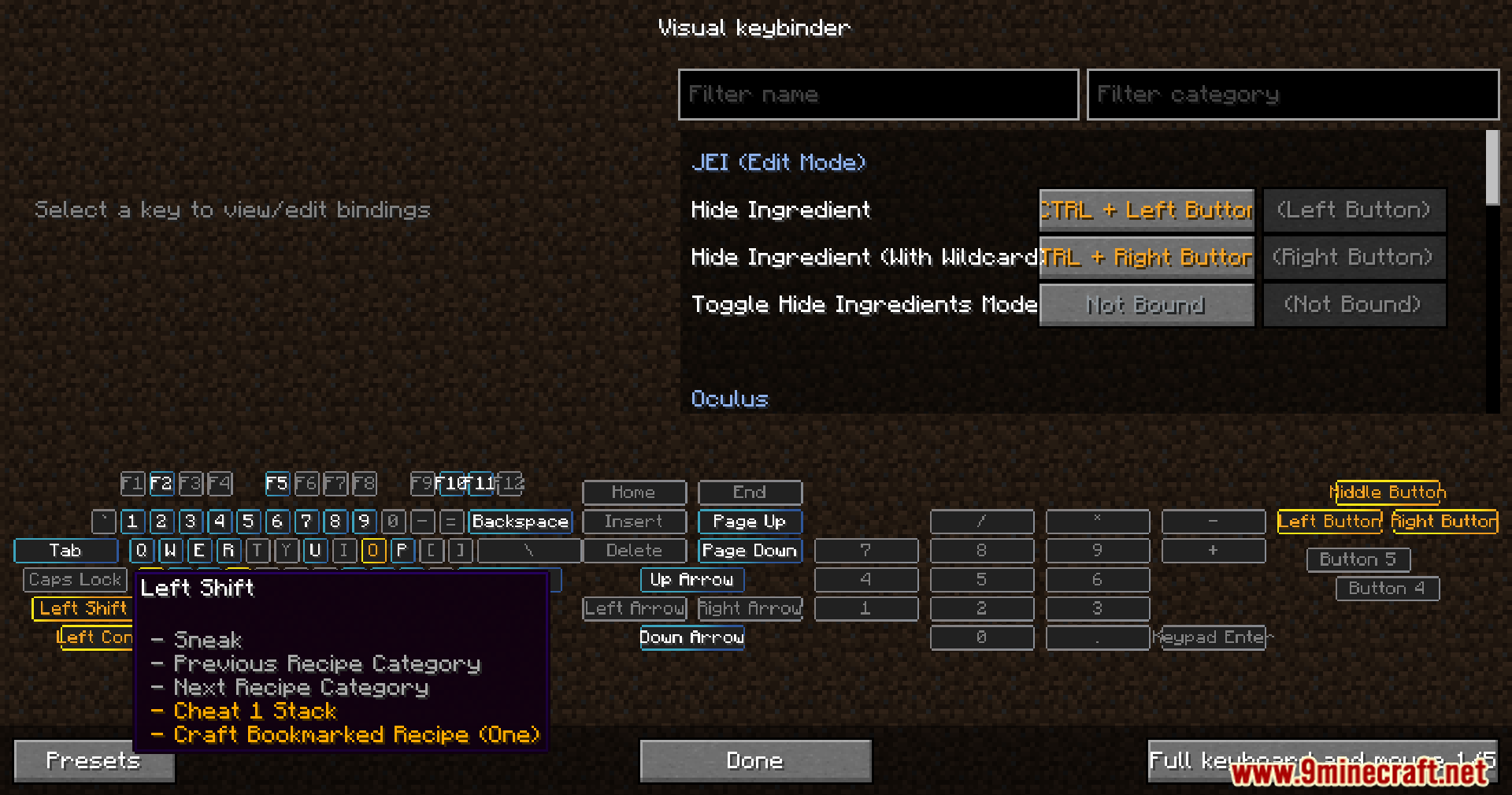
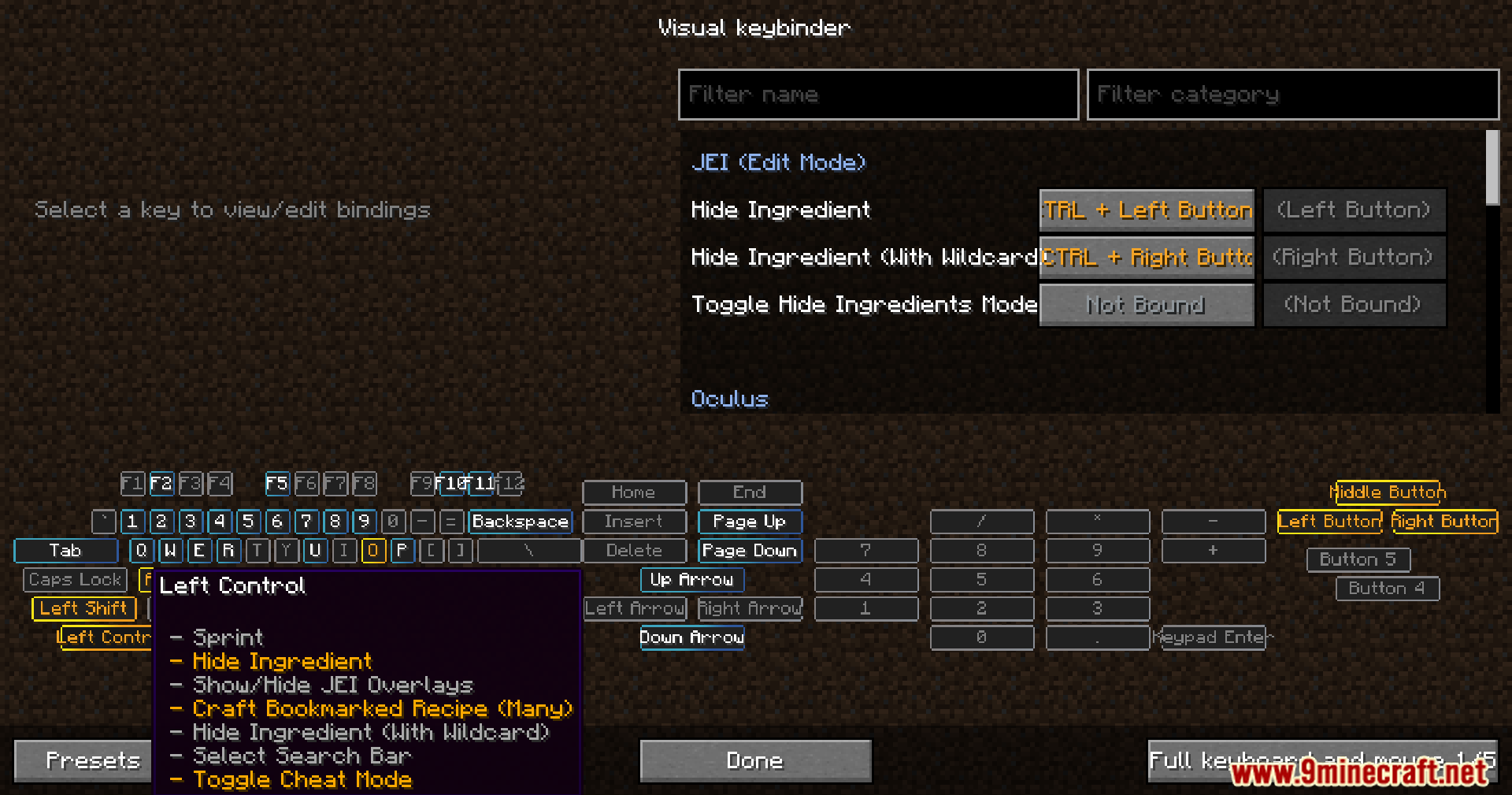
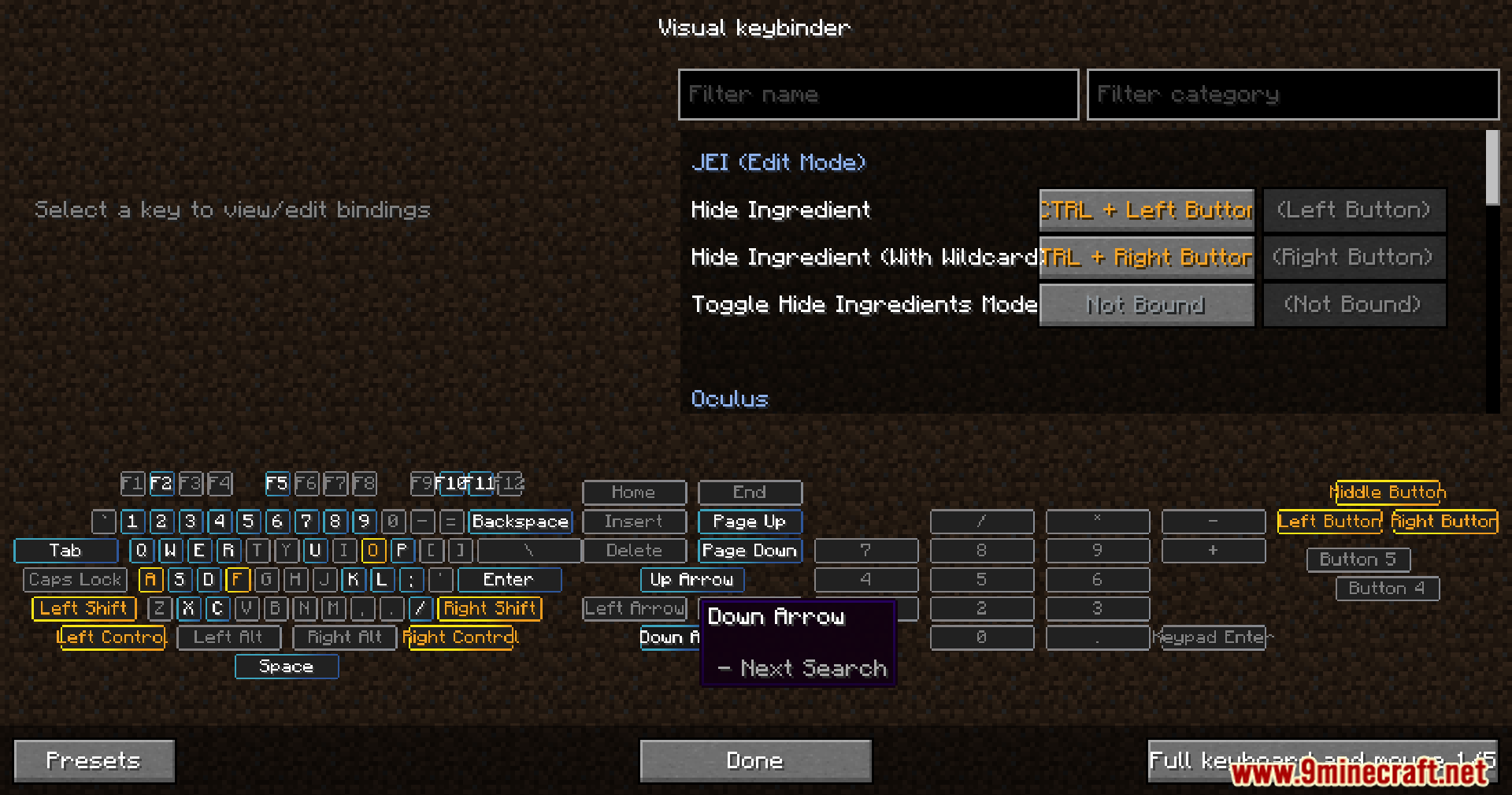
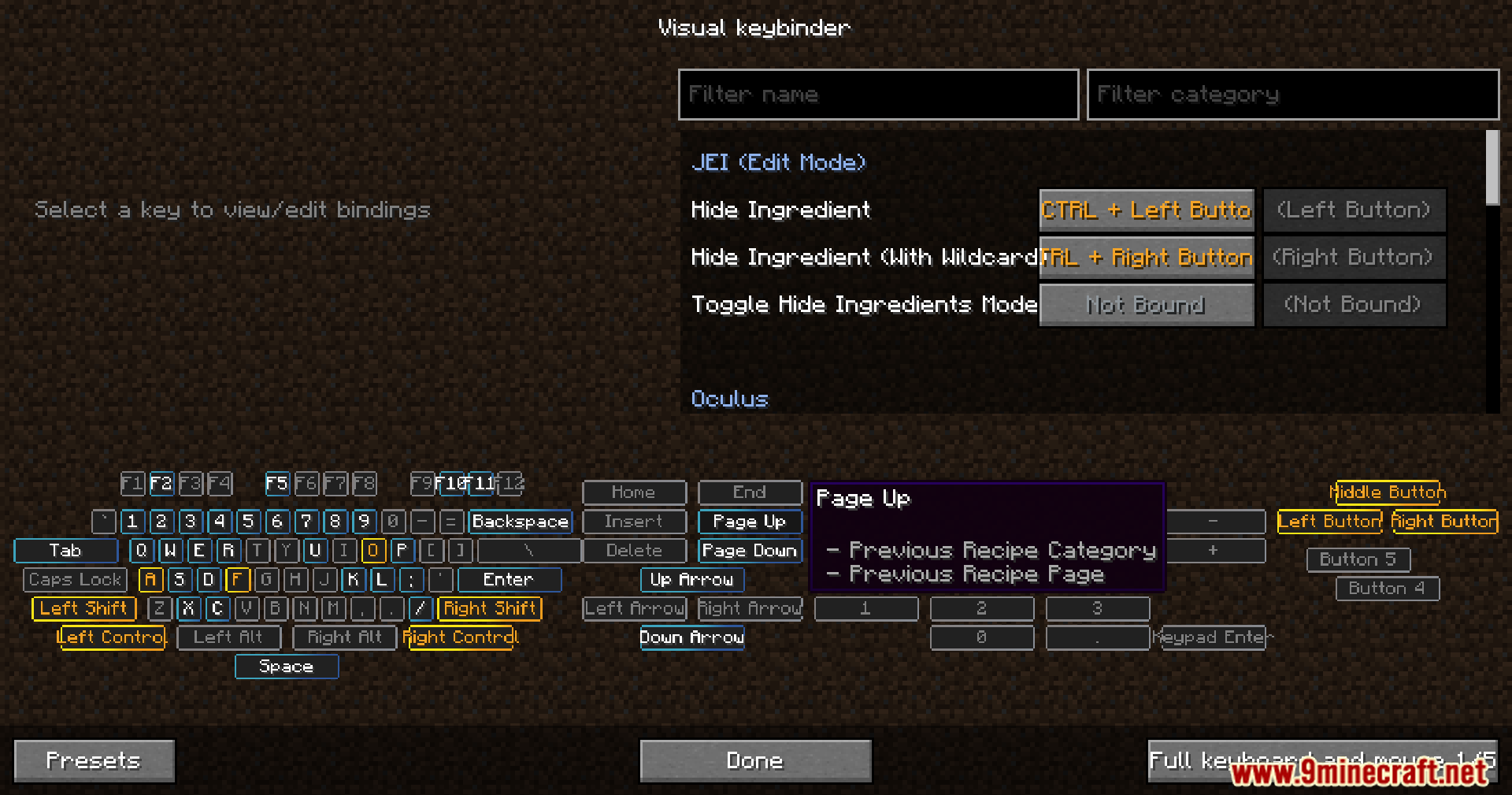
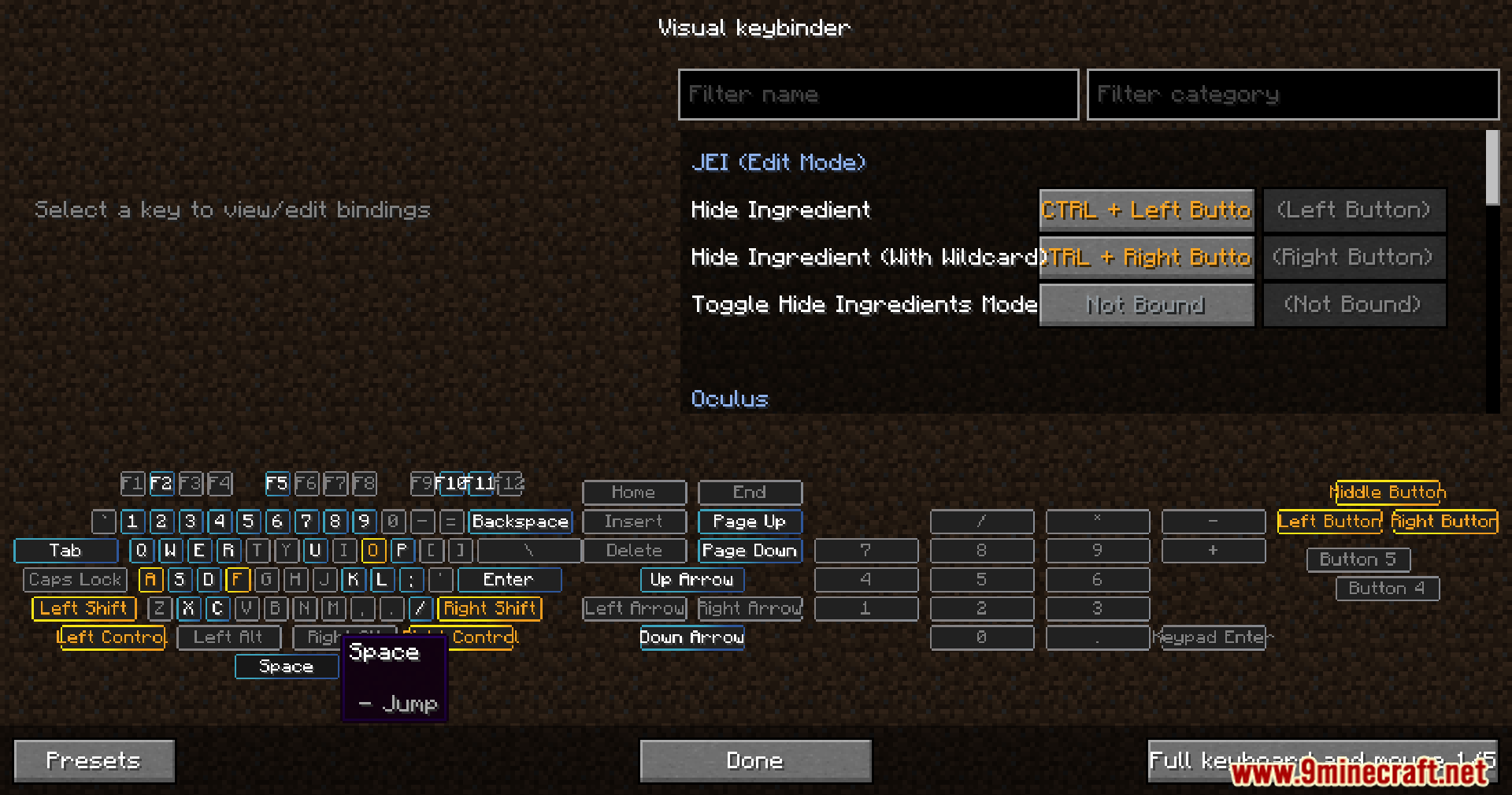
- Shows all controls on a keyboard-style layout with used and conflicting keys highlighted, so you can easily see which keys are still free and which ones need attention.
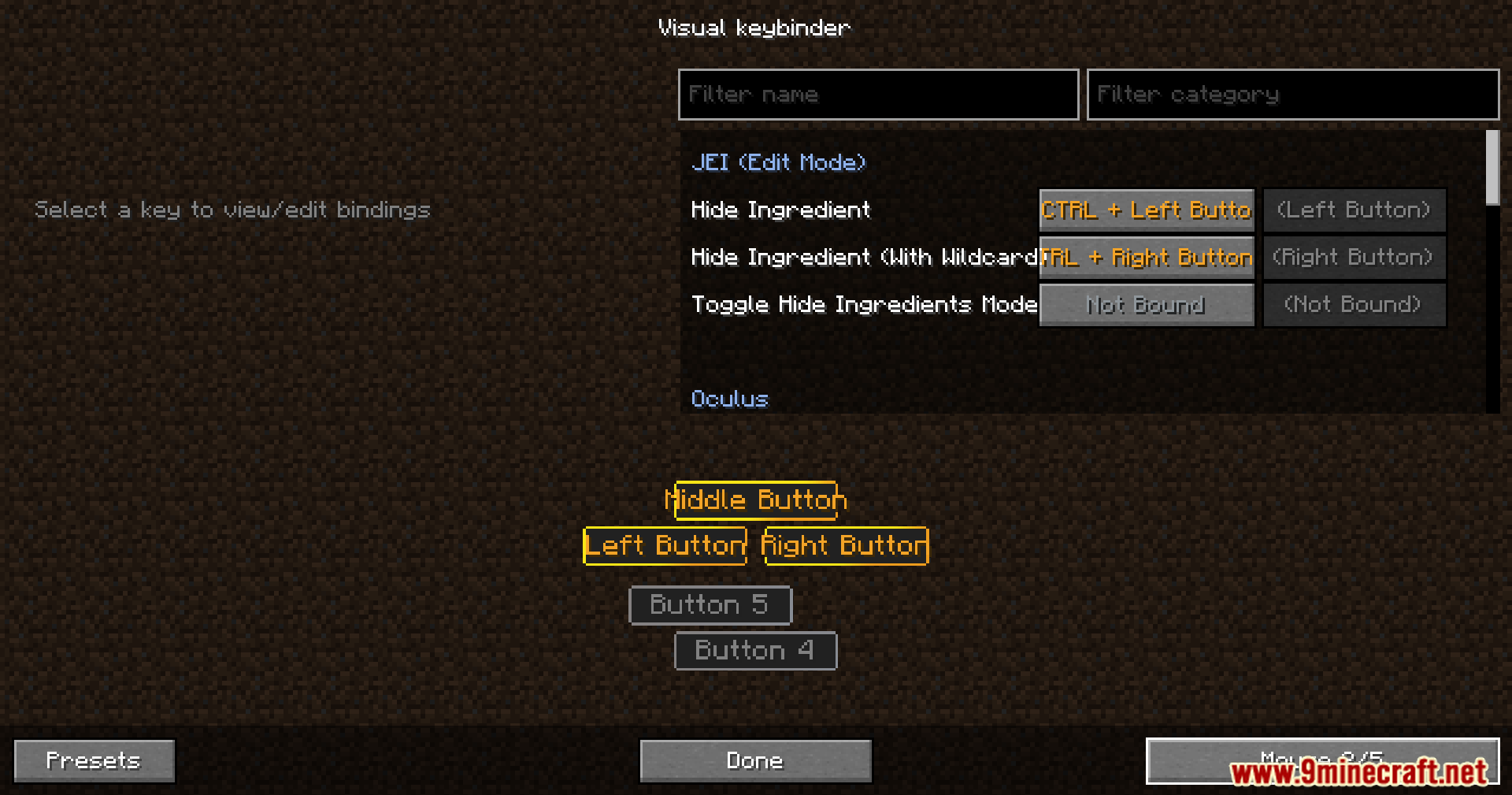
- Lets you combine modifier keys with mouse buttons, such as Shift + Left Click.
- Provides multiple keyboard layouts, and lets you change or add layouts in the config.
- Runs on the client side only, so it does not need to be installed on a server.
Keybind Presets:
- Saves and loads keybind presets inside the
keybinding presetsfolder in your.minecraftdirectory. - Lets you set up a keybind for your favorite presets so you can switch between them quickly.
- Loads a chosen preset on first startup through
preset_to_load_on_first_startup.txt, and createsinitialized.datafter the first start so that preset does not load again. - Lets you make a preset read-only by adding
readonlyon the first line of the preset file. - Allows modpacks to include multiple presets, with capital letters supported in filenames, while loading one chosen preset on first startup.
How to Use:
Managing Keybinds and Presets:
- Open the options menu and click the button next to the default edit keybind button to open the visual keyboard layout screen.
- Check the highlighted buttons on the keyboard layout to see which keys are used, which ones have conflicts, and which ones are still free.
- Combine modifier keys with mouse buttons, such as Shift + Left Click, when you want extra keybind combinations.
- Save your keybind setup as a preset, and assign a keybind to your favorite presets so you can switch between them quickly.
Shipping a Startup Preset With a Modpack:
- Save a keybind preset in the game; it is saved inside the
keybinding presetsfolder in your.minecraftdirectory. - Open the created preset file in Notepad.
- Insert a new line at the start of the file with the exact text
readonly(nothing more, nothing less), then save the file to make the preset read-only. - Open
preset_to_load_on_first_startup.txtand type your preset name on the second line, using the filename withoutpreset.txtat the end (capital letters are allowed). - Export the
keybinding presetsfolder with your modpack, and do not exportkeybinding presets/initialized.datso the chosen preset loads when a player starts the game for the first time.
Configuration:
.minecraft/keybinding presets: Folder where saved keybind preset files are stored.preset_to_load_on_first_startup.txt: File used to set which preset loads on first game startup. Put the preset filename (withoutpreset.txtat the end) on the second line.initialized.dat: File created automatically after a player starts the game for the first time. When this file is present, the preset inpreset_to_load_on_first_startup.txtis not loaded.readonly: Text placed alone on the first line of a preset file to make that preset read-only.
Screenshots:
How to Install:
New to Minecraft? Follow our step-by-step guide to install Mods on your PC.View Guide
Requirements:
Raw's Visual Keybinder Mod Download Links
For Minecraft
1.21.11,
1.21.10,
1.21.9
All Versions Covered
1.21.11
1.21.10
1.21.9
1.21.8
1.21.7
1.21.6
1.21.5
1.21.4
All Versions Covered
1.21.11
1.21.10
1.21.9
1.21.8
1.21.7
1.21.6
1.21.5
1.21.4
For Minecraft 1.21.1, 1.21
For Minecraft 1.20.1, 1.20
For Minecraft 1.19.2
For Minecraft 1.18.2
Click to rate this post!
[Total: 2 Average: 5]
You May Also Like
Picked for this page
 Better Nether Mod (26.3, 1.20.1) – Overhaul and Amplified The Nether
 Immersive Aircraft Mod (26.2, 1.20.1) – Travel, Transport and Explore
 GrowableOres Mod (26.3, 1.20.1) – Grow Your Minerals
 Repurposed Structures Mod (26.3, 1.20.1) – New Sights in Every Biome
 Vanish Mod (1.21.11, 1.20.1) – Unseen And Unheard
 Spawn Balance Utility Mod (1.21.11, 1.20.1) – Control Spawn Weights of Mobs
 Crash Assistant Mod (26.3, 1.20.1) – Easily Debug Your Modpack
 I See You Over There Mod (26.3, 1.21.1) – Increases Render Distance
 Streamotes Mod (26.3, 1.20.1) – Integrates Animated and Zero-width Emotes
 Realistic Rowing Mod (26.3, 1.20.1) – Better Boating Experience
 Sticky Notes Mod (26.3, 1.21.1) – Place Waypoints In Your World
 Anvil Uses Mod (26.3, 1.20.1) – Track Item Anvil Usage
Most viewed in Mods over the last 7 days
 Ala Industrial Mod (26.3) – Run Electric Power Grids and Automated Factories
 PleasureCraft Mod (26.3, 1.21.1) – Jenny Mod Remake for Fabric
 Jennycraft Mod (26.3, 1.20.1) – Virtual Girlfriend in Minecraft
 Fapcraft Mod (26.3, 1.12.2) – Comprehensive and Detailed Content
 Jenny Mod (Fapcraft) Official Complete Guide – How to use, Tutorial
 BangCraft Mod (1.20.1) – Jenny, Ellie and Elliot
 Fabric Loader (26.3, 1.20.1) – Fabric Installer for All Minecraft Versions
 Meteor Client Mod (26.3, 1.20.1) – Xray, HUD, Fly
 The Shooting Star Demo Mod (26.3, 1.20.1) – Vaporize Terrain From Orbit
 OptiFine HD (26.3, 1.20.1) – Run Faster, FPS Boost, Shaders Support
 Aristois Client Mod (1.21.4, 1.20.1) – World Class Minecraft Utility
 Prestige Client Mod (1.21.11, 1.21.4) – Powerful Ghost Features for Crystal & Sword PvP
More from Mods
 Arcane Redstone Dial Mod (26.3, 1.20.1) – Trigger Commands and Shortcuts
 The Graveyard Mod (26.3, 1.20.1) – Cemeteries in Minecraft
 Enhanced Overlay Mod (26.3, 1.21.11) – Remove Screen Clutter
 Flint Mod (1.21.11) – Run DiamondFire Community Addons Without Crashing
 Not Just Sandwich Mod (26.3, 1.20.1) – Edibles, Sandwiches
 Waddles Mod (26.3, 1.20.1) – Make Icy Biomes Feel Alive
 Artemis’ Thin Logs Mod (26.3, 1.20.1) – Build Custom Trees and Detailed Wood
 Asterion Mod (26.3, 1.20.1) – Survive Ancient Mazes and Slay the Legendary Minotaur
 Passthrough Signs Mod (26.3, 1.20.1) – Right-Click Through Wall Signs
 Packing Tape Mod (26.3, 1.20.1) – Move Chests, Machines
 No XP Anvils Mod (26.3, 1.20.1) – Repair And Enchant Without XP
 Naruto Shippuden Mod (26.3, 1.16.5) – Immerse Yourself in The World of Ninja

This post has no comments yet. Be the first — your comment will appear here.