How to Install Maps for Minecraft Java Edition on PC: A Beginner Guide
 2
2
 0
0
 2 hours ago
 9Minecraft Team
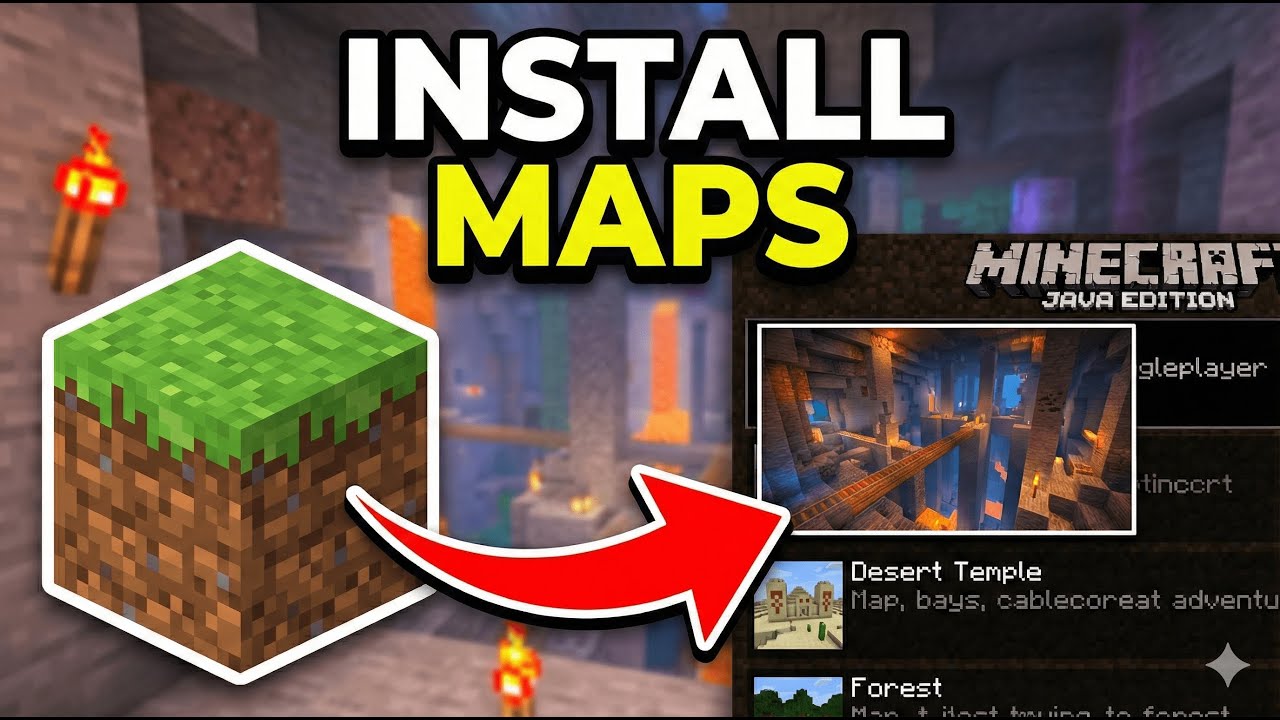
Maps are custom-built worlds created by the community, including adventure maps, parkour challenges, puzzle maps, survival islands, and recreations of famous locations. Installing a map is simple – just place it in the right folder. Below is a step-by-step guide.
1. Preparation Before Installing Maps
- Install Minecraft Officially: Ensure you have Minecraft Java Edition installed and have run the game at least once.
- Check Version: Each map is built for a specific Minecraft version. Playing on the wrong version may cause missing blocks, broken redstone, or crashes.
- Back Up Your Worlds: Before adding new maps, back up your existing worlds at
C:\Users\[Your Name]\AppData\Roaming\.minecraft\saves.
2. Download a Map
- Find Maps:
- Browse at: https://www.9minecraft.net/category/minecraft-maps/
- Popular categories: Adventure, Parkour, Puzzle, Horror, Survival Island, City, Minigame.
- Check the map description for required Minecraft version and any required mods or resource packs.
- Download: Download the map file (usually a
.zipor.rarfile).
3. Install the Map
- Extract the File: Right-click the downloaded file → Extract here (using WinRAR, 7-Zip, or the built-in Windows extractor). You should see a folder containing files like
level.dat,region/,data/, etc. - Find the Correct Folder: After extracting, look for the folder that directly contains
level.dat. Sometimes the map is nested inside extra folders – you need the innermost folder withlevel.dat. - Open the Saves Folder: Press Win + R, type
%appdata%\.minecraft\saves, and press Enter. - Copy the Map Folder: Move or copy the map folder (the one containing
level.dat) into thesavesfolder. - Launch the Game: Open Minecraft → Click Singleplayer. The map will appear in your world list.
4. Common Issues and Fixes
- Map Not Showing in World List: The folder structure is wrong. Make sure
level.datis directly inside the map folder, not buried in a subfolder. Correct:saves/MyMap/level.dat. Wrong:saves/MyMap/MyMap/level.dat. - Missing Blocks or Broken Terrain: You are using the wrong Minecraft version. Switch to the version specified on the map download page.
- Map Requires a Resource Pack: Some maps include a resource pack inside the map folder. Minecraft will ask “Use the resource pack from this world?” – click Yes for the best experience.
- Map Requires Mods: Some adventure maps need specific mods (e.g., Custom NPCs, Worldedit). Check the map description and install the required mods before playing.
5. Playing Maps on a Multiplayer Server
If you want to play a map with friends on your own server:
- Stop the Server: Type
stopin the server console. - Replace the World Folder: In the server folder, delete or rename the existing
worldfolder. Copy the map folder and rename it toworld. - Start the Server: Run the server again. All players will load into the new map.
6. Important Notes
- Singleplayer vs Multiplayer Maps: Most maps are designed for singleplayer. Multiplayer maps will mention the recommended player count (e.g., “2-4 players”).
- Game Mode: Some maps require a specific game mode. If the map doesn’t switch automatically, use
/gamemode adventure,/gamemode creative, or/gamemode survivalas instructed by the map creator. - Do Not Break Blocks: On adventure and puzzle maps, do not break or place blocks unless the map tells you to – it can break the map’s mechanics.
- Enable Command Blocks: Many maps use command blocks. If nothing happens when you play, go to Open to LAN → Allow Cheats: ON, or check that command blocks are enabled in
server.properties(enable-command-block=true).
Click to rate this post!
[Total: 0 Average: 0]