How to Install Resource Packs for Minecraft Java Edition on PC: A Beginner Guide
 36
36
 0
0
 4 days ago
 9Minecraft Team
Resource Packs change the textures, sounds, fonts, and overall look of Minecraft without adding new gameplay features. They work with vanilla Minecraft – no modloader required. Below is a simple, step-by-step guide.
1. Preparation Before Installing Resource Packs
- Install Minecraft Officially: Ensure you have Minecraft Java Edition installed and have run the game at least once.
- Check Version: Determine your Minecraft version. Resource packs are version-specific – a pack made for 1.20.x may not display correctly on 1.21.x.
- Check Resolution: Resource packs come in different resolutions: 16x (default), 32x, 64x, 128x, 256x, and higher. Higher resolution = better visuals but requires more RAM and a better GPU.
2. Download a Resource Pack
- Find Resource Packs:
- Browse at: https://www.9minecraft.net/category/resource-packs/
- Popular choices for beginners: Faithful (32x, keeps vanilla feel), Patrix (realistic), Jicklus (clean and simple).
- Download: Download the resource pack file (usually a
.zipfile). Do not extract it.
3. Install the Resource Pack
There are two easy methods:
Method 1: Install from In-Game Menu (Recommended)
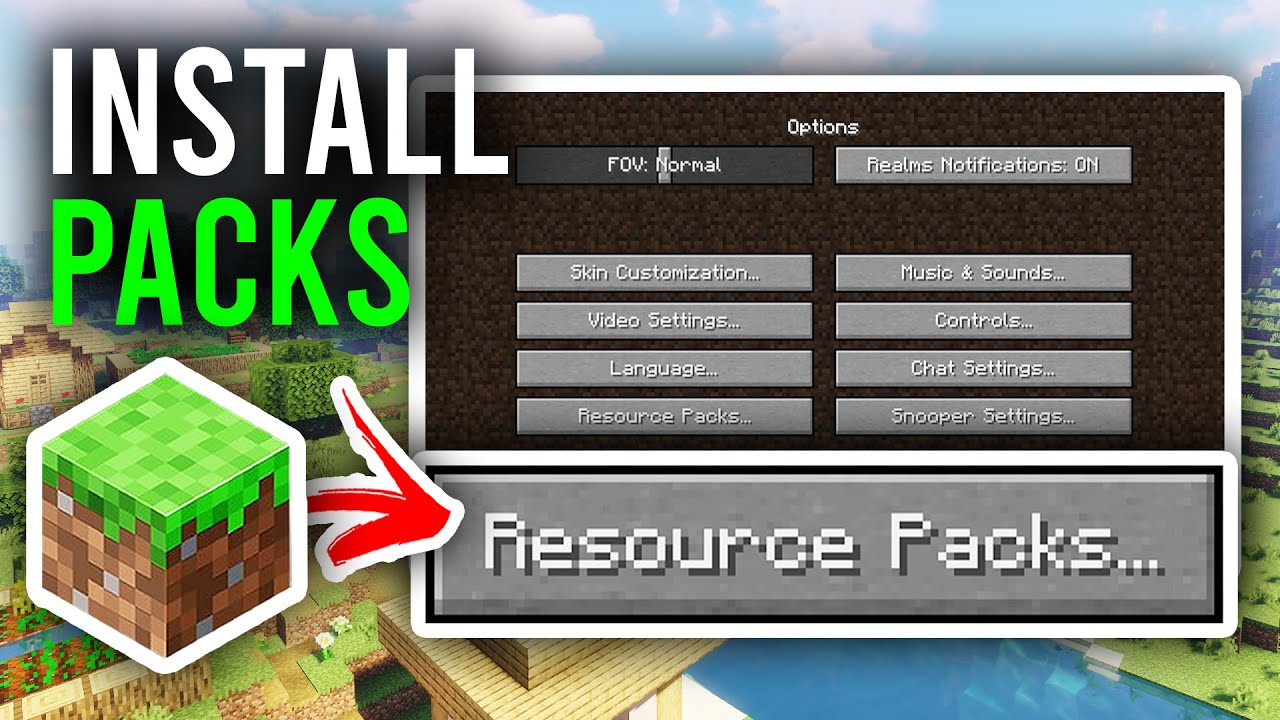
- Open Minecraft → Go to Options → Resource Packs.
- Click “Open Pack Folder” – this opens the
resourcepacksfolder. - Copy the downloaded
.zipfile into this folder. - Go back to the game – the resource pack will appear on the left side (Available).
- Click the arrow (▶) to move it to the right side (Selected).
- Click “Done”. The game will reload with the new textures.
Method 2: Install Manually
- Press Win + R, type
%appdata%\.minecraft\resourcepacks, and press Enter. - Copy the downloaded
.zipfile into this folder. - Open Minecraft → Go to Options → Resource Packs → Select and activate the pack.
4. Managing Multiple Resource Packs
- Stacking Packs: You can activate multiple resource packs at the same time. Packs higher in the list take priority – they override textures from packs below them.
- Reorder: Drag packs up or down in the Selected list to change priority.
- Disable: Click the arrow (◀) to move a pack back to Available, or simply remove the
.zipfile from theresourcepacksfolder.
5. Important Notes
- Resolution and Performance: If you experience lag or low FPS, switch to a lower resolution pack (16x or 32x). Packs above 64x may require OptiFine or allocating more RAM.
- Allocate More RAM: For high-resolution packs, edit your profile’s JVM arguments in the Launcher – change
-Xmx2Gto-Xmx4G. - Version Mismatch Warning: If you see a warning saying the pack was made for an older/newer version, it may still work – just some textures might be missing or look wrong.
- Broken Textures: If some blocks appear as purple and black checkerboard, the pack is missing textures for that block. Try updating the pack or switching to one that supports your version.
- Works with Mods: Resource packs work alongside mods. However, modded blocks will use default textures unless the resource pack specifically supports that mod.
Click to rate this post!
[Total: 0 Average: 0]