
Map Atlases Mod (1.21.1, 1.20.1) – Chart Entire Worlds in a Single Book
 34,229
 0

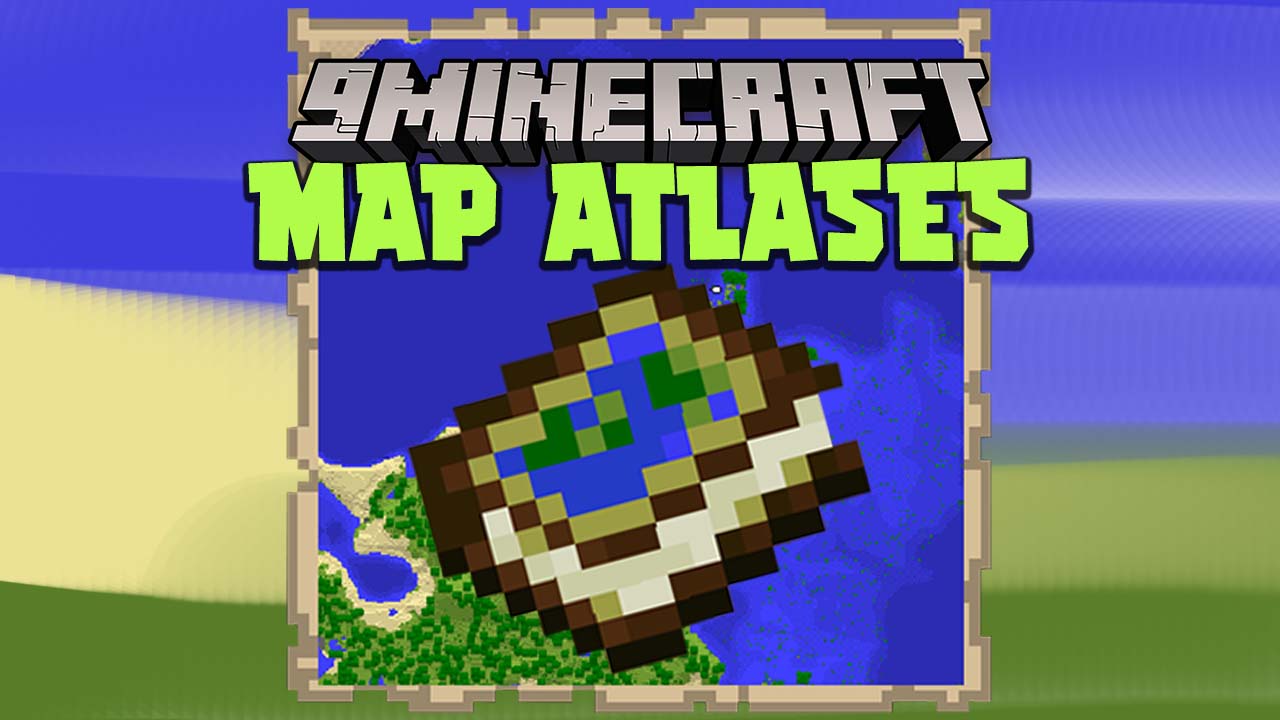
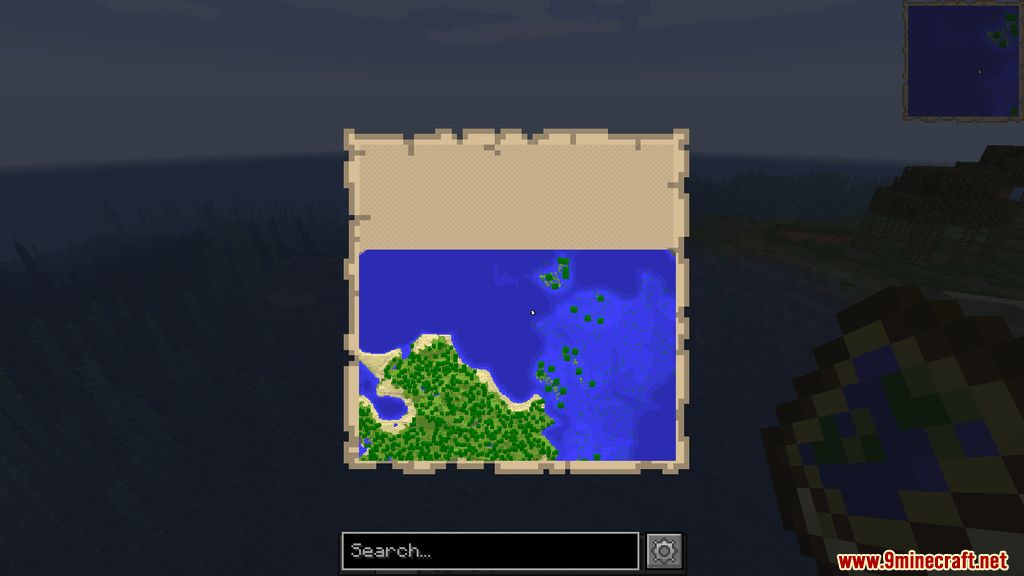
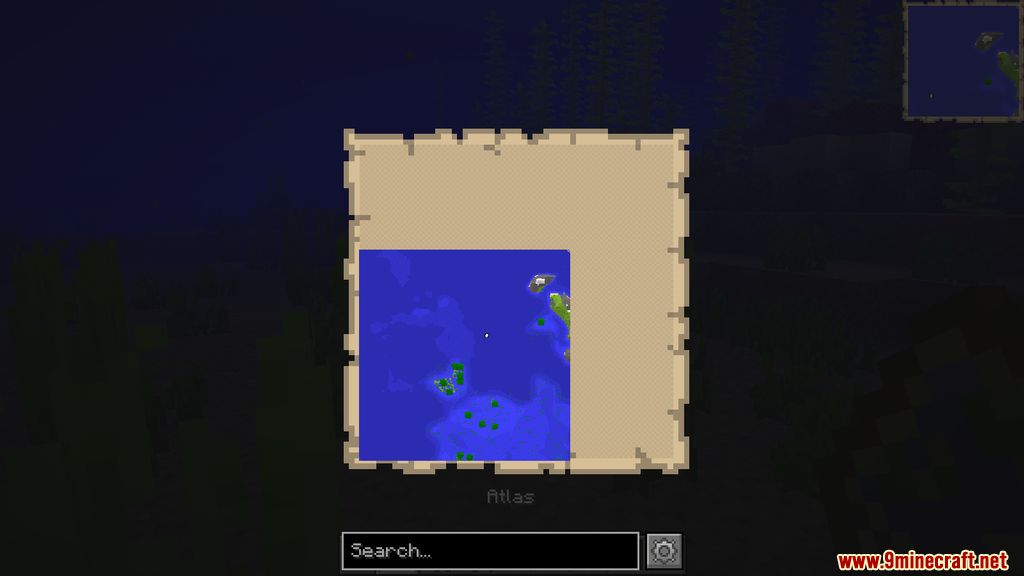
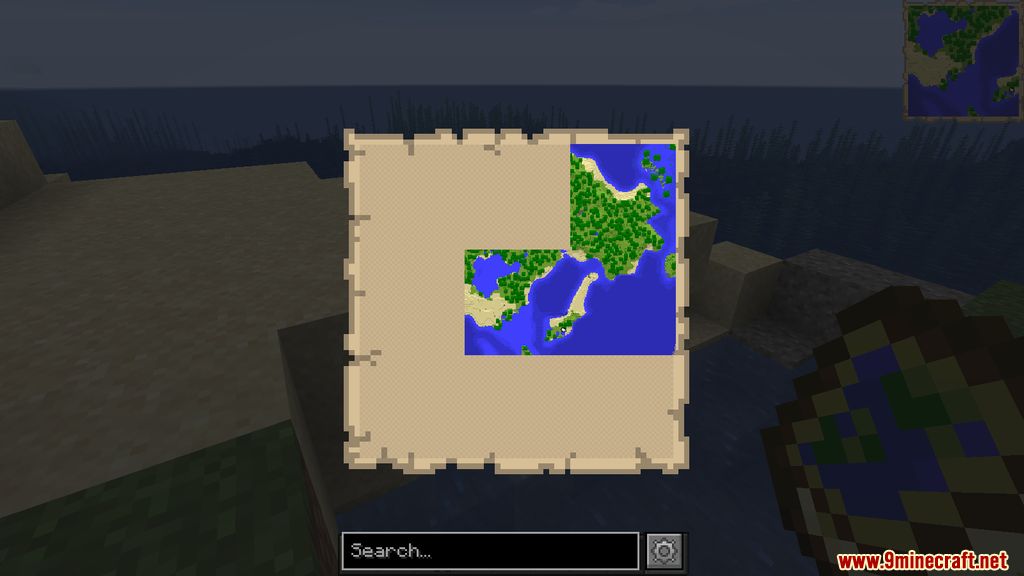
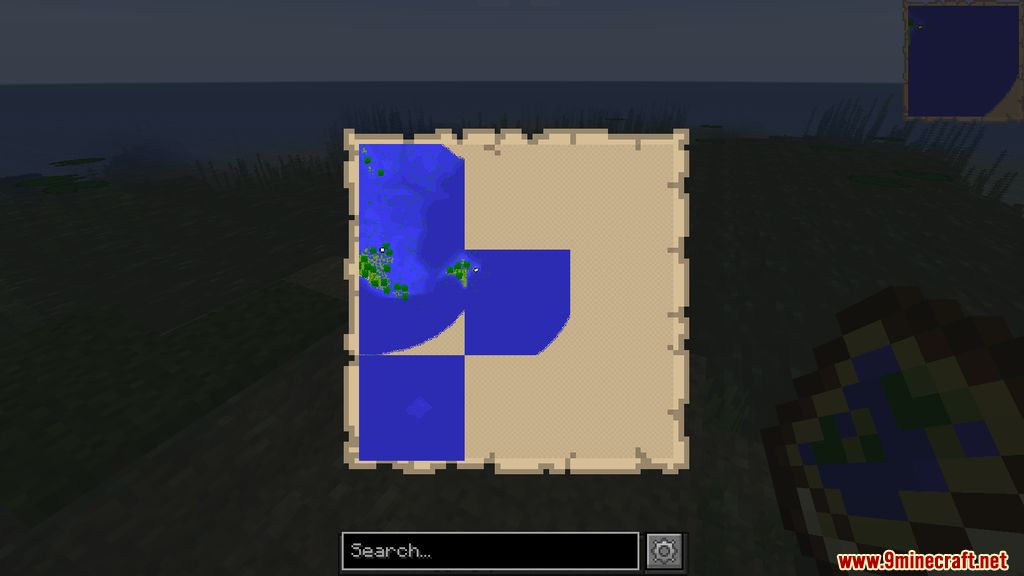
Map Atlases Mod brings a vanilla-friendly mini-map and world map system to Minecraft with craftable atlas books. You combine a filled map, a book, and a slimeball or honey bottle to make one atlas that holds up to 512 maps and grows on its own as you explore. It shows a live mini-map on your screen with your coordinates and current biome, and lets you open a full world map with zoom, drag controls, dimension tabs, and banner waypoints. You can also merge two atlases on a cartography table, cut maps back out with shears, or place your atlas on a lectern and in a chiseled bookshelf. This mod works across all dimensions and supports optional mods like Trinkets for an extra atlas slot and Mod Menu for in-game settings.
Features:
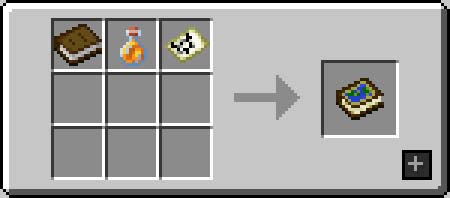
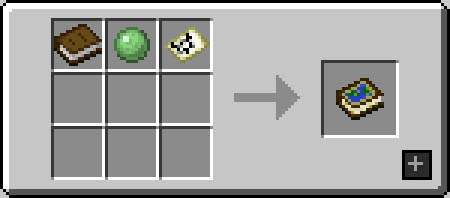
- Combines a Filled Map, a Book, and a Slimeball or Honey Bottle to craft an Atlas whose map scale matches the starting map.
- Stores up to 512 Filled Maps and Empty Maps in one Atlas, with a map limit you can change or turn off in the config.
- Lets you add more Empty Maps or same-scale Filled Maps using your crafting grid or a Cartography Table, and pull maps back out with Shears in a crafting grid.
- Shows a live mini-map on your HUD when the Atlas sits in your hotbar or off-hand, and adds a dedicated Atlas slot when Trinkets is installed.
- Keeps every Filled Map inside the Atlas up to date with your live position and changes in the world.
- Automatically uses stored Empty Maps to make new matching-scale maps whenever you walk into unmapped areas.
- Creates new maps without needing Empty Maps in Creative mode, and lets you turn off the Empty Map requirement in the settings.
- Displays your current X, Y, and Z coordinates along with your current biome right on the mini-map.
- Works across dimensions so your Atlas tracks your path and creates new maps in the Overworld, Nether, End, and other dimensions.
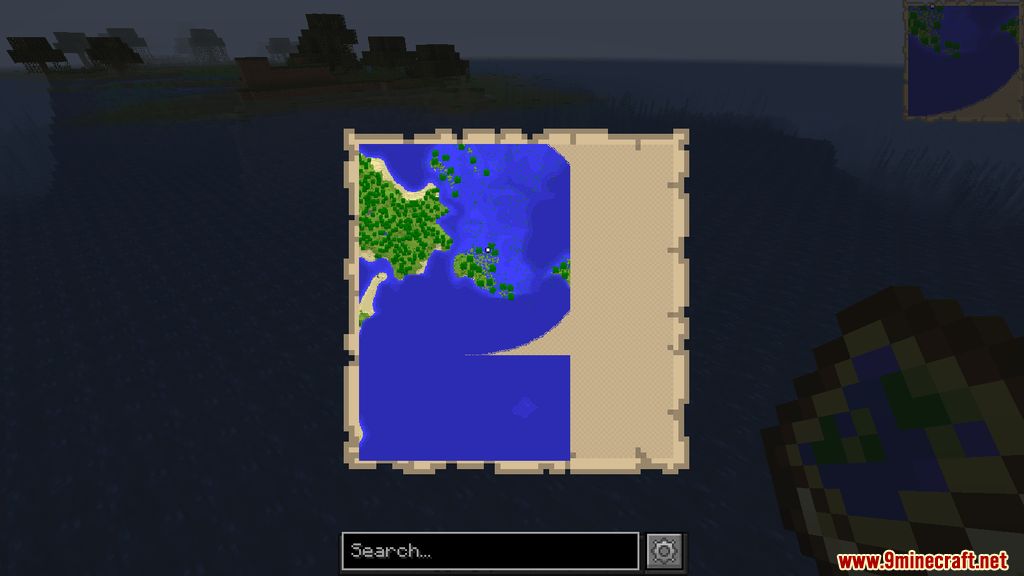
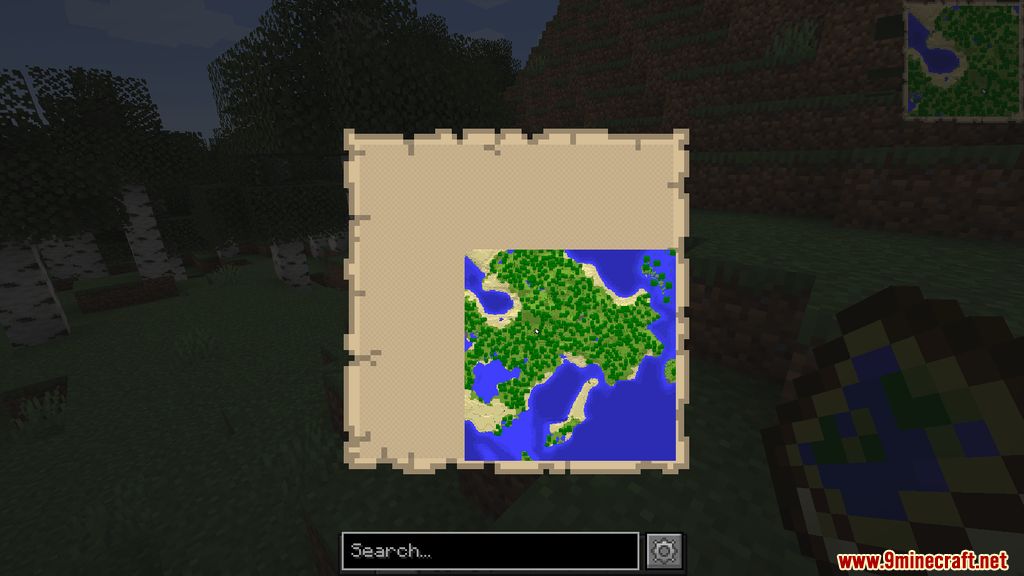
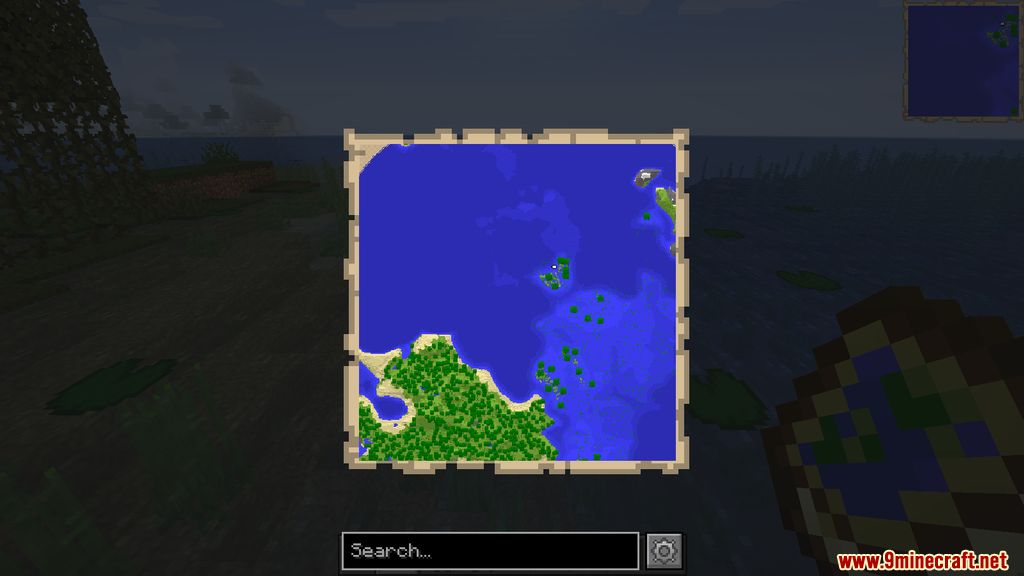
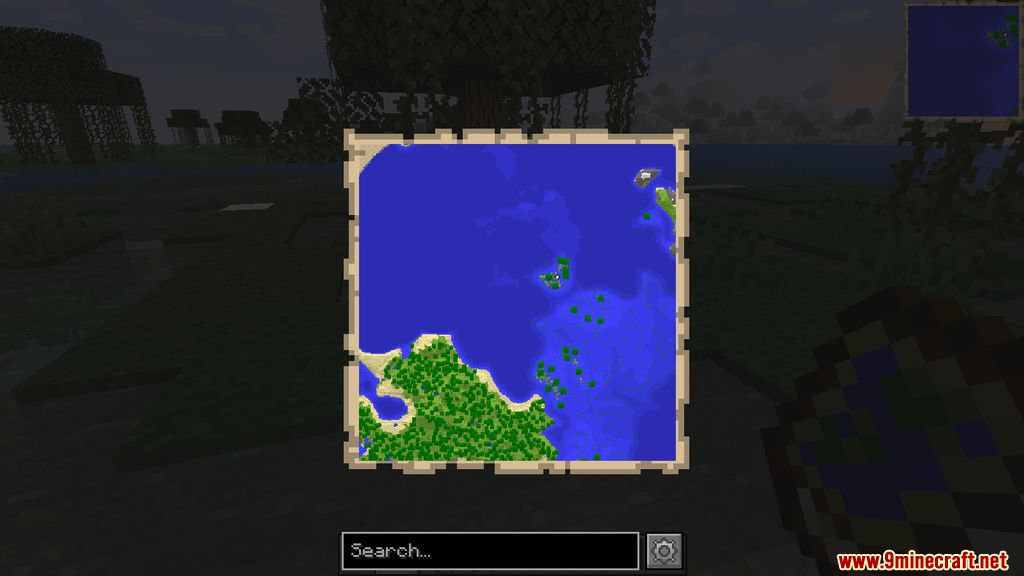
- Opens a full world map view when you right-click the Atlas or press M while it is on your hotbar.
- Supports odd-number zoom levels (1×1, 3×3, 5×5, 7×7, and larger) with your mouse scroll wheel and full panning by dragging with your mouse.
- Shows the active X and Z coordinates of whichever spot your mouse hovers over on the world map.
- Adds selectable tabs for each explored dimension and each placed Banner, letting you click a Banner tab to snap straight to that map.
- Lets you right-click Banners to mark waypoints that show up on both the mini-map and the full world map.
- Merges two Atlases in a Cartography Table when you place them in the top and bottom slots, combining their mapped areas into one.
- Displays your Atlas on a Lectern with a unique texture for the Overworld, Nether, End, and other dimensions, and lets you store Atlases inside Chiseled Bookshelves.
- Plays custom sound effects when you open an Atlas, flip pages, or create a new map.
- Supports in-game config editing through Mod Menu so you can adjust mod settings directly in Minecraft.
How to Use:
- Craft an Atlas by placing a Filled Map, a Book, and a Slimeball or Honey Bottle in a crafting grid; the Filled Map sets the scale of your Atlas.
- Add extra Empty Maps or Filled Maps of the same scale by combining them with your Atlas in your crafting grid or a Cartography Table, up to 512 maps by default.
- Keep the Atlas on your hotbar, in your off-hand, or inside the Trinkets Atlas slot to show your live mini-map, coordinates, and current biome on the HUD.
- Walk into unmapped areas while Empty Maps are stored inside the Atlas; it automatically uses an Empty Map to generate a new map at the same scale (Creative mode generates new maps without Empty Maps).
- Right-click the Atlas or press M while it is on your hotbar to open the full world map view.
- Scroll your mouse wheel to zoom in or out in odd-number steps (1×1, 3×3, 5×5, 7×7, and more), drag with your mouse to pan across explored land, and hover your pointer over any spot to see its X and Z coordinates.
- Right-click a placed Banner while holding your Atlas to add a waypoint on both the mini-map and world map, then click the dimension or Banner tabs on the world map to switch dimensions or snap the view straight to that Banner.
- Combine your Atlas with Shears in a crafting grid whenever you want to cut maps back out of it.
- Place one Atlas in the top slot and another in the bottom slot of a Cartography Table to merge their mapped areas together.
- Right-click a Lectern while holding your Atlas to display it with a texture matching the current dimension, or store it inside a Chiseled Bookshelf.
- Open Mod Menu in-game if you want to adjust settings such as the 512-map limit or the Empty Map requirement.
Crafting Recipes:
Screenshots:
How to Install:
New to Minecraft? Follow our step-by-step guide to install Mods on your PC.View Guide
Requirements:
Map Atlases Mod Download Links
For Minecraft 1.21.1, 1.21
NeoForge version: Download from Server 1 – Download from Server 2
Fabric version: Download from Server 1 – Download from Server 2
For Minecraft 1.20.1, 1.20
Forge version: Download from Server 1 – Download from Server 2
Fabric version: Download from Server 1 – Download from Server 2
For Minecraft 1.19.4
Fabric version: Download from Server 1 – Download from Server 2
For Minecraft 1.19.3
Fabric version: Download from Server 1 – Download from Server 2
For Minecraft 1.19.2
Forge version: Download from Server 1
Fabric version: Download from Server 1 – Download from Server 2
For Minecraft 1.19
Fabric version: Download from Server 1
For Minecraft 1.18.2
Forge version: Download from Server 1
Fabric version: Download from Server 1 – Download from Server 2
For Minecraft 1.18.1
Forge version: Download from Server 1
For Minecraft 1.16.5
Forge version: Download from Server 1
Fabric version: Download from Server 1
You May Also Like
Picked for this page
 Easy Mob Farm Mod (26.3, 1.20.1) – Make Minecraft More Entertaining
 Structure Expansion Mod (26.3, 1.20.1) – Bigger Vanilla Structures
 EssentialGUI Mod (26.3, 1.20.1) – Specific Stats for the Player
 Stoneworks Mod (26.3, 1.20.1) – Plenty of Vanilla Stone Types
 Ping Mod (26.1.2, 1.20.1) – Notifying Other Players
 Blocky Stone Doors Mod (1.21.1, 1.20.1) – Secret Entrance
 DarkMenu Mod (26.3, 1.20.1) – Changes The Menu Background
 Lullaby’s Graves Mod (1.21.11, 1.21.1) – Your Loot Stays Safe
 Sheep Squeak Mod (26.1.2, 1.20.1) – A Playful Sheep Interaction
 Forgeshot Mod (26.3, 1.20.1) – Take High-Quality Screenshots
 Enchanting Plus Modern Edition Mod (26.1.2, 1.20.1) – Pick Your Own Enchantments
 Haybale Mod (1.21.8, 1.20.1) – Registration, Networking, And Platform Services
Most viewed in Mods over the last 7 days
 Ala Industrial Mod (26.3) – Run Electric Power Grids and Automated Factories
 PleasureCraft Mod (26.3, 1.21.1) – Jenny Mod Remake for Fabric
 Jennycraft Mod (26.3, 1.20.1) – Virtual Girlfriend in Minecraft
 Fapcraft Mod (26.3, 1.12.2) – Comprehensive and Detailed Content
 Jenny Mod (Fapcraft) Official Complete Guide – How to use, Tutorial
 BangCraft Mod (1.20.1) – Jenny, Ellie and Elliot
 Fabric Loader (26.3, 1.20.1) – Fabric Installer for All Minecraft Versions
 Meteor Client Mod (26.3, 1.20.1) – Xray, HUD, Fly
 The Shooting Star Demo Mod (26.3, 1.20.1) – Vaporize Terrain From Orbit
 OptiFine HD (26.3, 1.20.1) – Run Faster, FPS Boost, Shaders Support
 Aristois Client Mod (1.21.4, 1.20.1) – World Class Minecraft Utility
 Prestige Client Mod (1.21.11, 1.21.4) – Powerful Ghost Features for Crystal & Sword PvP
More from Mods
 Better Nether 9minecraft Mod (26.3, 26.2) – Survive Forever in the Nether
 BCLib 9minecraft Mod (26.3, 26.2) – Power Custom Nether and End Overhauls
 ForgedLoaderAPI Mod (1.19.2, 1.18.2) – Bring Ported Fabric Creations
 Shield System Mod (1.21.1) – Tank Heavy Monster Hits Without Losing Hearts
 Shin’s Tensura Race Models Mod (1.19.2) – Play As Unique 3D Anime Race
 Offgrid Mod (26.3, 1.20.1) – Furnish Compact Interiors Without Strict Grid
 Tempest Almanac Iron’s Spells ‘n Spellbooks Mod (1.21.1, 1.20.1)
 Chat Guides Mod (26.3, 1.21.11) – Never Memorize Complex Server Commands Again
 TRMT Reimagined the Roads More Travelled Mod (26.3, 1.20.1)
 Morrowless Mod (1.21.1) – Defend Your Shelter From Nightmare Creatures
 THE SLOPSTROSITY Mod (1.21.1) – Battle a Ridiculous Slime Boss
 Decoween Mod (1.21.1, 1.20.1) – Transform Ordinary Survival Bases
This post has no comments yet. Be the first — your comment will appear here.