
Zorins Utils Client Mod (1.21.11) – Hunt Hidden Stashes on Anarchy Servers
 37
 0

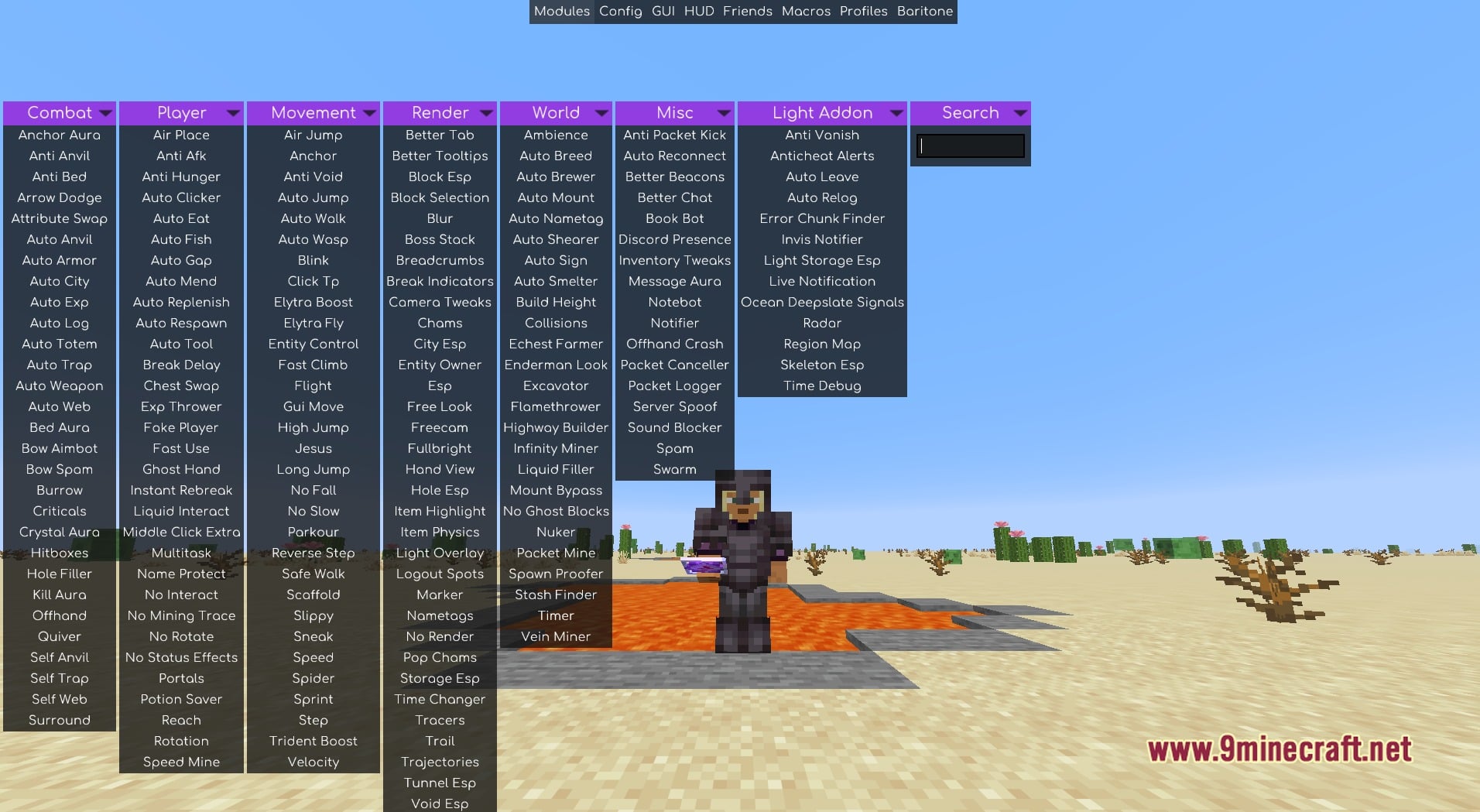
Zorins Utils Client Mod extends Meteor Client with a dedicated Light Addon column for scouting, visual tracking, and server safety. You open the menu in-game with Right Shift to find custom tools right next to standard categories like Combat, Player, Movement, Render, World, and Misc. The mod helps you spot hidden chests, find odd chunks, and log out fast when danger shows up. It also keeps all your regular top bar controls for HUD layouts, macros, friend lists, and pathfinding in one clean place.
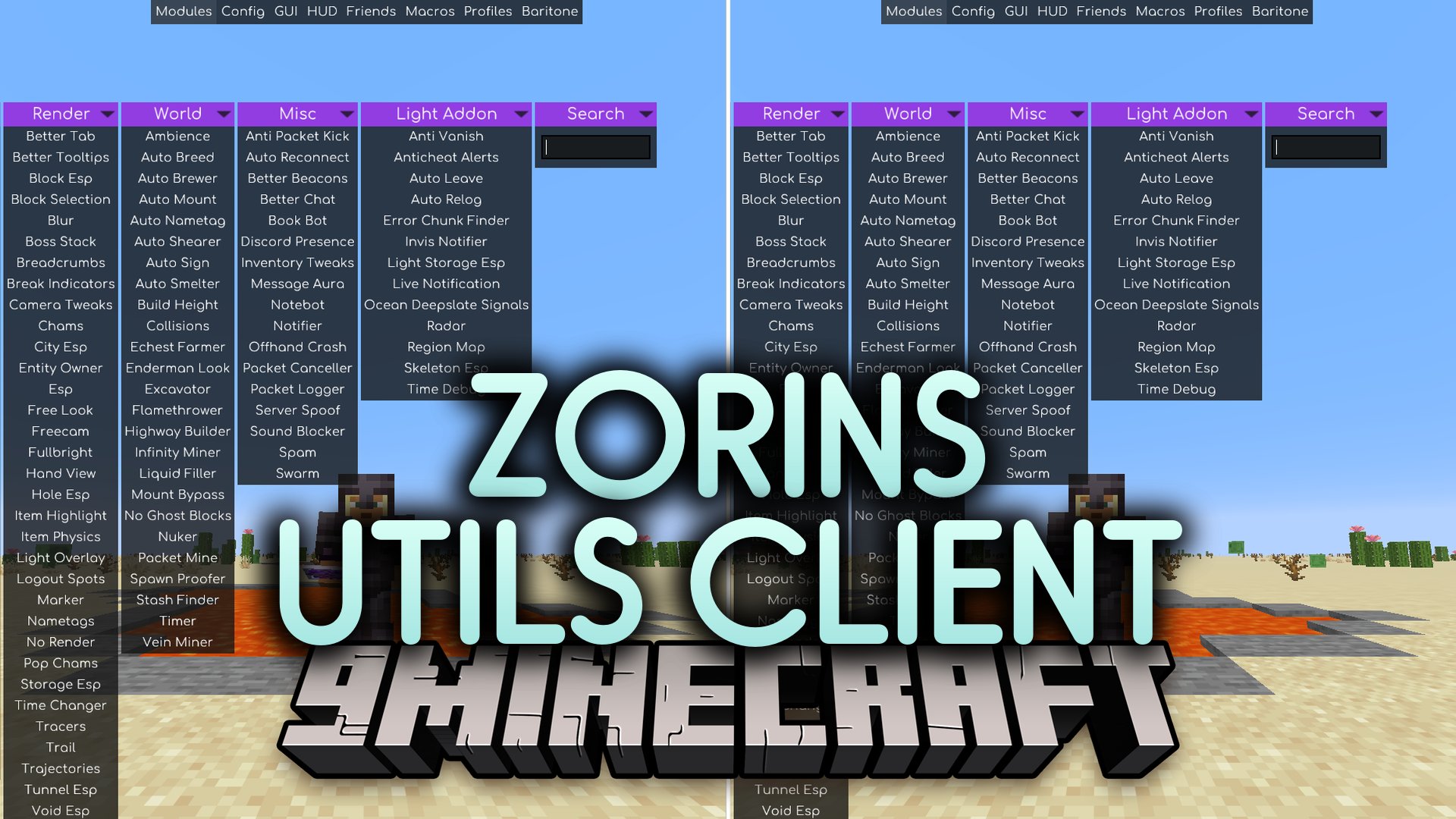
Features:
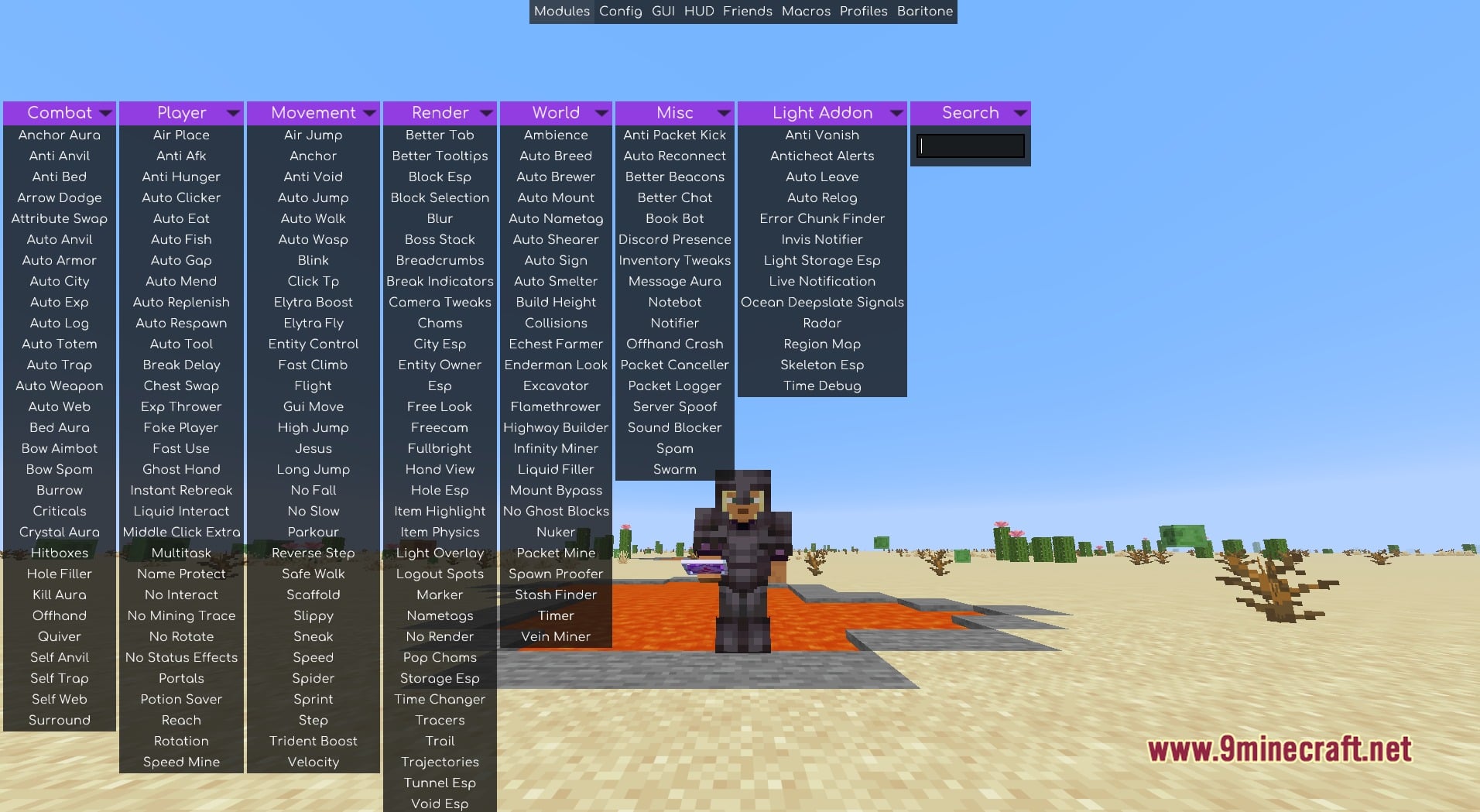
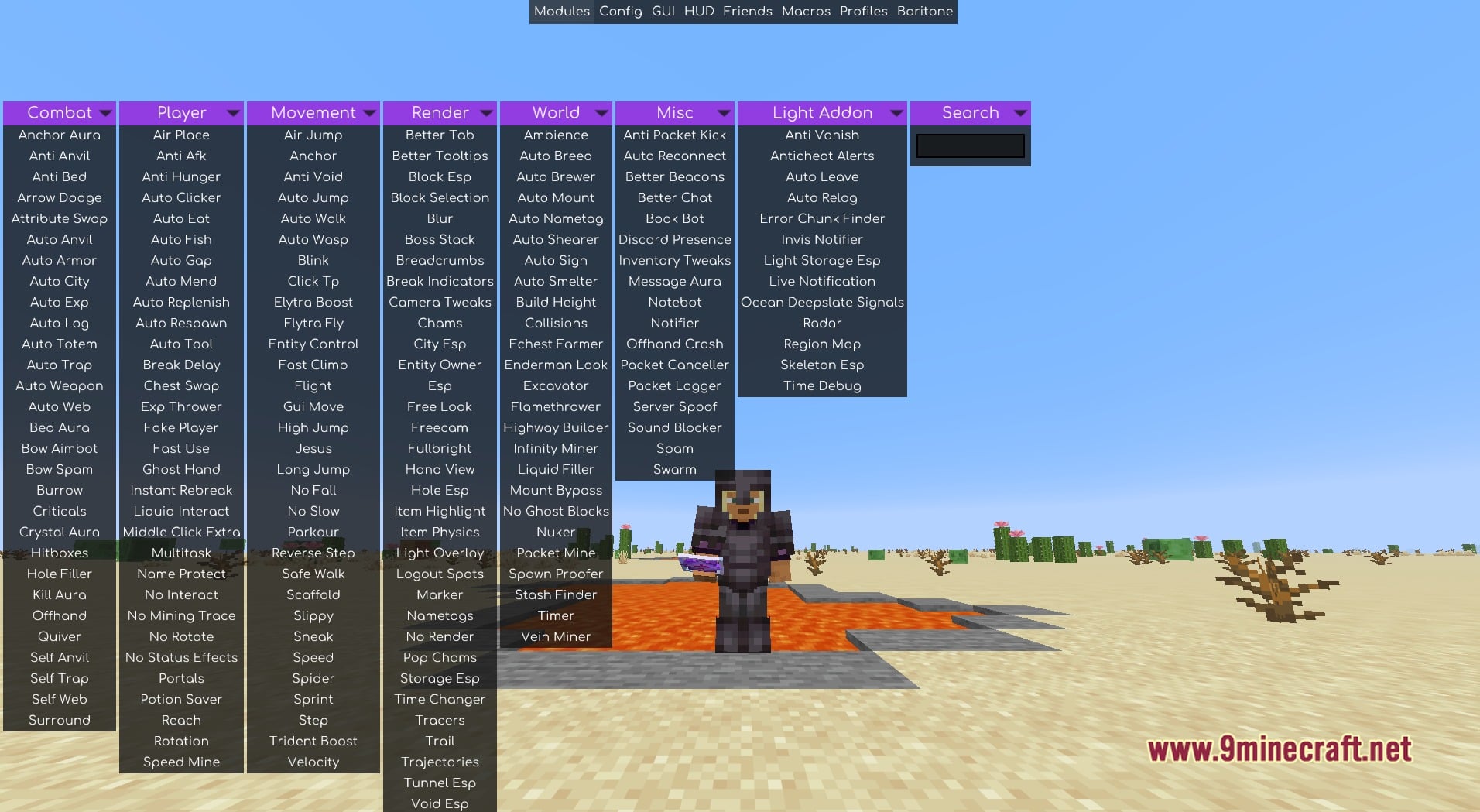
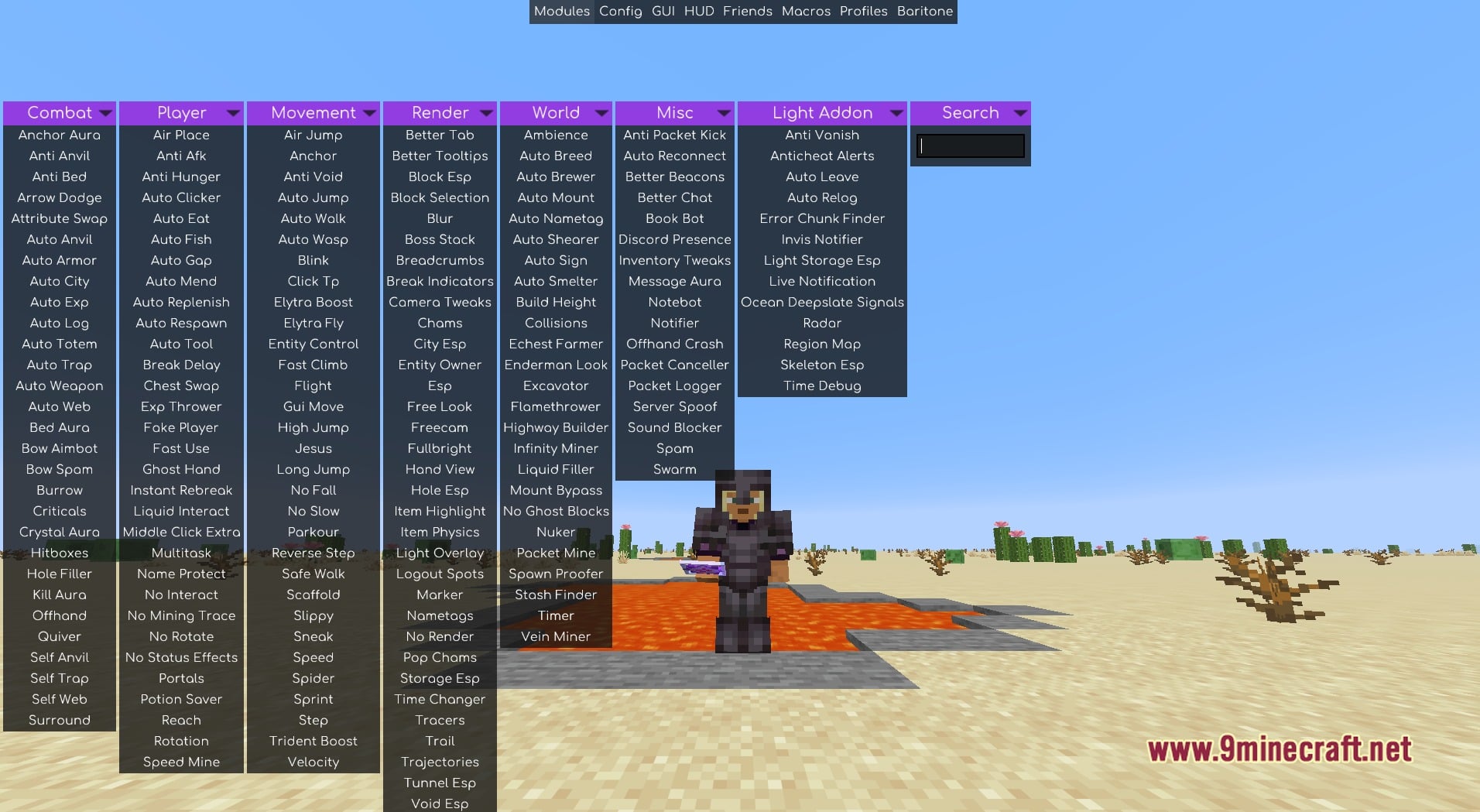
- Light Addon Menu Column: Adds a new Light Addon column right beside the Combat, Player, Movement, Render, World, and Misc lists, plus a search box at the top right to find tools fast.
- Visual & ESP Tracking: Highlights stashes, mobs, and nearby terrain using Light Storage Esp, Skeleton Esp, Radar, and Region Map.
- Chunk & Base Scanning: Hunts down player activity and hidden builds across the world with Error Chunk Finder and Ocean Deepslate Signals.
- Keeps you alert during fights and risky moments with Invis Notifier, Anti Vanish, Anticheat Alerts, and Combat column modules.
- Handles repetitive tasks and AFK safety through Auto Leave, Auto Relog, and the top Macros tab.
- Pairs the Movement column with the top Baritone tab for automatic walking and pathfinding across long distances.
- Lets you adjust screen overlays, live alerts, and saved setups using Live Notification, Time Debug, and the Config, GUI, HUD, Friends, and Profiles tabs.
Best Used For:
- Staying safe on long-running anarchy servers with Anti Vanish, Anticheat Alerts, and Auto Relog.
- Keeping track of invisible players and enemy positions during fast crystal fights.
- Spotting hidden bases and stashes underground using Light Storage Esp, Error Chunk Finder, and Ocean Deepslate Signals.
- Automating repetitive work and long travel trips with Macros, Baritone, and Auto Leave.
- Tuning your own HUD and visuals through the HUD, GUI, Config, and Profiles tabs.
How to Use:
- Press Right Shift while in-game to open the client menu with Zorins Utils Client Mod active.
- Look under the Light Addon column or type a module name into the top-right search box.
- Click any module to turn it on, and switch between the top tabs like HUD, Macros, and Profiles to save your setup.
Screenshots:
How to Install:
New to Minecraft? Follow our step-by-step guide to install Mods on your PC.View Guide


Zorins Utils Client Mod Download Links
For Minecraft 1.21.11
Click to rate this post!
[Total: 0 Average: 0]
You May Also Like
Picked for this page
 Wurst Client Mod (26.3, 1.20.1) – The Best Bypass for Minecraft
 Stfu Mod (26.3, 1.20.1) – Disables Annoyances
 Expanded Axe Enchanting Mod (26.2, 1.20.1) – New Enchantments for Axes
 Cartcore Client Mod (1.21.11, 1.21.1) – Faster Cart Tech Execution
 Yyz’s Backpack Mod (26.3, 1.20.1) – Smart Storage For Minecraft
 NOT Too Expensive Mod (26.2, 1.20.1) – No More Anvil Restrictions
 Lio’s Hobbit Hill Village Mod (26.3, 1.20.1) – A Peaceful Escape In Minecraft
 Temple Client Mod (26.3, 26.2, 1.21.11) – Dominate Brutal PvP on Anarchy Servers
 SeedMapper Cevapi Mod (26.1.2, 1.21.11) – Locate Hidden Structures and Preview Chest Loot
 Exit Addon Client Mod (1.21.11) – Hunt Hidden Bases on Anarchy Servers
 Cobble Bash by Norevex Mod (1.21.1) – Conquer Custom Gyms and the Elite Four
 Cider Core Mod (1.21.1) – Float on Balloons, Build Golems, and Grow Fruit Trees
Most viewed in Clients over the last 7 days
 Meteor Client Mod (26.3, 1.20.1) – Xray, HUD, Fly
 Lunar Patcher (v10) – Using Lunar Client for Free
 CatLean Client Mod (26.2, 1.21.11) – ThunderHack Recode Alternatives
 Baritone Client Mod (26.3, 1.20.1) – Autominer, Build with AI, Xray
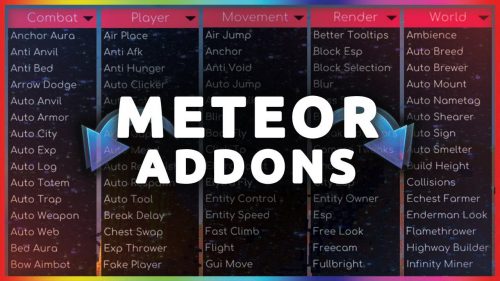 Meteor Client Addons (26.2, 1.20.1) – Modify Almost Anything in Meteor
 Aristois Client Mod (1.21.4, 1.20.1) – World Class Minecraft Utility
 DoomsDay Client (26.1.2, 1.20.1) – Best Free Injectable Client
 Prestige Client Mod (1.21.11, 1.21.4) – Powerful Ghost Features for Crystal & Sword PvP
- Wurst Client Mod (26.3, 1.20.1) – The Best Bypass for Minecraft
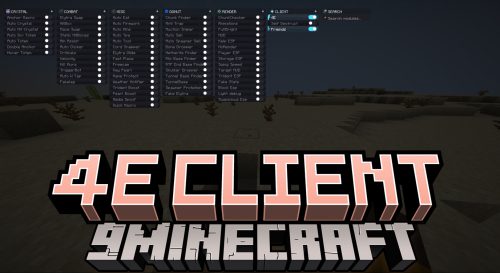 4E Client Mod (1.21.11, 1.21.1) – ChunkFinder, Base Finding for DonutSMP
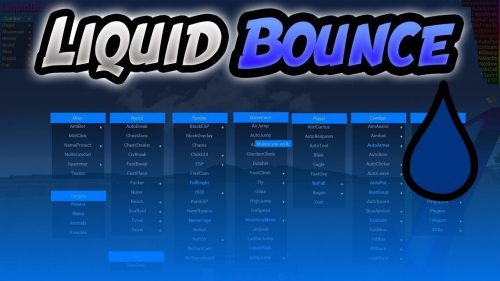 LiquidBounce Client Mod (26.3, 1.20.1) – LiquidLauncher, A Free Client
- Baritone 9minecraft Client Mod (26.3, 26.1.2) – Mine and Build Bases Hands-Free
More from Clients
 Grizzly Client Mod (26.3, 26.2) – Win Every Multiplayer PvP Fight
 Nitro Orchard Client Mod (1.21.11) – Survive Chaotic Anarchy PvP Battles
 Amber 9minecraft Client Mod (26.3, 1.21.11) – Gain Godlike Survival Powers
 Aoba Client Mod (26.3, 1.20.1) – Cannot Be Defeated
 Mental Debug Client Mod (1.21.11) – Track Player Bases and Hidden Stashes
 Enjoyer Media Client Mod (1.21.11) – Track Player Trails to Hidden Bases
 Enjoyer Addon Client Mod (1.21.11) – Automate Server Auctions and Mining
 Babo Debug Client Mod (1.21.11) – Spot Hidden Bases on Anarchy Servers
 BepHax Client Mod (1.21.11) – Hunt Player Stashes on Anarchy Servers
 Night Client Mod (26.2) – Dominate Anarchy Servers and Crystal PvP
 Moon DLC Client Mod (1.21.4) – Dominate Crystal Fights on Anarchy Servers
 Rasty Client Mod (1.21.11) – Dominate Crystal PvP on Anarchy Servers

This post has no comments yet. Be the first — your comment will appear here.