


Signpost Mod (1.20.1, 1.19.2) – Build a Fast Travel Network

 0
0 

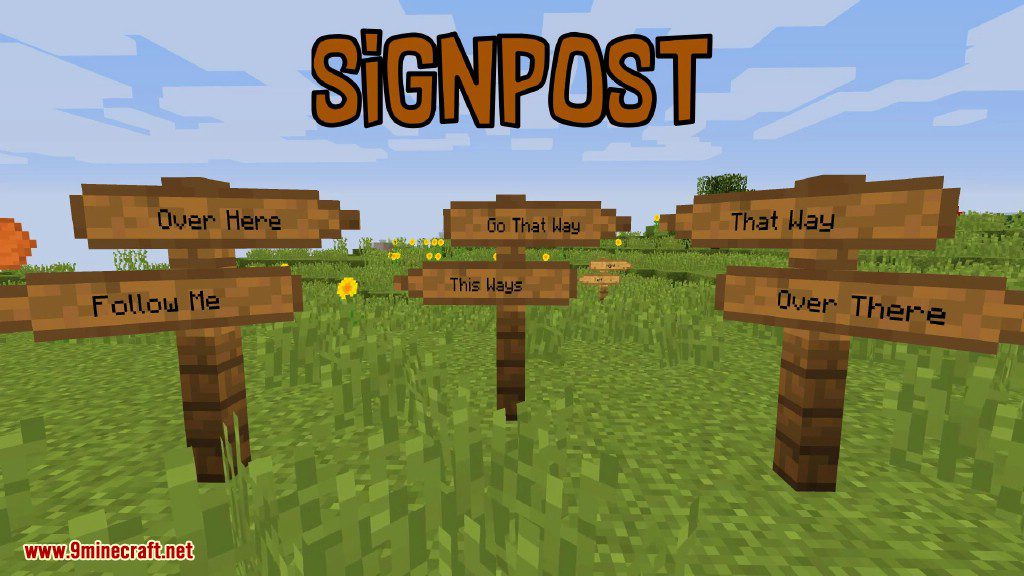
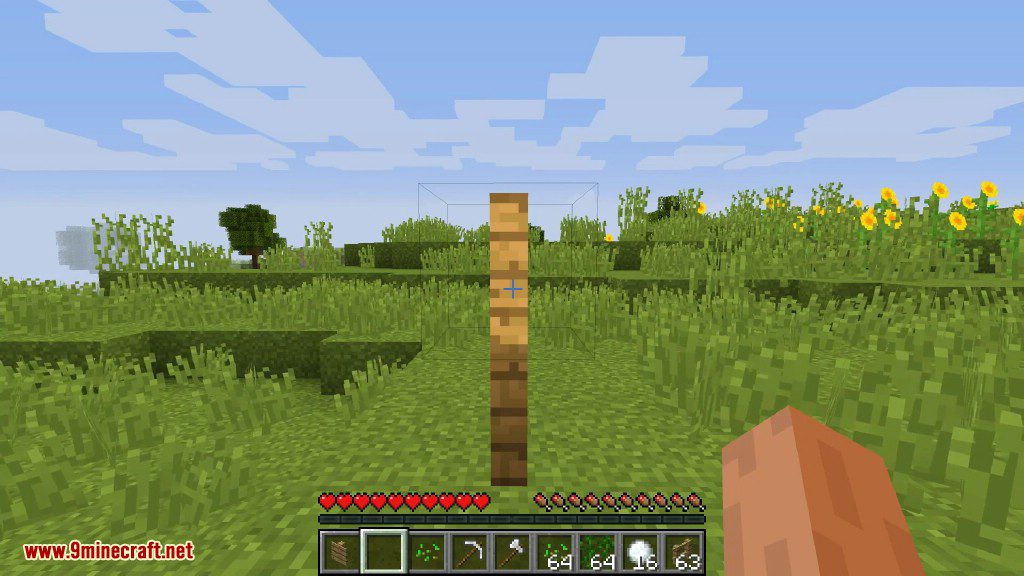
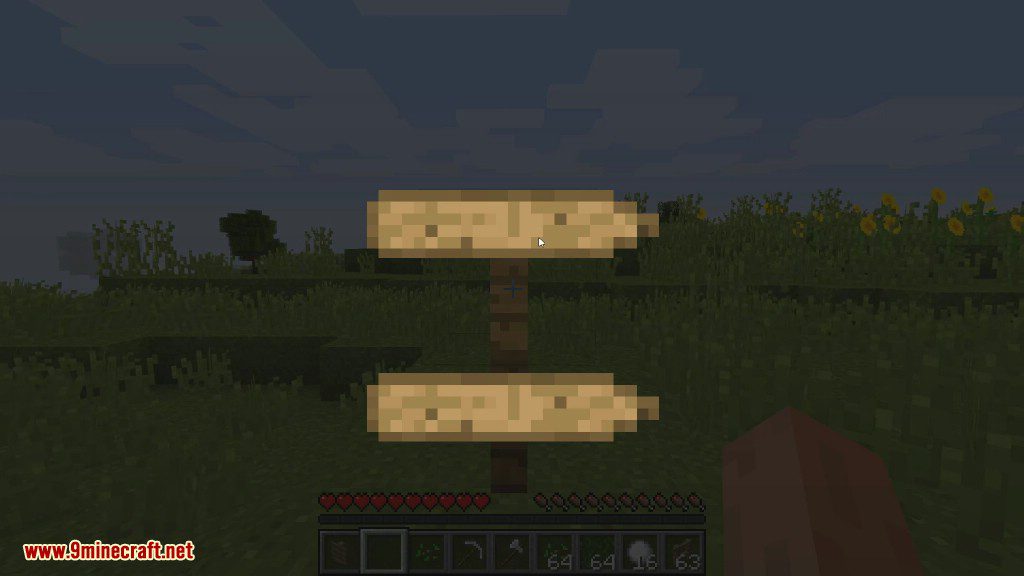
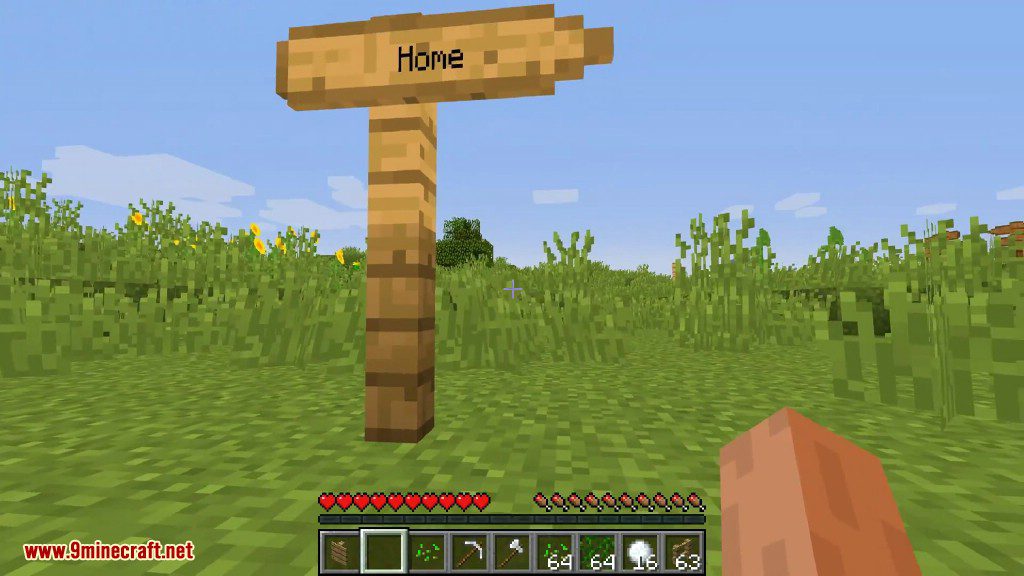
Signpost Mod adds decorative and useful directional signs to your Minecraft world. These signs can be rotated to point anywhere you want, helping you and your friends find your way. The mod also includes waystones for teleportation and special tools to customize the look of your signs. It even works with other mods like Waystones and Antique Atlas.
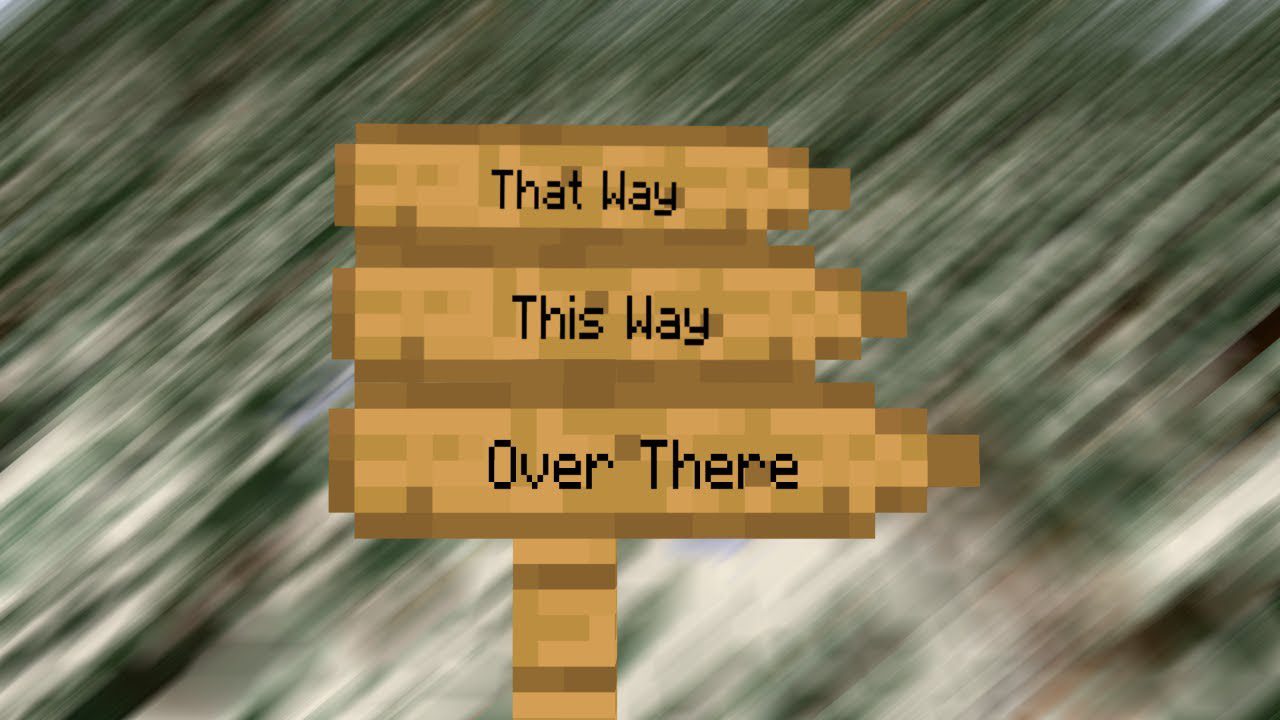
Features:
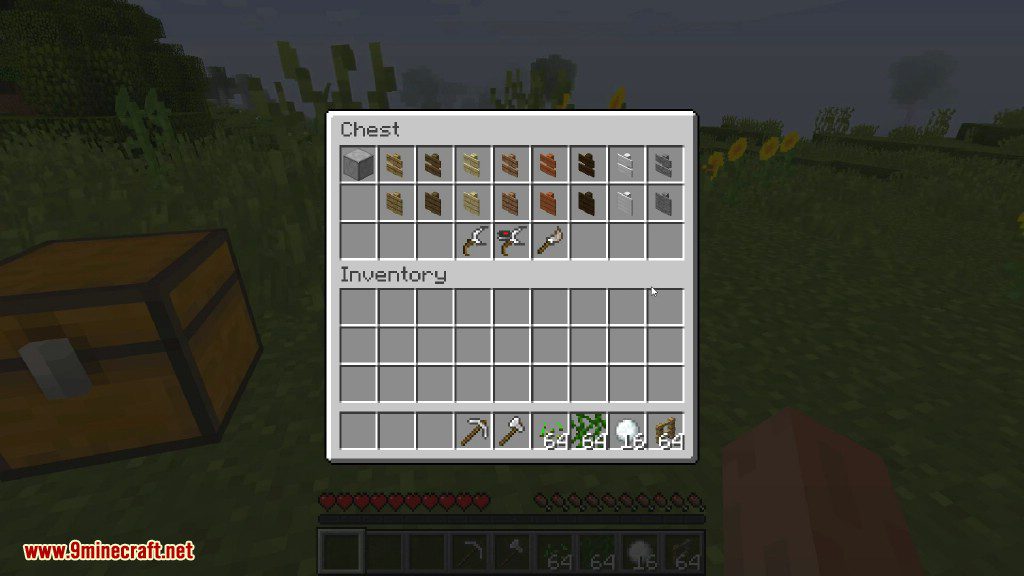
- Adds many types of signposts and waystones made from different materials.
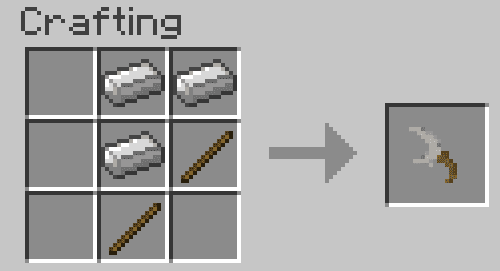
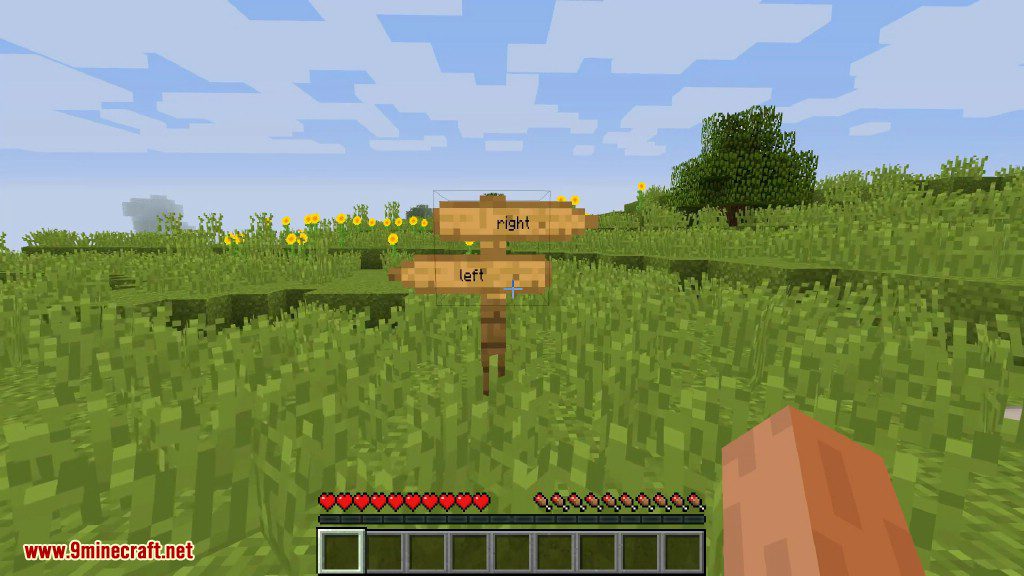
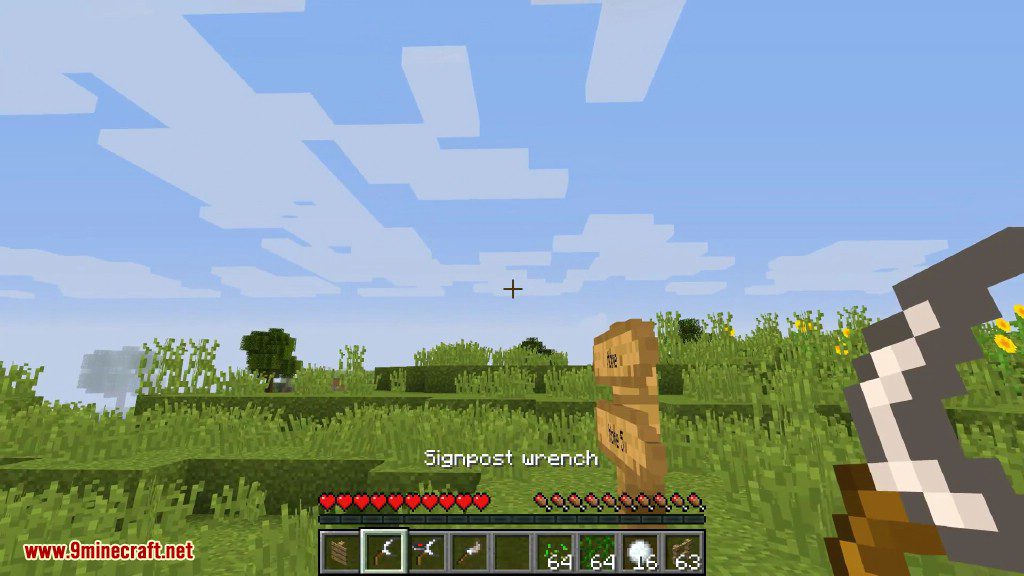
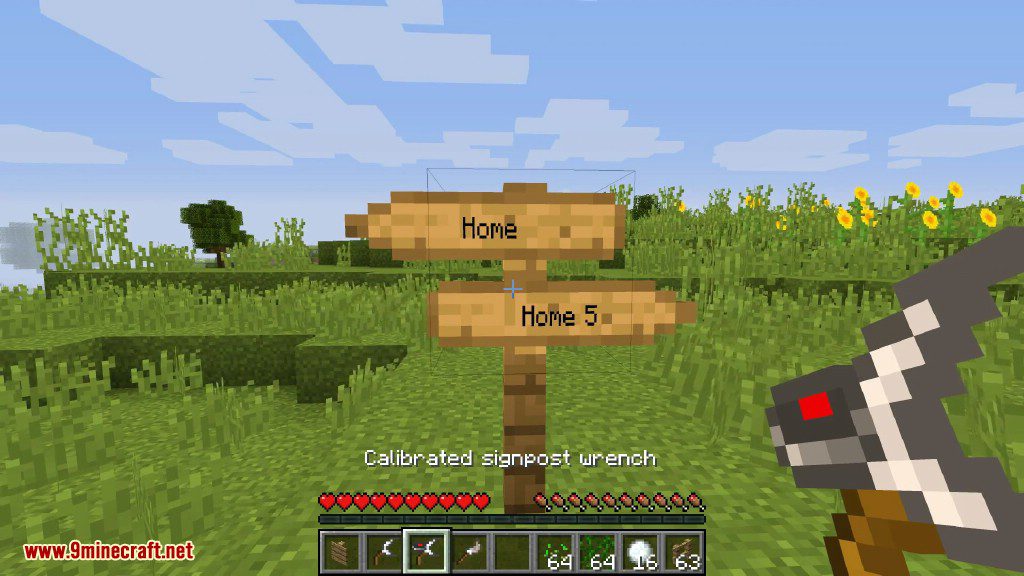
- Use a wrench to easily rotate signs to point in the correct direction.
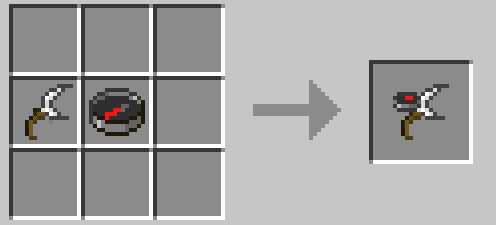
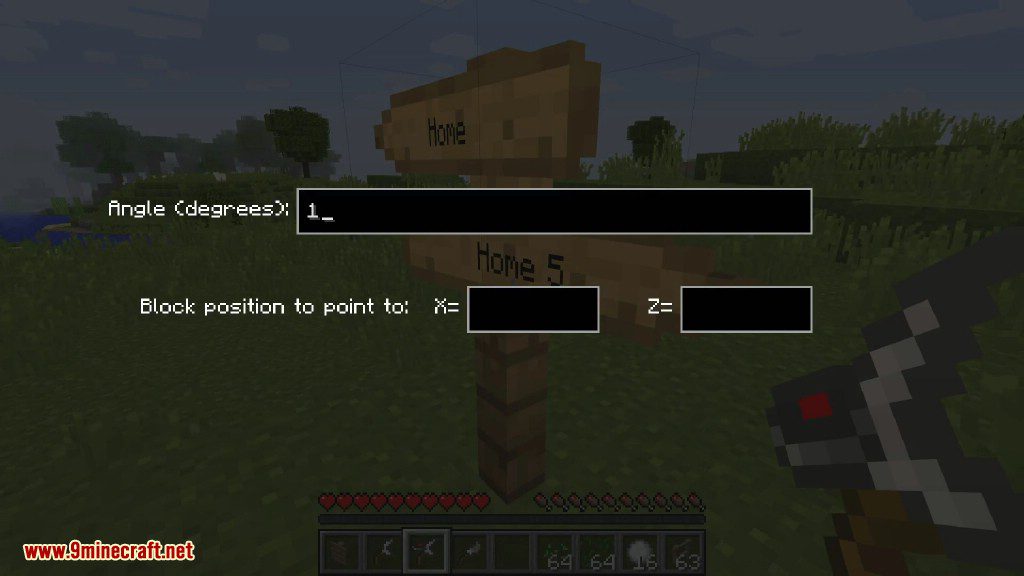
- A calibrated wrench lets you set a precise angle or make a sign point to specific coordinates.
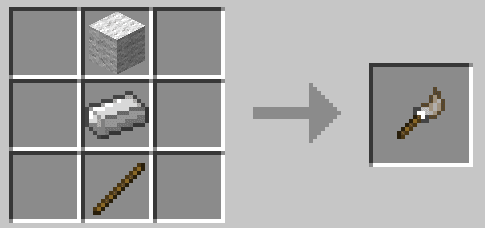
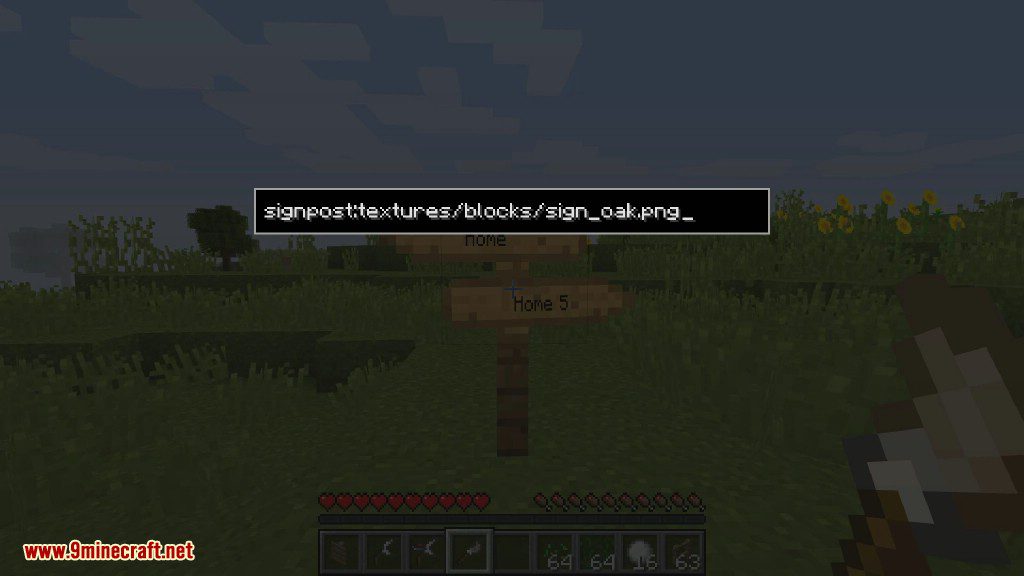
- Paint signs and posts with any block’s texture using a special brush.
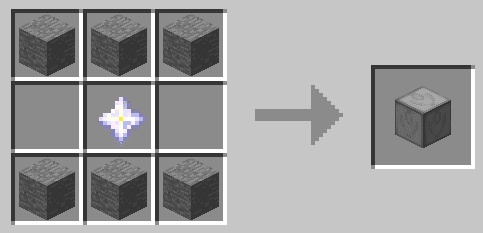
- Link signs to waystones to create a fast travel network.
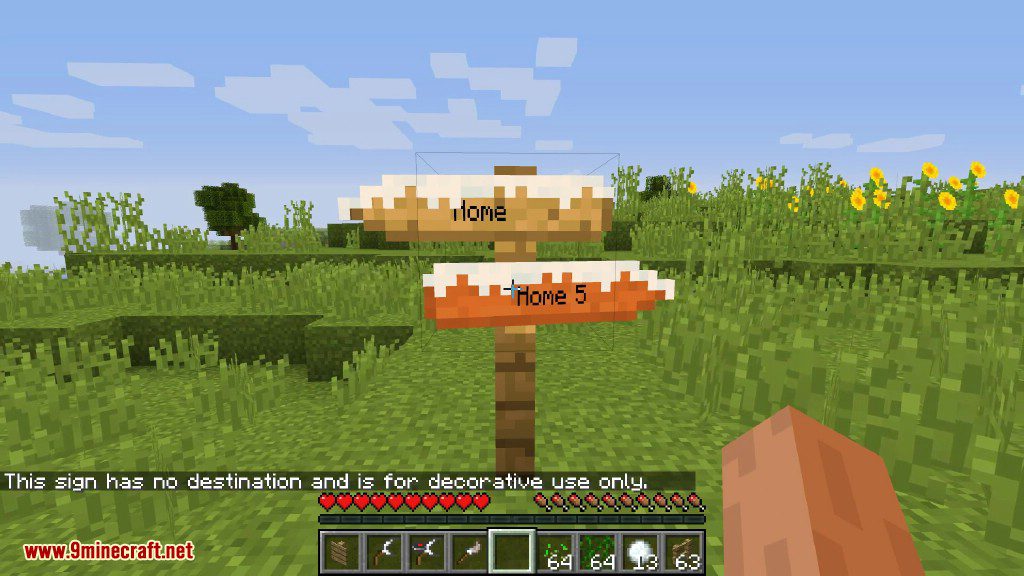
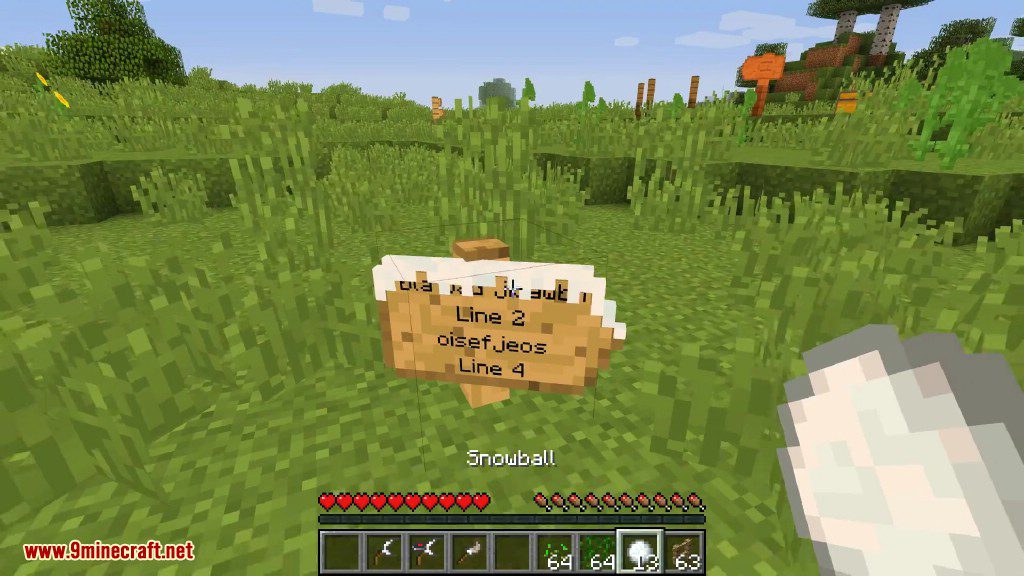
- Add overlays like snow or vines to your signs by hitting them with snowballs or vines.
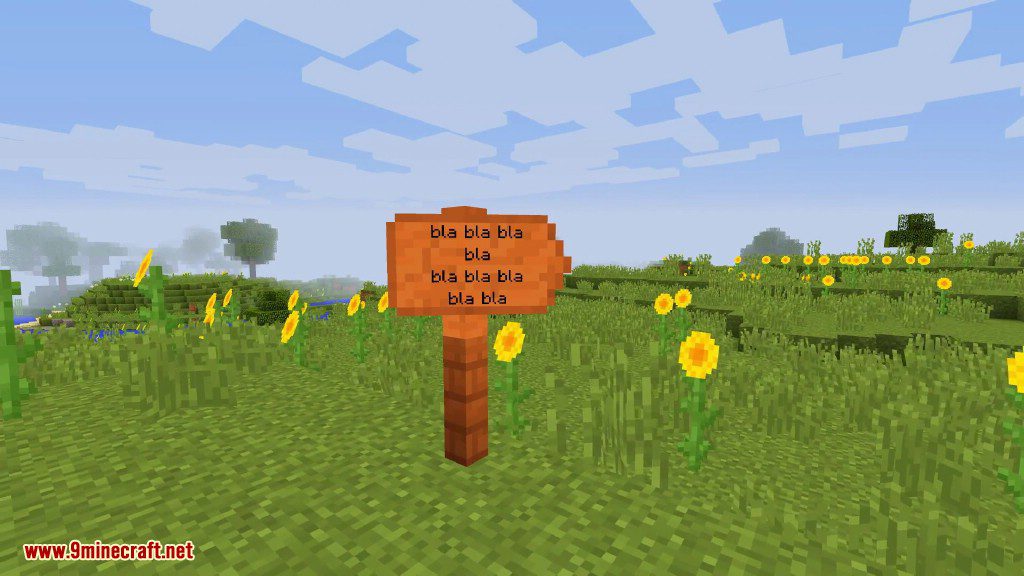
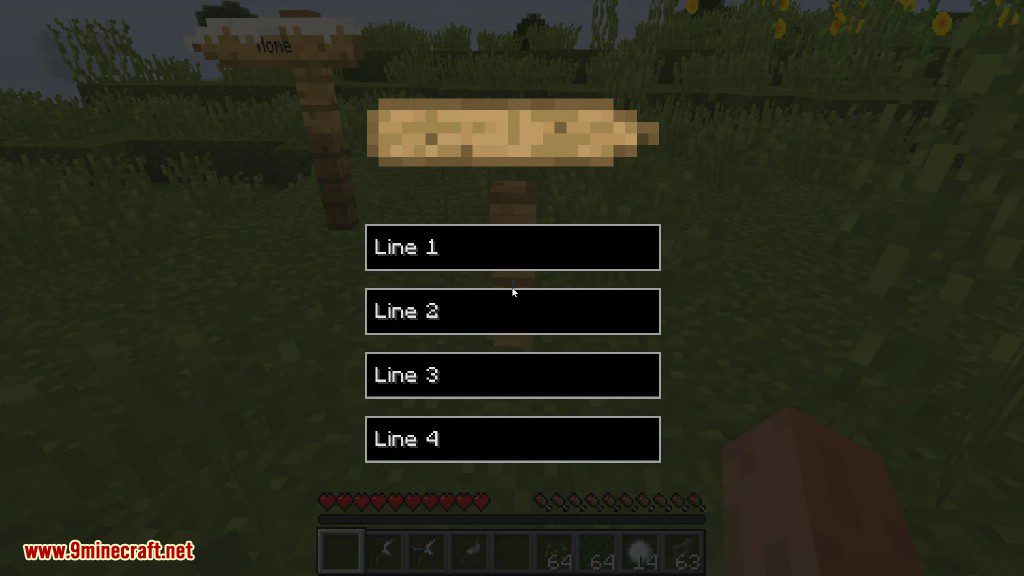
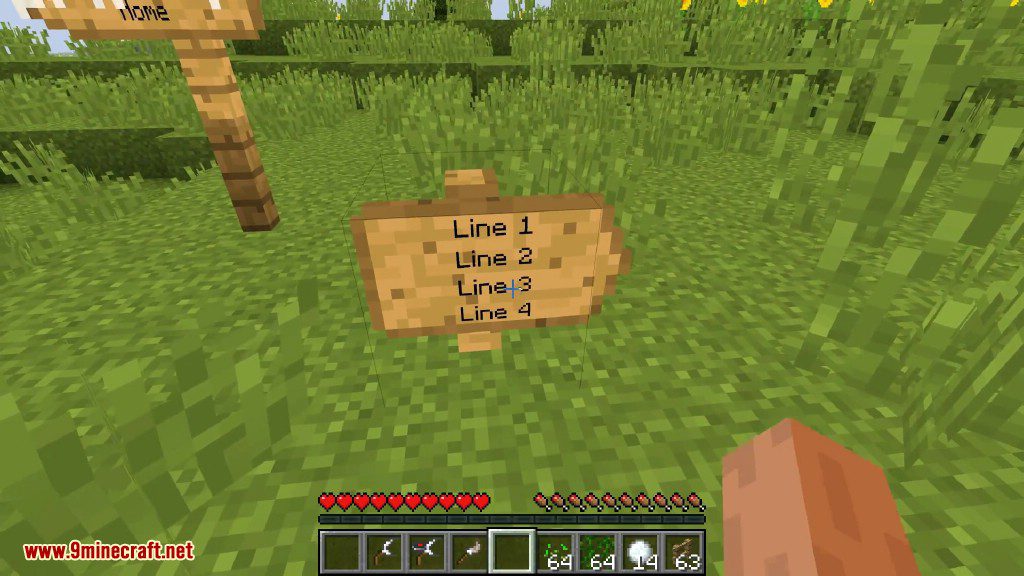
- Write custom text on large signs to give directions or label areas.
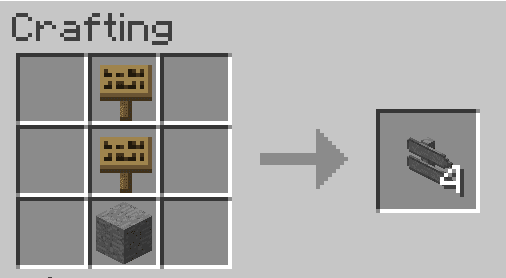
- Craft a vanilla sign to unlock all the new recipes in your recipe book.
Commands:
/getwaystonesleft [<player>]: Shows how many waystones you or another player can place./getsignpostsleft [<player>]: Shows how many signposts you or another player can place./setwaystonesleft <amount> [<player>]: Sets the maximum number of waystones a player can place (OP only)./setsignpostsleft <amount> [<player>]: Sets the maximum number of signposts a player can place (OP only)./discoverwaystone <name> [<player>]: Instantly discovers a waystone for you or another player (OP only).
How to Use:
- Craft a regular vanilla sign. This will add all the new recipes from this mod to your recipe book.
- Craft and place a waystone. To name it, Shift + Right-click it with an empty hand.
- Place a signpost. Right-click it to open the menu and type the name of a waystone you have discovered.
- Once linked, right-click the sign to teleport to the destination waystone.
- Use the wrench to rotate signs or the brush to change their texture by right-clicking them with the tool.
Crafting Recipes:
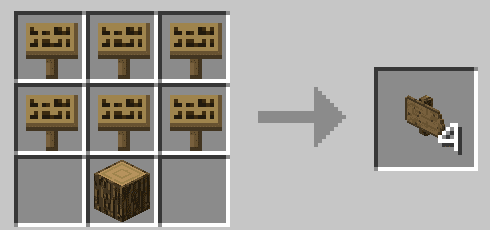
Expensive signpost
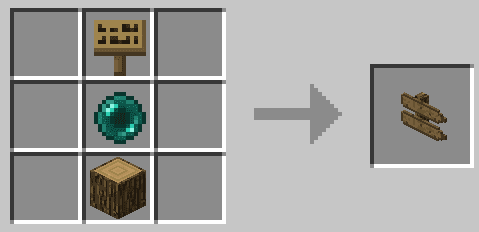
Very expensive signpost
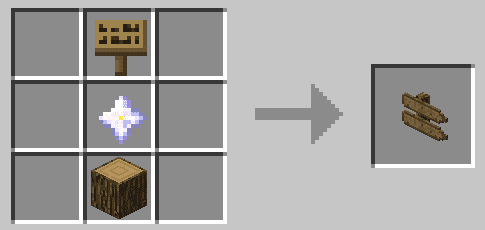
Oak
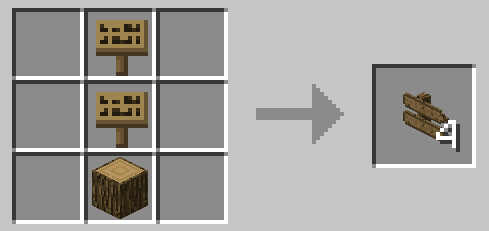
Acacia
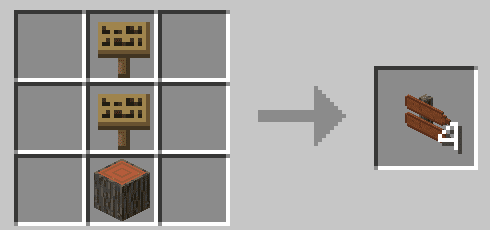
Dark Oak
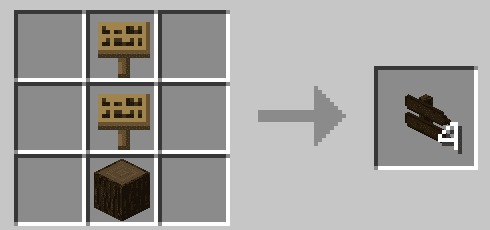
Spruce
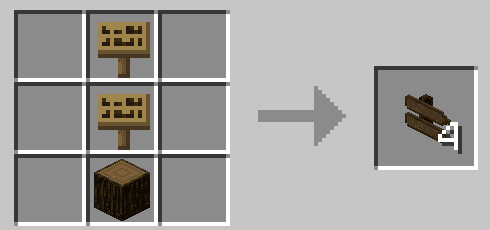
Birch
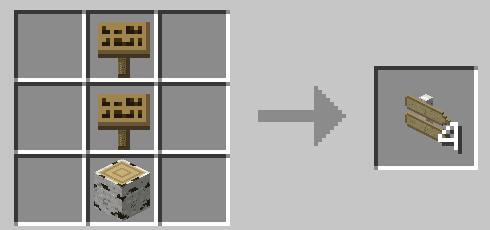
Jungle
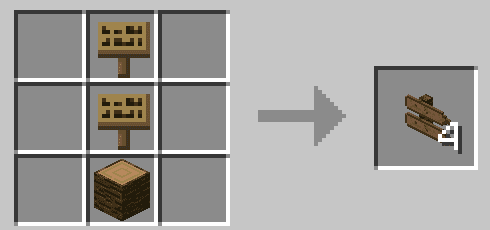
Large Signpost Oak
Signpost Wrench
Iron
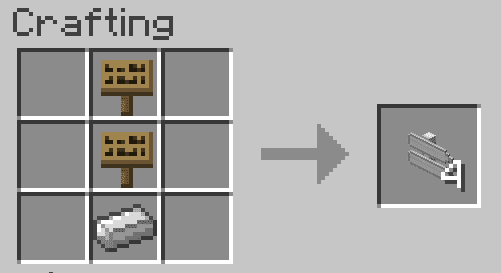
Stone
Calibrated Wrench
Brush
Very Expensive Waystone
Screenshots:
How to Install:
New to Minecraft? Follow our step-by-step guide to install Mods on your PC.View Guide
Signpost Mod Download Links
For Minecraft 1.7.10
For Minecraft 1.12.2, 1.12.1, 1.12
For Minecraft 1.15.2
Forge version: Download from Server 1
For Minecraft 1.16.5
Forge version: Download from Server 1
For Minecraft 1.17.1
Forge version: Download from Server 1
For Minecraft 1.18.1
Forge version: Download from Server 1
For Minecraft 1.18.2
Forge version: Download from Server 1
For Minecraft 1.19
Forge version: Download from Server 2
For Minecraft 1.19.1
Forge version: Download from Server 1
For Minecraft 1.19.2
Forge version: Download from Server 1
For Minecraft 1.19.4
Forge version: Download from Server 1
For Minecraft 1.20.1, 1.20
Forge version: Download from Server 1
You May Also Like













This post has no comments yet. Be the first — your comment will appear here.