
Server Variables Plugin (1.21.1, 1.20.1) – Spigot

 0


Server Variables Plugin lets server administrators create and manage custom variables for players and the server itself. These variables can store data like text, integers, or decimals.
Features:
- Simple Configuration: Server Variables simplifies the process of adjusting server settings by providing an intuitive configuration interface.
- Gameplay Control: Modify critical gameplay elements such as player health, hunger rates, experience gain, and more. Experiment with different settings to create a gameplay experience that aligns with your server’s theme.
- World Generation Flexibility: Tweak world generation parameters to influence terrain, biome distribution, ore generation, and other aspects of your server’s environment. Shape the landscapes your players will explore and build upon.
- Weather and Time Management: Take charge of weather patterns and time progression. Whether you want a server with constant sunshine or periodic rain, Server Variables lets you dictate the atmosphere.
- Custom Events: Set up unique in-game events triggered by specific conditions, player actions, or time intervals. Engage your players with dynamic experiences that keep them coming back for more.
Commands:
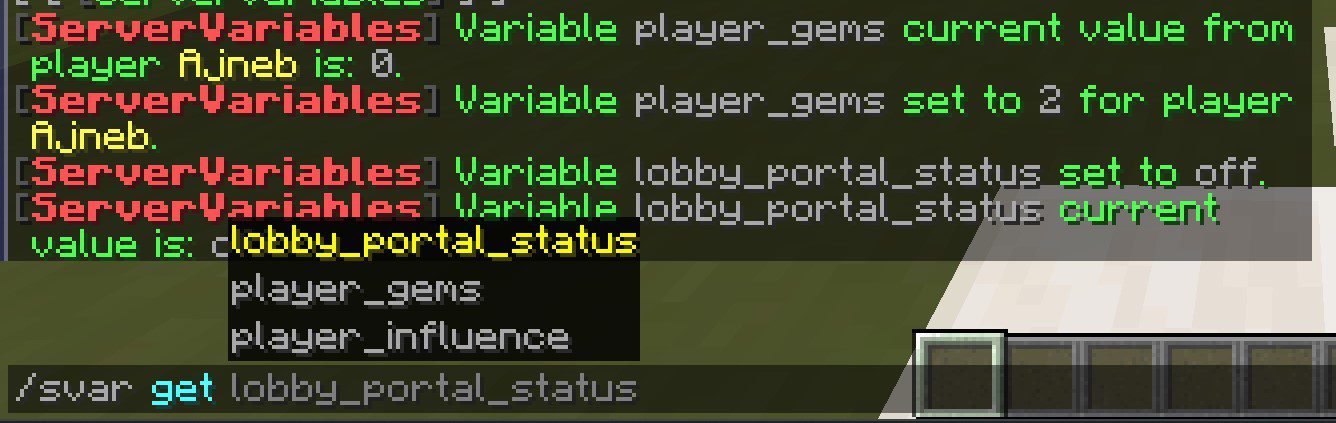
The Server Variables plugin offers a range of commands to manage and customize server variables:
/servervariables set <variable> <value>: Set the value of a specific server variable./servervariables get <variable>: Retrieve the current value of a server variable./servervariables reset <variable>: Reset a server variable to its default value./servervariables reload: Reload the plugin’s configuration.
Permissions:
Control access to the plugin’s commands with the following permissions:
servervariables.admin: Grants access to all plugin commands.servervariables.set: Allows players to set server variables.servervariables.get: Permits players to view server variable values.servervariables.reset: Enables players to reset server variables.servervariables.reload: Allows players to reload the plugin’s configuration.
How to Install:
New to Minecraft? Follow our step-by-step guide to install Plugins on your PC.View Guide
Server Variables Plugin Download Links
For All Versions from Minecraft Spigot 1.8 to Minecraft Spigot 1.20.1
For Minecraft Spigot 1.21.1, 1.21
For Minecraft Spigot 1.20.4
Click to rate this post!
[Total: 0 Average: 0]
You May Also Like
Picked for this page
 Quests Plugin (26.1.2, 1.20.1) – Bukkit, Spigot, Paper
 MultiWorld Plugin (26.1.2, 1.20.1) – Spigot
 Spawn Plugin (26.1.2, 1.21.1) – Spigot
 Orebfuscator Plugin (26.1.2, 1.20.1) – Bukkit, Spigot, Paper
 TAB Plugin (26.3, 1.20.1) – Make an Awesome Animated Tablist
 ValhallaMMO Plugin (26.1.2, 1.20.1) – Bukkit, Spigot, Paper
 SuperVanish Plugin (26.2, 1.20.1) – Bukkit, Spigot, Paper
 Interaction Visualizer Plugin (26.1.2, 1.20.1) – Spigot
 BuildPaste Plugin (26.3, 1.20.1) – Bukkit, Spigot, Paper
 Aj Leaderboards Plugin (26.1.2, 1.20.1) – Spigot
 BentoBox Plugin (26.1.2, 1.20.1) – Spigot
 DiSky Plugin (26.1.2, 1.20.1) – Spigot
Most viewed in Plugins over the last 7 days
 Dynmap 9minecraft Plugin (26.3) – A Live Google-Maps-Style View of Your Whole Server
 Vulcan Anti Cheat Plugin (1.21.8, 1.20.1) – A Powerful Shield Against Cheating
 Citizens Plugin (1.21.10, 1.20.1) – The Best NPC Plugin
 Displaymotion Plugin (1.21.4) – Amaze Players with Custom Animations and No Client Mods
 Ultimate Donut SMP Plugin (26.3, 1.20.1) – Build Teams Trade Goods
 MMOItems Premium Plugin (1.21.8, 1.20.1) – Create Stunning Custom Items
 WorldEdit Plugin (1.21.11, 1.20.1) – Easy In-Game Minecraft Map Editor
 Citizens2 Plugin (1.21.8, 1.20.1) – Craft Unique NPCs
 MythicCrucible Plugin (1.21.8, 1.20.1) – Addon for MythicMobs
 AstralPractice Plugin (1.13) – Turn Idle Lobbies Into Non-Stop Duel Arenas
 MythicMobs Premium Plugin (1.21.9, 1.20.1) – Craft Epic Custom Mobs And Bosses
 Grim Anticheat Plugin (26.3, 1.20.1) – Realtime Cheat Detection Plugin
More from Plugins
 ArmourShop Plugin (1.21.10) – Let Players Stand Out with Custom Armor Skins
 GeigerCounters Plugin (1.21.10) – Send Players Hunting Buried Caches Across the Map
 GemInfusion Plugin (1.21.10) – Turn Mining Loot Into Custom Gear for Every Player
 InteractibleFurniture Plugin (1.21.10) – Give Players Cozy Homes to Show Off Loot
 PermCleaner Plugin (1.21.10) – Fresh Seasonal Starts Without Losing Earned Ranks
 GunsAndGadgets Plugin (1.21.10) – Turn Survival Fights Into Tactical Firearm Shootouts
 Surgery Plugin (1.21.10) – Turn Player Injuries Into Intense Medical Roleplay
 MarketBlock Plugin (1.21.10) – A Fair Trade Market That Rewards Fresh Harvests
 TFMCCore Plugin (1.21.10) – Custom Item Lore and Animal Whistles for Roleplay Servers
 Economy SMP Plugin (26.2, 1.21.1) – Turn Survival Worlds Into Active Trading
 Audio Navigation Plugin (1.21.10) – Helping Blind Players Explore Every Server
 VFBuilders Plugin (1.21.10) – Give Players Real Workshops to Assemble Vehicles

This post has no comments yet. Be the first — your comment will appear here.