


Simple Voice Chat Discord Bridge Mod (26.2, 1.20.1) – Talk Across Platforms


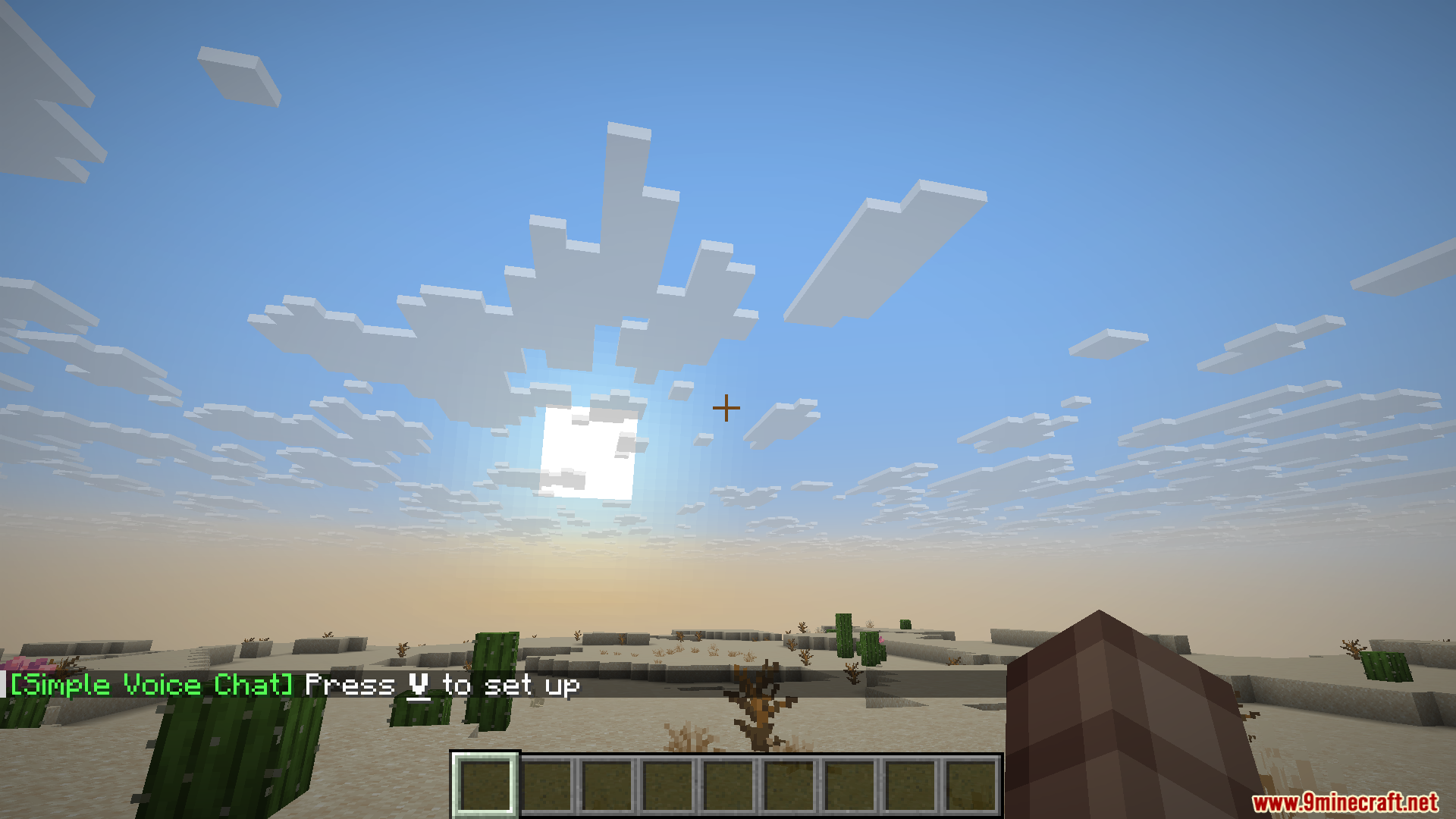
Simple Voice Chat Discord Bridge extends the Simple Voice Chat mod by linking your in-game audio directly to a Discord voice channel. This addon lets people who don’t have the mod installed still hear and talk to players on the server. For example, friends playing on Bedrock Edition through Geyser can now join the voice chat by using Discord.
Features:
- Connects to Discord: Links the in-game Simple Voice Chat to a specific Discord voice channel.
- Allows players without the mod to join voice chat by connecting through Discord. This is great for Bedrock players using Geyser.
- Creates a two-way bridge for audio, letting people on Discord and players in Minecraft talk together.
- Control your session with easy in-game commands like /dvc start and /dvc stop.
- Adds a command to toggle a whisper mode for private conversations.
In-Game Group Management
- Create password-protected groups to have private conversations with your team.
- In Normal groups, you can hear nearby players, but they can’t hear you back.
- Choose Open groups to let everyone nearby, inside or outside the group, hear each other.
- Use Isolated groups for total privacy, where only group members can speak and listen to one another.
- Set groups to be persistent, so they remain on the server even after all members have left.
Configuration:
Before you start, you need to set up a Discord bot. This lets the mod connect your Minecraft server to a Discord voice channel.
- Go to the Discord Developer Portal and create a new application. This will be your bot.
- In the Bot section, reset and copy the bot’s token.
- Find the mod’s configuration file. For Fabric, it’s in
config/voicechat-discord.yml. For Paper/Purpur, it’s inplugins/voicechat-discord/config.yml. - Open the file and paste your bot token where it says
DISCORD_BOT_TOKEN_HERE. - In Discord, turn on Developer Mode in your settings. Then, right-click the voice channel you want to use and select “Copy ID”.
- Paste the channel ID into the config file, replacing
VOICE_CHANNEL_ID_HERE.
Your config should look like this:
bots:
    - token: YourPastedBotToken
      vc_id: YourPastedChannelID
You can add more bots to the list if you want more people to connect through Discord at the same time. Each bot allows one person to connect.
Commands:
All commands start with /dvc.
/dvc start: Starts a voice chat session with an available bot. You will be told which voice channel to join on Discord./dvc stop: Stops your current voice chat session./dvc group list: Shows a list of all available groups./dvc group create <name> [password] [type] [persistent]: Creates a new voice chat group. You can set a password, choose a type (normal, open, or isolated), and make it persistent so it doesn’t disappear when empty./dvc group join <ID>: Joins a group using its ID from the list./dvc group info: Shows information about the group you are in./dvc group leave: Leaves your current group./dvc group remove <ID>: Deletes an empty, persistent group./dvc togglewhisper: Toggles whisper mode./dvc reloadconfig: Reloads the configuration file. This requires operator permissions (level 2 or higher) or thevoicechat-discord.reload-configpermission.
How to Use:
Important: Only one person can speak in the Discord voice channel at a time. If more than one person talks, you will hear strange audio glitches. It’s best to limit the voice channel to 2 users (one player and the bot).
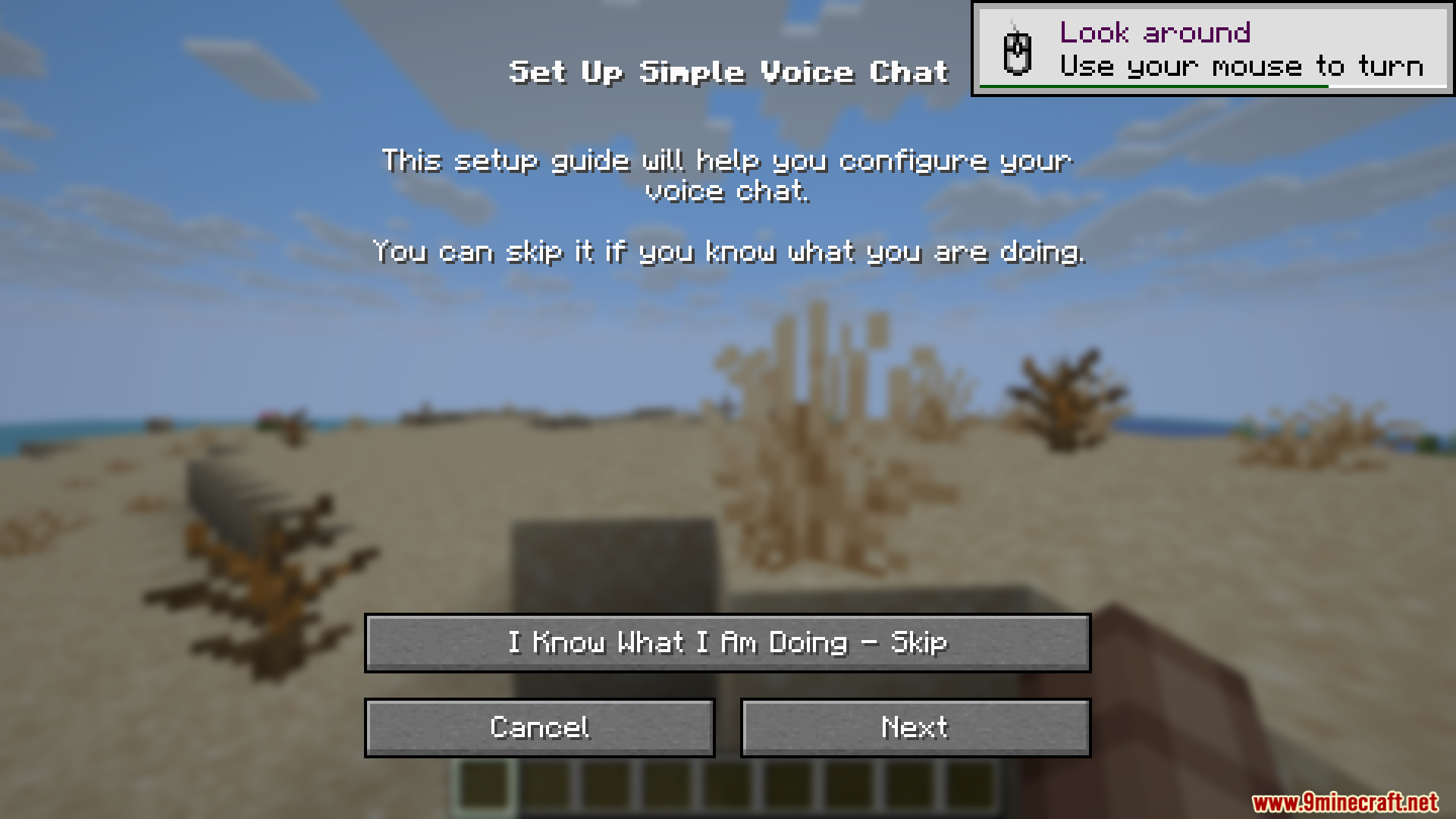
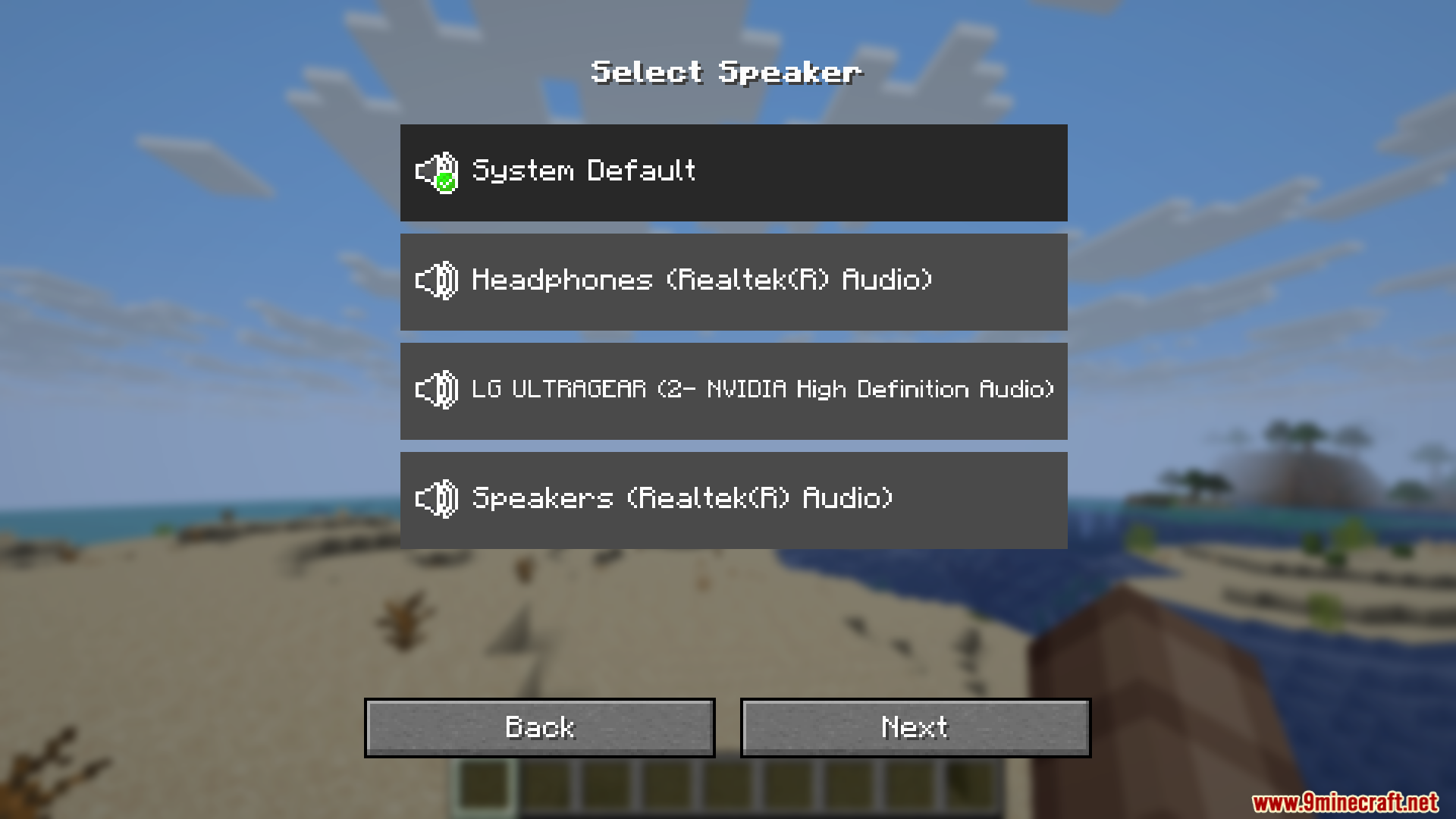
All features are controlled with the /dvc command. Here’s how to use it in-game:
- Start or Stop a Session
- Type
/dvc startto begin a voice chat session. You will be told which Discord voice channel to join. - To disconnect, just type
/dvc stop.
- Type
- Use Group Chat
- To see a list of all groups, use
/dvc group list. - To make a new group, type
/dvc group create <name>. You can also add a password and set a type. - Group Types Explained:
- Normal: Your group can hear nearby players, but they can’t hear your group back.
- Open: Everyone nearby can hear your group, and your group can hear them.
- Isolated: Only members of your group can talk to and hear each other.
- To join a group, use its ID from the list:
/dvc group join <ID>. - To leave your group, type
/dvc group leave.
- To see a list of all groups, use
- Whisper to Others
- Use
/dvc togglewhisperto turn whispering on or off.
- Use
- Reload the Config (Admins Only)
- If you have server permissions, you can reload the config with
/dvc reloadconfig. This will stop all current voice chats.
- If you have server permissions, you can reload the config with
Screenshots:
How to Install:
New to Minecraft? Follow our step-by-step guide to install Mods on your PC.View Guide
Requirements:

Simple Voice Chat Discord Bridge Mod Download Links
For Minecraft
26.2,
26.1.2,
26.1.1
All Versions Covered
26.2
26.1.2
26.1.1
26.1
1.21.11
For Minecraft
1.21.11,
1.21.8,
1.21.7
All Versions Covered
1.21.11
1.21.8
1.21.7
1.21.6
1.21.5
1.21.4
1.21.1
1.21
For Minecraft 1.21.10, 1.21.9
For Minecraft 1.21.8, 1.21.7, 1.21.6
For Minecraft 1.21.5
For Minecraft 1.21.4
For Minecraft 1.21.3, 1.21.2
For Minecraft
1.21.1,
1.21,
1.20.6
All Versions Covered
1.21.1
1.21
1.20.6
1.20.5
1.20.4
1.20.3
1.20.2
1.20.1
1.20
1.19.2
For Minecraft 1.18.2, 1.16.5

1 Comment
 What do you think?
Your opinion means a lot - we'd love to hear from you.
What do you think?
Your opinion means a lot - we'd love to hear from you.
You May Also Like





Mod Voice