


Advanced Capes 9minecraft Mod (26.2) – Wear Any Image As a Cape
 260
260
 0
0


🌐 Read this article in your language! Choose your preferred language below.
Or pick the one you like:
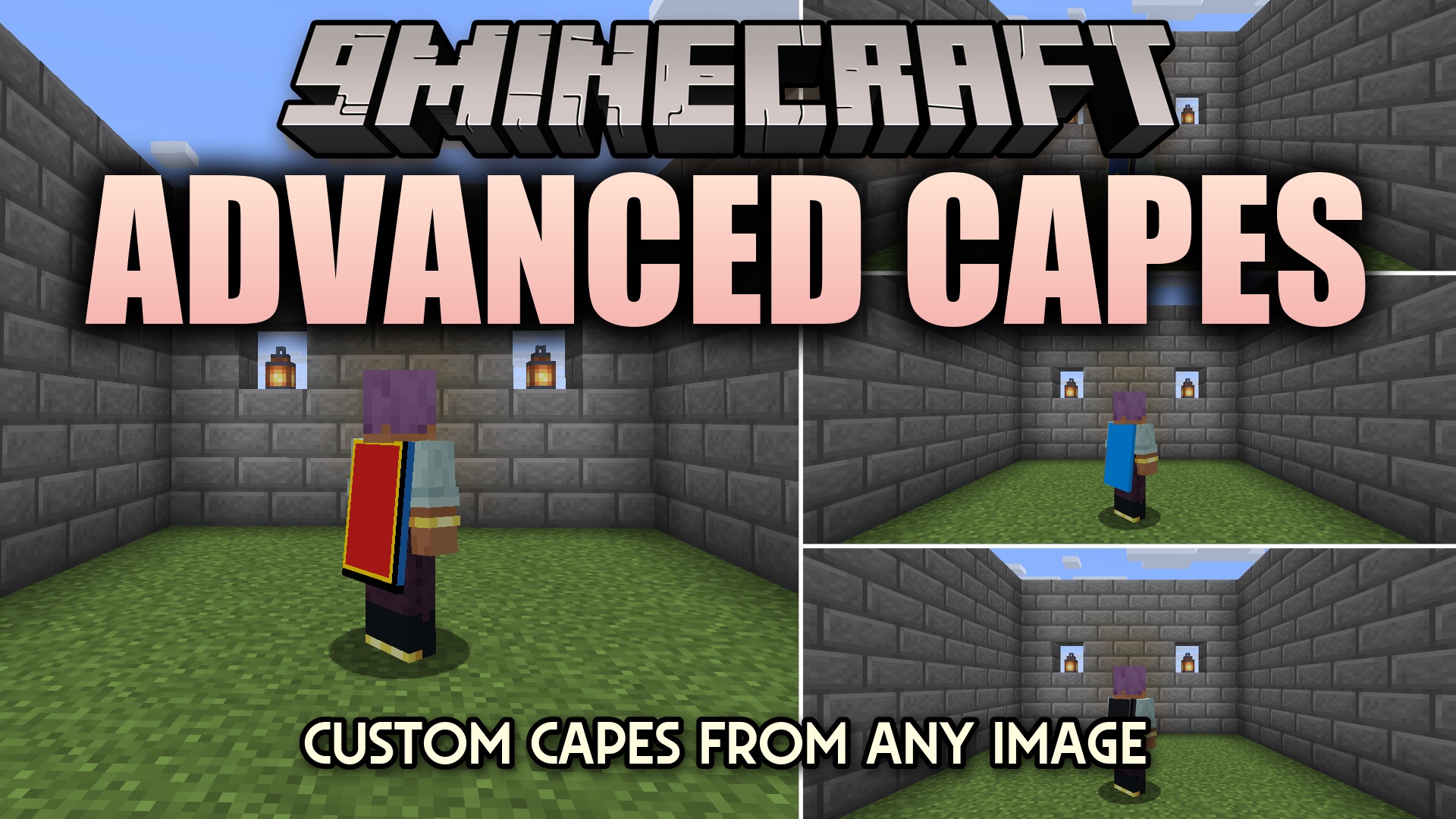
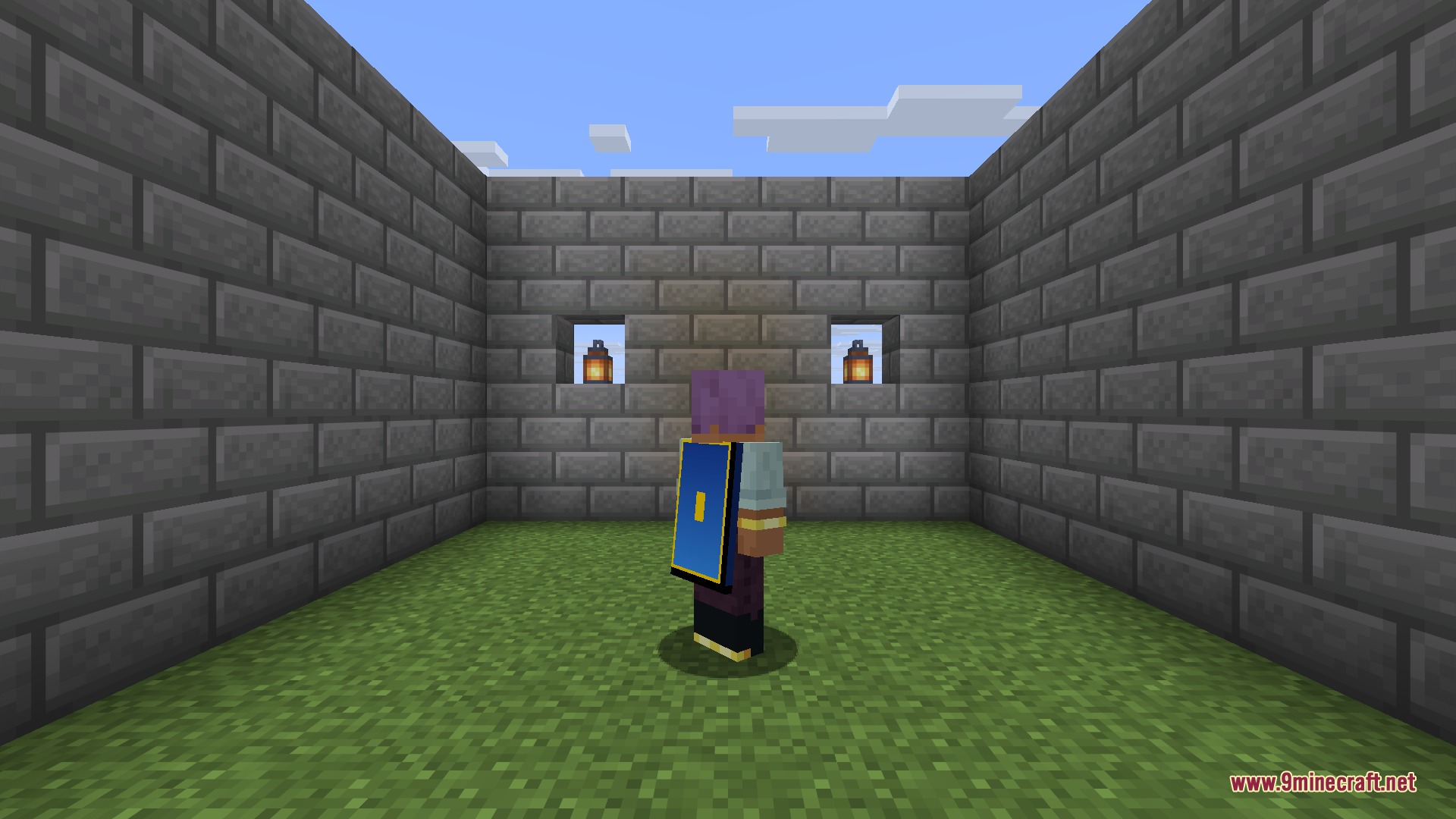
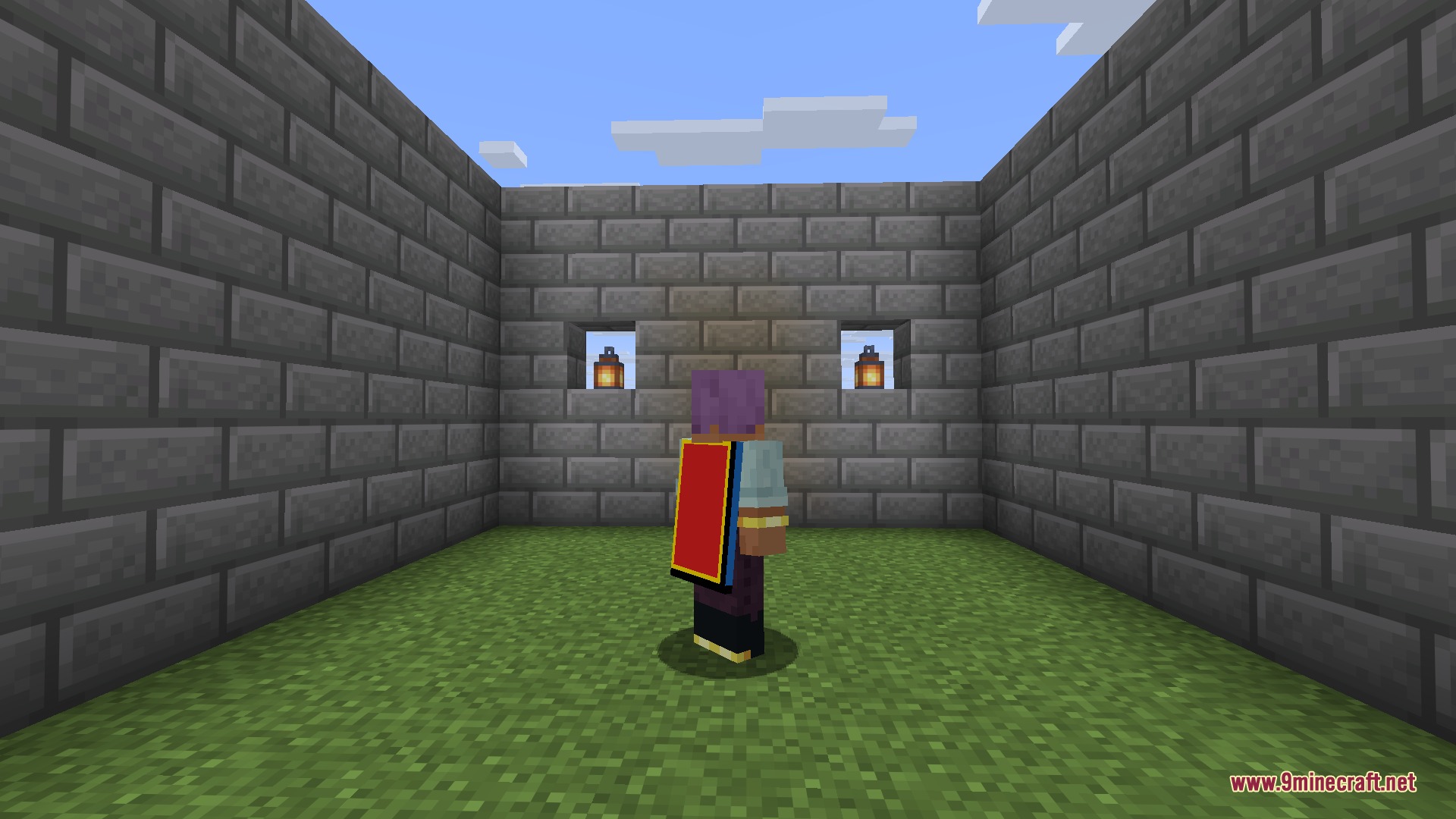
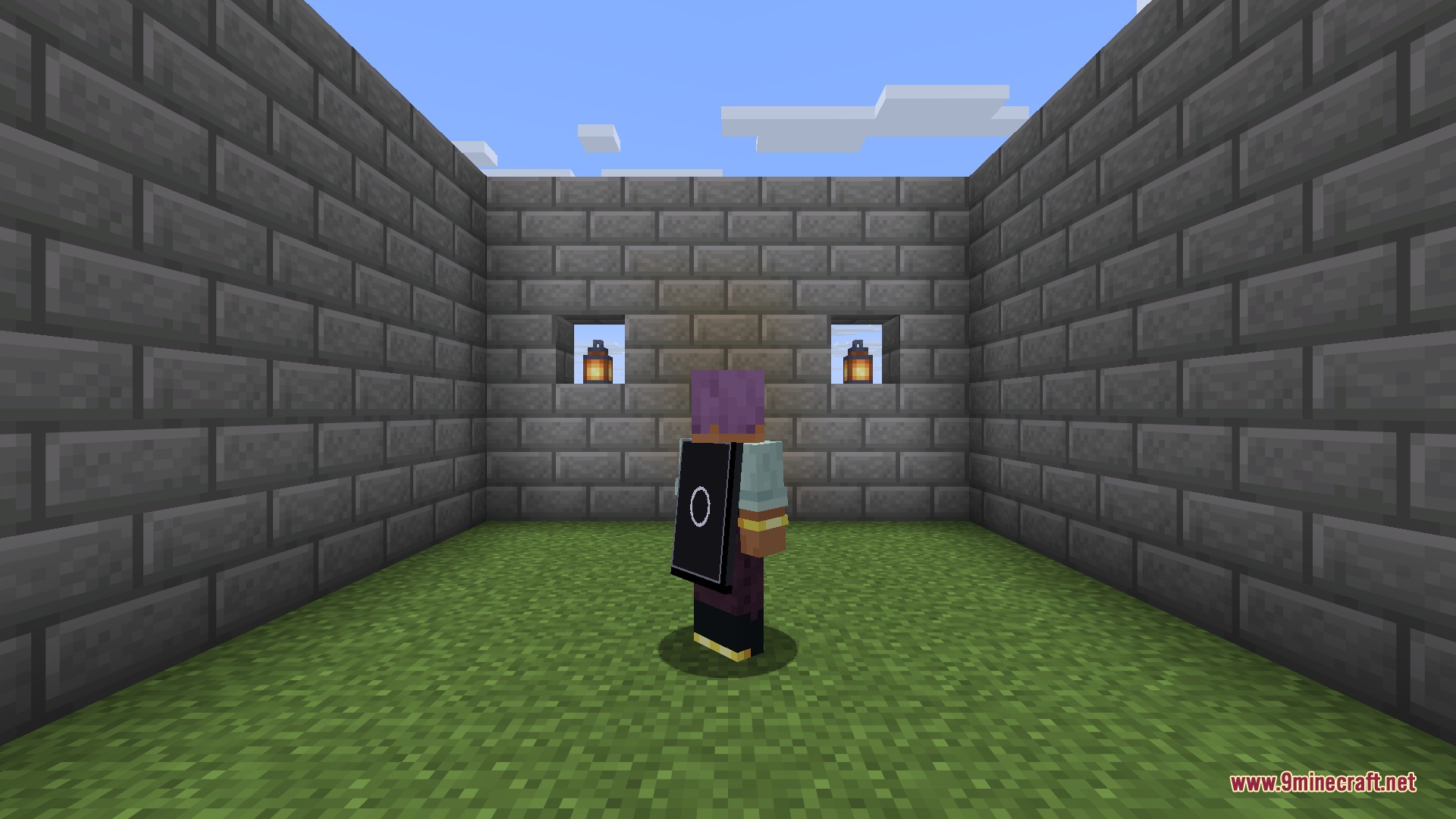
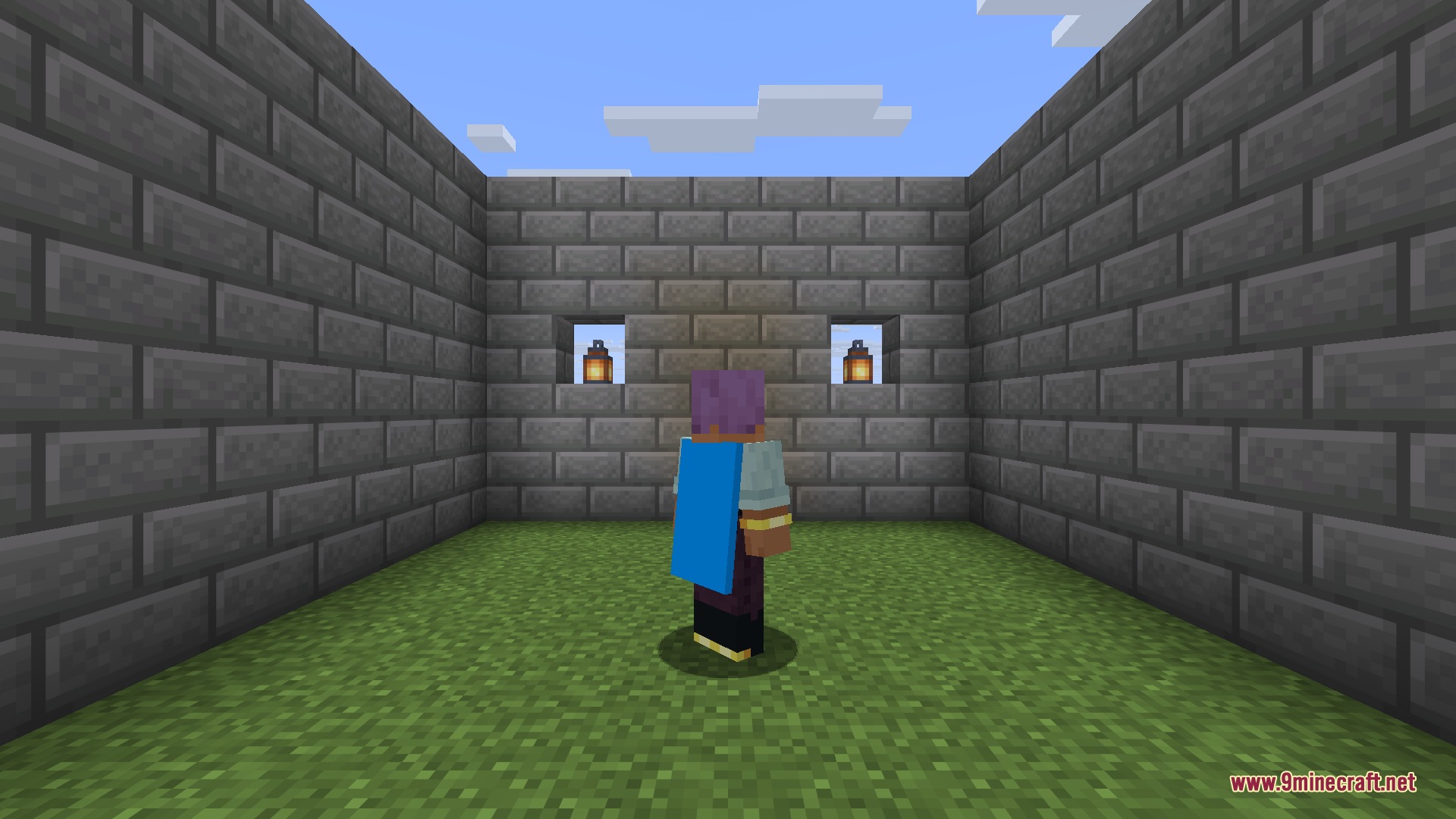
Advanced Capes 9minecraft Mod lets you wear any image from the internet as a custom cape. You do not need to upload files or link an account to change your look. You just paste a direct web link to a picture, and it appears on your back in the game. This works in both single-player worlds and multiplayer servers. Other players who have this installed will see your chosen design, and you will see theirs.
Features:
- Custom URL Capes: Paste a direct link to any PNG image online to wear it instantly.
- Multiplayer Sync: Shows your custom design to everyone on the server who has this installed.
- Supports high-definition textures as long as the image width is a standard size like 64, 128, or 256 pixels.
- Plays animated designs automatically if you link a tall image made of stacked frames.
- Displays your custom pattern right through your elytra when you fly.
- Saves your chosen design in a configuration file so you keep your look when you close the game.
- Runs without adding any new blocks, items, or changes to your world map.
Commands:
/setcape url– Applies a new cape using a direct web link that you type after the command./setcape user– Loads a cape connected to a website username that you type after the command./setcape clear– Removes your current cape from your character.
How to Use:
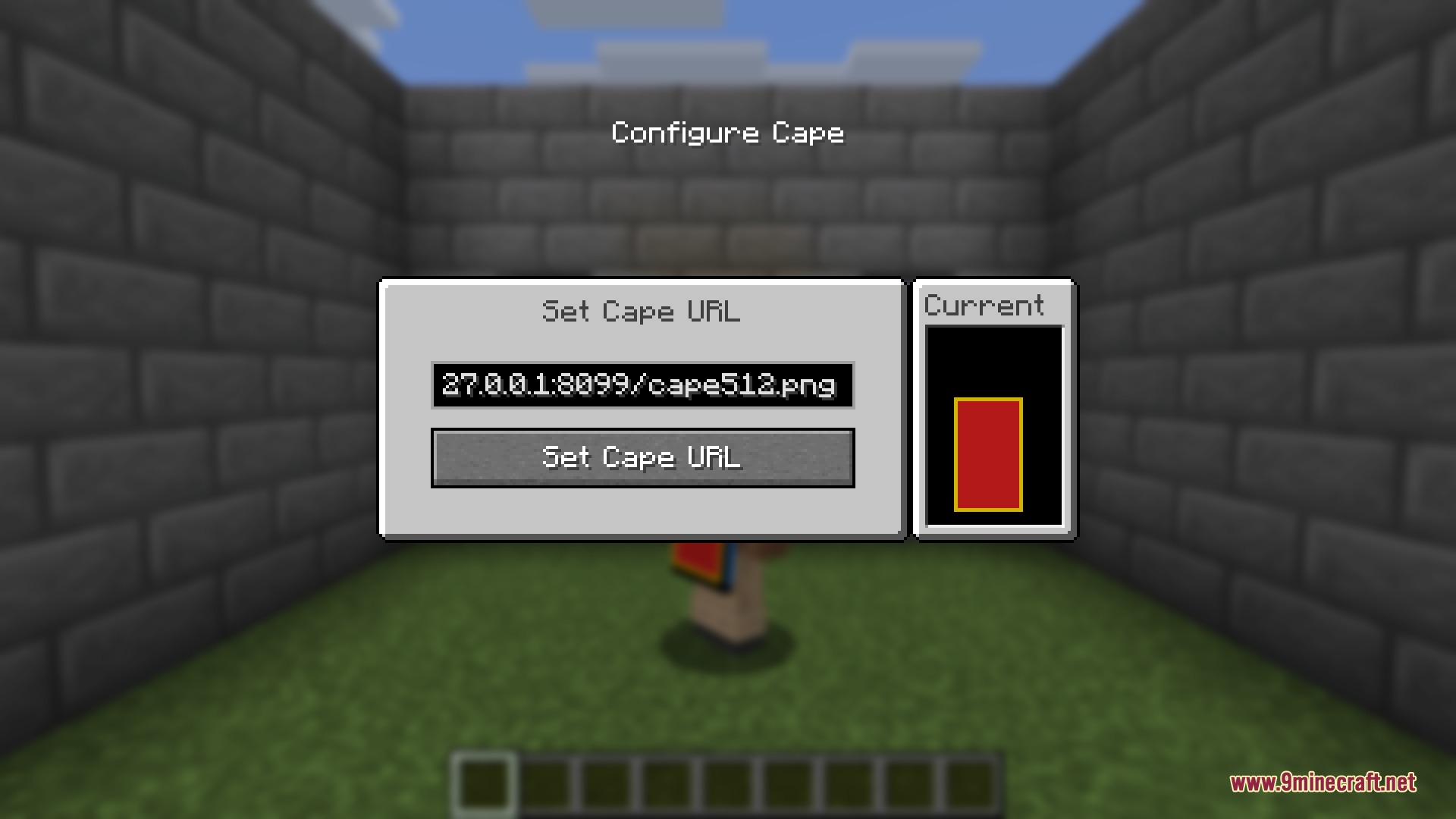
- Press the V key while playing to open the Configure Cape screen.
- Find a direct link to a PNG picture on the internet that starts with http:// or https://.
- Paste that link into the empty box on the screen.
- Look at the Current panel to see a live preview of how the design looks.
- Click the Set Cape URL button to apply it to your character.
Screenshots:
How to Install:
New to Minecraft? Follow our step-by-step guide to install Mods on your PC.View Guide

Advanced Capes 9minecraft Mod Download Links
For Minecraft 26.2
Click to rate this post!
[Total: 0 Average: 0]
You May Also Like










This post has no comments yet. Be the first — your comment will appear here.