


Orestige Client Mod (26.1.2) – Dominate Anarchy Servers with Auto Crystal Combat
 5
5
 1
1

🌐 Good news — we've translated this article into other languages!
Or pick the one you like:
Orestige Client Mod gives you a powerful set of tools for crystal PvP and anarchy server fights. It draws its own custom menu over your game and organizes combat modules based on the weapon you hold. You can set up automatic actions, manage your totems, and track your opponent’s health during fast-paced battles. This client focuses purely on giving you the upper hand in difficult combat situations without cluttering your screen with unnecessary extras.
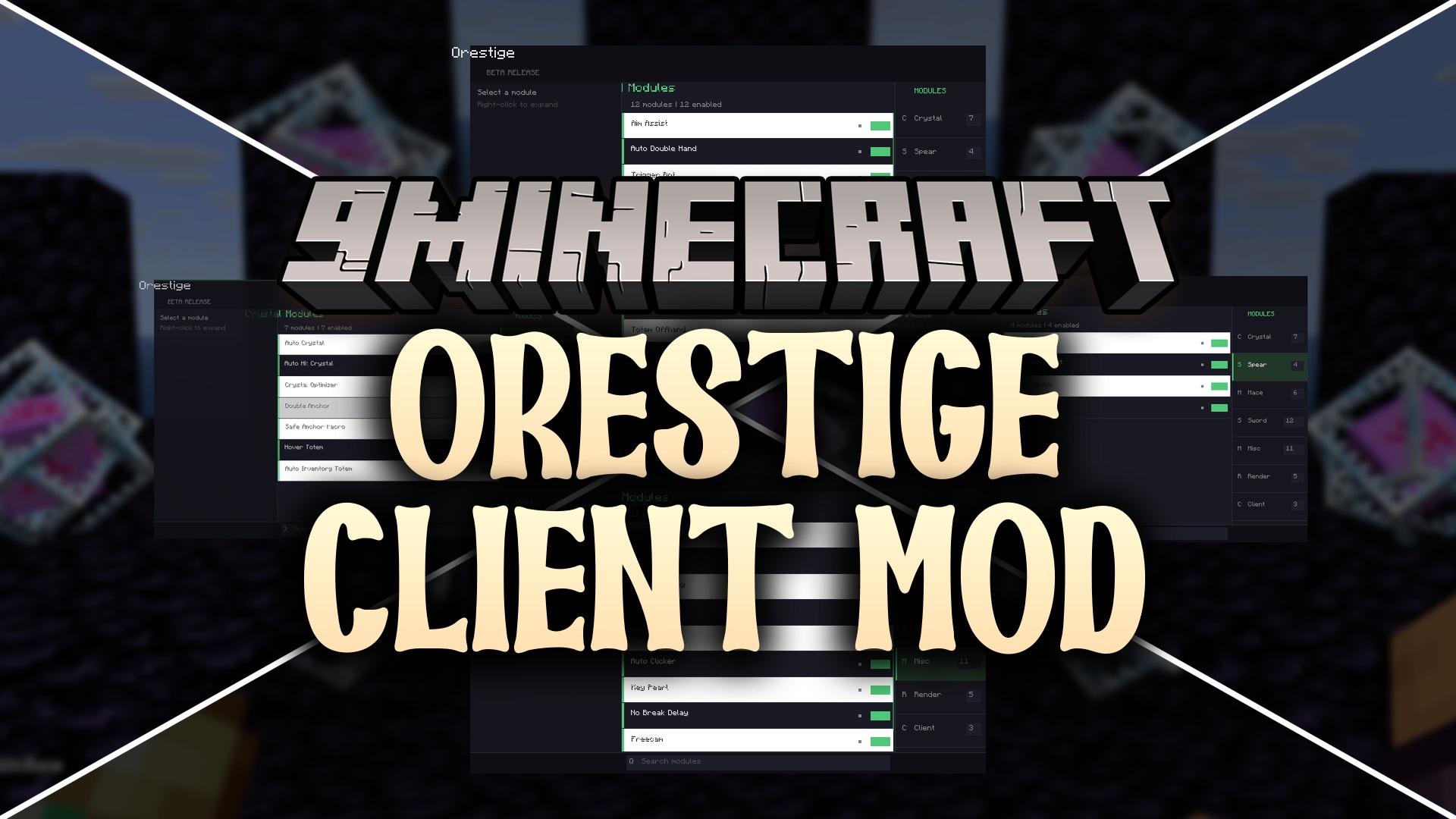
Features:
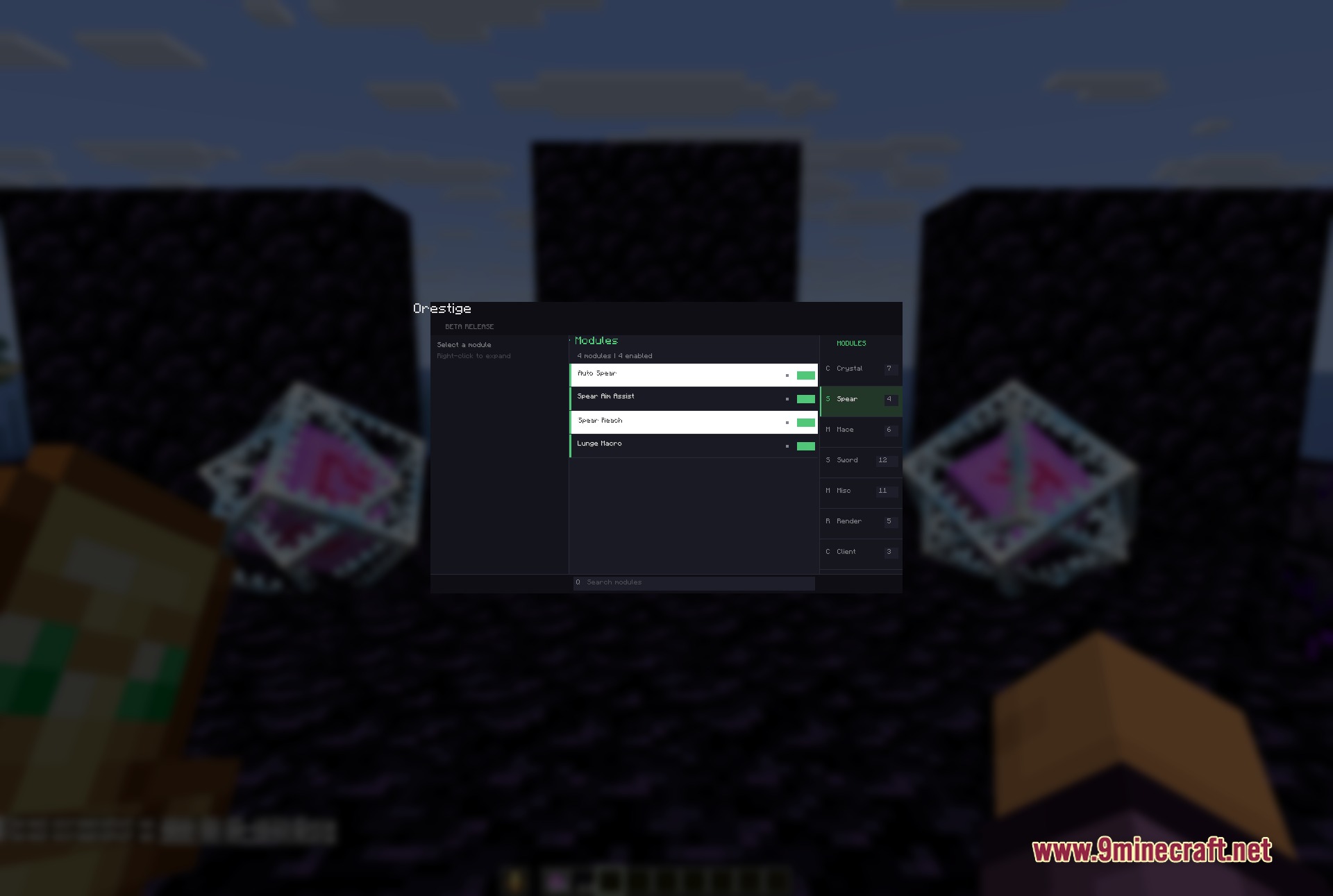
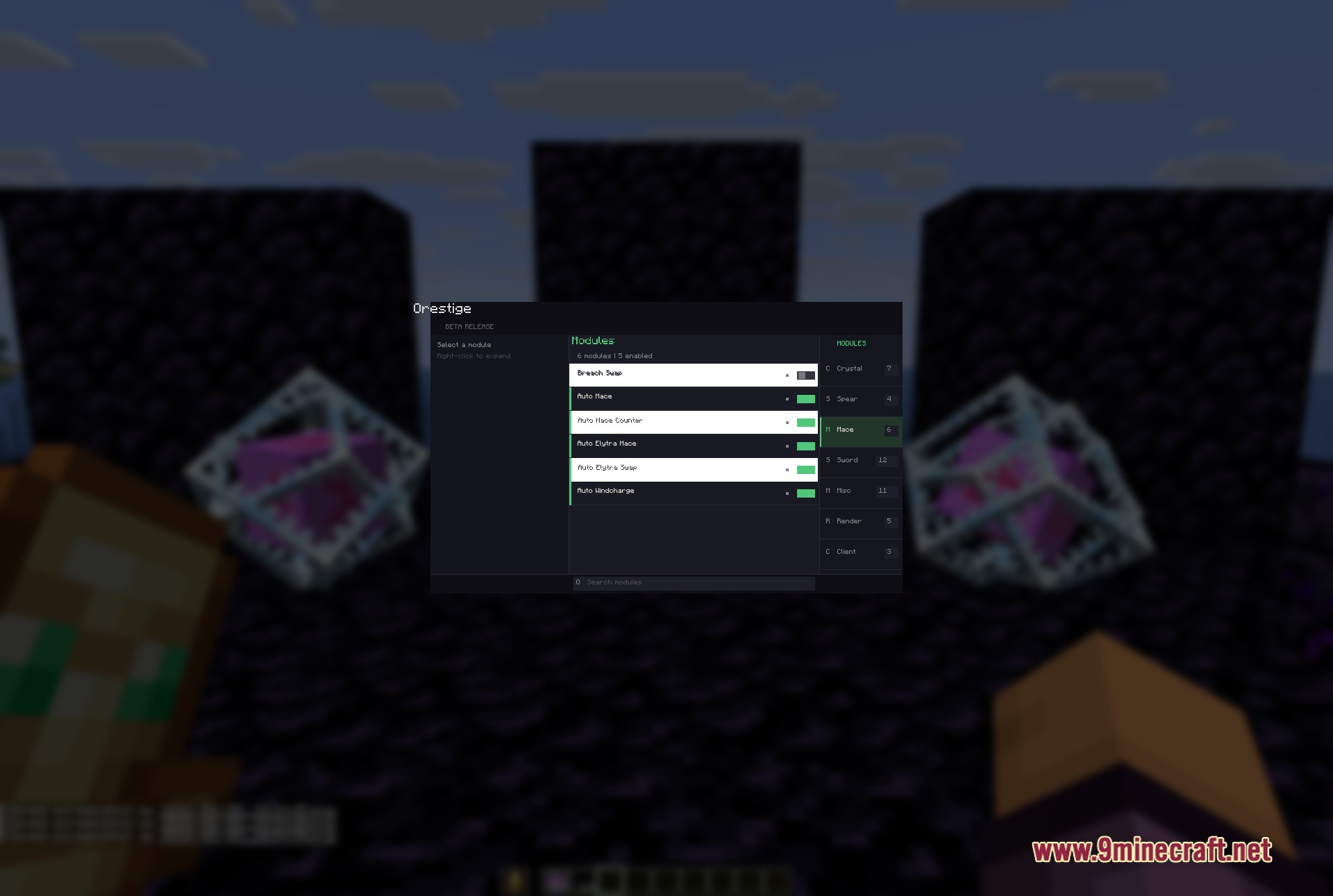
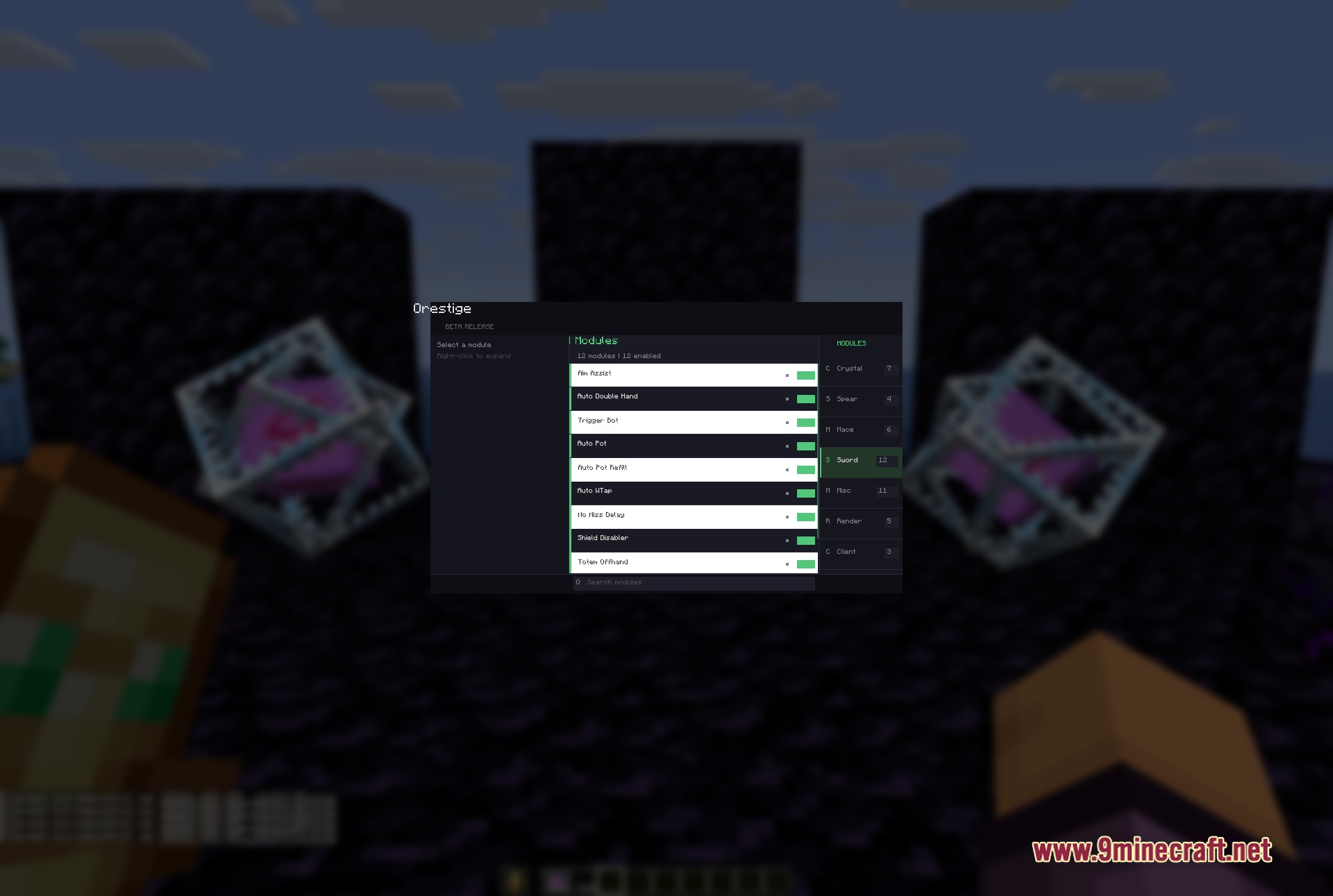
- Weapon-Based Modules: Organizes all combat tools around specific weapons like swords, maces, and spears so you find what you need fast.
- Profile Manager: Saves your custom settings into profiles so you can swap them quickly without setting everything up again.
- Displays a custom HUD on your screen showing your active tools, current FPS, ping, and the health and armor of your target.
- Includes a panic button that replaces the client file with a normal optimization file to clean up your game instantly.
- Lets you tweak every tool using simple sliders, on/off switches, text boxes, and keybinds.
- Provides a search box at the bottom of the menu to help you find specific tools by name.
Crystal & Anchor Combat:
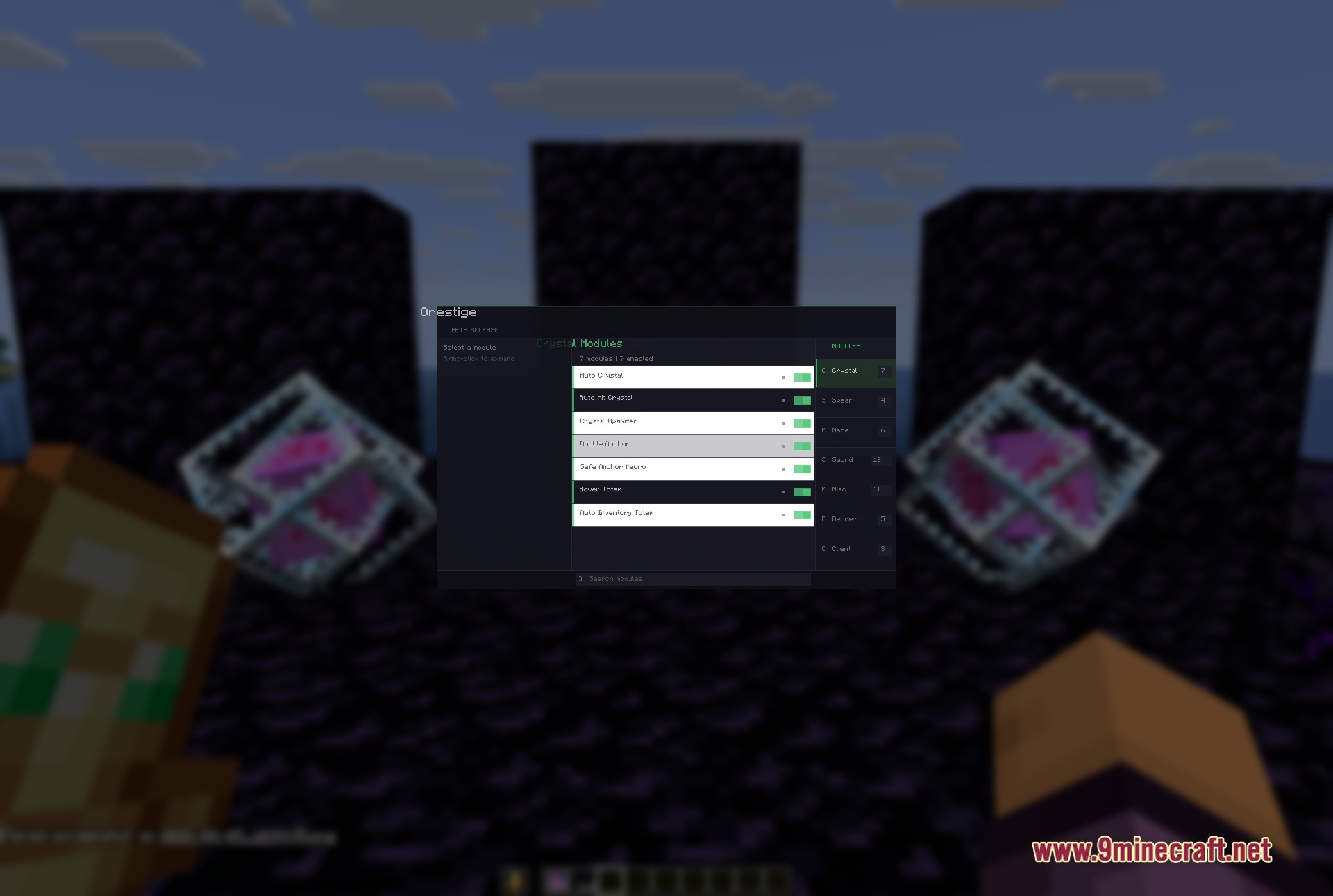
- Automates crystal placement and hits for fast damage output.
- Manages respawn anchors safely with double anchor macros.
- Swaps totems automatically from your inventory to your offhand so you stay alive.
Render & Vision:
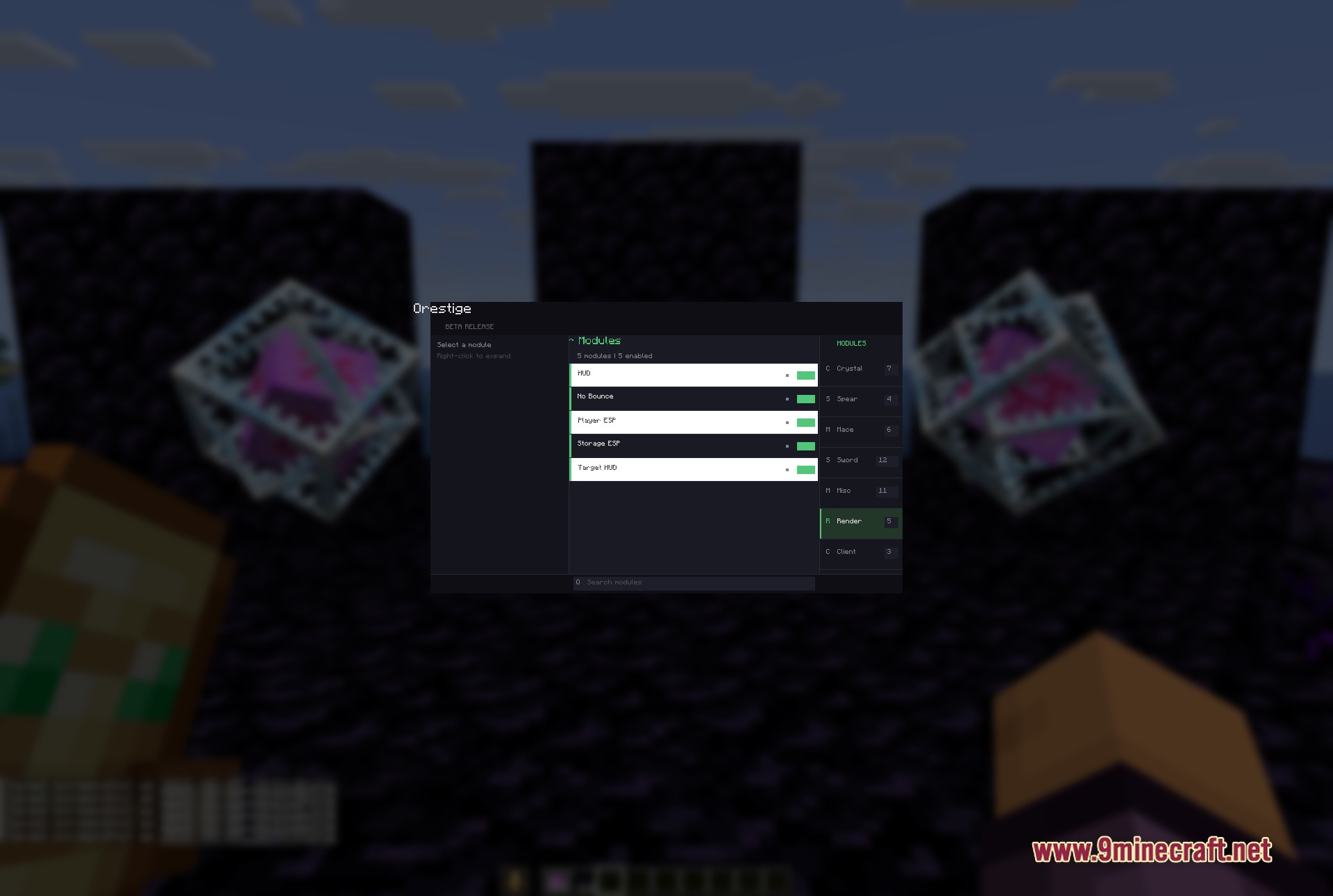
- Highlights other players and storage blocks through walls using ESP.
- Removes screen bounce effects for a clearer view during fights.
- Shows a target HUD with exact enemy health and armor stats.
Movement & Utility:
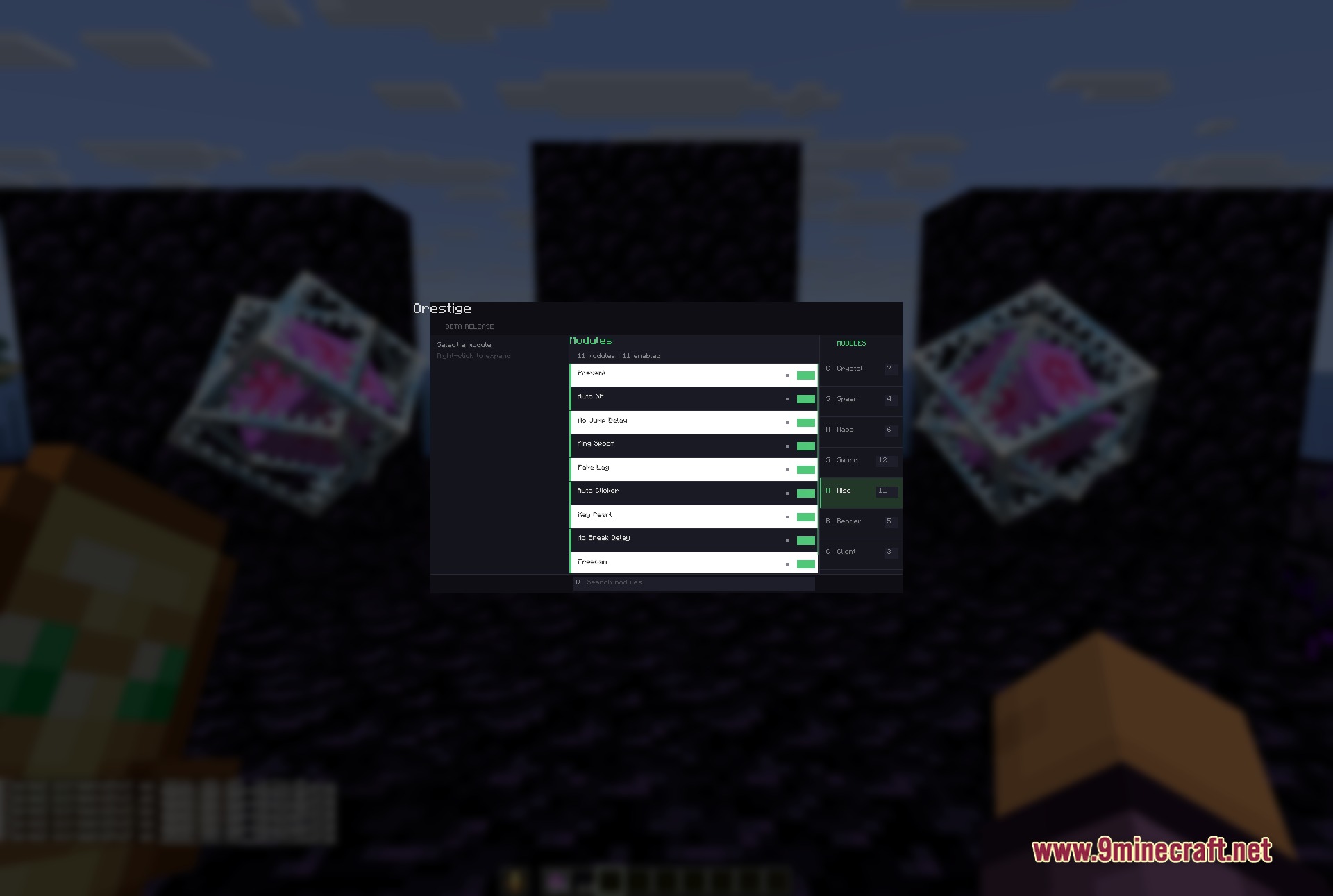
- Removes jump and break delays to speed up your actions.
- Adds freecam so you can look around without moving your character.
- Throws ender pearls instantly with a dedicated keybind.
How to Use:
- Press the Right Shift key to open the main ClickGUI menu.
- Look at the right panel to pick a module group, like Crystal, Sword, or Render.
- Check the left panel to see all the tools available in your chosen group.
- Right-click on any tool to open its specific settings, like sliders and keybinds.
- Type in the bottom search box if you need to find a tool quickly.
Screenshots:
How to Install:
New to Minecraft? Follow our step-by-step guide to install Mods on your PC.View Guide
Requirements:

Orestige Client Mod Download Links
For Minecraft 26.1.2
Click to rate this post!
[Total: 0 Average: 0]

1 Comment
What do you think?
Your opinion means a lot - we'd love to hear from you.
You May Also Like


DEBUG-CF-TEST-1785910513185
DEBUG-CF-TEST-1785910644551