
Dimensional Anchors Mod (1.7.10) – Keep Far Away Chunks Active
 996
 0

Dimensional Anchors Mod adds a special chunk-loading block that keeps specific areas of the world active even when you are far away. It includes adjustable load sizes, player limits on multiplayer servers, and useful visual overlays to track active chunks easily.

Features:
- Adds a block that keeps game chunks loaded and active in the background.
- Lets you adjust the loaded area size right from the graphical user interface using simple buttons.
- Enforces limits on the number of chunks non-op players can load on multiplayer servers.
- Shows a blue or orange box around active chunk loaders through walls when pressing the F9 key.
- Outlines the specific chunk you stand in with a translucent blue border for easy reference.
- Draws green lines in the corners of visible chunks and red squares above your head height for loaded areas.
- Supports optional fuel requirements that consume items like coal, redstone, or ender pearls to keep running.
- Allows automated pipes and tubes to insert fuel automatically when configured by server administrators.
GUI

Right clicking opens this GUI. If you are op (or in singleplayer) or the owner of the chunkloader, you can change the size of the loaded area without breaking and replacing it (which would make you the owner).
The green button expands the area loaded by this chunkloader by one chunk, and the red button shrinks it by one chunk.
As you can see, there is a limit on the number of chunks that each player may force to be loaded. In singleplayer, or if the owner of the chunkloader is an op, there is no limit.
F9
Pressing F9 shows loaded chunks, as with the Teleport Tether, however the format of this display is quite different.

It displays four things.
First, you can see a blue or orange box around all chunk loader blocks, even through walls. This is useful if you bury your chunkloaders and forget where they are, or if somebody tries to cause lag on SMP.
Blue boxes indicate chunkloaders you own, while orange boxes indicate chunkloaders owned by someone else. Orange boxes are only visible in singleplayer, to ops, or if they have been enabled in the server config (chunkloader.hideOtherPlayersLoadersInF9=false).
For the rest of this section, a “visible chunk” means a chunk that is being kept loaded by a chunk loader you can see with a blue or orange box; if you can’t tell a chunk loader is there, you can’t tell which chunks it is keeping loaded.
Second, a translucent blue border will be drawn around the chunk you are standing in, if it is visible. This border cannot be seen through walls, and helps to see whether your machines are all in the same chunk.

Third, a green line will be drawn in each corner of each visible chunk.
Fourth, a translucent red square will be drawn above your head height, in each visible chunk. It will be drawn once for each chunk loader – that is, if two or more visible chunk loaders are keeping the same chunk loaded (and thus the chunk is counting multiple times towards your limit) the red square will appear darker.
This *is* visible through walls and ceilings, so that you can see it indoors.
Fuels
If you set chunkloader.useFuel=true in immibis.cfg, anchors will require fuel to run. Anchors without fuel will be treated as if they don’t exist – so they won’t appear in F9 or contribute to your quota. (This also means you can set them to a larger area than you’re allowed, and it won’t be reset until you put fuel in)
If you set chunkloader.allowFuelPiping=true in immibis.cfg, then automation mods (such as Buildcraft pipes, RedPower 2 tubes and ComputerCraft turtles) will be allowed to insert fuel into anchors. If it is set to false (which is the default), they will be blocked (using ISidedInventory).
The available fuels and value of each fuel is configurable in immibis.cfg. This is mainly intended for server admins.
The amount of fuel used is scaled by the number of chunks, so a 3×3 loader will use 9 times as much fuel as a 1×1 loader.
Default fuels:
Item Time per item (1 chunk) Time per stack (1 chunk)
-----------------------------------------------------------------
Coal 10 min 10 hr 40 min
Charcoal 1 min 1 hr 4 min
Redstone 1 min 1 hr 4 min
Ender pearl 15 min 4 hr (max stack size is 16)
Magma cream 15 min 16 hr
Eye of ender 30 min 32 hr
Dirt 1 sec 1 min 4 sec
Cobblestone 1 sec 1 min 4 sec
Smoothstone 3 sec 3 min 12 sec
Netherrack 4 sec 4 min 16 sec
Nether brick 10 sec 10 min 40 sec
Glowstone dust 2 min 2 hr 8 min
Commands:
All of these commands are only available to operators.
/dimanc getquota <username>: Tells you the current and maximum loaded chunks of that player./dimanc override <username> <number>: Sets a quota override for a specific player, or uses “unlimited” or “default”./dimanc setfuel <ID> <time> <unit>: Sets a fuel item and its duration using seconds, minutes, hours, or ticks./dimanc setfuel <ID>:<meta> <time> <unit>: Sets a fuel item using a specific metadata or damage value./dimanc setpipemode allow: Enables automatic fuel insertion and updates the configuration./dimanc setpipemode block: Disables automatic fuel insertion and updates the configuration.
How to Use:
- Place the chunk loader block down in the world where you want to keep chunks active.
- Right-click the block to open the user interface.
- Click the green button to expand the loaded area by one chunk, or the red button to shrink it.
- Press the F9 key to view the boundaries and highlights of all active chunks around you.
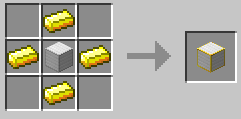
Crafting Recipes:
Screenshots:

How to Install:
New to Minecraft? Follow our step-by-step guide to install Mods on your PC.View Guide
Dimensional Anchors Mod Download Links
For Minecraft 1.7.2
For Minecraft 1.7.10
What is your stance on mods that feel 'overpowered' or break vanilla balance?
21 responses · See the full results →
You May Also Like
Picked for this page
 Iron Chests Mod (26.3, 1.20.1) – Finally Organize Your Loot
 Extended Crafting Mod (26.1.2, 1.20.1) – Some New Ways to Craft Items
 iChun Util Mod (1.21.5, 1.20.1) – Run Mods Like Portal Gun
 Scarecrow’s Territory Mod (26.3, 1.20.1) – Always-Active Spawners
 Xaero’s Map Server Utils Mod (26.3, 1.20.1) – Fair-Play Mode Controls
 DarkSpawn Mod (26.3, 1.20.1) – RPG Teleport to Spawn or Lobby
 DarkStarter Mod (26.3, 1.20.1) – RPG Starter Login Item Rewards
 Redirectionor Mod (1.21.11, 1.20.1) – Performance-Boosting Features
 Wood Plus Mod (26.3, 1.20.1) – Wood Variations For Wooden Items
 Spawner Control Mod (26.1.2, 1.20.1) – Adjust Spawn Limits and Destruction Timers
 Modular Force Field System Mod (1.21.11, 1.20.1) – Defend Your Base From Any Threat
 Realistic Campfires Mod (26.3, 1.20.1) – More Realism In Your Fires
Most viewed in Mods over the last 7 days
 Ala Industrial Mod (26.3) – Run Electric Power Grids and Automated Factories
 PleasureCraft Mod (26.3, 1.21.1) – Jenny Mod Remake for Fabric
 Jennycraft Mod (26.3, 1.20.1) – Virtual Girlfriend in Minecraft
 Fapcraft Mod (26.3, 1.12.2) – Comprehensive and Detailed Content
 Jenny Mod (Fapcraft) Official Complete Guide – How to use, Tutorial
 BangCraft Mod (1.20.1) – Jenny, Ellie and Elliot
 Fabric Loader (26.3, 1.20.1) – Fabric Installer for All Minecraft Versions
 Meteor Client Mod (26.3, 1.20.1) – Xray, HUD, Fly
 The Shooting Star Demo Mod (26.3, 1.20.1) – Vaporize Terrain From Orbit
 OptiFine HD (26.3, 1.20.1) – Run Faster, FPS Boost, Shaders Support
 Aristois Client Mod (1.21.4, 1.20.1) – World Class Minecraft Utility
 Prestige Client Mod (1.21.11, 1.21.4) – Powerful Ghost Features for Crystal & Sword PvP
More from Mods
 Kambrik 9minecraft Mod (26.3) – Run Kotlin Mods Without Game Lag
 Fast Paintings 9minecraft Mod (26.3, 26.2) – Place Wall Art Exactly Where You Want It
 Bonsai Trees 9minecraft Mod (26.3, 26.2) – Automate Wood Farming in Tiny Pots
 Enhanced Block Entities 9minecraft Mod (26.3) – Build Lag-Free Storage Rooms
 Better Nether 9minecraft Mod (26.3, 26.2) – Survive Forever in the Nether
 BCLib 9minecraft Mod (26.3, 26.2) – Power Custom Nether and End Overhauls
 ForgedLoaderAPI Mod (1.19.2, 1.18.2) – Bring Ported Fabric Creations
 Shield System Mod (1.21.1) – Tank Heavy Monster Hits Without Losing Hearts
 Shin’s Tensura Race Models Mod (1.19.2) – Play As Unique 3D Anime Race
 Offgrid Mod (26.3, 1.20.1) – Furnish Compact Interiors Without Strict Grid
 Tempest Almanac Iron’s Spells ‘n Spellbooks Mod (1.21.1, 1.20.1)
 Chat Guides Mod (26.3, 1.21.11) – Never Memorize Complex Server Commands Again

This post has no comments yet. Be the first — your comment will appear here.