


Hidden Armor 4D Skin Pack (26.x, 1.21) – 8 Asian Style Characters for Minecraft Windows Bedrock
 1,112
1,112
 0
0


Hidden Armor 4D Skin Pack is a compact pre-built persona pack designed specifically for Minecraft Bedrock on Windows 10 and 11. It ships with eight hand-crafted Asian-style characters – each one uses its own custom 4D geometry, has the armor visual layer disabled, and is ready to use the moment you drop the folder into your local skin pack directory. No marketplace purchase, no external launcher, no .mcpack import step required.
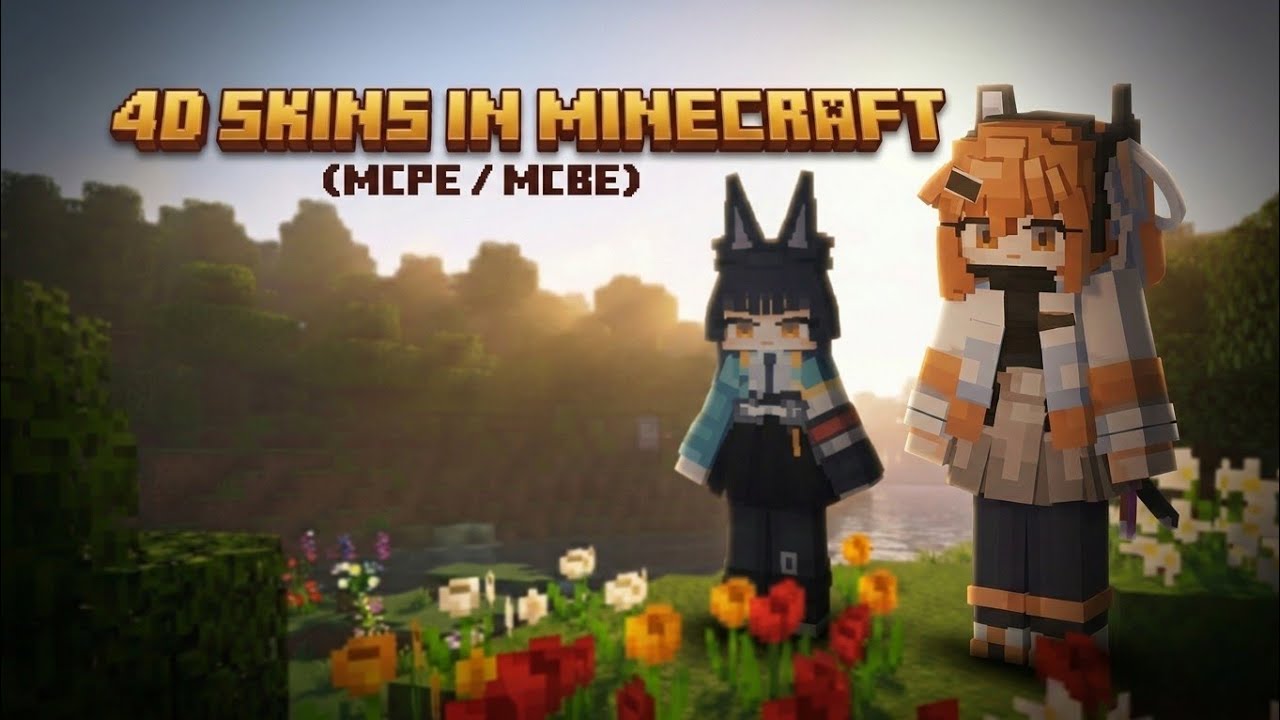
Features:
- 8 custom-geometry characters with unique 4D body models, full hair volume, and Asian-style outfits – lolita, mint dress, celadon dress, devil maid, witch, undead lord, and crimson shadow themes.
- Hidden armor mode is enabled for every skin so your equipped armor will not visually clash with the custom outfit.
- Ships as a ready-to-drop folder with the standard Bedrock
manifest.json,skins.json, and a single sharedgeometry.json– no repacking needed. - No native modification of your Minecraft client. The pack uses only the official Bedrock skin pack format that Windows already supports.
- Lightweight – the entire pack is under 9 MB despite shipping with full custom 4D geometry data.
- Each character also includes its own portrait texture, so the Dressing Room thumbnail displays the correct 4D preview rather than a flat avatar.
How to Install:
- Download
Hidden-Armor-4D-Skin-Pack-Windows-Bedrock.zipfrom the link below. - Extract the ZIP. You will get a folder named Hidden-Armor-4D-Skin-Pack containing a
personasubfolder. - Open File Explorer and paste the following path into the address bar:
%localappdata%\Packages\Microsoft.MinecraftUWP_8wekyb3d8bbwe\LocalState\games\com.mojang\skin_packs
If you use the Bedrock Preview build, replaceMinecraftUWPwithMinecraftWindowsBeta. - Copy the
personasubfolder (or rename it to something unique like4d-hidden-armor) into theskin_packsdirectory. - Open Minecraft for Windows. Click your profile avatar in the main menu to open the Dressing Room.
- Switch to the Classic Skins tab – the newly added pack will appear in the list.
- Pick any of the eight characters, press Save, and return to the main menu.
Screenshots:
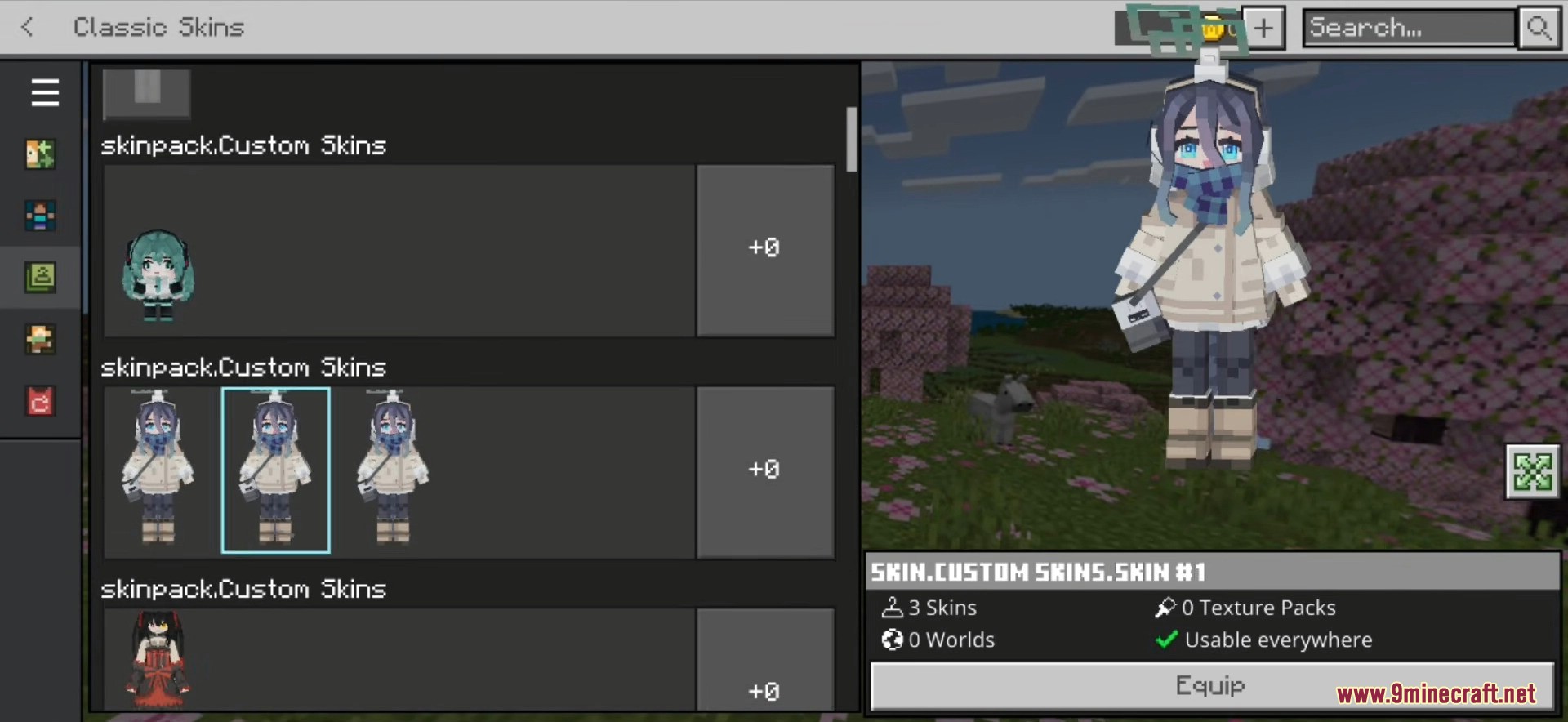
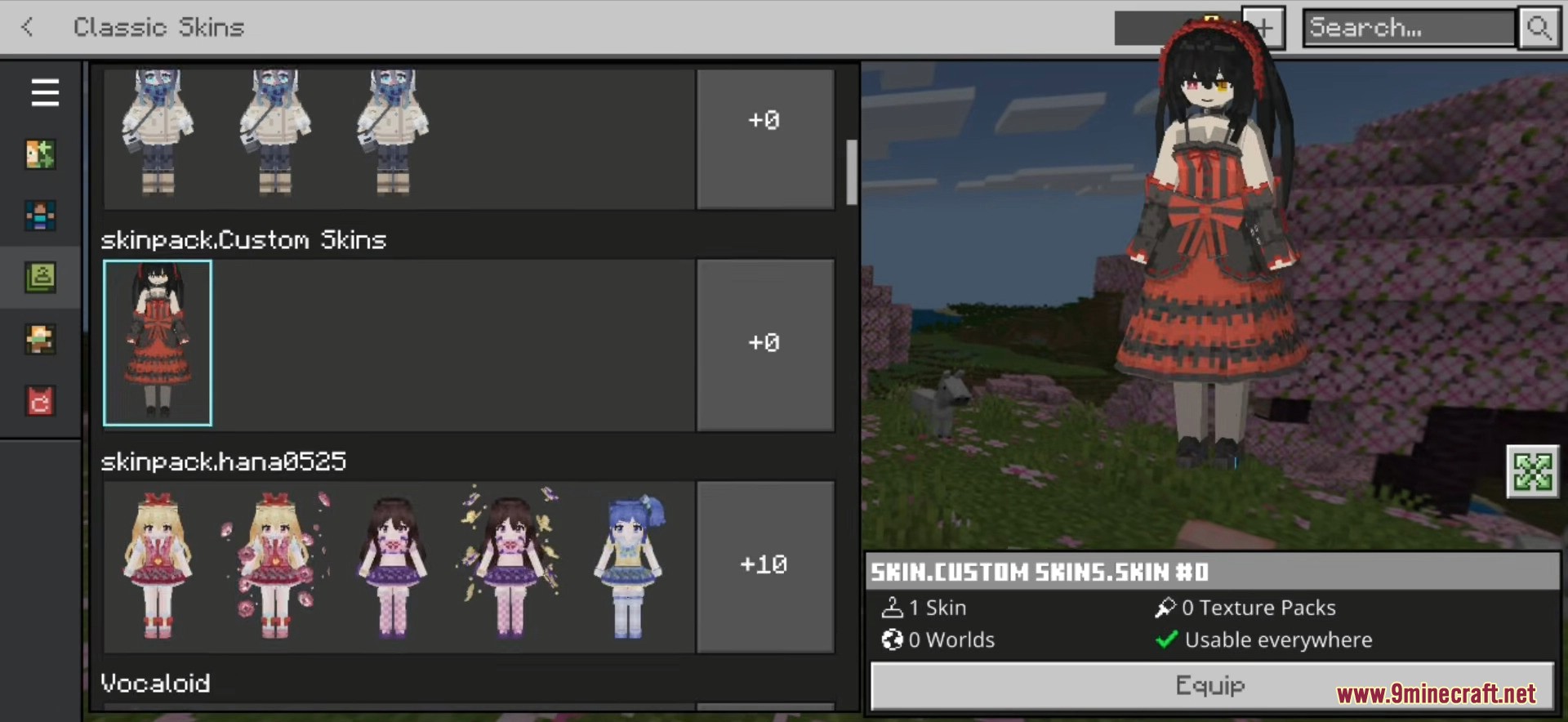
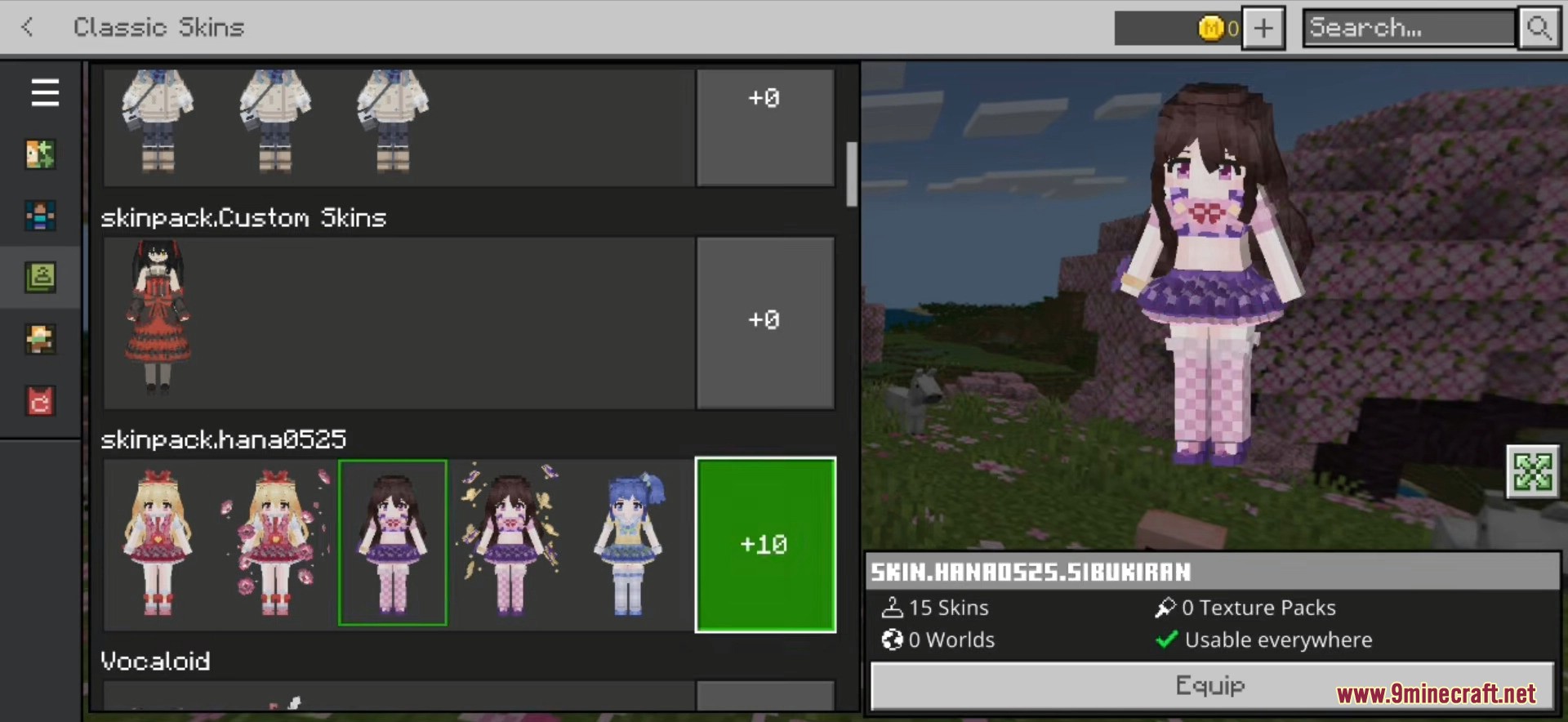
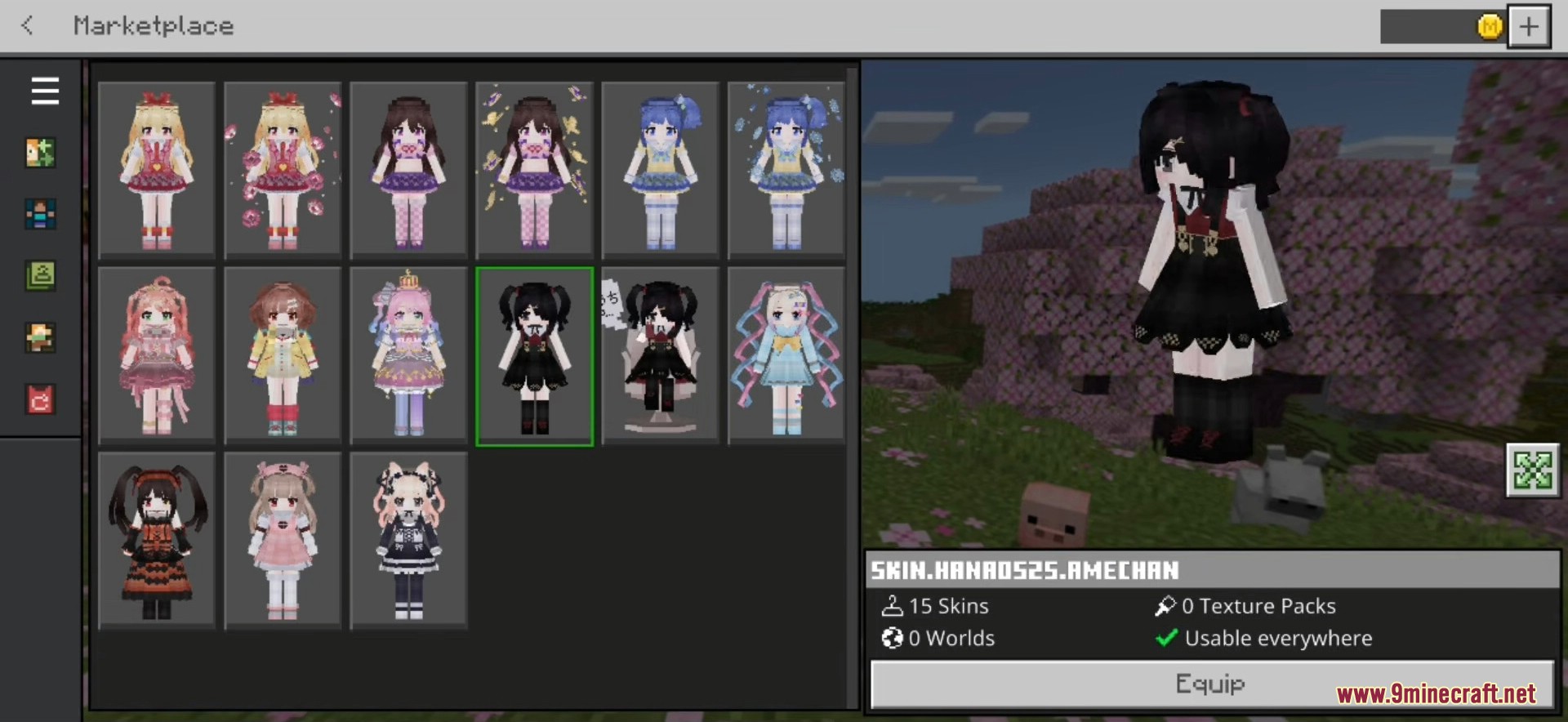
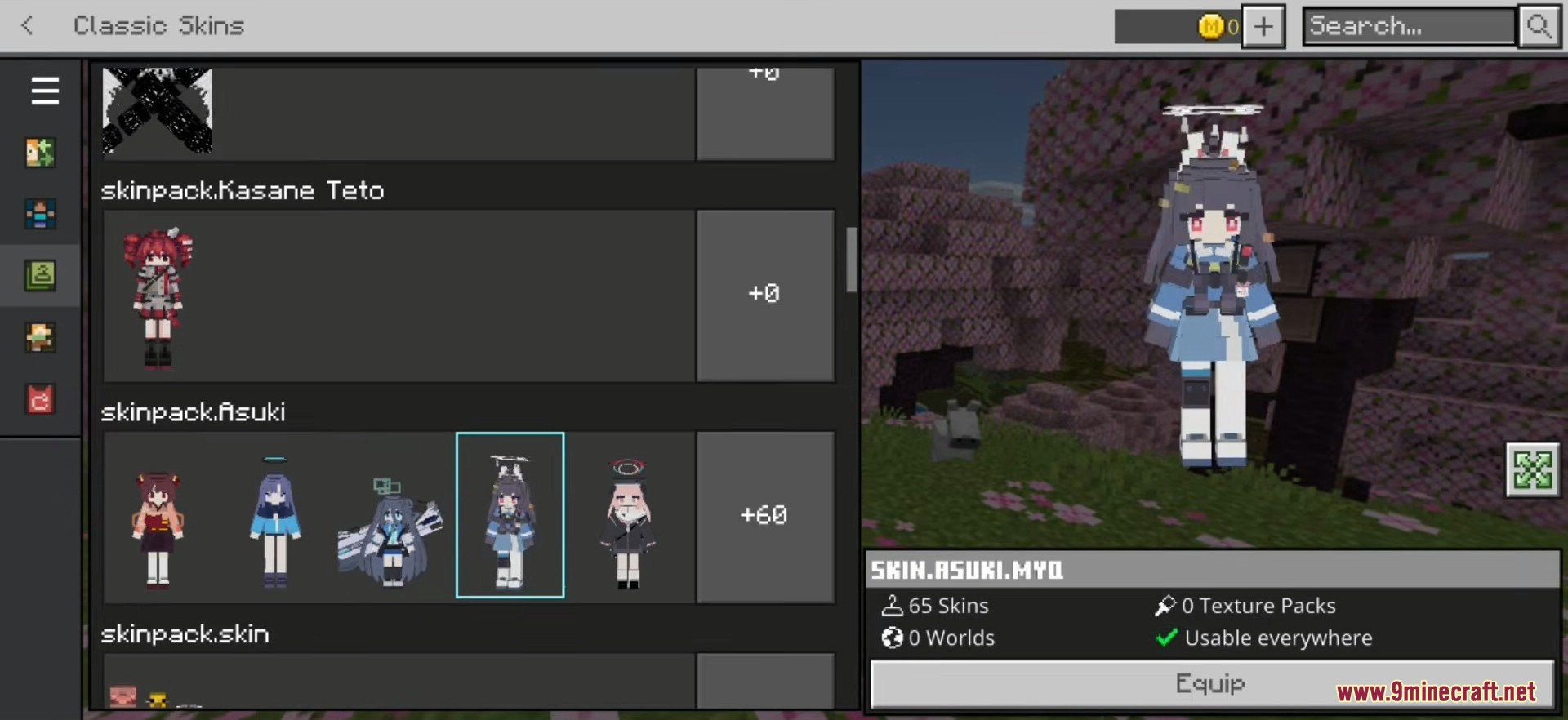
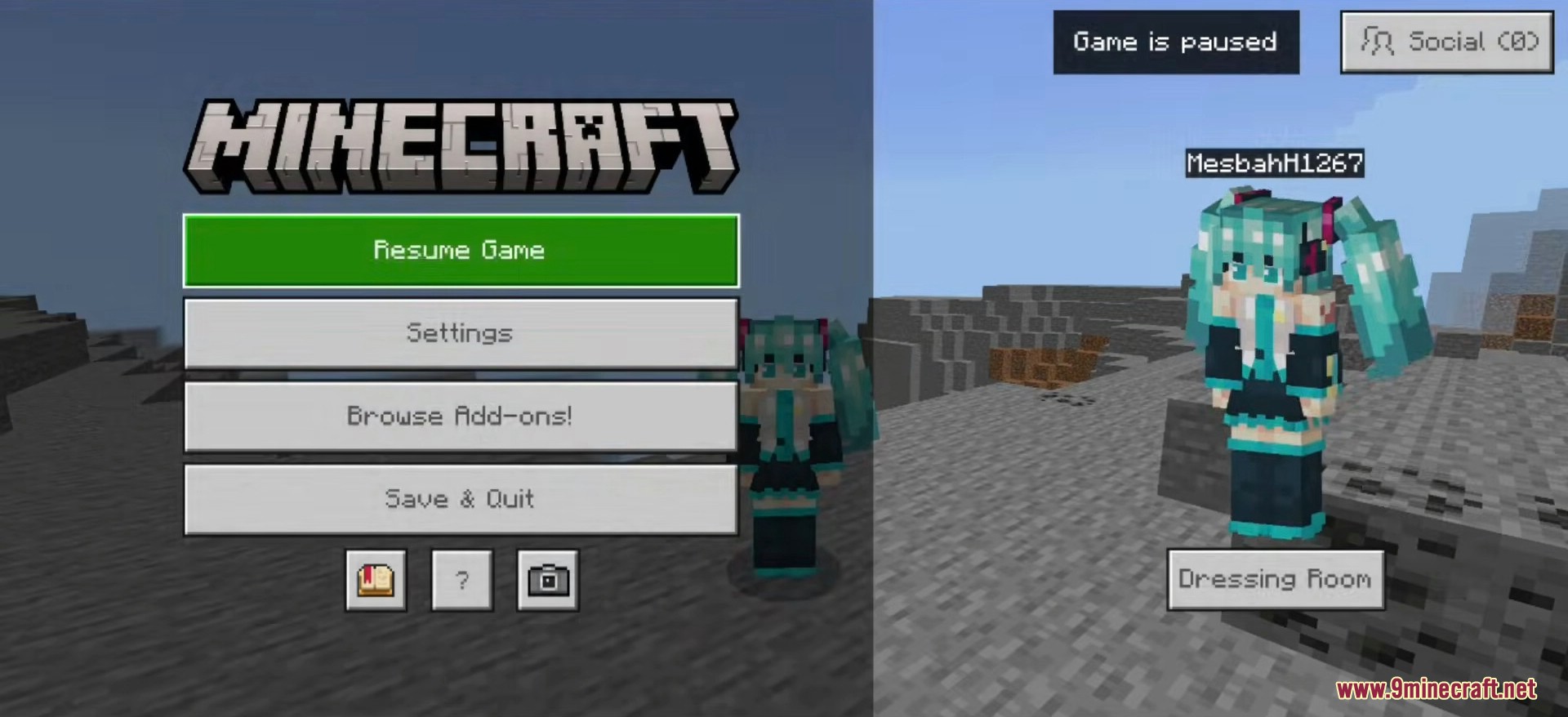
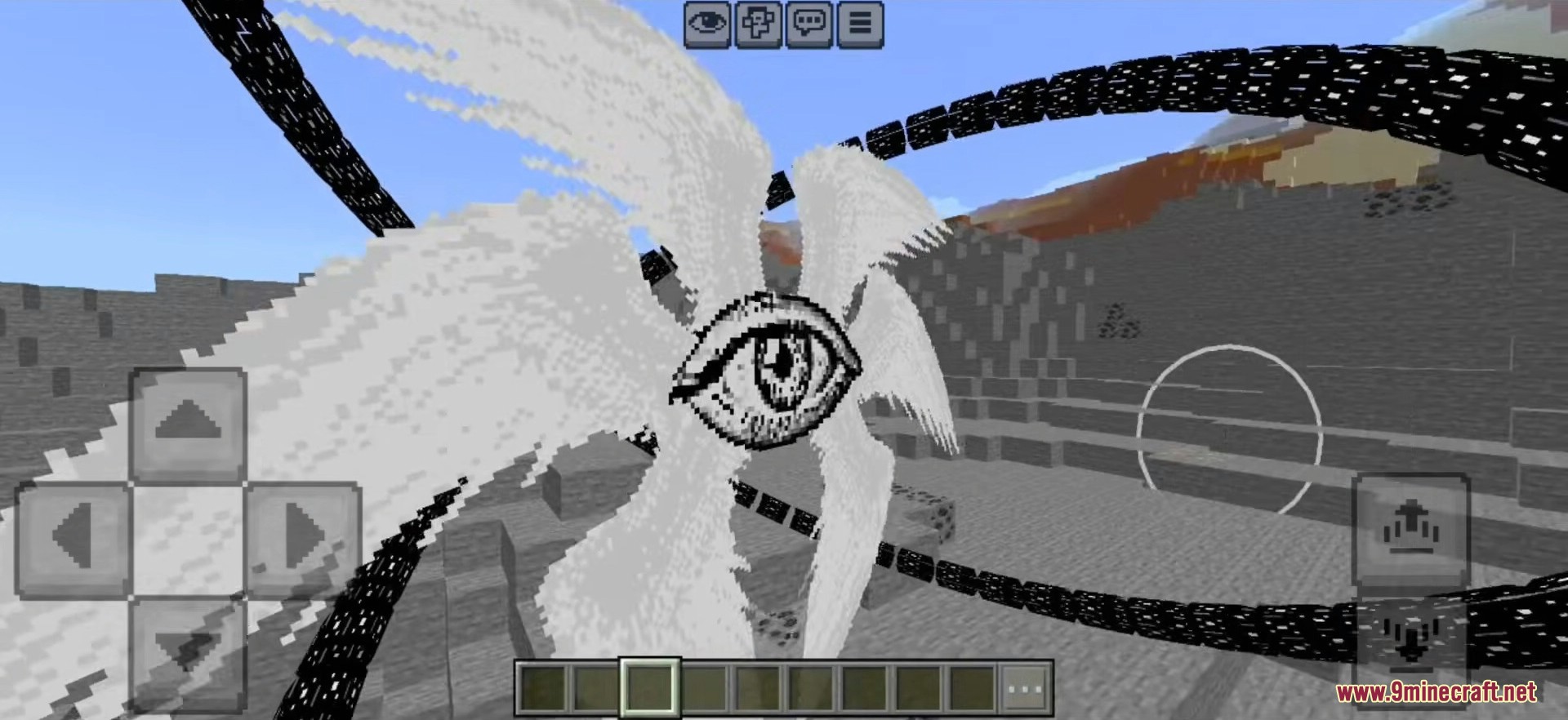
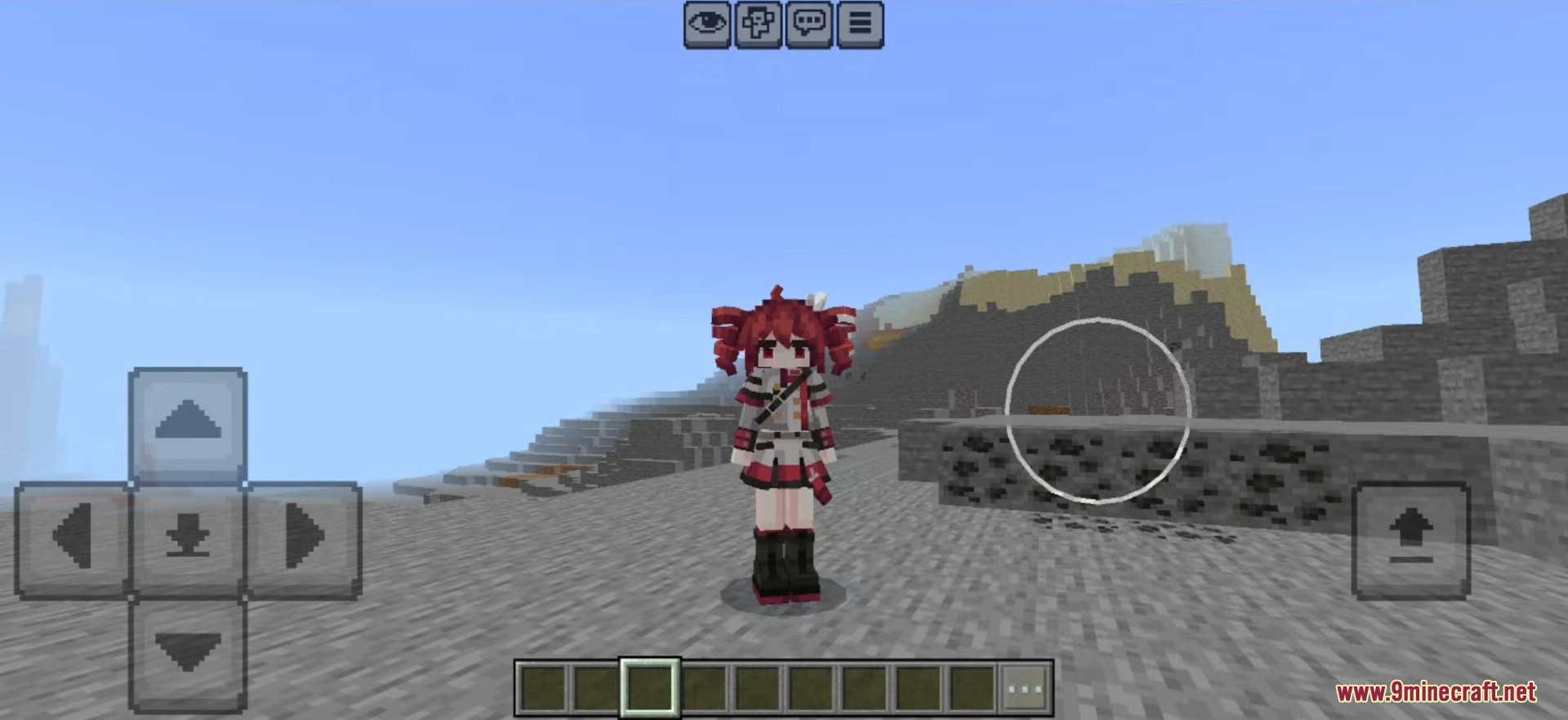
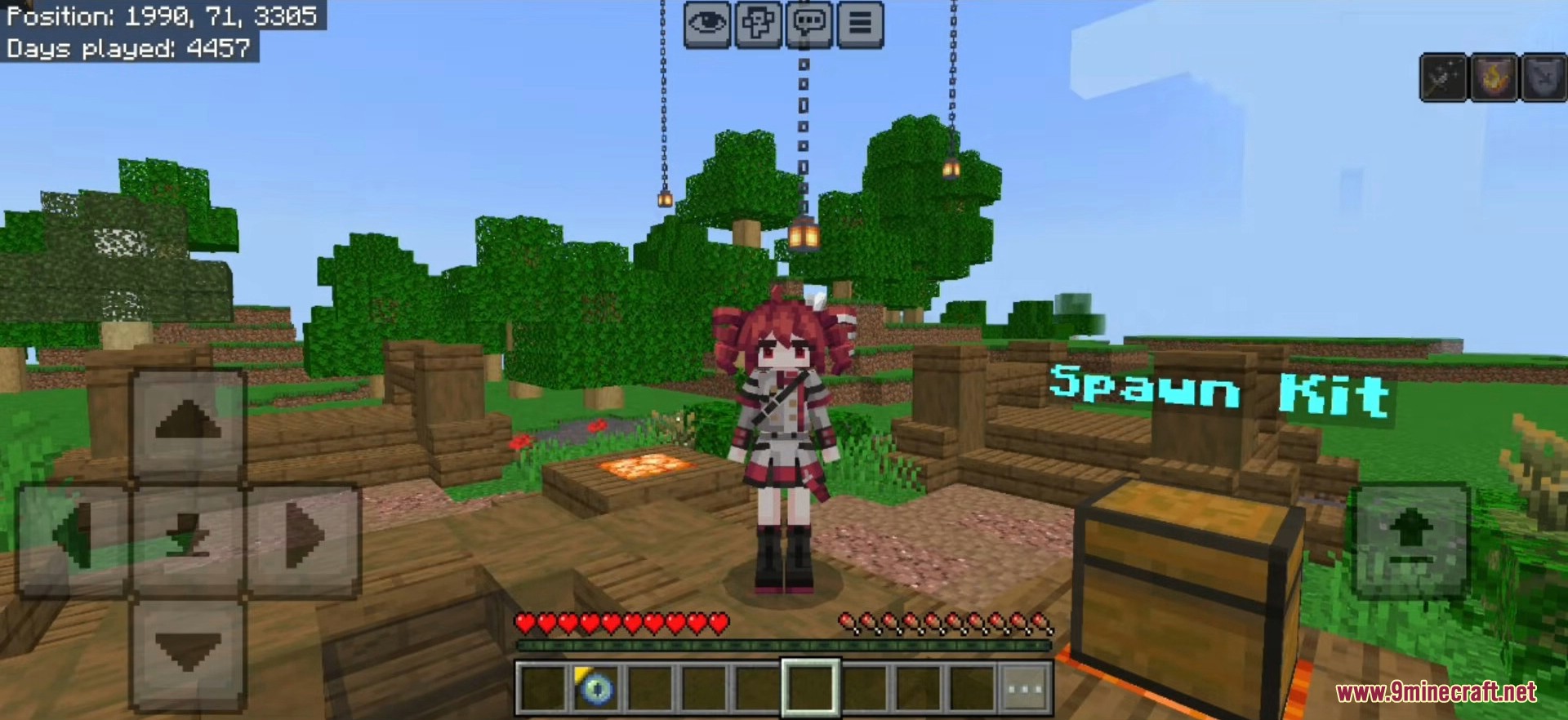
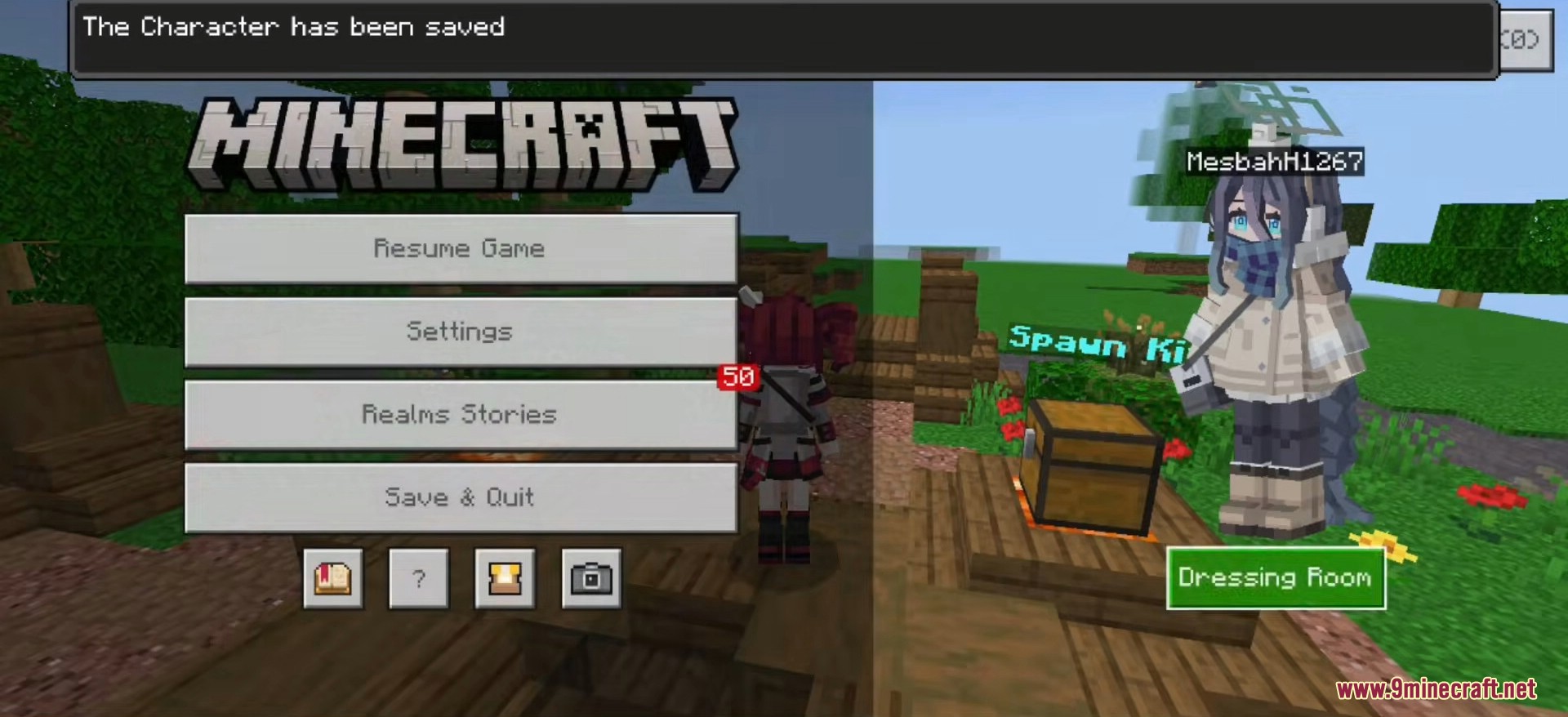
Before You Install:
- Disable Trusted Skins in Settings → Profile → Trusted Skins. Bedrock 1.19 and newer turn this setting on by default and it will block any non-marketplace custom geometry from rendering. This is the most common reason a custom 4D pack shows up as the default Steve or Alex model.
- Make sure Hidden Files are visible in File Explorer (View → Show → Hidden items) before navigating to the
%localappdata%path. - If Minecraft is already open while you drop the folder, fully close and restart the game – Bedrock only scans the
skin_packsdirectory on startup.
Important Notes:
- This pack is built for the Windows 10 / 11 edition of Minecraft Bedrock. Android and iOS use a sandboxed file system that does not allow dropping a folder directly into the game data.
- Android users: install the 4D Custom Skin Mod APK for a single-tap setup that bundles a similar 4D character collection.
- iOS or general mobile users: use the Custom Geometry Skin Pack which ships in the standard
.mcpackformat and contains a much larger 80+ character set. - Minecraft updates occasionally clear or reset the local
skin_packsfolder. If your pack disappears after a Windows Store update, re-drop the folder using the same steps above. - On strict anti-cheat servers the server may force a default model on other players. Your own first-person view will still show the 4D character correctly.
How to Install:
New to Minecraft PE? Follow our step-by-step guide to install Skin Packs on your Mobile.View Guide
Hidden Armor 4D Skin Pack Download Links
For MCPE/Bedrock 26.x, 1.21
Click to rate this post!
[Total: 4 Average: 3]
You May Also Like






This post has no comments yet. Be the first — your comment will appear here.