
MumbleLink Mod (1.18.1, 1.16.5) – Locate Teammates By Voice

 0


MumbleLink Mod connects Minecraft to the open-source Mumble voice chat app for positional audio. This client-side Forge mod lets you hear where other players’ voices come from and how far away they are in the game world. If a friend talks on your left, right, front, or back, you hear their voice from that same side in your speakers or headphones. Their voice also gets quieter as they move away, so you hear players who are near you. It uses the Mumble Link Plugin v1.2.0 and includes an API that other mods can use to add custom Mumble context and identity data.
Features:
- Positional Audio: Changes voice volume based on distance so voices get quieter as players move away and stay clear when they are close to you.
- Directional Sound: Plays voices from the left, right, front, or back of your headphones or speakers to match where each player stands.
- Adds built-in support for Mumble’s positional audio through the Mumble Link Plugin v1.2.0.
- Works as a client-side mod on Minecraft Forge.
- Includes an API so other mods can add custom Mumble context and identity data.
How to Use:
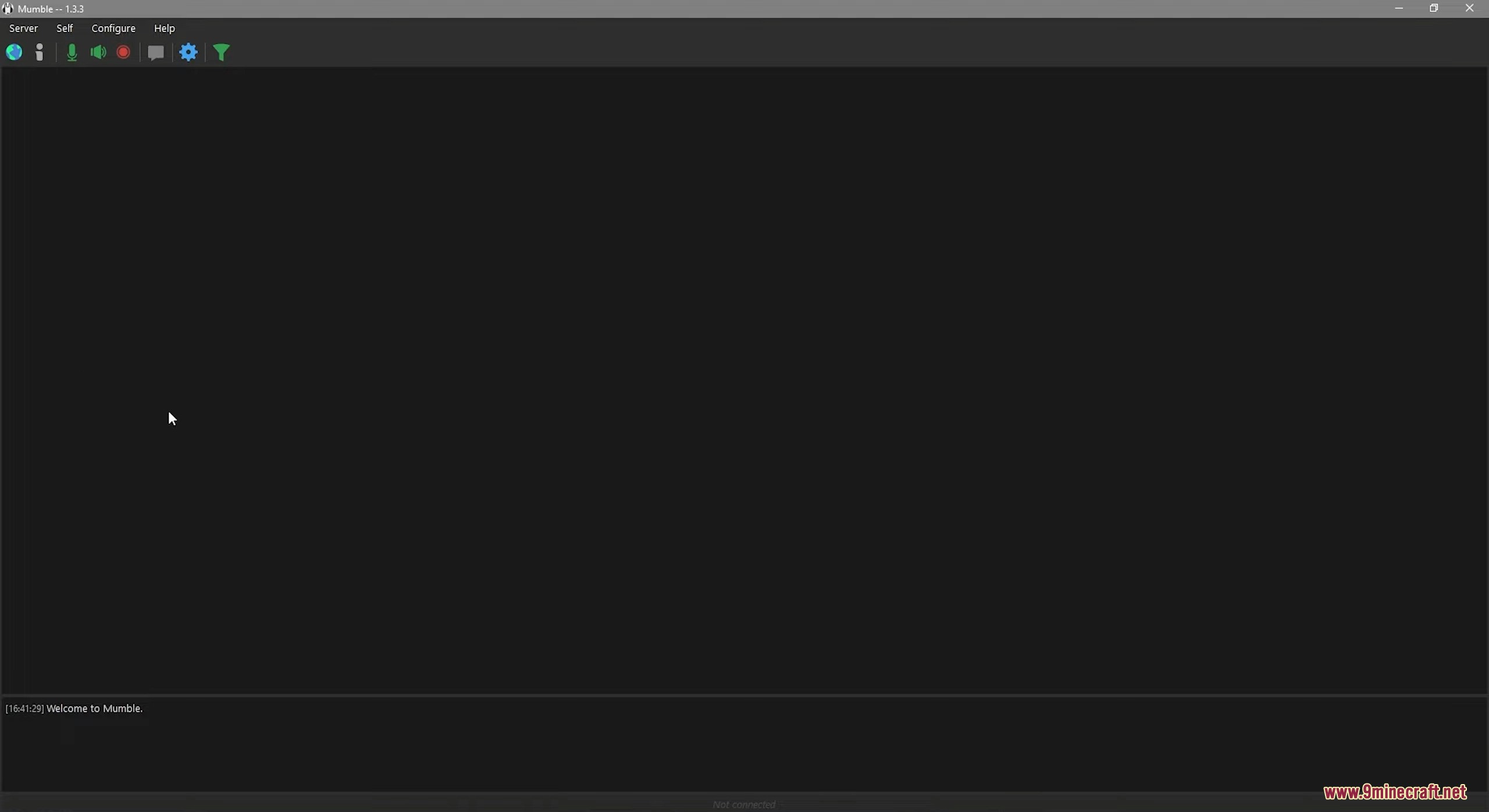
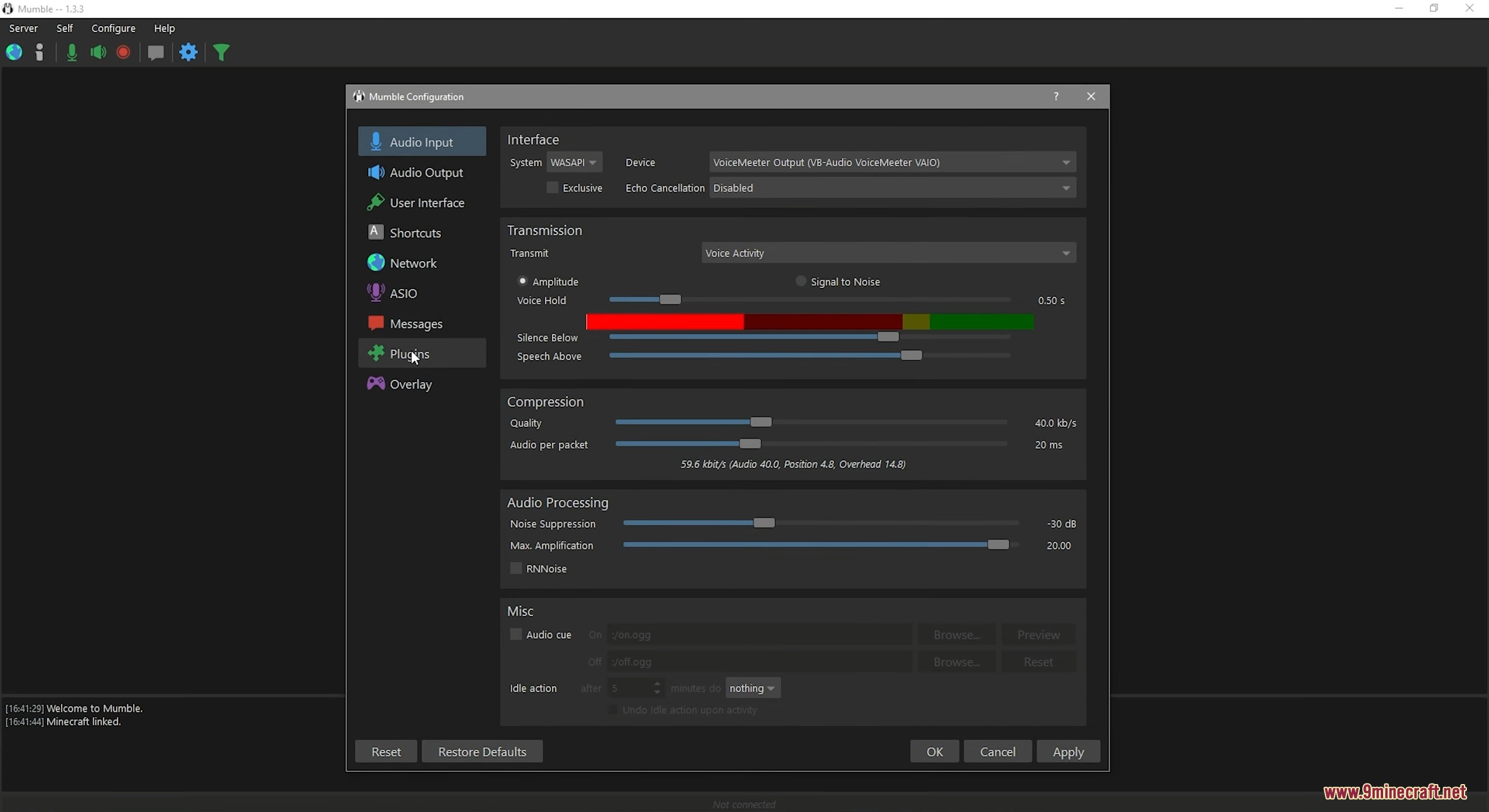
- Open Mumble and go to Configure > Settings.
- Check the box to turn on Advanced options.
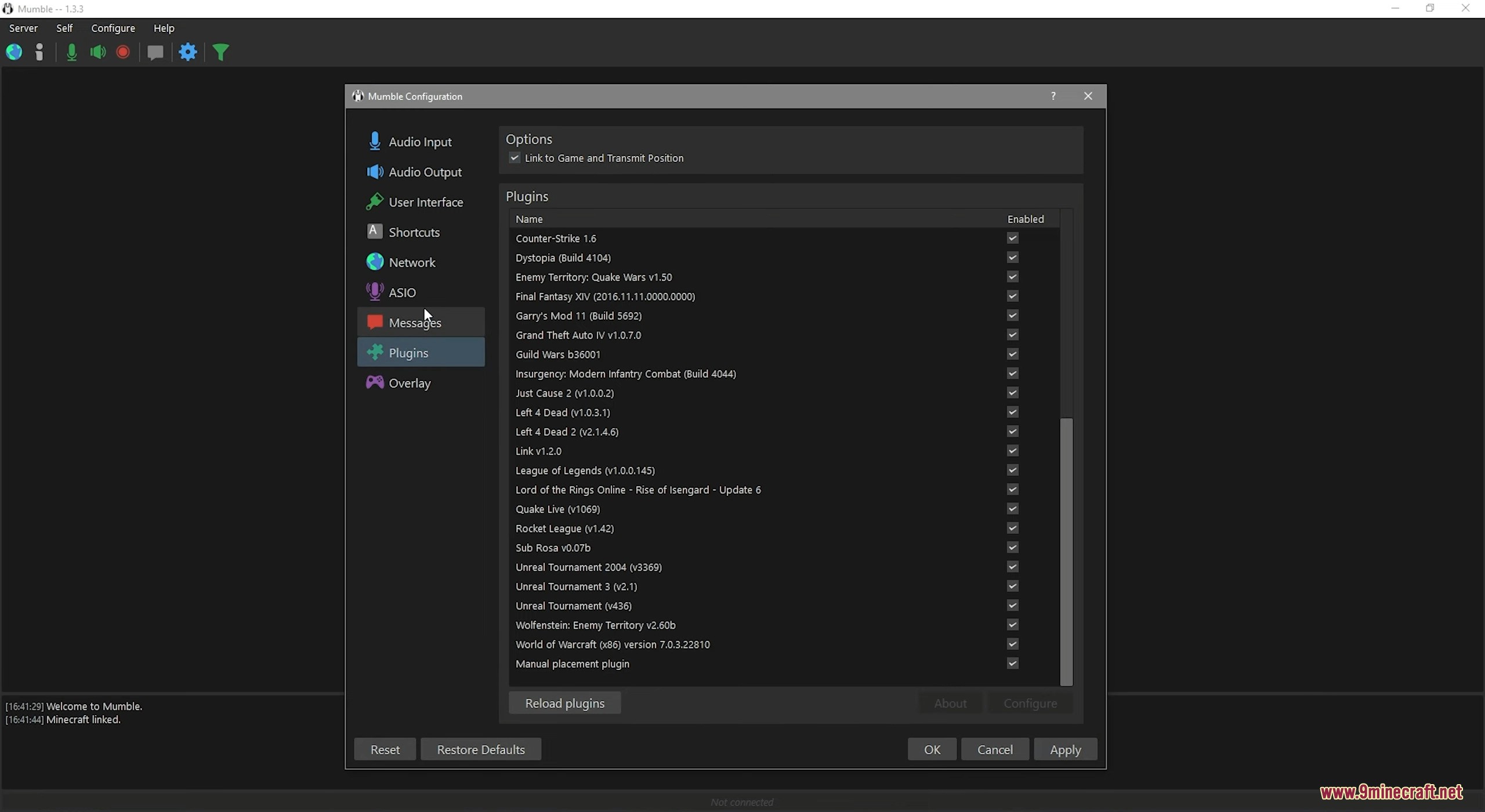
- Open the Plugins section and enable Link to Game and Transmit Position.
- Find the Link plugin in the list and turn it on.
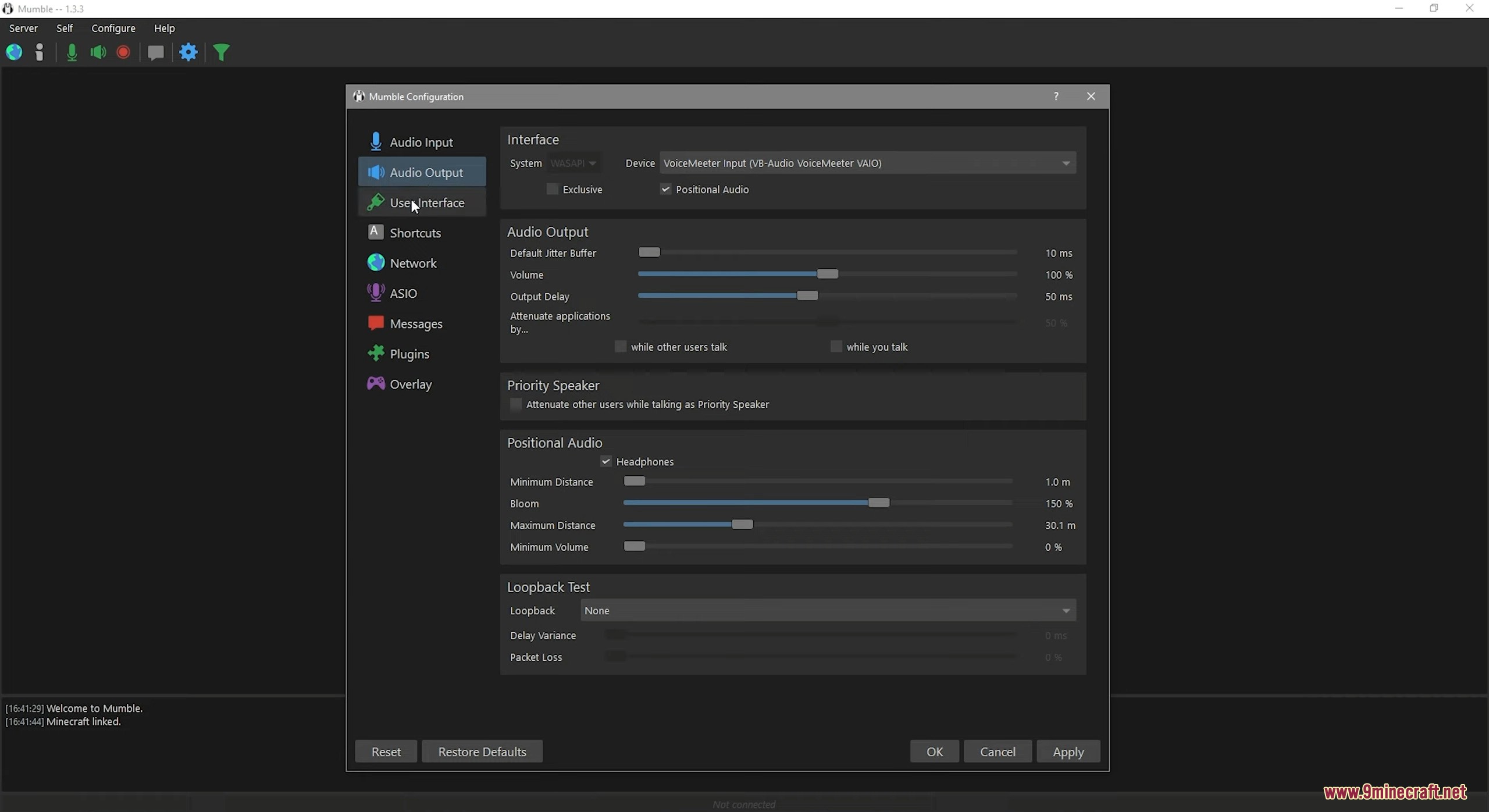
- Go to the Audio Output section and enable Positional Audio.
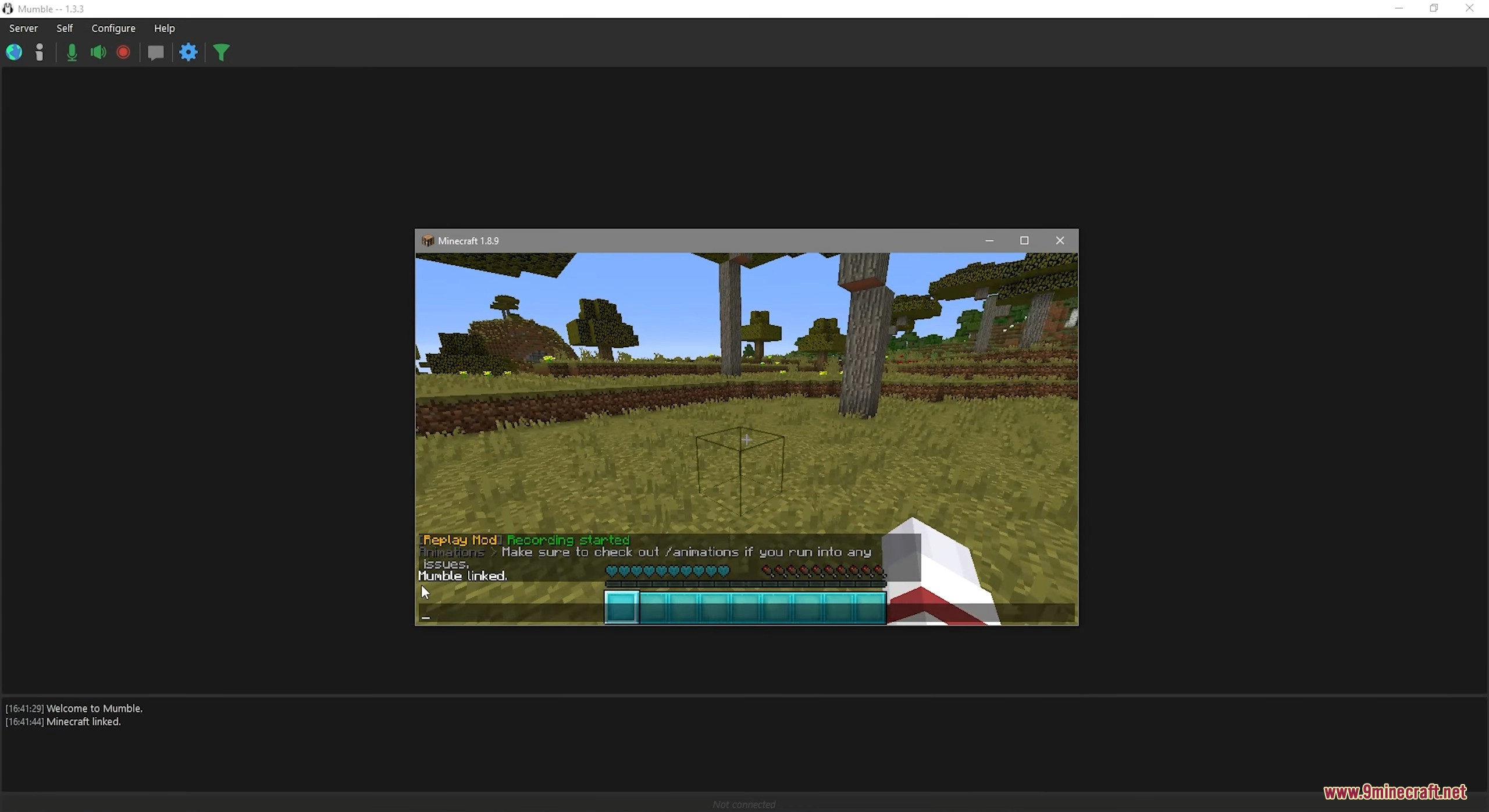
- Start Minecraft with Forge and join a server.
- Open Mumble and connect to your voice server to start using positional audio in Minecraft.
Screenshots:
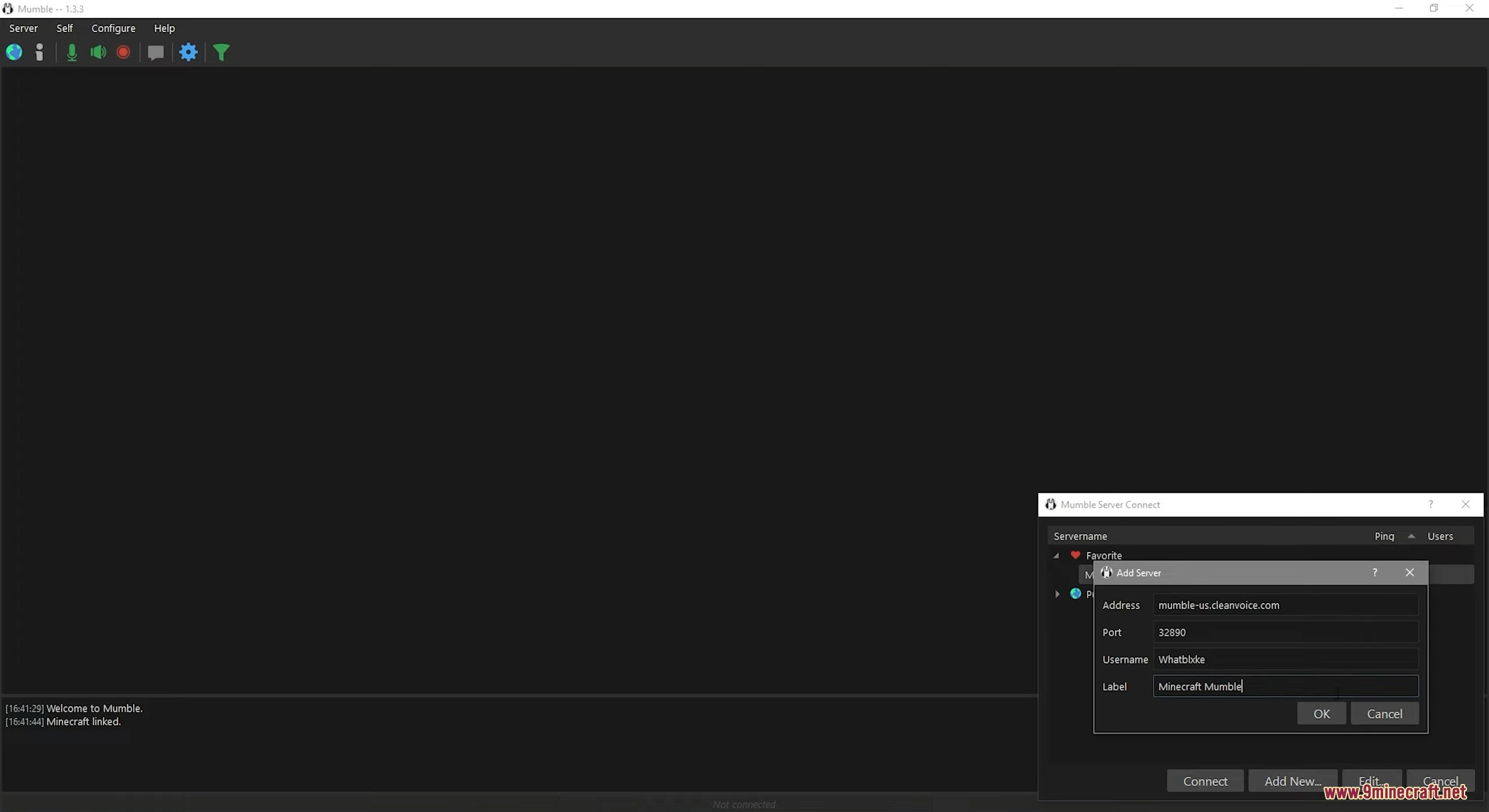
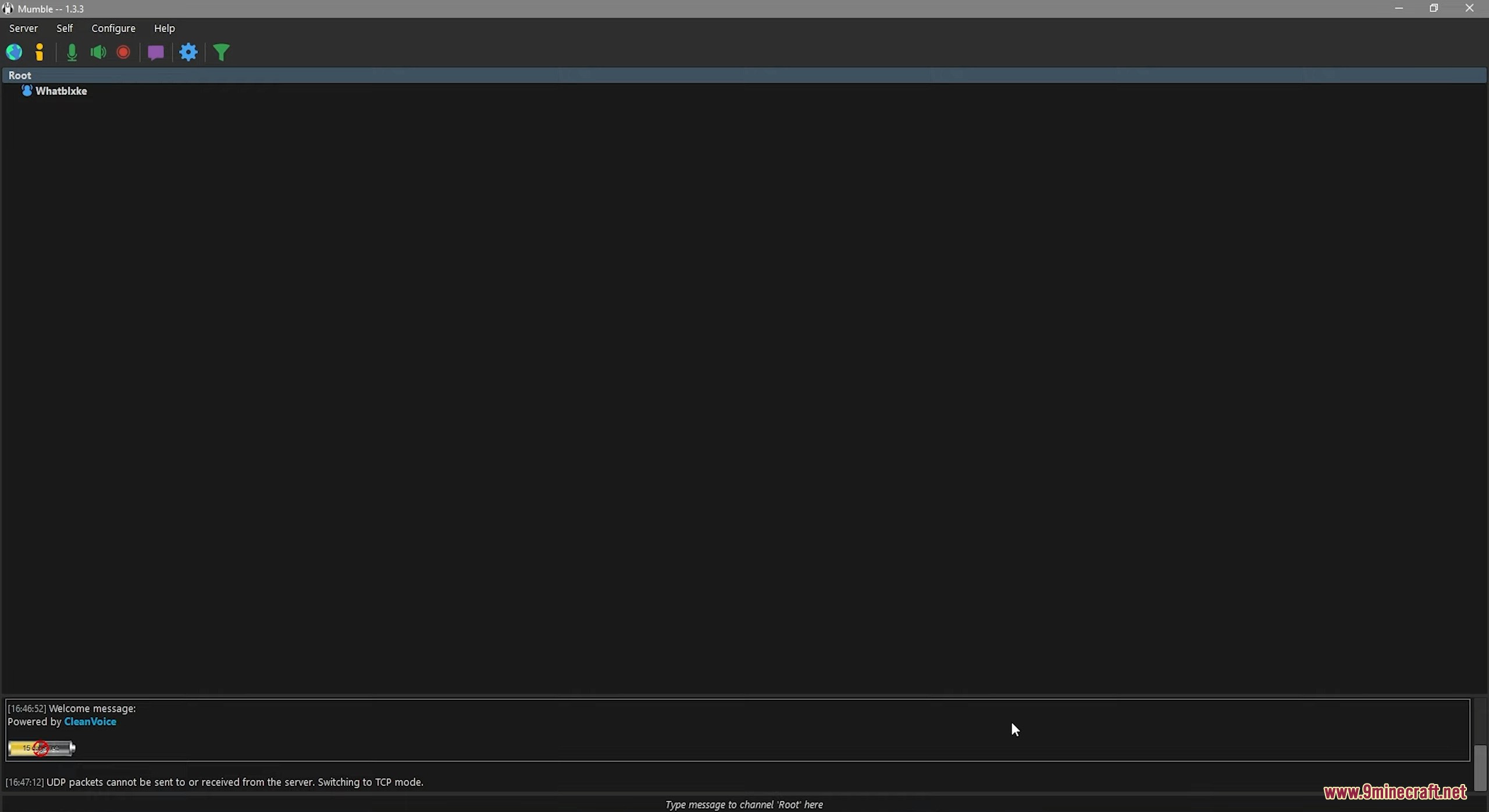
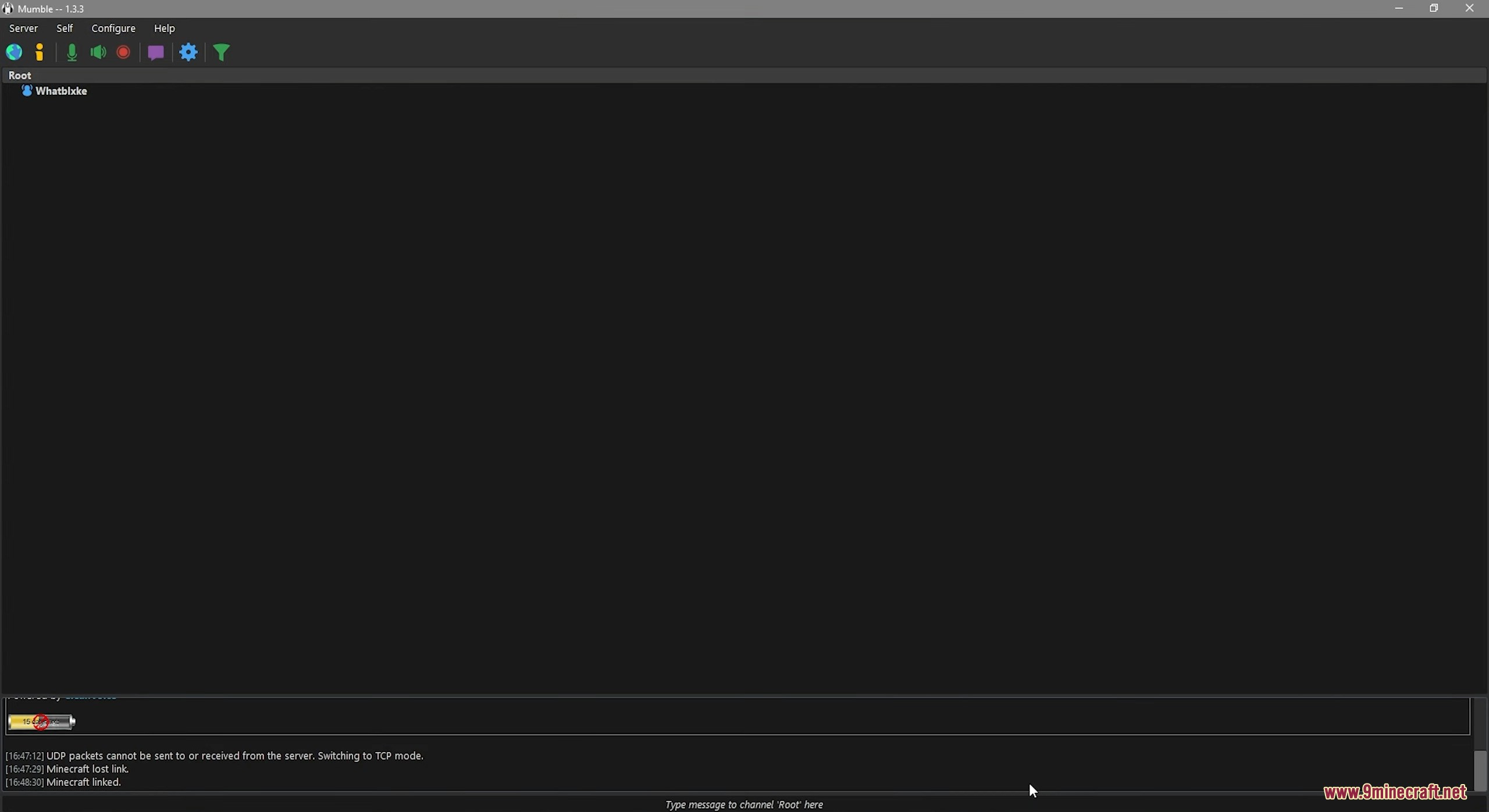
How to Install:
New to Minecraft? Follow our step-by-step guide to install Mods on your PC.View Guide
MumbleLink Mod Download Links
For Minecraft 1.18.1
Forge version: Download from Server 1
Mumble Client Download Links
Window Client (Msi file): Download from Server 1
MAC OSX Client (Dmg file): Download from Server 1
For Minecraft 1.17.1
Forge version: Download from Server 1
For Minecraft 1.16.5
Forge version: Download from Server 1 – Download from Server 2
For Minecraft 1.15.2
Forge version: Download from Server 1
For Minecraft 1.14.4
Forge version: Download from Server 1
For Minecraft 1.12.2
Forge version: Download from Server 1 – Download from Server 2
For Minecraft 1.10.2, 1.9.4
Forge version: Download from Server 1
For Minecraft 1.8.9
Forge version: Download from Server 1 – Download from Server 2
For Minecraft 1.7.10
Forge version: Download from Server 1 – Download from Server 2
Which mod loader do you use the most often?
82 responses · See the full results →
You May Also Like
Picked for this page
 Elytra Chestplate Swapper Mod (26.3, 1.20.1) – Functionality to Keystroke
 Easier Sleeping Mod (26.3, 1.20.1) – Server-Sided Sleeping
 More Crafting Tables Mod (1.21.11, 1.20.1) – Made from All Types of Wood
 Noxesium Mod (26.3, 1.20.1) – Elevate Your Minecraft Experience
 Grass Seeds Mod (26.3, 1.20.1) – Transform Dirt into Grass
 Rotted Mod (1.20.2, 1.20.1) – A Zombie-Themed Modification
 Mob Filter Mod (26.3, 1.20.1) – Managing Mob Populations
 QuickCraft Mod (26.1.2, 1.20.1) – Simplify Your Crafting Experience
 Cardboard Mod (26.1.2, 1.20.1) – Implements Plugins API as a Fabric Mod
 Arc Lib Mod (26.2, 1.20.1) – Data Driven Action, Reward Library
 Your Options Shall Be Respected Mod (26.3, 1.20.1) – YOSBR, Default Options
 Clover Mod (1.21.10, 1.20.1) – View Pronouns & Name Colors
Most viewed in Mods over the last 7 days
 Ala Industrial Mod (26.3) – Run Electric Power Grids and Automated Factories
 PleasureCraft Mod (26.3, 1.21.1) – Jenny Mod Remake for Fabric
 Jennycraft Mod (26.3, 1.20.1) – Virtual Girlfriend in Minecraft
 Fapcraft Mod (26.3, 1.12.2) – Comprehensive and Detailed Content
 Jenny Mod (Fapcraft) Official Complete Guide – How to use, Tutorial
 BangCraft Mod (1.20.1) – Jenny, Ellie and Elliot
 Meteor Client Mod (26.3, 1.20.1) – Xray, HUD, Fly
 Fabric Loader (26.3, 1.20.1) – Fabric Installer for All Minecraft Versions
 OptiFine HD (26.3, 1.20.1) – Run Faster, FPS Boost, Shaders Support
 The Shooting Star Demo Mod (26.3, 1.20.1) – Vaporize Terrain From Orbit
 SchnurriTV Mod (1.12.2) – Characters and Features
 Aristois Client Mod (1.21.4, 1.20.1) – World Class Minecraft Utility
More from Mods
 THE SLOPSTROSITY Mod (1.21.1) – Battle a Ridiculous Slime Boss
 Decoween Mod (1.21.1, 1.20.1) – Transform Ordinary Survival Bases
 Simply Light 9minecraft Mod (26.3) – Decorate Builds Without Torches
 Alex’s Caves Continued Mod (26.3, 1.20.1) – Conquer Six Massive Underground
 Anvil Uses Mod (26.3, 1.20.1) – Track Item Anvil Usage
 Animal Info Mod (26.3, 1.21.11) – Quick Stats For Your Animals
 Timber Tales Dynamic Tree System Mod (26.3, 1.20.1) – Watch Entire Trees Topple
 Gabou’s Libs Mod (26.3, 1.20.1) – Keep Custom Weather and Survival Mods Stable
 /Sit Mod (26.3, 1.21.1) – Make The Player Sit Down
 Arcane Redstone Dial Mod (26.3, 1.20.1) – Trigger Commands and Shortcuts
 The Graveyard Mod (26.3, 1.20.1) – Cemeteries in Minecraft
 Enhanced Overlay Mod (26.3, 1.21.11) – Remove Screen Clutter

This post has no comments yet. Be the first — your comment will appear here.