
World Control Mod (1.21.11) – Turn Rainy Server Nights Into Sunny Days
 1
 0

World Control Mod lets you change how weather and time look on your screen with no effect on the real server world. This lightweight client-side mod offers 3 visual weather presets (Clear, Rain, and Thunder) and 6 time presets (Sunrise, Day, Noon, Sunset, Night, and Midnight) inside a clean control panel that opens through Mod Menu. You can turn a stormy night into a bright day just for yourself, return weather or time back to the real server state anytime, or reset all visual overrides at once. Because every change stays strictly visual on your client, no server plugin is needed, and server mechanics like mob spawns, sleep rules, and crops still follow the real server state.
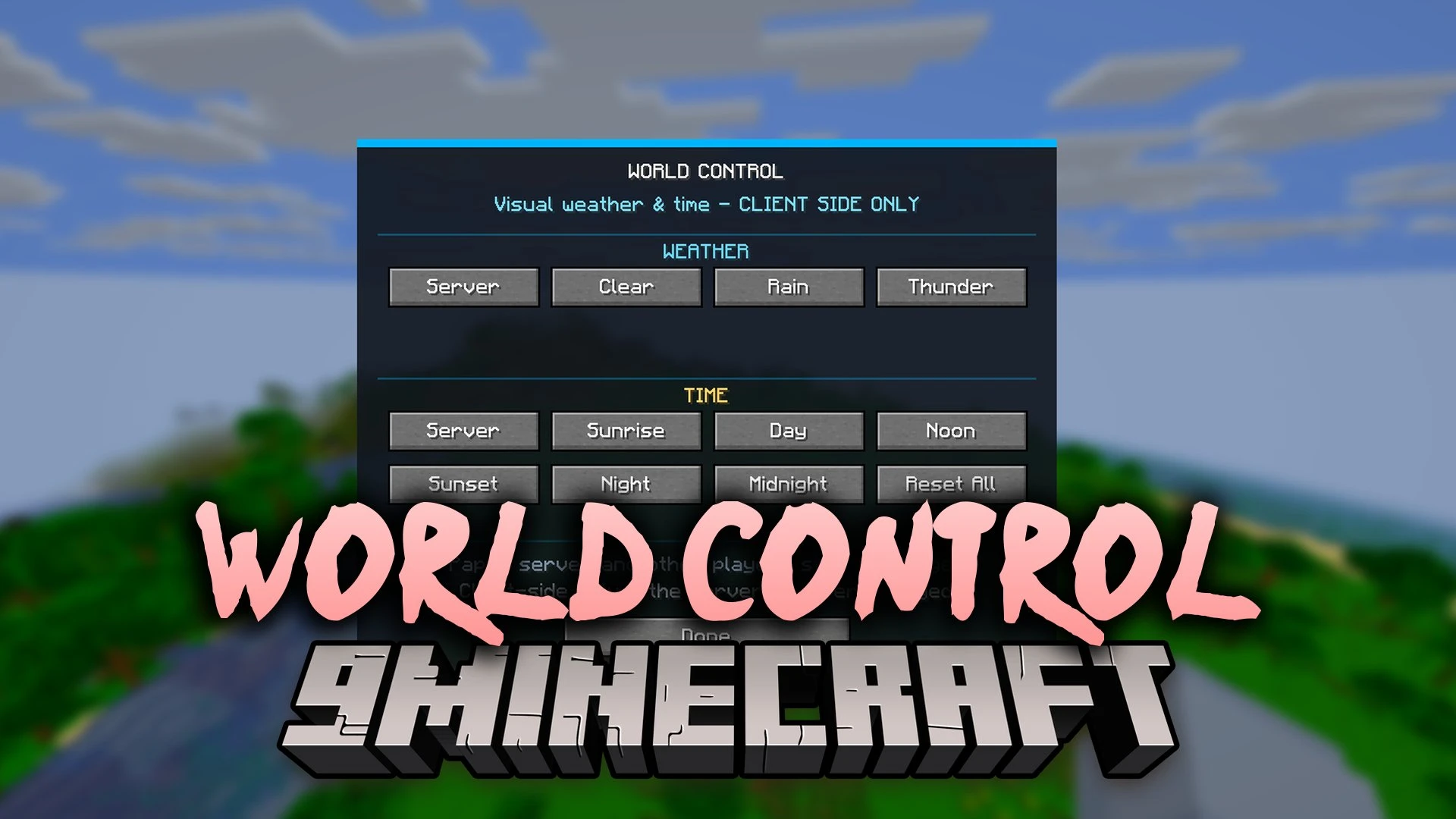
Features:
- Client-Side Visual Overrides: Changes only what you see on your screen while every other player continues seeing the real server weather and time, with no server-side plugin required.
- Clean Control Panel GUI: Opens a simple, Minecraft-style settings screen through Mod Menu so you can switch weather and time presets in just a couple of clicks.
- Instant Server Sync and Reset: Lets you return either weather or time individually back to the live server state, or reset every active visual override at once.
- Keeps all real server gameplay rules unchanged, meaning mob spawning, sleeping, crop growth, and other mechanics continue following actual server weather and time.
- Runs as a lightweight client-only tool that requires Mod Menu to open its in-game control panel.
Weather Presets:
- Clear weather: Displays bright, clear skies even if the server is raining or storming.
- Rain: Shows falling rain across your client view on demand.
- Thunder: Switches your local sky and weather visuals to a thunderstorm.
Time-of-Day Presets:
- Sunrise: Sets your visual sky to early morning dawn light.
- Day: Displays standard bright daytime lighting across the world.
- Noon: Places the sun overhead at midday brightness.
- Sunset: Switches your view to warm evening sunset skies.
- Night: Changes your local lighting and sky to nighttime.
- Midnight: Sets your visual time to the middle of the night.
How to Use:
- Make sure Mod Menu is active alongside World Control Mod so you can access its control screen in-game.
- Open Mod Menu from your Minecraft menu and select World Control Mod to open its settings control panel.
- Pick any weather preset (Clear, Rain, or Thunder) or any time preset (Sunrise, Day, Noon, Sunset, Night, or Midnight) to change what your client displays right away, such as setting Clear plus Day during a rainy server night.
- Use the return option whenever you want weather or time to match the real server again, or click the reset option to clear all visual overrides at once.
- Keep in mind that mob spawning, sleeping, and crop growth still follow the real server weather and time while your local visual override is active.
How to Install:
New to Minecraft? Follow our step-by-step guide to install Mods on your PC.View Guide

World Control Mod Download Links
For Minecraft 1.21.11
What is the longest real-time wait you will tolerate for a heavily modded game to load to the main menu?
10 responses · See the full results →
You May Also Like
Picked for this page
 Sophisticated Wolves Mod (26.2, 1.21.11) – Turn Canine Companions
 MrCrayfish’s Furniture Refurbished Mod (26.2, 1.20.1)
 Healing Bed Mod (26.2, 1.20.1) – Sleep Away Battle Wounds
 Universal Ores Mod (26.2, 1.20.1) – Mine Rich Veins Across Every Rock Type
 Mining Helmet Mod (26.3, 1.20.1) – Explore Deep Caves Without Placing Torches
 Smooth Scrolling Refurbished Mod (26.3, 1.20.1) – Glide Through Massive In-Game
 Endless Stacks Mod (26.3, 1.20.1) – Store Billions of Blocks Without Rows
 Humility Another Furniture Mod (26.3, 1.20.1) – Build Cozy Living Spaces
 Better Ping Display Remake Mod (26.3) – See Real Connection Latency
 Cottage Craft Blocks Mod (26.3, 1.20.1) – Design Cozy Pastel Houses
 Builders Companion Core Mod (1.20.1) – Power Custom Waters for Better Creative
 Sound Muter Mod (1.21.11, 1.20.1) – Mute Any Specific Game Audio Instantly
Most viewed in Mods over the last 7 days
 Ala Industrial Mod (26.3) – Run Electric Power Grids and Automated Factories
 PleasureCraft Mod (26.3, 1.21.1) – Jenny Mod Remake for Fabric
 Jennycraft Mod (26.3, 1.20.1) – Virtual Girlfriend in Minecraft
 Fapcraft Mod (26.3, 1.12.2) – Comprehensive and Detailed Content
 Meteor Client Mod (26.3, 1.20.1) – Xray, HUD, Fly
 Jenny Mod (Fapcraft) Official Complete Guide – How to use, Tutorial
 BangCraft Mod (1.20.1) – Jenny, Ellie and Elliot
 OptiFine HD (26.3, 1.20.1) – Run Faster, FPS Boost, Shaders Support
 CatLean Client Mod (26.2, 1.21.11) – ThunderHack Recode Alternatives
 Fabric Loader (26.3, 1.20.1) – Fabric Installer for All Minecraft Versions
 Patched Mod (26.3, 1.20.1) – Edit Game Files Without Breaking Packs
 Meteor Client Addons (26.3, 1.20.1) – Modify Almost Anything in Meteor
More from Mods
 MariaDB JDBC Mod (1.20.1) – Universal Database Driver Library for Mods
 The Harrower Mod (1.21.1) – Summon a Colossal Endgame Boss
 QuLib Mod (1.20.1) – Power Mod Raycasts and Vector Math with One Kotlin Library
 Starfront a Complete Space Odyssey Mod (1.21.1) – Fly Custom Ships Across 8
 Netlib Mod (1.21.11, 1.21.1) – Build Custom Minecraft Packets
 Re Neighborly Mod (26.1.2) – Befriend 12 Animal Crossing Neighbors
 SLR Shadow Legion Mod (1.21.1) – Raise Vanilla Mobs and Solo Leveling Foes
 Ryzer Gen Mod (1.21.1) – Engineer Real-Physics Nuclear Reactors and Fuel Cycles
 Lock & Type Mod (1.20.1) – Learn Touch Typing By Fighting Through an Overrun
 Nature Workshop Mod (26.3, 1.20.1) – Build Living Zoos with Custom Terrariums
 Myssyhead’s Sculk Adventures Mod (1.19.2) – Explore the Dark Sculked Depths
 SBW WotBB Strike Group Mod (1.20.1) – Command Modern Tanks, Drones

This post has no comments yet. Be the first — your comment will appear here.