
Tango’s Dynamic Hud Lib Mod (26.2, 1.21.11) – Drag and Move Your HUD Widgets
 0
 0

Tango’s Dynamic Hud Lib Mod provides a client-side library for movable HUD widgets on Fabric. It does not add direct gameplay items by itself, instead offering an API that other mods use to register screen elements. For players, this mod renders and saves the screen positions of widgets from compatible mods. You can open an in-game editor with a hotkey to drag and place your HUD boxes anywhere on the screen.

Features:
- Movable HUD Widgets: Lets you drag and reposition on-screen widgets with the left mouse button through an in-game HUD editor.
- Per-Mod HUD Editor Hotkeys: Adds a separate
HUD Editor (<Mod Name>)keybind entry under its own controls menu category for each compatible mod. - Renders and stores HUD elements that other mods register through this client-side library.
- Saves all custom widget screen positions inside the
config/tangos-hud-lib.jsonconfiguration file.
Developer API & Registration Methods:
@HudWidgetannotation: Marks widget methods inside a class; each annotated method must bestatic, take no parameters, returnHudContent, and define a non-emptyid.HudContent.builder(): Builds widget text lines using.line(Text.literal(...))and formatting options; everyHudContentobject must contain at least one non-blank line.HudLibrary.registerWidgets(String ownerId, int defaultKey, Class clazz): Registers all@HudWidgetmethods in the given class insideClientModInitializerand assigns a default hotkey for the HUD editor.HudLibrary.registerWidgets(String ownerId, Class clazz): Registers all widgets in the class without assigning a default hotkey.HudLibrary.registerWidgets(Class clazz): Registers widgets using the library default owner IDtangos-hud-liband the default hotkey H.
Configuration:
config/tangos-hud-lib.json: Stores the saved screen positions for all registered HUD widgets.
How to Use:
- Start the game alongside another mod that registers its widgets through this library.
- Open the Minecraft controls menu and find the
Tango's HudLibcategory. - Look for the
HUD Editor (<Mod Name>)keybind and check or set your preferred key. - Press the assigned hotkey while in-game to open the HUD editor for that specific mod.
- Hold the Left Mouse Button and drag any widget to move it to a new spot on your screen.
- Press the same hotkey again or press Esc to close the HUD editor and save the layout.
How to Install:
New to Minecraft? Follow our step-by-step guide to install Mods on your PC.View Guide
Requirements:
Tango’s Dynamic Hud Lib Mod Download Links
For Minecraft 26.2
For Minecraft 26.1.2, 26.1.1, 26.1
For Minecraft 1.21.11
For Minecraft 1.21.10, 1.21.9
Click to rate this post!
[Total: 0 Average: 0]
You May Also Like
Picked for this page
 FPS Reducer Mod (26.3, 1.20.1) – Save Power While You AFK
 DefaultSettings Mod (26.3, 1.20.1) – Keep Settings Safe in Modpacks
 Third Person Mod (26.2, 1.20.1) – Smooth Over-Shoulder View
 Structure Essentials Mod (26.3, 1.20.1) – A Crash-Free Modded World
 Simple Health Indicator Mod (26.3, 1.20.1) – Track Player Health During Combat
 Sewing Kit Mod (26.2, 1.20.1) – Craft Custom Tailored Leather Gear
 Cinematic Interactions Mod (26.3, 1.20.1) – Watch Your Hands Work
 Dark Rewards Mod (26.3, 1.20.1) – Bonus Loot As You Survive
 XNet Mod (26.3, 1.20.1) – Build a Smart Factory That Thinks for Itself
 Affinity Mod (1.21.11, 1.20.1) – Bend Life’s Energy Into Magic and Tech
 Physical Stats Mod (26.2, 1.21.1) – Grow Larger and Hit Harder with Custom Stats
 Buff Mobs Mod (26.3, 1.21.1) – Keep Late-Game Survival Battles Tough
Most viewed in Mods over the last 7 days
 Ala Industrial Mod (26.3) – Run Electric Power Grids and Automated Factories
 PleasureCraft Mod (26.3, 1.21.1) – Jenny Mod Remake for Fabric
 Jennycraft Mod (26.3, 1.20.1) – Virtual Girlfriend in Minecraft
 Fapcraft Mod (26.3, 1.12.2) – Comprehensive and Detailed Content
 Meteor Client Mod (26.3, 1.20.1) – Xray, HUD, Fly
 Jenny Mod (Fapcraft) Official Complete Guide – How to use, Tutorial
 BangCraft Mod (1.20.1) – Jenny, Ellie and Elliot
 OptiFine HD (26.3, 1.20.1) – Run Faster, FPS Boost, Shaders Support
 Fabric Loader (26.3, 1.20.1) – Fabric Installer for All Minecraft Versions
 Patched Mod (26.3, 1.20.1) – Edit Game Files Without Breaking Packs
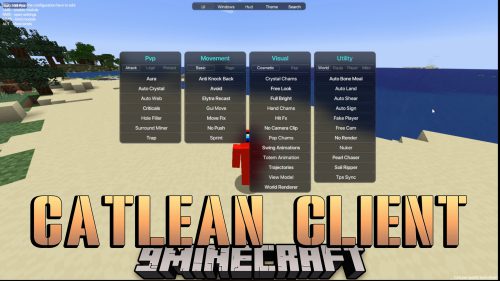 CatLean Client Mod (26.2, 1.21.11) – ThunderHack Recode Alternatives
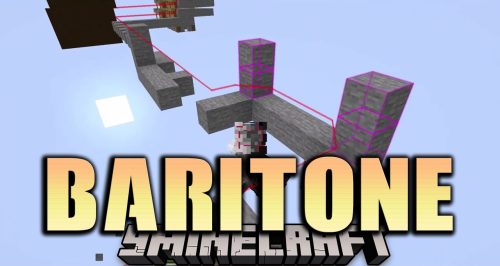 Baritone Client Mod (26.3, 1.20.1) – Autominer, Build with AI, Xray
More from Mods
 Common Toolkit Mod (26.3, 1.21.1) – Core Library Powering Custom Gear Sets
 Struppis Ragdoll Physics API Mod (26.3) – Core Library for Custom Ragdoll
 Nicktale FX Mod (26.3, 1.20.1) – Core Library for 3D Boss Animations
 GeminiLib Mod (1.21.1) – Core Library and Shared Code APIs
 Please Crash My Game Mod (26.3) – Force Your Game to Crash with One Click
 Extended Glint Slider Mod (26.3, 1.21.1) – Make Your Enchanted Armor
 Echo Stone Mod (26.3, 1.20.1) – Distract Mobs and Trigger Redstone
 Loot Finder Mod (26.3, 1.21.1) – Spot Hidden Chests and Vaults Right
 Leo’s Lost Cities Mod (1.20.1) – Explore Abandoned Urban Ruins Without Any Lag
 MCA Remastered Fab Neo Quilt Mod (26.3, 26.1.2) – Marry Villagers and Rule
 Magi Chem Mod (1.20.1) – Turn Any Item Into Pure Alchemy Essence
 Improved Windows Mod (1.16.5) – Connect Glass Panes Directly to Stairs and Slabs

This post has no comments yet. Be the first — your comment will appear here.