


Grizzly Client Mod (26.1.2) – Win Every Multiplayer PvP Fight


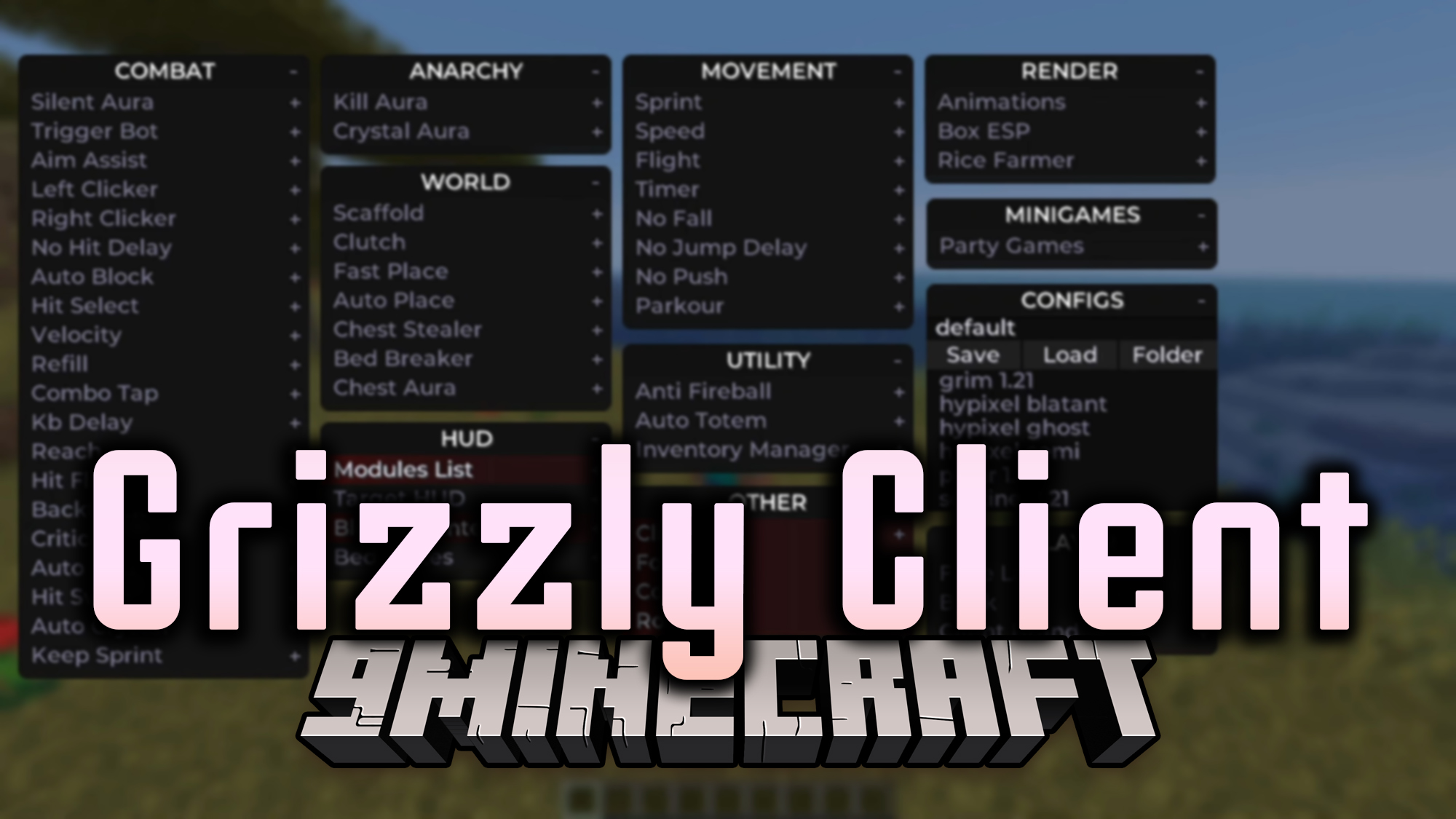
Grizzly Client Mod (or Medved Client) equips you with a huge set of tools for PvP and general gameplay. It packs in everything from combat helpers like Silent Aura and Aim Assist to movement boosts and world utilities. This client is built for players who want to get a serious advantage in any situation, with a clean interface that is easy to navigate. It also comes with pre-made configurations for popular servers, so you can jump right into the action.
Features:
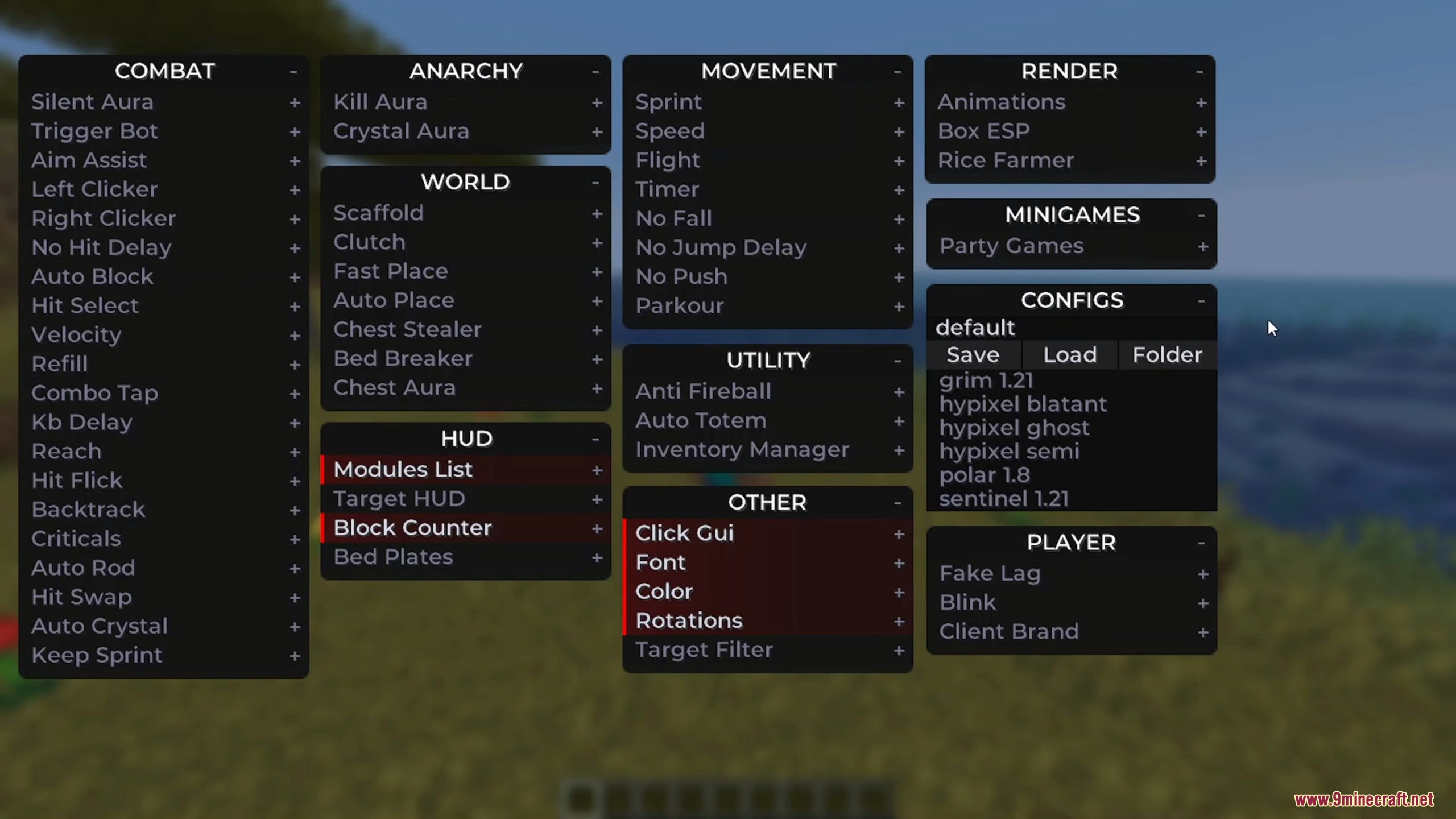
- Full Combat Suite: Automatically target, aim, and attack enemies with a wide array of combat modules.
- Advanced Movement: Fly, sprint automatically, and move faster than normal.
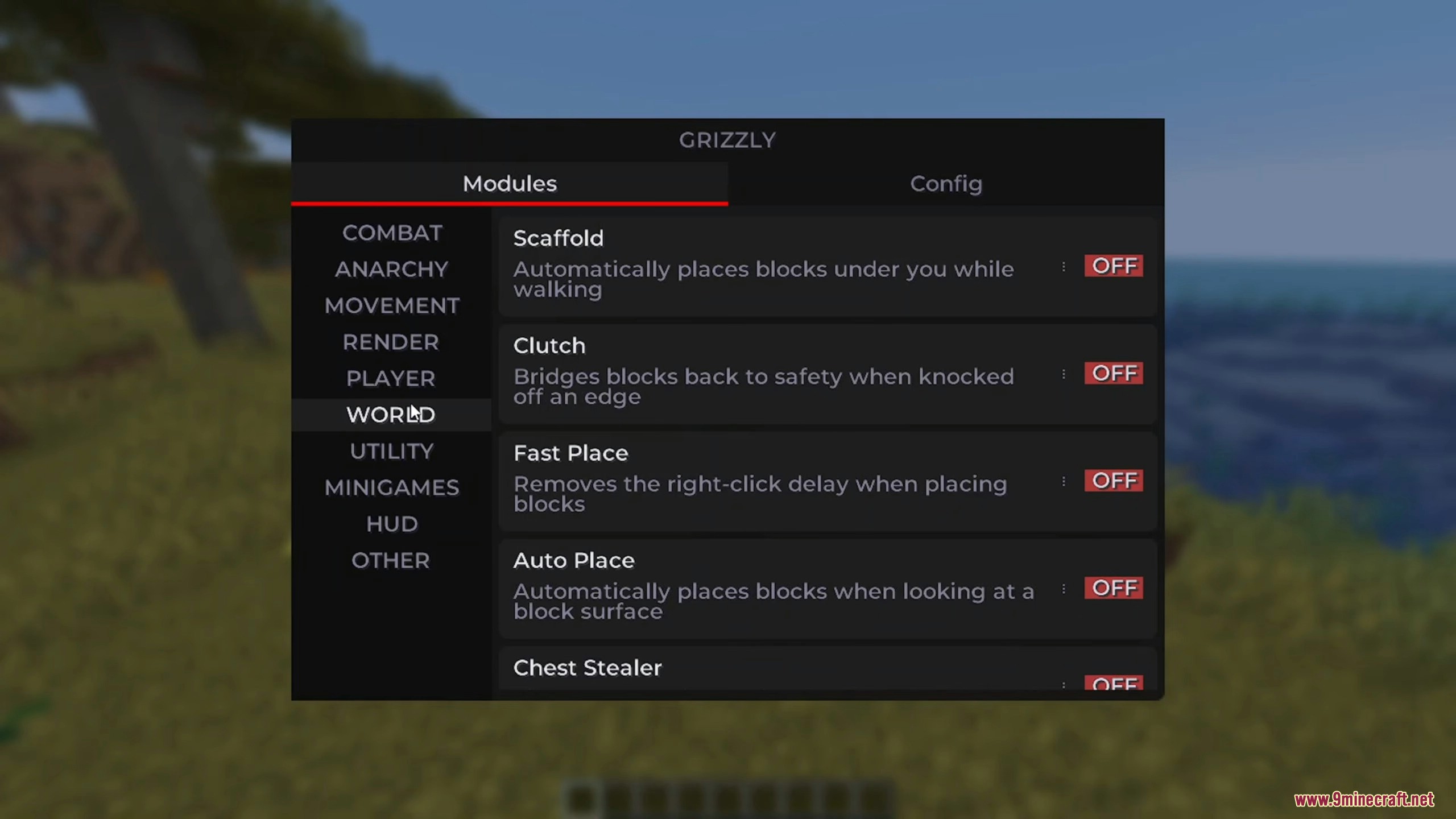
- World Utilities: Automatically build bridges with Scaffold, steal from chests, and break beds.
- Customizable HUD: Display a list of active modules, target information, and block counts directly on your screen.
- Pre-Made Configs: Includes ready-to-use settings for popular servers and anti-cheats like Hypixel, Grim, and Sentinel.
- Click GUI Customization: Change the look and feel of the menu, from colors and fonts to the overall layout.
Combat Modules
- Silent Aura: Attacks enemies in range without you needing to aim directly at them.
- Aim Assist: Gently guides your crosshair towards opponents.
- Velocity: Lets you change the amount of knockback you take from hits.
- Auto Crystal: Automatically places and detonates End Crystals for anarchy PvP.
- Keep Sprint: Prevents you from stopping your sprint when you attack an enemy.
Movement Modules
- Sprint: Makes you sprint automatically without double-tapping.
- Flight: Allows you to fly in Survival mode.
- No Fall: Prevents you from taking any fall damage.
- Parkour: Automatically jumps from the edge of blocks.
World & Utility Modules
- Scaffold: Places blocks underneath you as you walk, letting you bridge over air.
- Chest Stealer: Quickly takes items from chests as soon as you open them.
- Auto Totem: Automatically moves a Totem of Undying to your off-hand when you need it.
- Inventory Manager: Helps keep your inventory clean and organized.
How to Use:
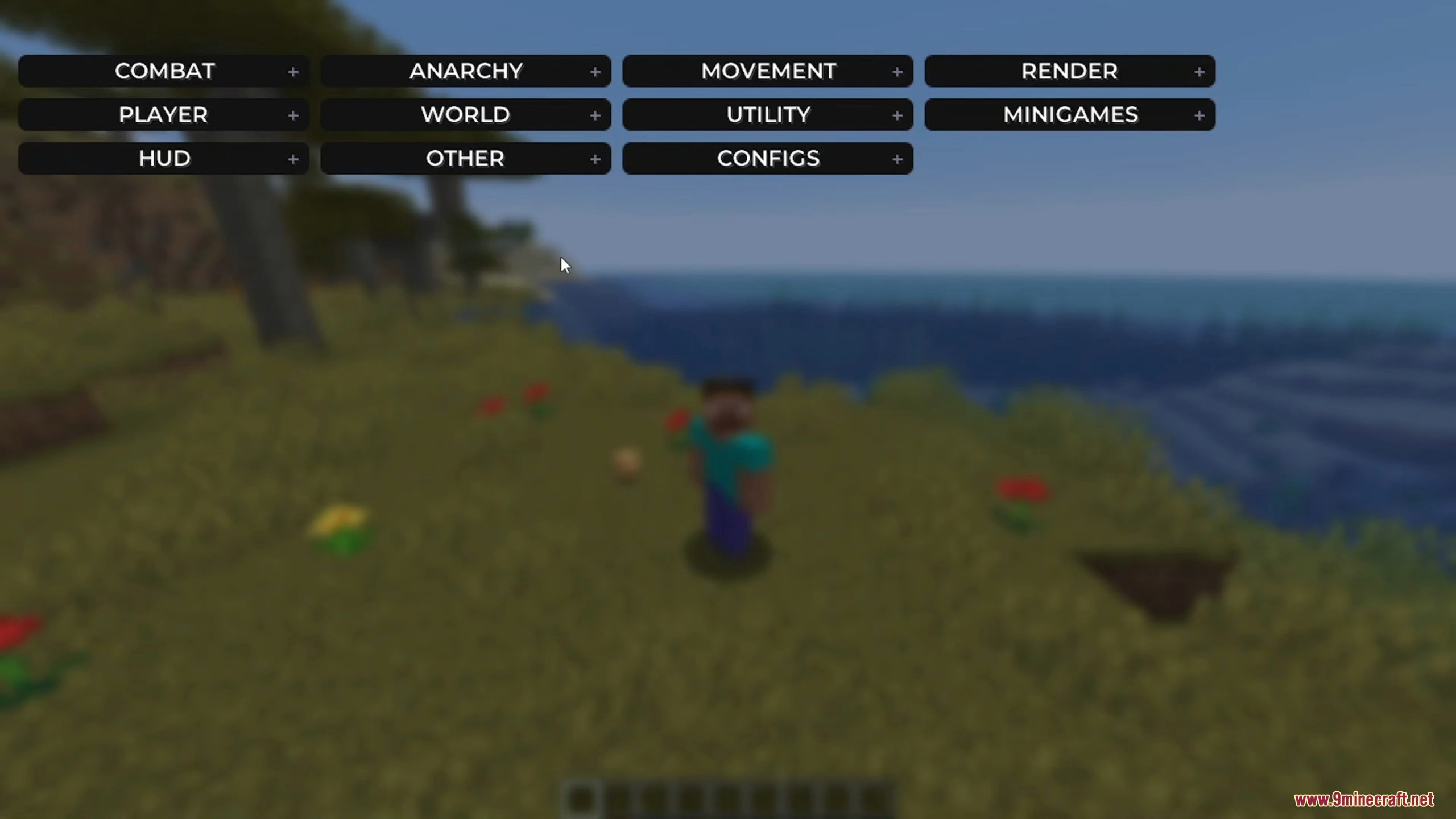
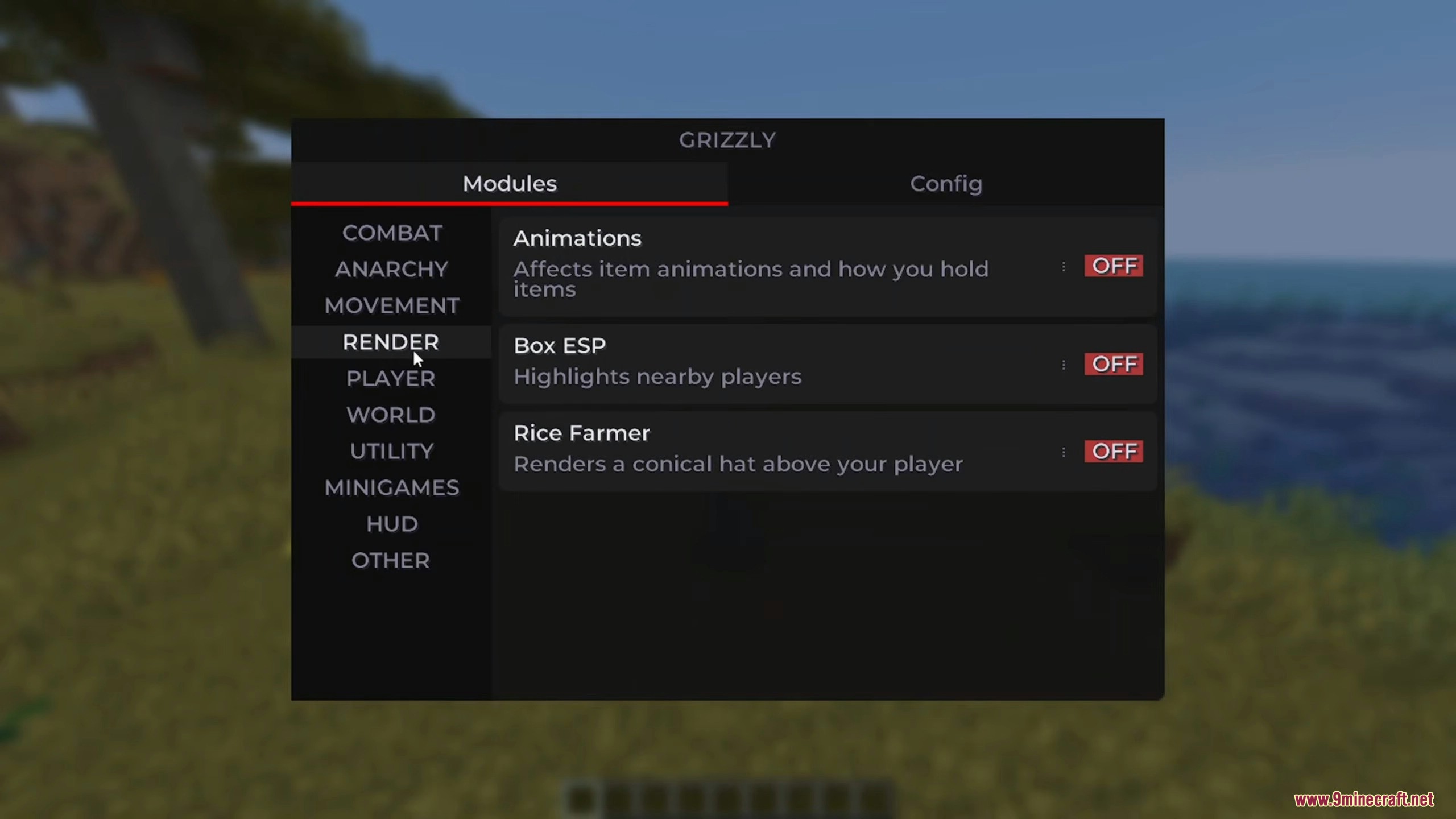
- Press the Right Shift key to open the main menu (Click GUI).
- Left-click on any module name to turn it on or off.
- Right-click on a module to see its detailed settings and make adjustments.
- You can change the menu’s keybind and even switch its style from “Dropdown” to “Sidebar” in the “Other” category.
Screenshots:
How to Install:
New to Minecraft? Follow our step-by-step guide to install Mods on your PC.View Guide
Requirements:


Grizzly Client Mod Download Links
For Minecraft 26.1.2, 26.1.1, 26.1
Click to rate this post!
[Total: 5 Average: 4.8]

1 Comment
 What do you think?
Your opinion means a lot - we'd love to hear from you.
What do you think?
Your opinion means a lot - we'd love to hear from you.
You May Also Like





The hivda kullamıcam