


OpSec Mod (26.2, 1.20.1) – Play Multiplayer Without Servers Tracking Your

 0
0 

🌐 Read this article in your language! Choose your preferred language below.
Or pick the one you like:
OpSec Mod protects your privacy when you play on multiplayer servers. It stops servers from tracking your account, checking your keyboard presses, or seeing what other mods you have installed. This mod gives you tools to block unwanted data collection and keeps your game safe from sneaky server tricks. You can even switch between different Minecraft accounts easily right from the menu.
Features:
- Hide Your Mods: Makes your game look like normal, unmodded Minecraft to servers so they cannot block you for using mods.
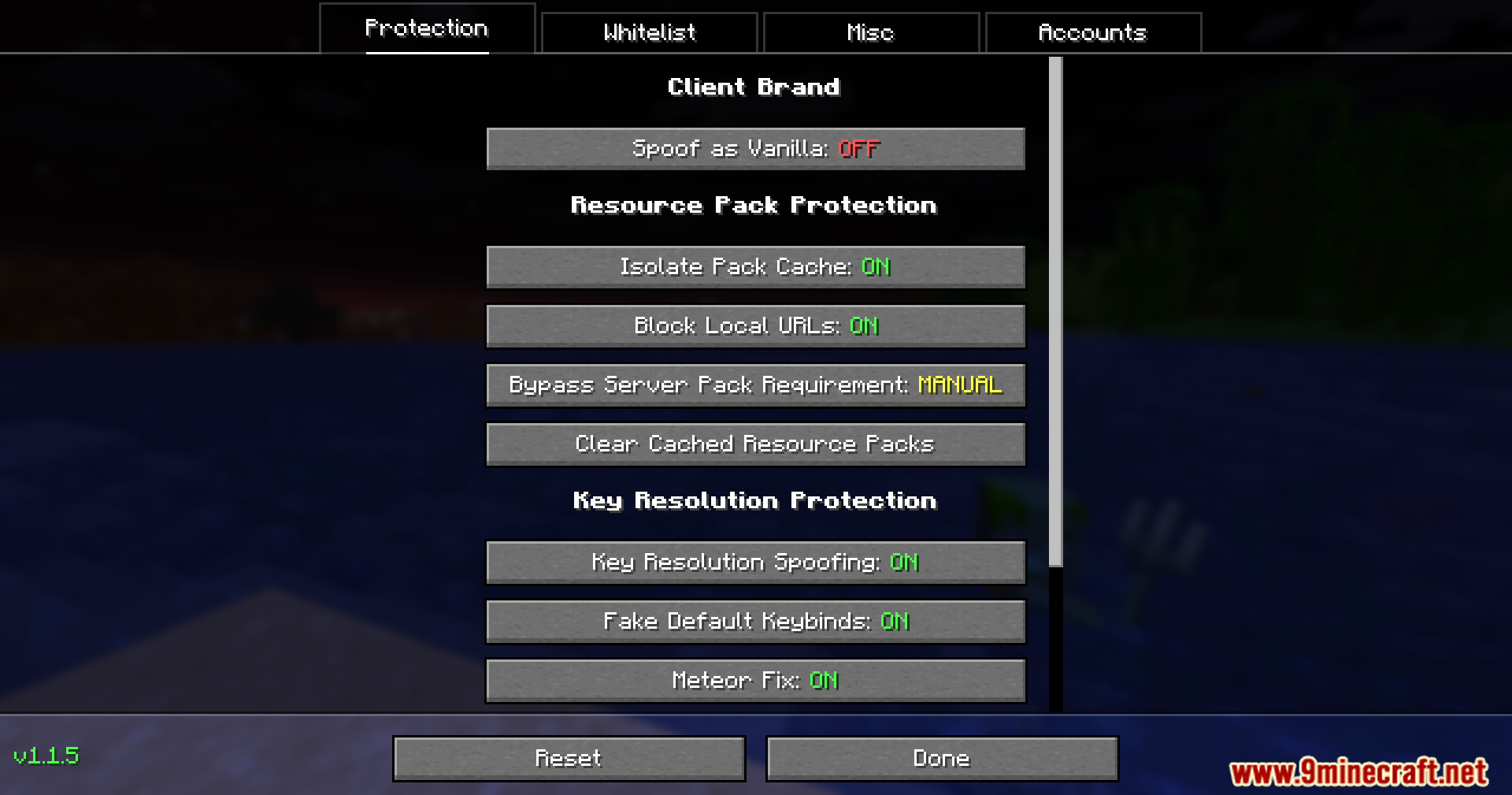
- Block Server Packs: Lets you say no when a server tries to force you to download its custom resource pack.
- Stop Tracking: Saves server resource packs separately for each account so servers cannot track who you are.
- Blocks dangerous links that try to look at your private home network.
- Stops servers from checking what keys you press on your keyboard.
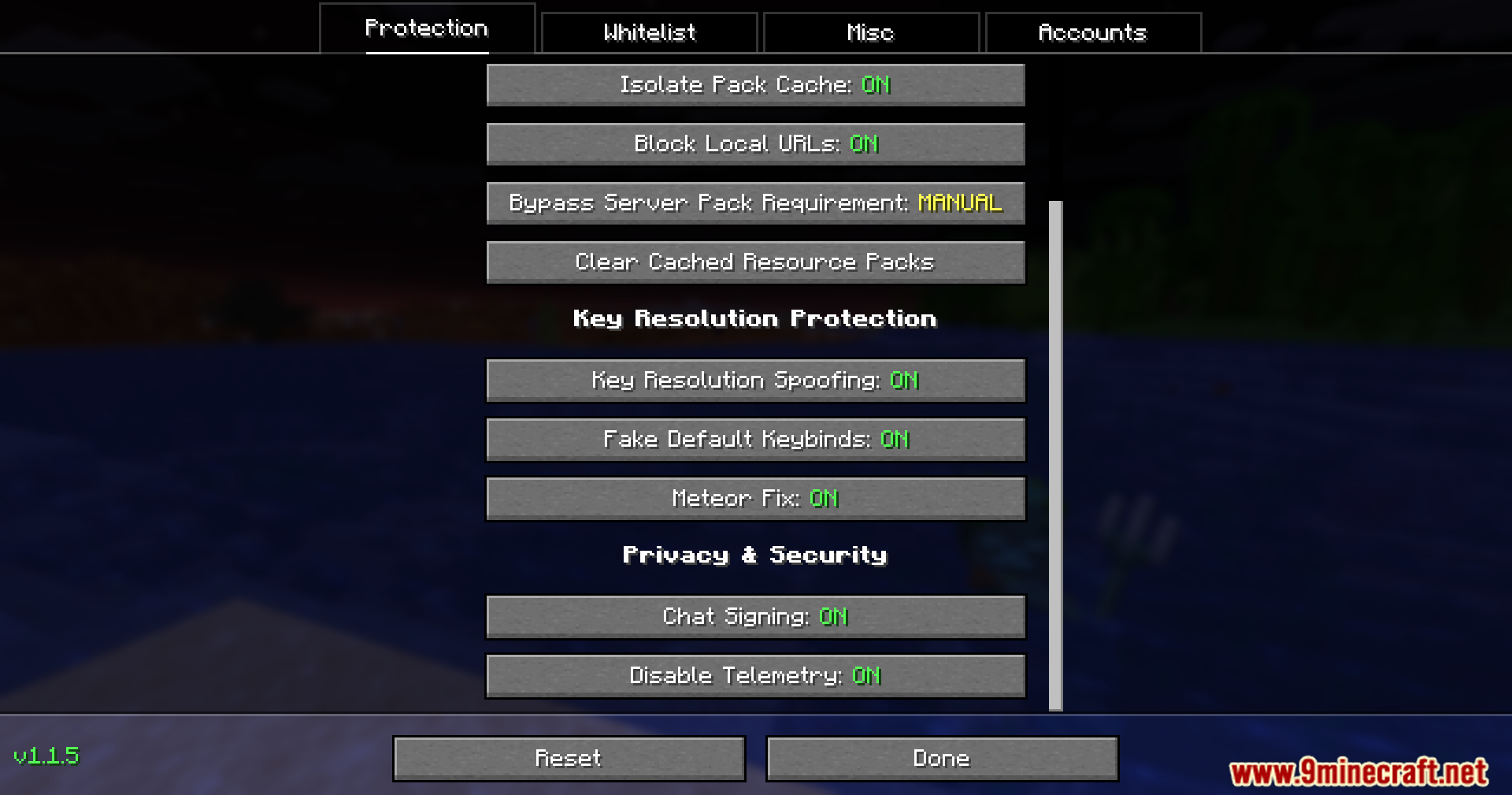
- Gives you control over chat messages so you can turn off chat signatures for better privacy.
- Stops the game from sending your private play data back to Mojang.
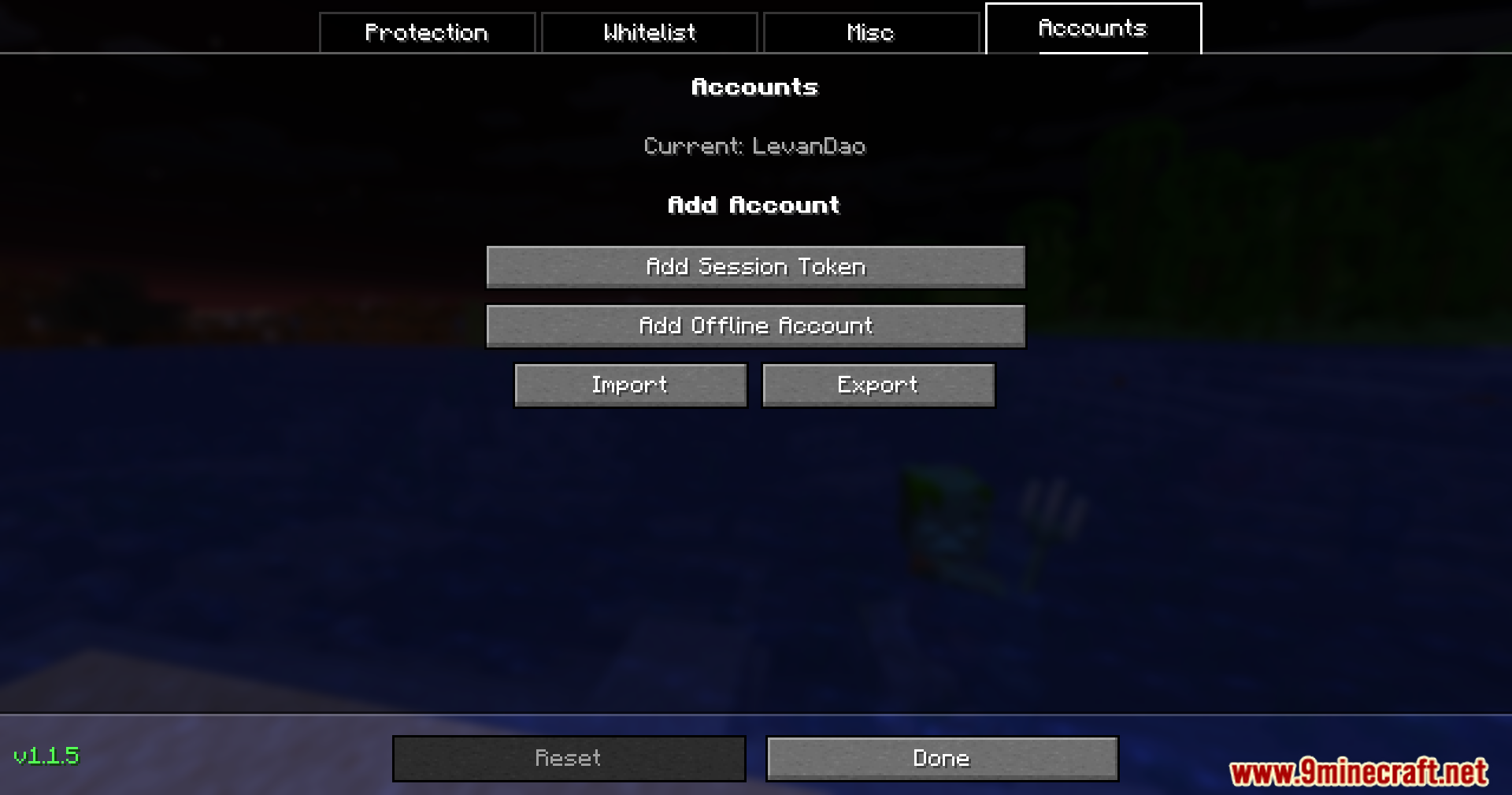
- Lets you switch between different Minecraft accounts right inside the game using special tokens.
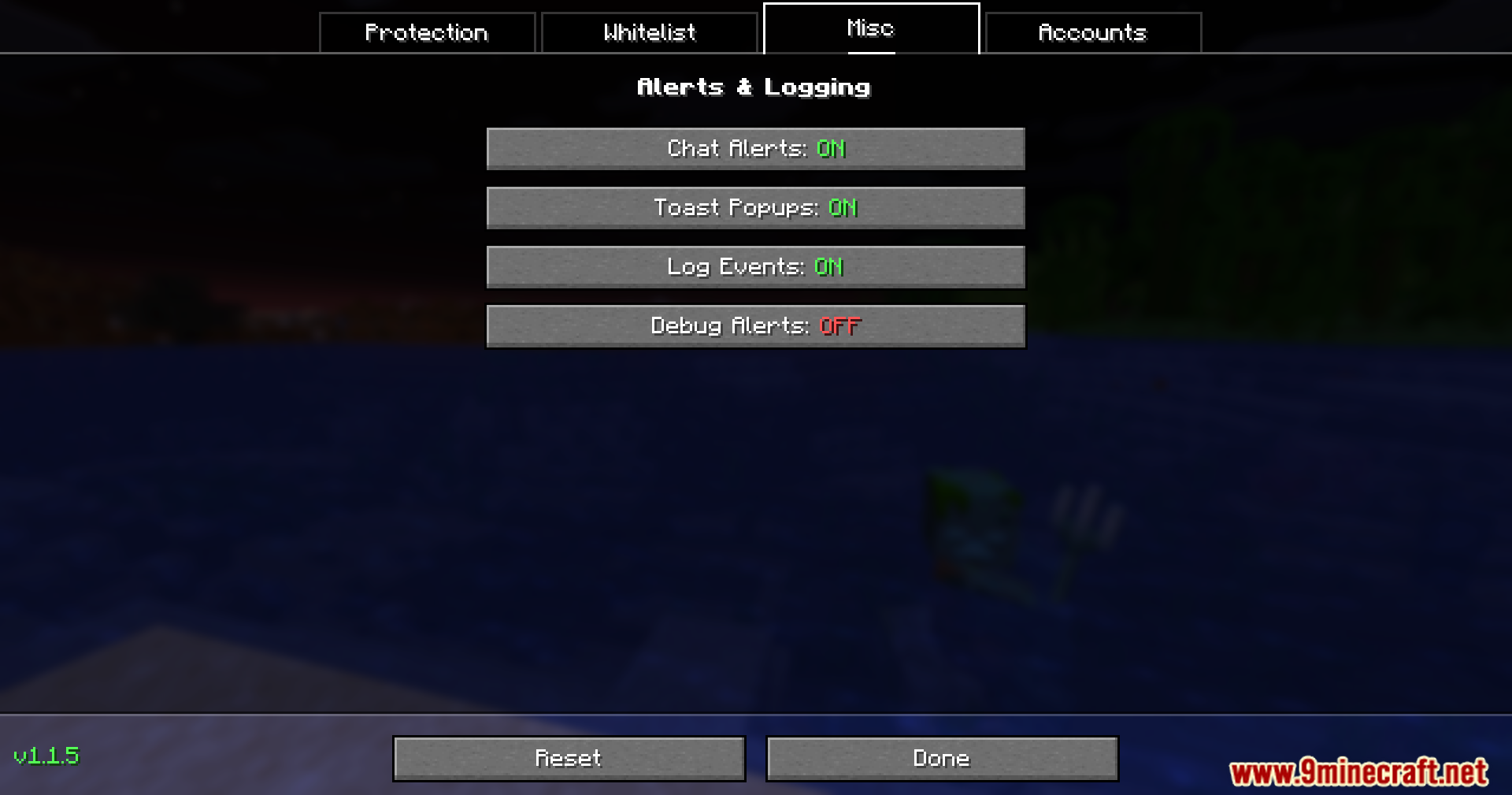
- Warns you with chat messages or popups if a server tries to scan your game or track you.
Commands:
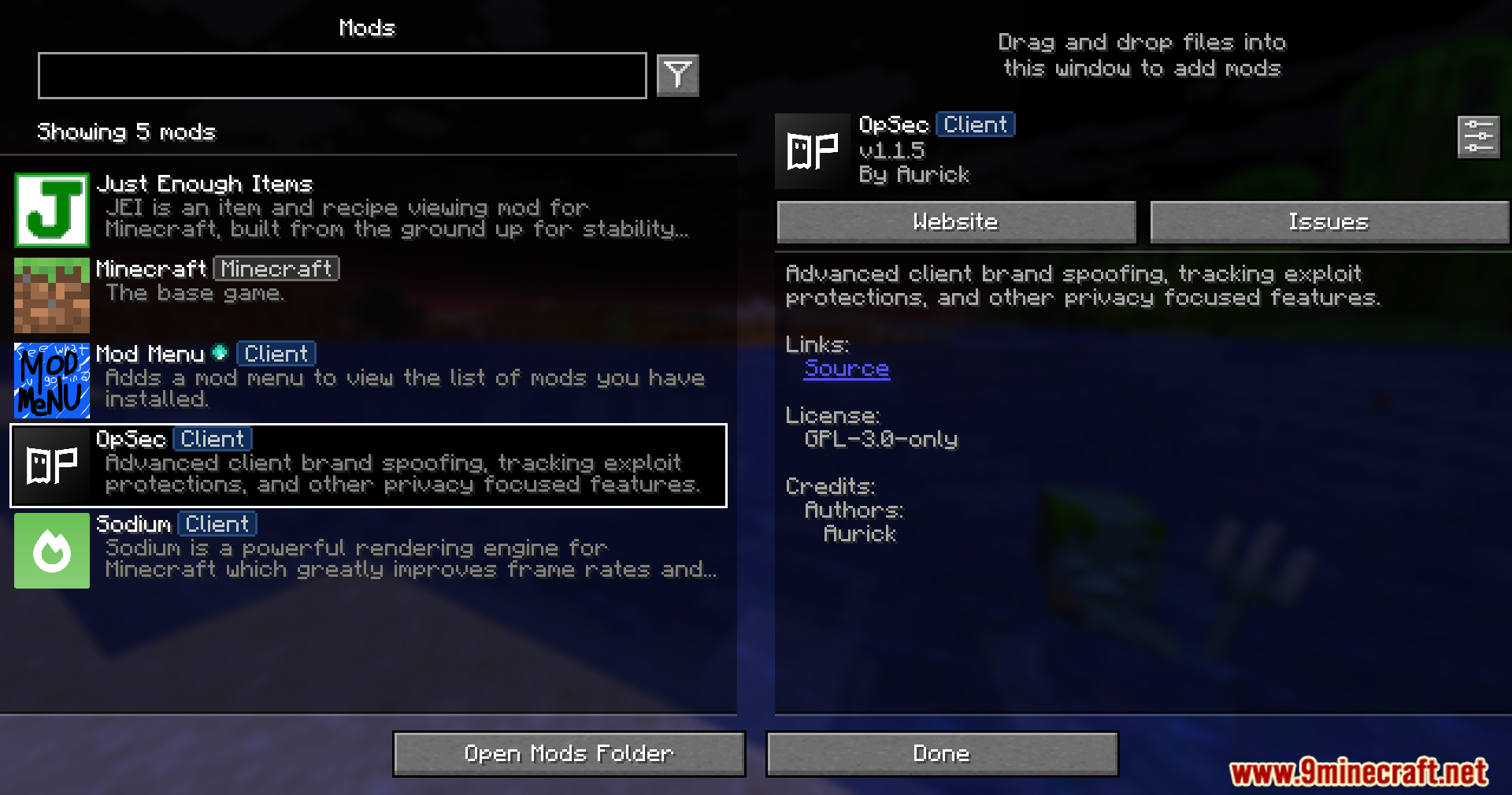
/opsec: Shows a list of all commands you can use./opsec info: Tells you about all the mods the game is currently watching./opsec info [mod name]: Shows specific details about one mod./opsec channels: Lists all the hidden network paths your mods are using.
Configuration:
- You can find the settings menu by clicking the OpSec button at the top of your multiplayer server list.
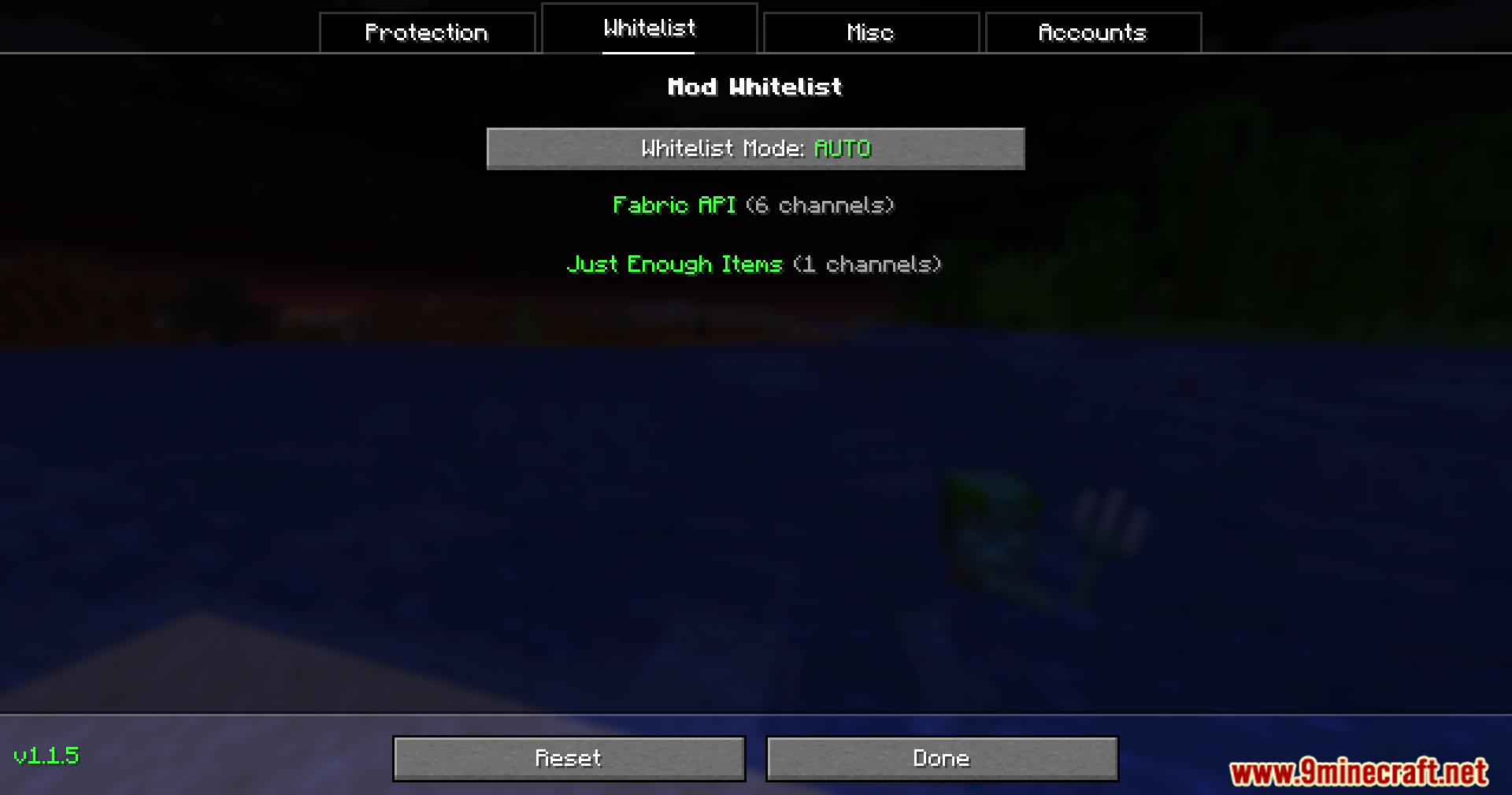
- It has different tabs to turn protections on or off, choose which mods to allow, and manage your saved accounts.
- If you change rules while playing on a server, you should leave and rejoin the server to make sure the new rules work.
How to Use:
- Open the multiplayer menu to find the mod’s settings button.
- Go to the Protection tab to turn on vanilla spoofing so servers cannot see your mods.
- Check the Whitelist tab if you want to let certain mods talk to the server normally.
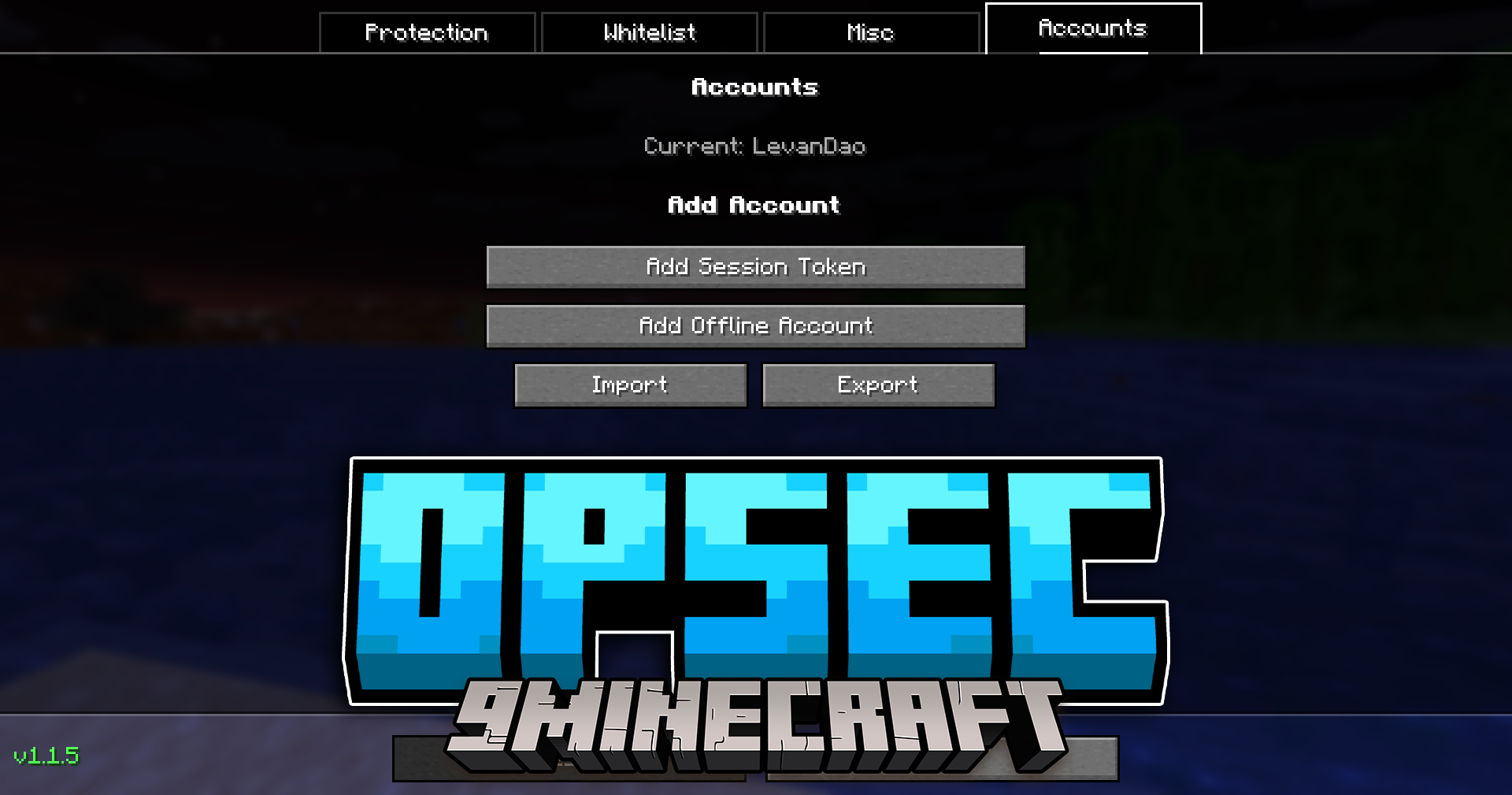
- Add your different Minecraft accounts in the Accounts tab so you can swap between them quickly.
- Watch out for chat alerts that pop up if a server tries to track your activity.
Screenshots:
How to Install:
New to Minecraft? Follow our step-by-step guide to install Mods on your PC.View Guide
Requirements:


OpSec Mod Download Links
For Minecraft 26.2
For Minecraft 26.1.2, 26.1.1, 26.1
For Minecraft 1.21.11
For Minecraft 1.21.10, 1.21.9
For Minecraft 1.21.8, 1.21.7, 1.21.6
For Minecraft
1.21.5,
1.21.4,
1.21.3
All Versions Covered
1.21.5
1.21.4
1.21.3
1.21.2
All Versions Covered
1.21.5
1.21.4
1.21.3
1.21.2
For Minecraft 1.21.1, 1.21
For Minecraft 1.20.1, 1.20
Click to rate this post!
[Total: 5 Average: 3.4]
You May Also Like



















This post has no comments yet. Be the first — your comment will appear here.