


Custom Title Screen 9minecraft Mod (26.3) – Put Your Own Text on the Main Menu

 0
0 

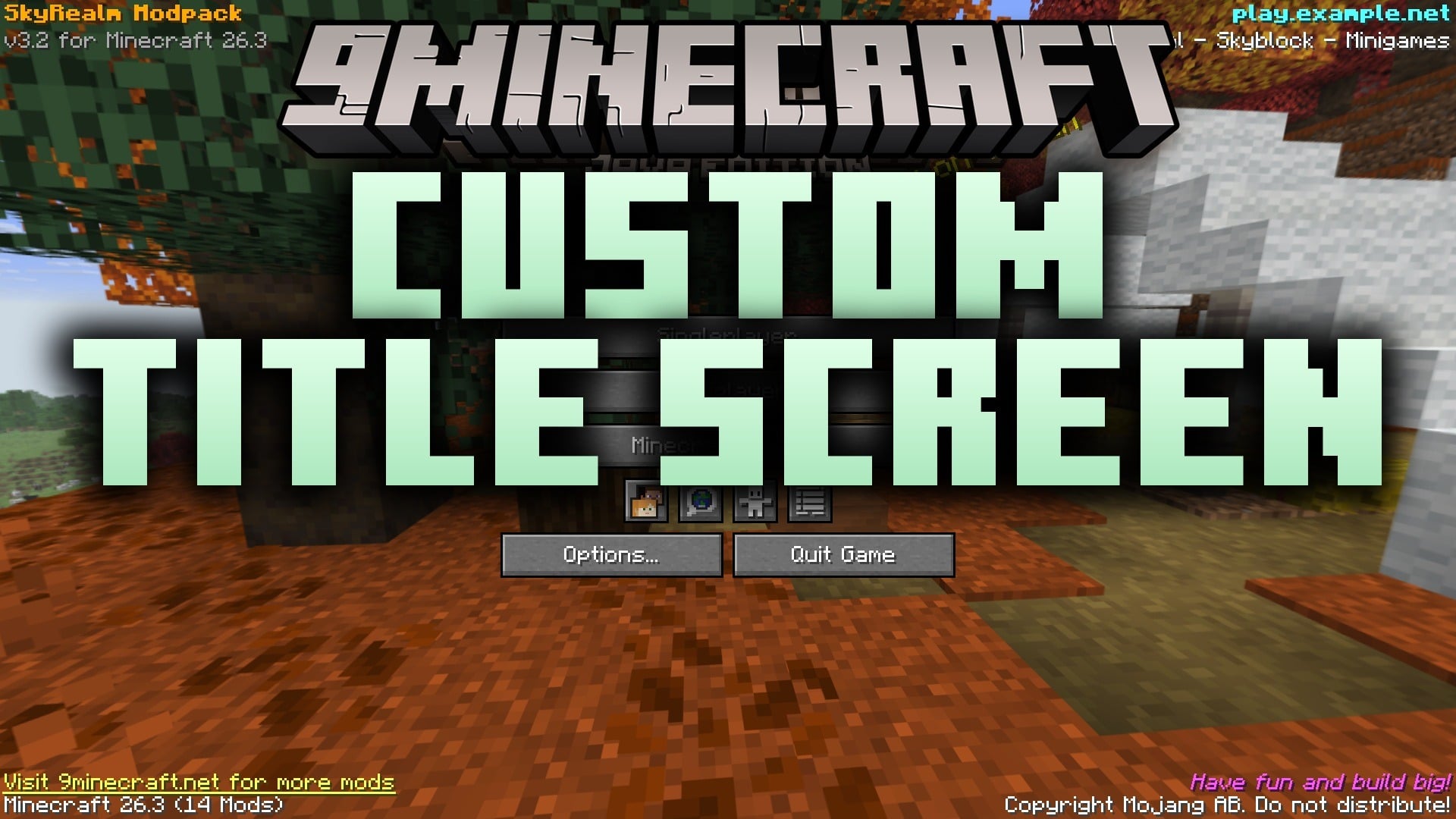
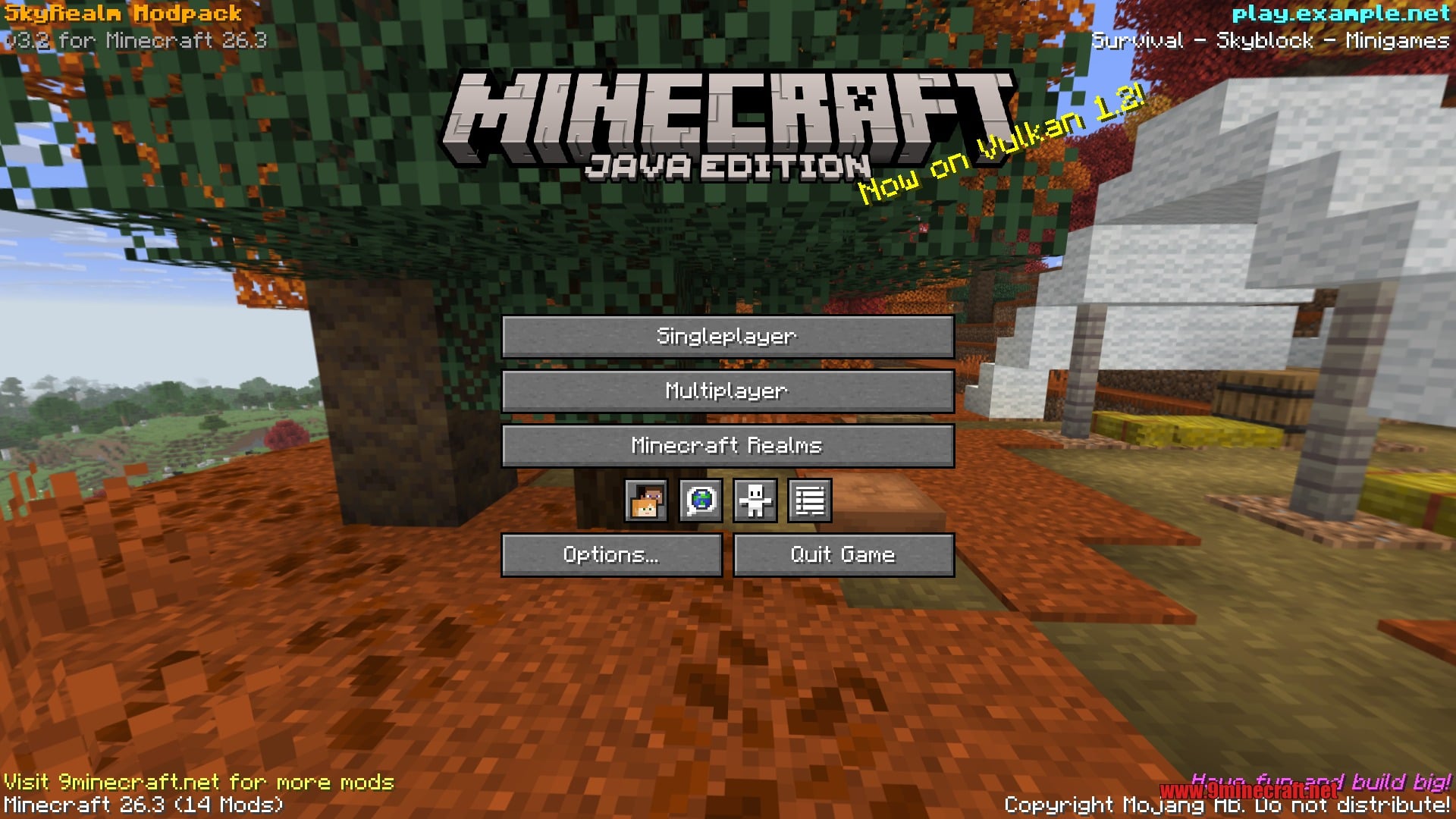
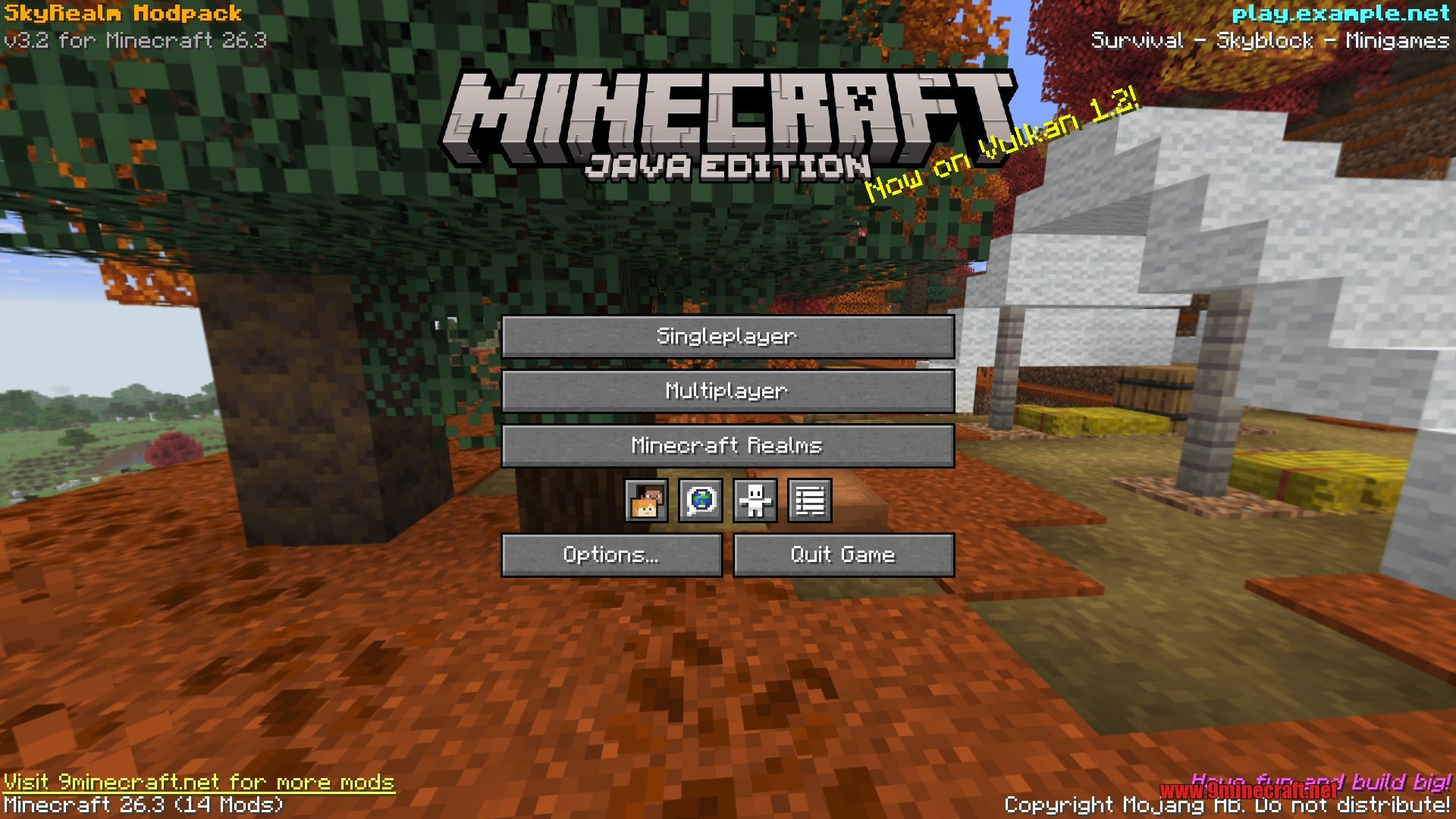
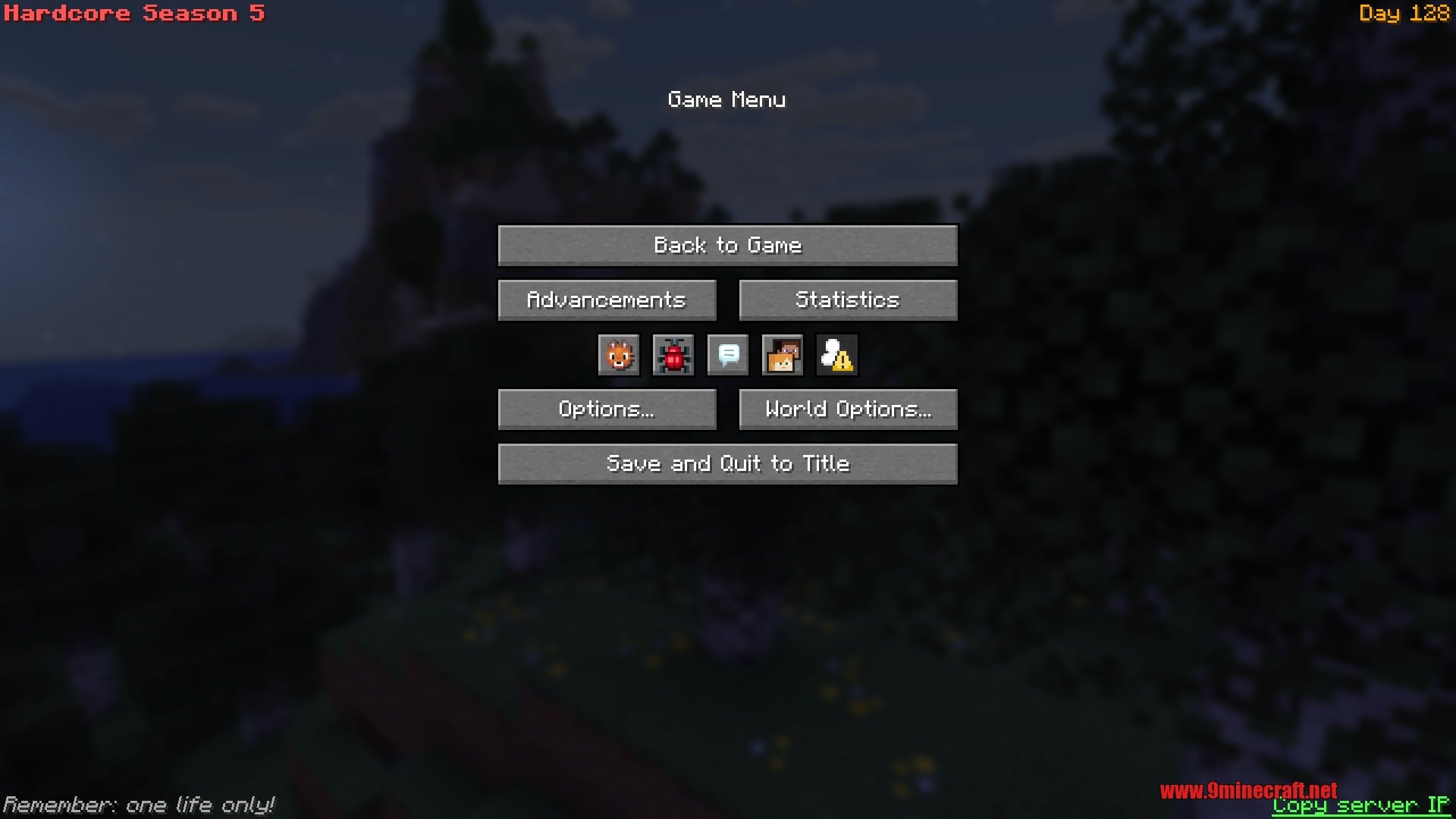
Custom Title Screen 9minecraft Mod lets you write your own lines of text in the four corners of the Minecraft main menu and the pause menu. Put your server address, modpack version, a welcome message or a clickable link right where every player looks first. Each line supports colors, bold, italic and click actions, so a modpack or server can brand the menus without touching a single texture.
Features:
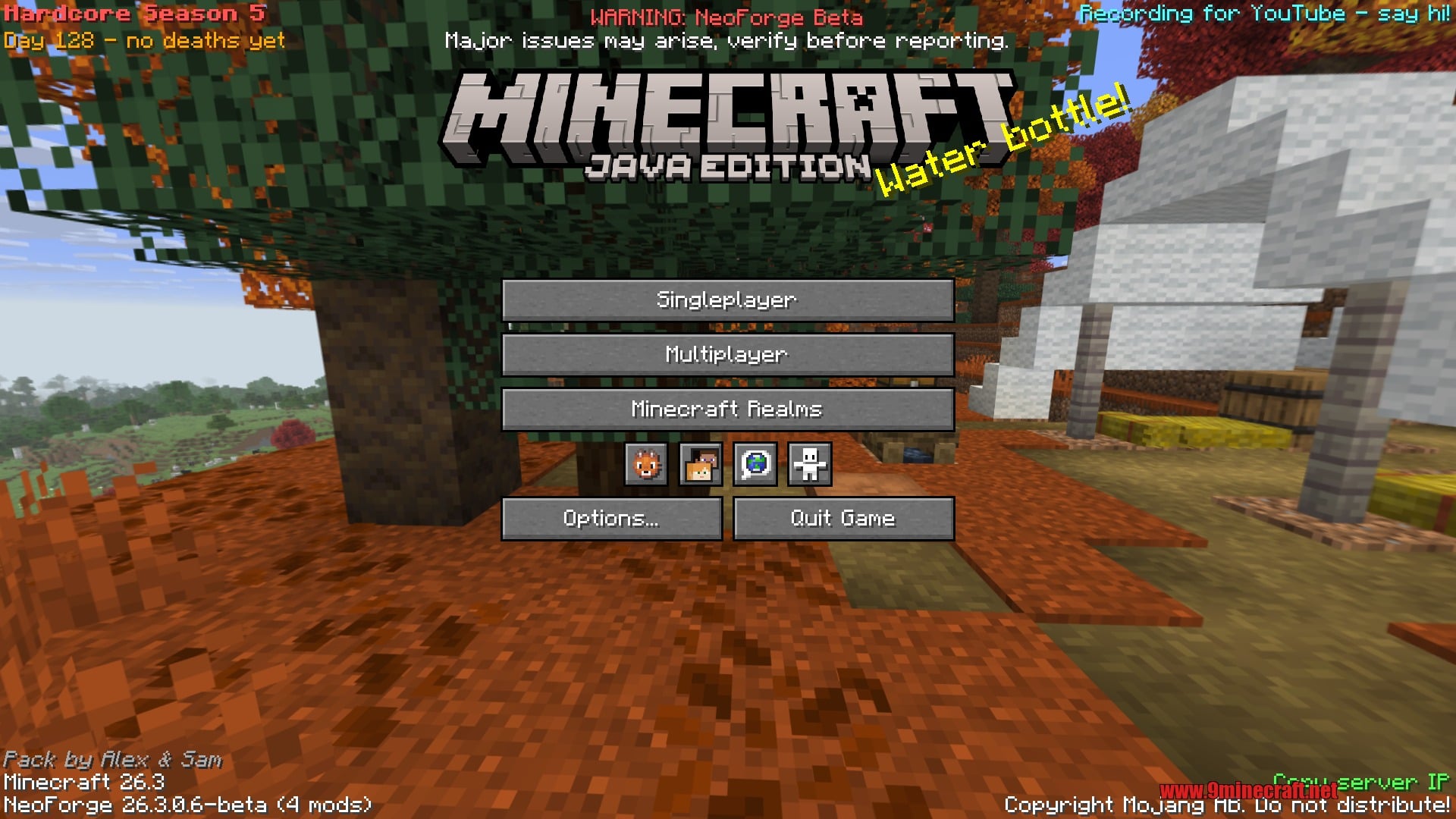
- Adds any number of text lines to the top left, top right, bottom left and bottom right corners of the title screen.
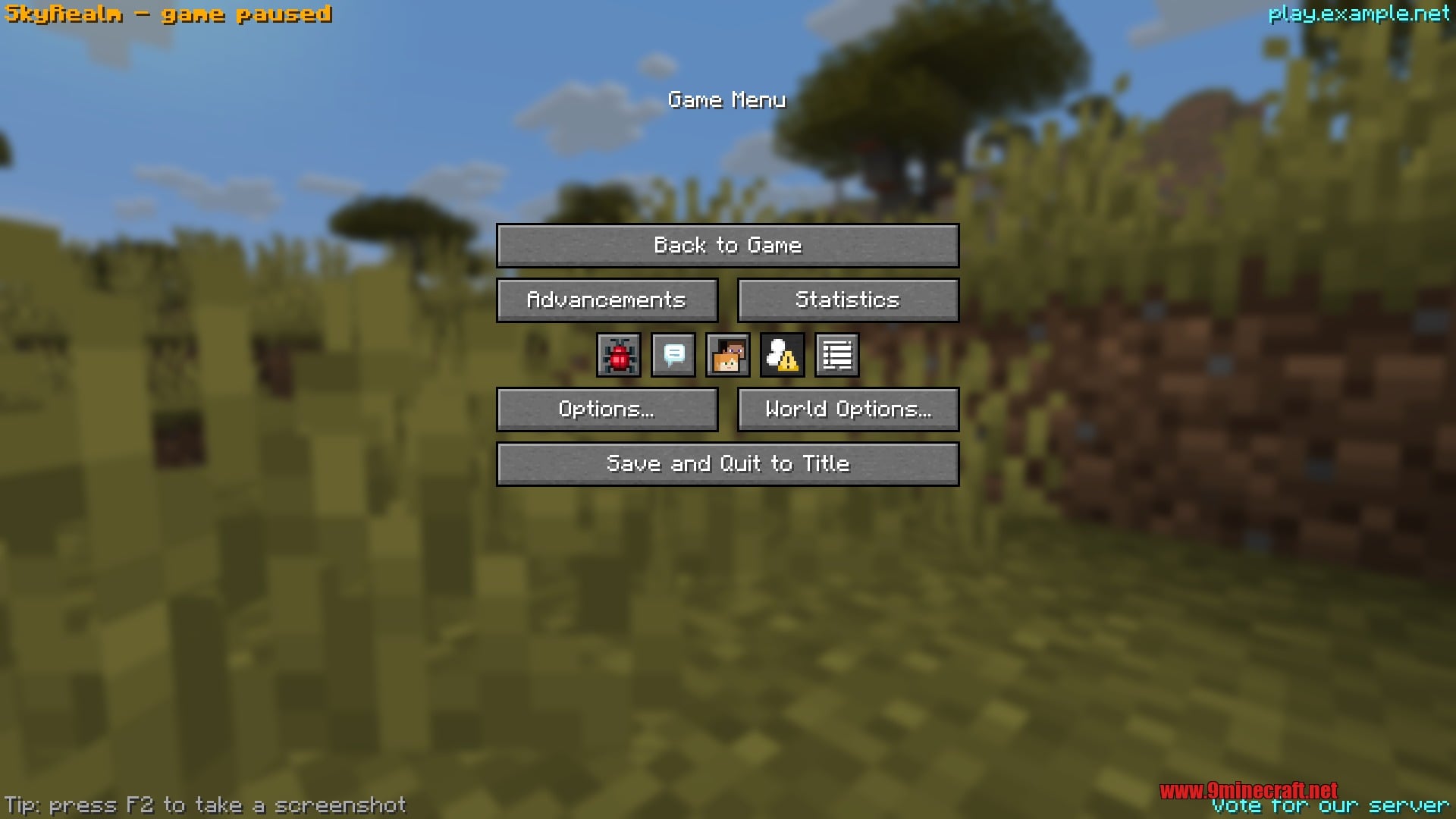
- Gives the pause menu its own separate set of four corners, so in-game messages can differ from the main menu.
- Every line is a full Minecraft text component: named or hex colors, bold, italic, underlined, strikethrough and translation keys all work.
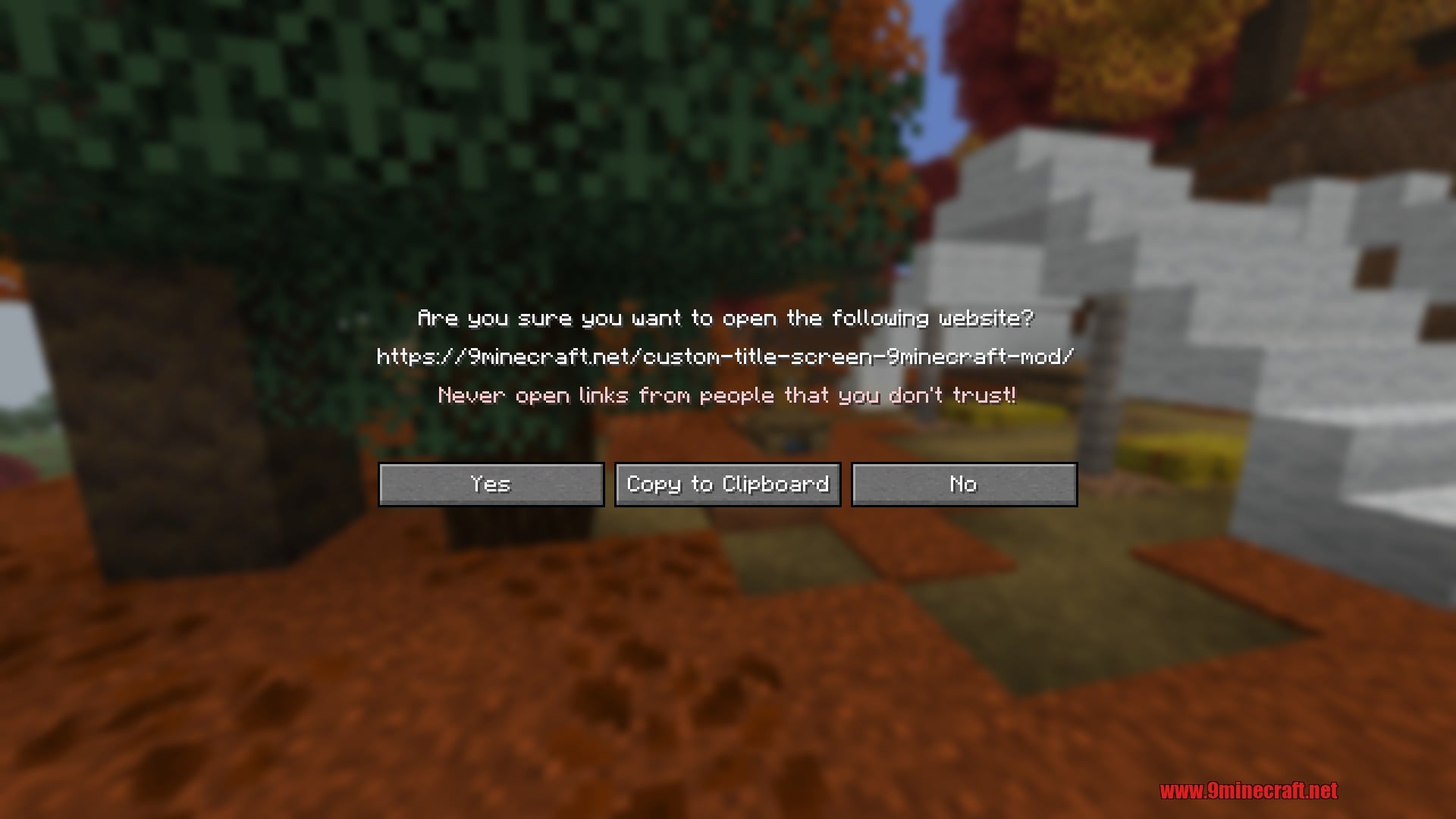
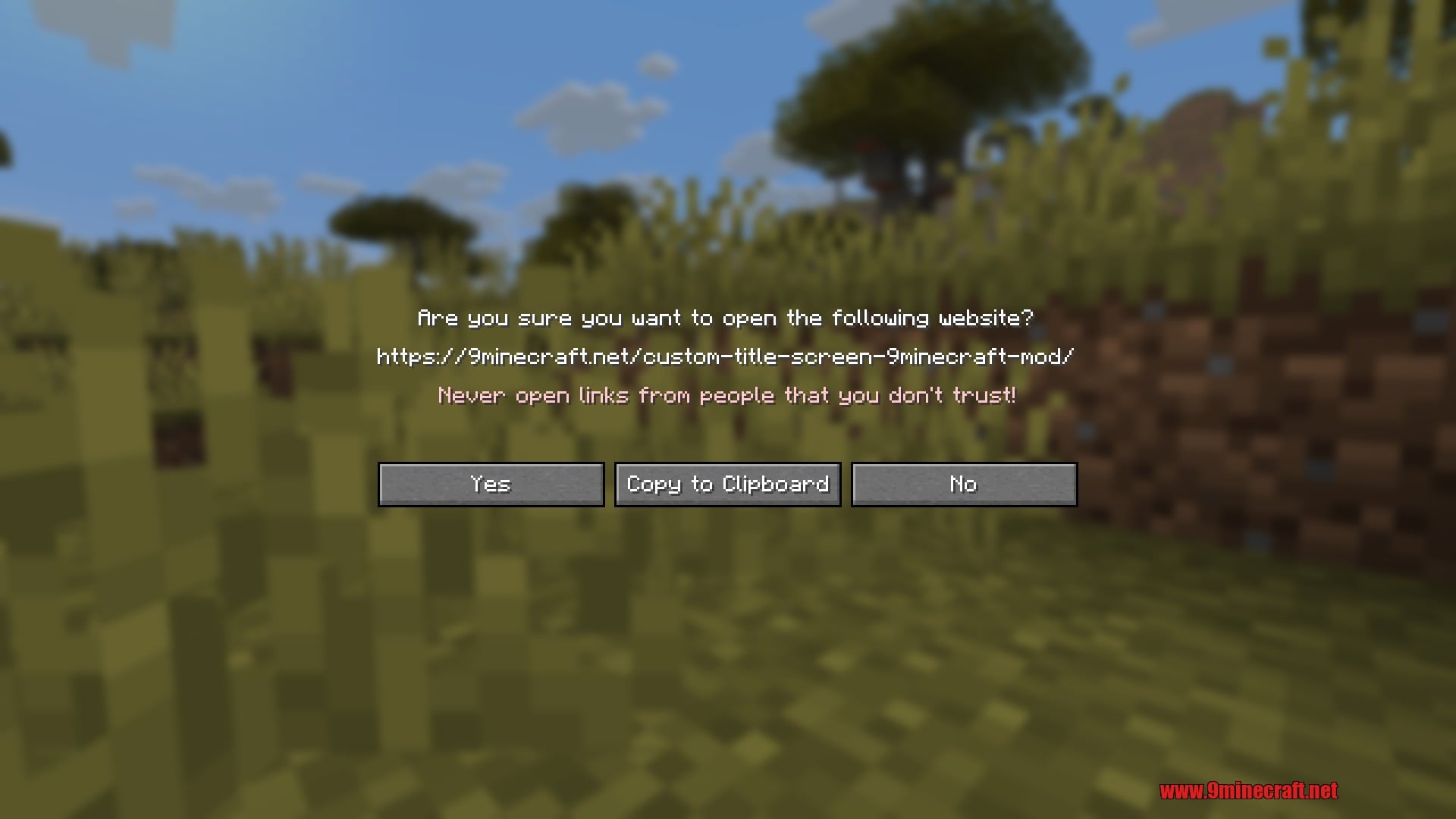
- Lines can be clickable: open a website (with the usual safety prompt) or copy a server IP to the clipboard. On the pause menu a line can also run a command.
- Clickable lines underline themselves when you hover over them, and plain lines stay silent when clicked.
- Lines stack neatly in each corner and sit clear of the version text and the copyright notice.
- Plays nicely with the in-game mods list button, which never pushes your text out of place.
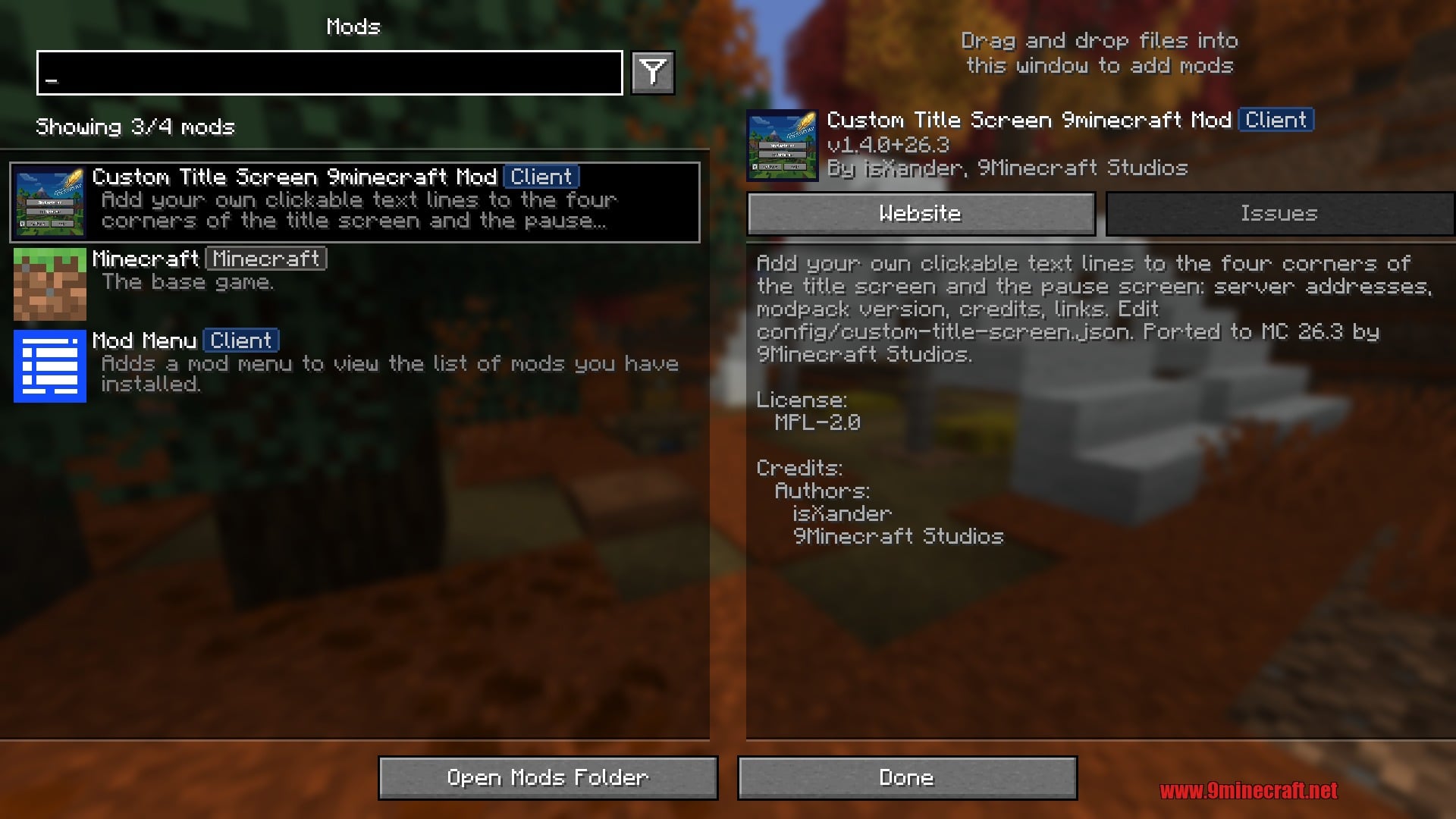
- Other mods can add their own lines through a small API, and
mod_blacklisthides lines coming from any mod you choose. - Purely client-side. Nothing to install on the server, and no extra library is needed.
Custom Title Screen 9minecraft Mod – Video Showcase
How to Use:
- Start the game once with the mod installed. It creates the file
config/custom-title-screen.json. - Open that file in any text editor.
- Add your lines to the lists under
main_menu(title screen) orpause_menu(Esc menu). - Save the file and restart the game. Your text now shows up in the corners you picked.
Configuration:
The file has two sections, main_menu and pause_menu, and each one has the same five lists:
top_left/top_right– Lines drawn from the top edge downwards.bottom_left/bottom_right– Lines drawn from the bottom edge upwards.mod_blacklist– Mod IDs whose own lines should be hidden.
Each entry is a text component. This example puts a gold title in the top left corner and a clickable link in the bottom left corner of the main menu:
{
  "main_menu": {
    "top_left": [
      { "text": "SkyRealm Modpack", "color": "gold", "bold": true },
      { "text": "v3.2 for Minecraft 26.3", "color": "gray" }
    ],
    "top_right": [],
    "bottom_left": [
      { "text": "Visit our website", "color": "yellow",
        "click_event": { "action": "open_url", "url": "https://example.net" } }
    ],
    "bottom_right": [],
    "mod_blacklist": []
  },
  "pause_menu": {
    "top_left": [],
    "top_right": [],
    "bottom_left": [],
    "bottom_right": [
      { "text": "Copy server IP", "color": "green",
        "click_event": { "action": "copy_to_clipboard", "value": "play.example.net" } }
    ],
    "mod_blacklist": []
  }
}
Hex colors such as "#FFAA00" work too. The file is read once when the game starts, so restart after every change.
Screenshots:
How to Install:
New to Minecraft? Follow our step-by-step guide to install Mods on your PC.View Guide


Custom Title Screen 9minecraft Mod Download Links
Sign in to unlock this download
Inside: 26.3
Choose one way to sign in
Free · takes a few seconds · you come straight back to this page
You May Also Like
Picked for this page
 Tree Harvester Mod (26.3, 1.20.1) – Auto-Planting Tree Chopper
 Alien Evolution Mod (1.20.1) – A Palladium-Based Ben 10 Addon Pack
 Stray Spawn Mod (26.3, 1.20.1) – Spawn Strays Naturally
 Librarian Trade Finder Mod (26.1.2, 1.20.1) – Auto Reroll Trade Librarian
 Clean Swing Through Grass Mod (26.2, 1.20.1) – Hit Through Tall Grass
 Entity View Distance Mod (26.3, 1.20.1) – Control How Far Away You Can See Entities
 Chunk Sending Mod (26.3, 1.20.1) – Stop Lag When Teleporting
 Carpet Org Addition Mod (26.3, 1.20.1) – Modular Tweaks For Minecraft
 Ice And Fire Delight Mod (1.20.1, 1.20) – Cook Your Kills for Powerful Buffs
 Accessories 9minecraft Mod (26.2) – Manage Extra Wearable Gear Slots
 Disable Fog Mod (26.3, 1.20.1) – See To The Edge Of Your World Without Blurry
 Island Menu Mod (26.2, 1.20.1) – Dynamic Main Menu
Most viewed in Mods over the last 7 days
 Ala Industrial Mod (26.3) – Run Electric Power Grids and Automated Factories
 PleasureCraft Mod (26.3, 1.21.1) – Jenny Mod Remake for Fabric
 Jennycraft Mod (26.3, 1.20.1) – Virtual Girlfriend in Minecraft
 Fapcraft Mod (26.3, 1.12.2) – Comprehensive and Detailed Content
 Jenny Mod (Fapcraft) Official Complete Guide – How to use, Tutorial
 BangCraft Mod (1.20.1) – Jenny, Ellie and Elliot
 Meteor Client Mod (26.2, 1.20.1) – Xray, HUD, Fly
 Baritone Client Mod (26.2, 1.20.1) – Autominer, Build with AI, Xray
- Baritone 9minecraft Client Mod (26.3, 26.1.2) – Mine and Build Bases Hands-Free
 CatLean Client Mod (26.2, 1.21.11) – ThunderHack Recode Alternatives
 OptiFine HD (26.3, 1.20.1) – Run Faster, FPS Boost, Shaders Support
 Mielon’s the Sift Mod (26.3, 1.20.1) – Awaken Ancient City Portals to New Worlds
More from Mods
 Macaw’s Holidays Mod (26.3, 1.20.1) – Halloween, Christmas, and Easter Decoration
 Coconut Palm Mod (1.20.1) – Turn Sunny Coastlines Into Tropical Island Paradises
 Aquarius Libs Mod (26.3, 1.20.1) – Dependency Library For Aquarius Mods
 Simple Voice Chat Mod (26.3, 1.20.1) – Hear Players Around You
 Armor Stands Mod (26.3, 1.20.1) – Customizing Armor Stands Made Easy
 PlayerAbilityLib Mod (26.3, 1.20.1) – Fixing Ability Incompatibilities
 Better Ping Display Remake Mod (26.3) – See Real Connection Latency
 IMBlocker Mod (26.3, 1.20.1) – Auto-Switch Input Method
 Smart Brain Lib Mod (26.3, 1.20.1) – Mobs That Think and React
 Block Explosion Damage Mod (26.3, 1.21.1) – Protect Bases From Instant Blast
 Mythic Upgrades Mod (26.3, 1.20.1) – Upgrade Options for Netherite Tools
 Advanced UI 9minecraft Mod (26.3) – Smooth Fonts, Rounded Tooltips and Menu Blur

This post has no comments yet. Be the first — your comment will appear here.