


Simple Voice Chat Plugin (26.2, 1.20.1) – Hear Players Around You


Simple Voice Chat Plugin adds a proximity voice chat to your Minecraft server. This allows you to talk with other players who are near you in the game. You can choose to speak by either pushing a button (push-to-talk) or having the microphone activate automatically when you talk. To open the main settings menu, just press the V key.
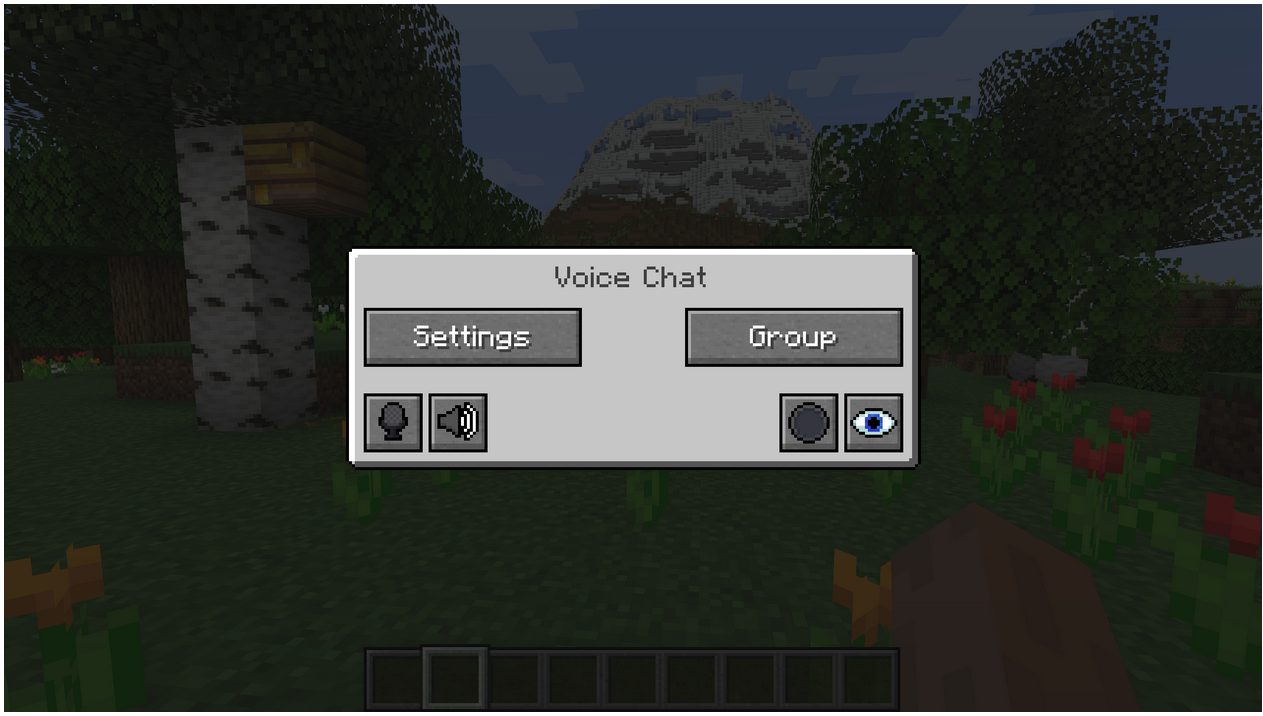
The GUI
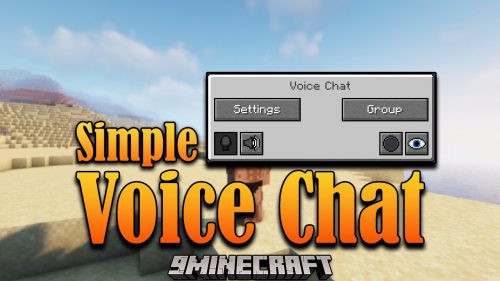
You can open the voice chat GUI by pressing the V key. This allows you to open the settings, group chats, mute yourself, disable the voice chat, start/stop a recording and hide all icons.
Group Chats
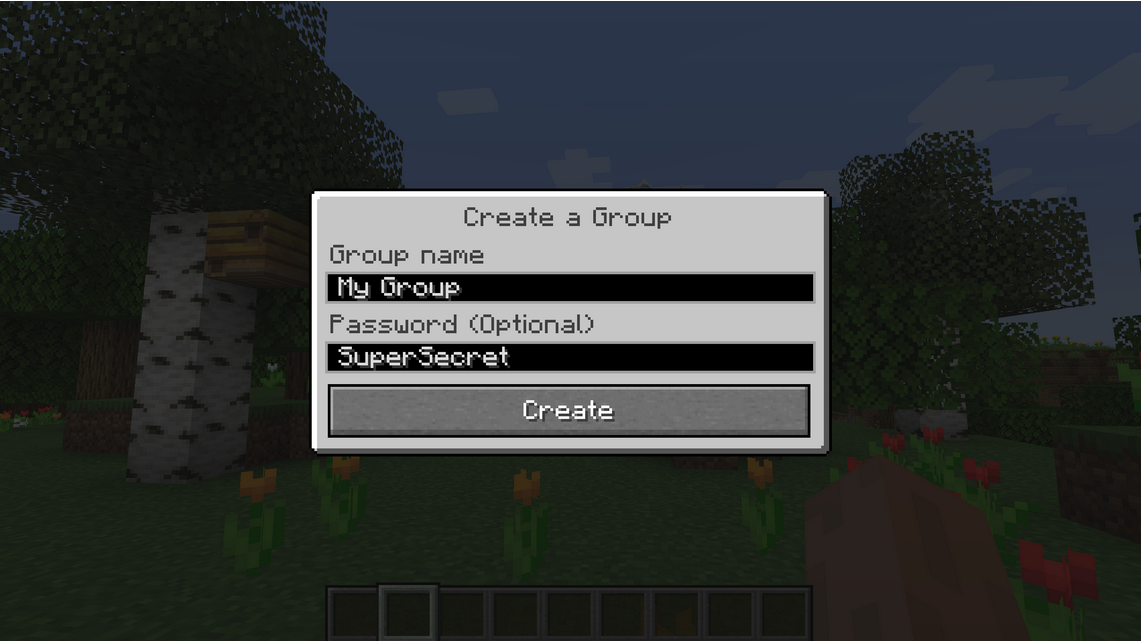
Group chats allow you to talk to players that are not in your vicinity. To open the group chat interface, either press the group button in the voice chat GUI or just press the G key.
To create a new group, just type a name in the text field and press the button next to it.
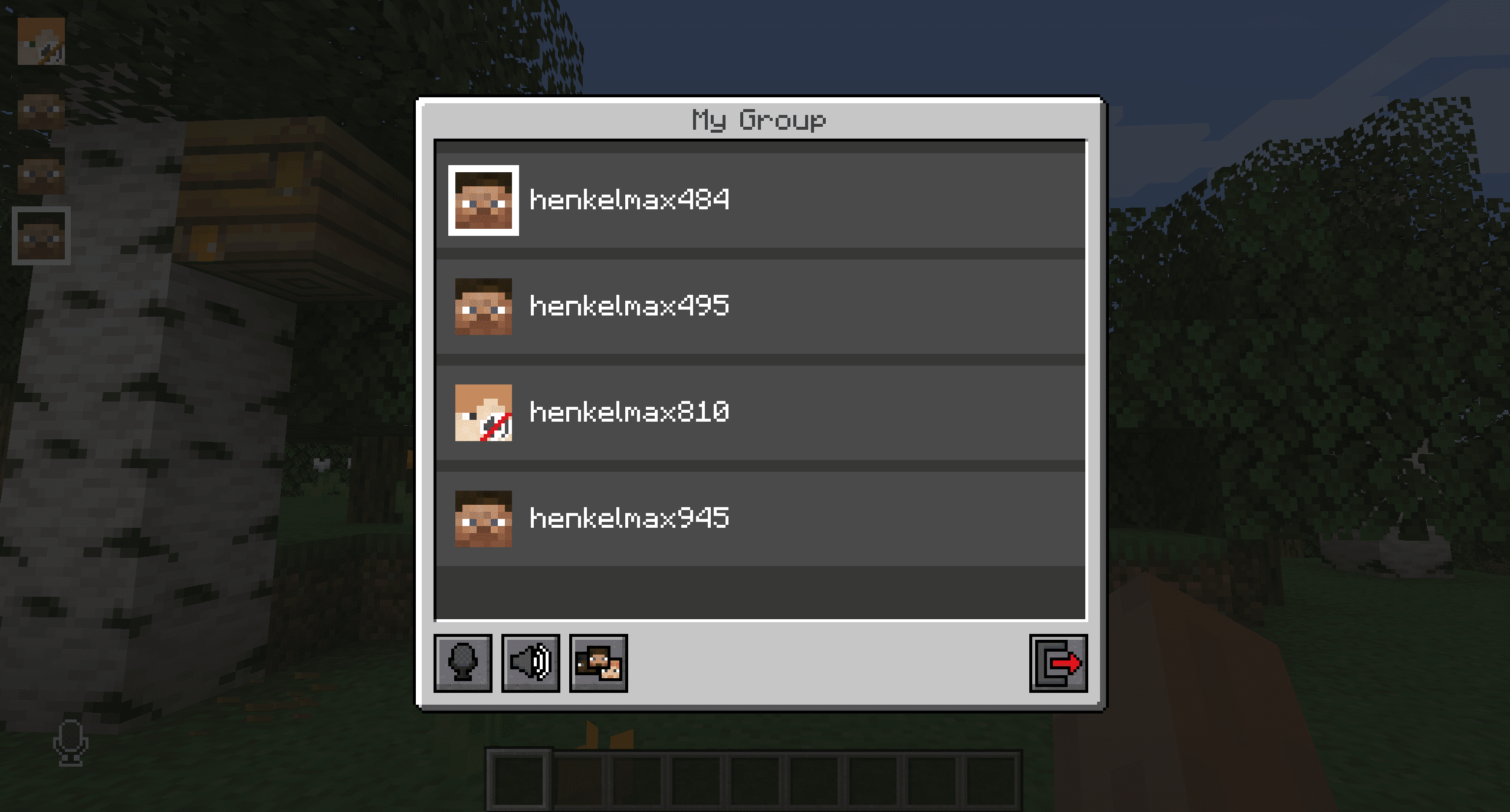
Creating or joining a group will bring you into the group chat interface. You will also see the heads of the group members in the top left corner of your screen. Talking players will be outlined. You can disable these icons by pressing the third button from the left.
Players that are not in a group will see a group icon next to your head, indicating that they can’t talk to you.
You can invite players to your group chat by entering the command /voicechat invite <playername>.
Key Bindings
| Name | Default Key | Description |
|---|---|---|
| Voice Chat GUI | V |
Opens the voice chat GUI. |
| Voice Chat Settings | Not bound by default | Opens the voice chat settings. |
| Group Chats | G |
Opens the group chat GUI. |
| Push To Talk | CAPS LOCK |
The push to talk key (Only when using activation type PTT). |
| Mute Microphone | M |
The mute button (Only when using voice activation type Voice). |
| Disable Voice Chat | N |
This button disables the voice chat. Other people can’t hear you and you can’t hear them. |
| Hide Voice Chat Icons | H |
This button hides all icons related to the voice chat. |
| Toggle Recording | Not bound by default | Toggles voice chat audio recording. |
| Whisper | Not bound by default | Hold down to whisper. |
Features:
- Talk to players who are close to you with proximity chat.
- Create private, password-protected group chats to talk with friends from anywhere.
- Choose between push-to-talk and automatic voice activation.
- Adjust the voice chat distance to control how far your voice travels.
- Whisper to speak quietly to players who are right next to you.
- Change the volume for each player individually.
- Features 3D audio, which makes voices sound like they are coming from the player’s location.
- Includes a microphone test to check your audio settings.
- Record your voice chats with separate audio tracks for each person.
- Works across many server types, including Fabric, Forge, Spigot, and Paper.
How to Use:
- Press the V key to open the main voice chat menu. From here, you can access settings, groups, and mute your microphone.
- To talk with friends who aren’t nearby, you can create a group chat. Open the group menu, enter a name for your group, and create it. You can also add a password to make it private.
- Once in a group, you will see the heads of other members on your screen. Players who are talking will have an outline around their icon.
- If you are in a group, other players will see a group icon next to your name, showing that you are in a private conversation.
Configuration:
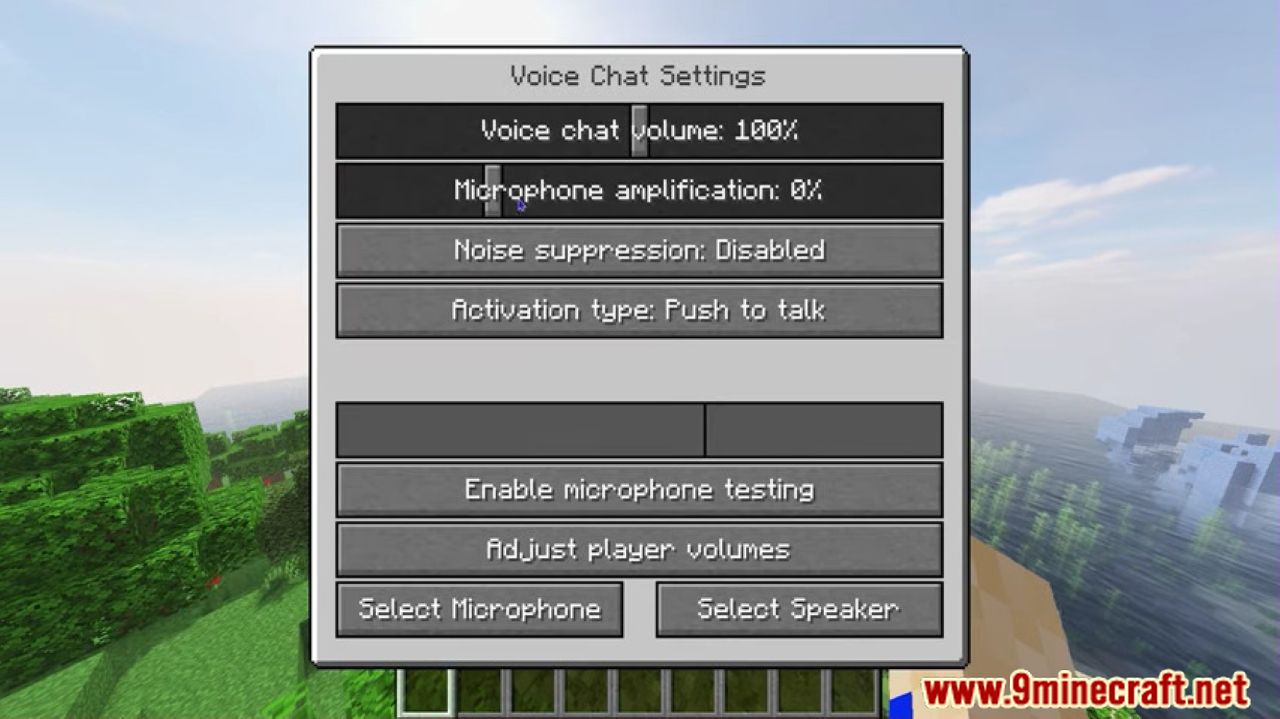
You can change the settings for the voice chat by pressing the V key and clicking the settings button. In this menu, you can adjust the overall volume, amplify your microphone, and select your audio devices. There is also a button to test your microphone and see how you sound.
To invite someone to your private group chat, use the following command:
/voicechat invite <playername>
Screenshots:
How to Install:
New to Minecraft? Follow our step-by-step guide to install Plugins on your PC.View Guide
Requirements:

Simple Voice Chat Plugin Download Links
For Minecraft
26.2,
1.21.11,
1.21.5
All Versions Covered
26.2
1.21.11
1.21.5
1.21.4
1.20.6
1.20.5
1.20.4
1.20.3
1.20.2
1.20.1
1.20
1.19.4
1.19.3
1.19.2
1.19.1
1.19
1.18.2
1.18.1
1.18
1.17.1
1.17
1.16.5
1.16.4
1.16.3
1.16.2
1.16.1
1.16
1.12.2
1.12.1
1.12
1.8.8
For Minecraft
26.1.2,
26.1.1,
26.1
All Versions Covered
26.1.2
26.1.1
26.1
1.21.11
1.21.10
1.21.9
1.21.8
1.21.7
1.21.6
1.21.5
1.21.4
1.21.3
1.21.2
1.21.1
1.21
1.20.6
1.20.5
1.20.4
1.20.3
1.20.2
1.20.1
1.20
1.19.4
1.19.3
1.19.2
1.19.1
1.19
1.18.2
1.18.1
1.18
1.17.1
1.17
1.16.5
1.16
1.12.2
1.12.1
1.12
1.8.8
For Minecraft
1.21.11,
1.21.5,
1.21.4
All Versions Covered
1.21.11
1.21.5
1.21.4
1.20.6
1.20.5
1.20.4
1.20.3
1.20.2
1.20.1
1.20
1.19.4
1.19.3
1.19.2
1.19.1
1.19
1.18.2
1.18.1
1.18
1.17.1
1.17
1.16.5
1.16
1.12.2
1.12.1
1.12
1.8.8
For Minecraft 1.21.10, 1.21.9, 1.7.10
For Minecraft 1.19.3
For Minecraft 1.19.2
For Minecraft 1.19.1
For Minecraft 1.18
For Minecraft 1.17
For Minecraft 1.16
For Minecraft 1.7.10 –> 1.21.11
For Minecraft 1.7.10 –> 1.21.8
For Minecraft 1.7.10 –> 1.21.5
For Minecraft 1.7.10 –> 1.21.4
For Minecraft 1.7.10 –> 1.21.3
For Minecraft 1.7.10 –> 1.21.1
For Minecraft 1.7.10 –> 1.20.4

1 Comment
 What do you think?
Your opinion means a lot - we'd love to hear from you.
What do you think?
Your opinion means a lot - we'd love to hear from you.
You May Also Like









donne moi voice chat s’il vous plaît s’il vous plaît neuf Minecraft