
Discord & Chat Images Mod (1.20.1) – Share Screenshots and GIFs Live in Server Chat
 0
 0

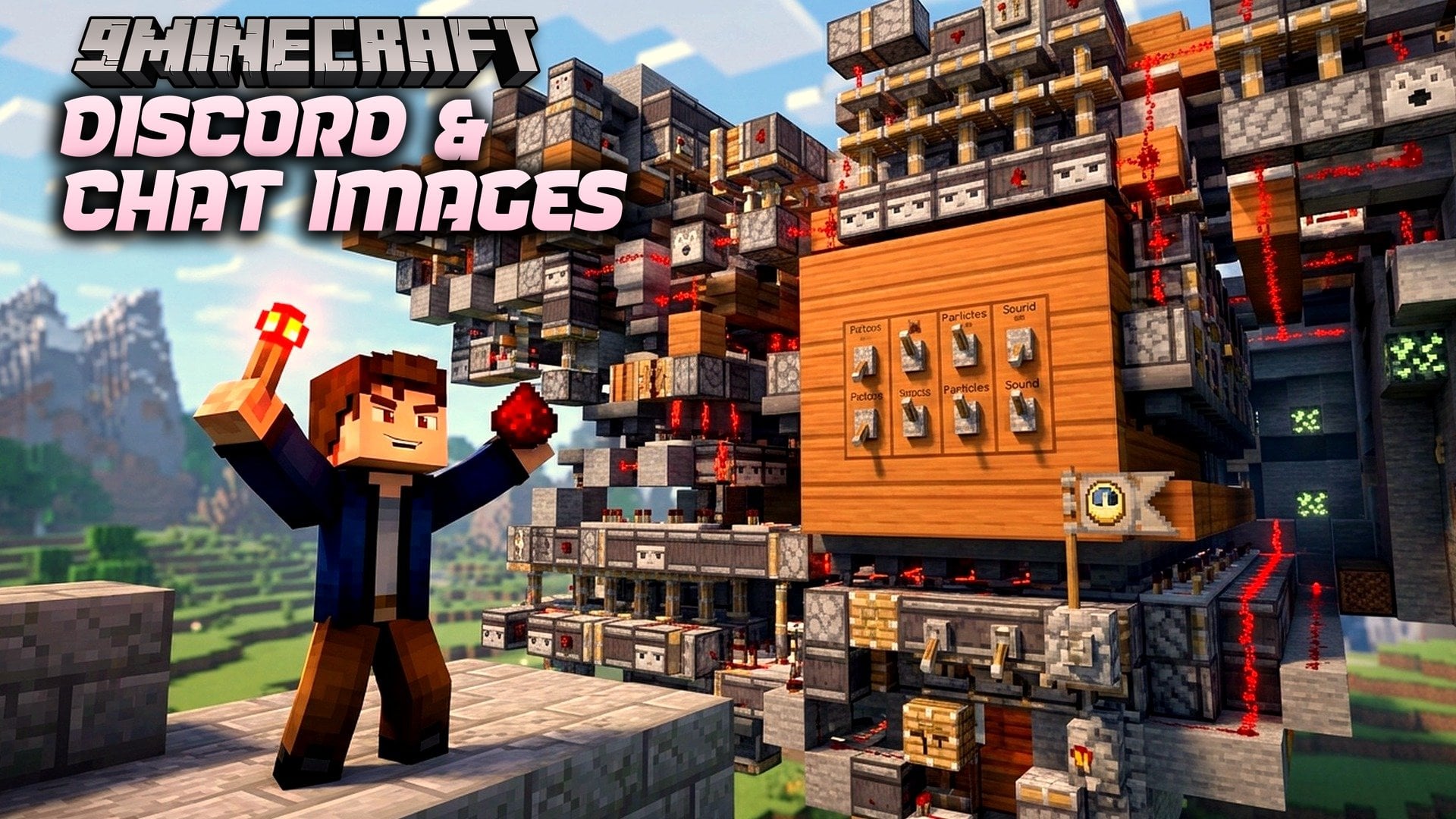
Discord & Chat Images Mod connects your Minecraft in-game chat directly to one or more Discord servers. It keeps server owners and players in sync by sharing messages, advancements, and death alerts between the game and your Discord channels. You can also view images, GIFs, and stickers right inside the game chat. It works on the server side for basic text syncing, while adding it to the client unlocks visual media and extra chat tools.
Features:
- Two-Way Chat Sync: Links Minecraft chat with one or more Discord servers using a bot.
- In-Game Media Display: Installing the mod on your client lets you see images, GIFs, and Discord stickers directly inside the game chat.
- Emoji Picker and Mentions: Client players can tag Discord users with @ mentions, use a chat button to open an emoji menu, or type a colon (:) to bring up custom server and Unicode emojis.
- Quick Screenshot Sharing: Adds a button on the client side to share your in-game screenshots straight to chat.
- Server-Only Mode: Runs on just the server to handle basic messaging, markdown text formatting, custom chat styles, and multi-server links.
- Changes how player messages look on Discord by turning on webhook mode.
- Displays player advancements with their matching icons and descriptions, plus translated death messages.
- Updates the bot status to show if the server is online and keeps a pinned status message in your channel.
- Includes a local server that shuts down by itself when the host leaves the game.
Configuration:
discord_chat_mod-common.toml: Generates on the first server run so you can set up your bot parameters.Privileged Gateway Intents: Must be turned on in your Discord bot settings for the connection to work.Bot Permissions: The Discord bot needs View Channels, Send Messages, Embed Links, Attach Files, Pin Messages, Read Message History, and Manage Webhooks enabled.
How to Use:
- Open the in-game chat box while playing on a linked server.
- Type : in the chat bar to search through Unicode and custom Discord emojis, or click the emoji button in the chat input to pick one.
- Type @ followed by a username to mention someone on Discord from inside Minecraft.
- Click the screenshot share button to send your captures directly into the chat.
How to Install:
New to Minecraft? Follow our step-by-step guide to install Mods on your PC.View Guide
Requirements:
Discord & Chat Images Mod Download Links
For Minecraft 1.20.1
Click to rate this post!
[Total: 0 Average: 0]
You May Also Like
Picked for this page
 Compressium Mod (26.2, 1.20.1) – Adds Compressed Blocks Since 2019
 Particular Mod (26.3, 1.20.1) – Bring Nature to Life
 Variant Crafting Tables Mod (26.3, 1.20.1) – Match Workbenches
 Villager Pickup Mod (26.3, 1.20.1) – Move Villagers Anywhere Without Losing
 Squaremap Mod (26.3, 1.20.1) – Live Browser Map for Servers
 Productive Bees Mod (26.1.2, 1.20.1) – Build a Bee-Powered Farm
 FSit Mod (26.3, 1.20.1) – Turn Blocks Into Usable Seats
 Oth3r’s DirectionHUD Mod (26.3, 1.20.1) – Track Friends and Mark Locations
 PictureSign Mod (1.21.11, 1.20.1) – Play Videos and GIFs on Wooden Signs
 NaNny Mod (26.1.2, 1.20.1) – Stop World Corruption From Broken Mob Stats
 Hide Experimental Warning Mod (26.3, 1.20.1) – Skip Popups and Load Worlds
 PolyTime Mod (26.3, 1.21.1) – Control Client Sky Time
Most viewed in Mods over the last 7 days
 Ala Industrial Mod (26.3) – Run Electric Power Grids and Automated Factories
 PleasureCraft Mod (26.3, 1.21.1) – Jenny Mod Remake for Fabric
 Jennycraft Mod (26.3, 1.20.1) – Virtual Girlfriend in Minecraft
 Fapcraft Mod (26.3, 1.12.2) – Comprehensive and Detailed Content
 Jenny Mod (Fapcraft) Official Complete Guide – How to use, Tutorial
 Meteor Client Mod (26.3, 1.20.1) – Xray, HUD, Fly
 BangCraft Mod (1.20.1) – Jenny, Ellie and Elliot
 OptiFine HD (26.3, 1.20.1) – Run Faster, FPS Boost, Shaders Support
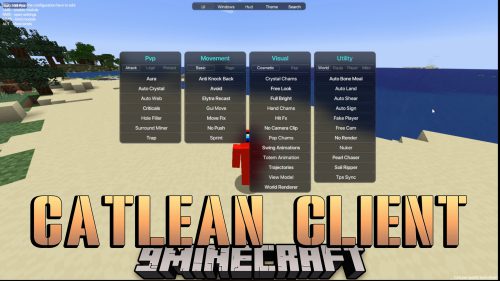 CatLean Client Mod (26.2, 1.21.11) – ThunderHack Recode Alternatives
 Fabric Loader (26.3, 1.20.1) – Fabric Installer for All Minecraft Versions
 SeedCrackerX Mod (26.3, 1.20.1) – Find Any World Seed
 SchnurriTV Mod (1.12.2) – Characters and Features
More from Mods
 Sable Optimized Entities Mod (1.21.1) – Fix Server Lag Spikes From Heavy Mob
 Entity Health Display Mod (1.21.11, 1.21.1) – Show Custom Mob Health Bars
 The Titan Mod (1.7.10) – Battle Giant Roaming Bosses with Custom Weapons
 ModularUI UF Mod (1.12.2) – Build Clean In-Game Menus with Controller Input
 Data Criteria Mod (1.20.1) – Build Custom Advancement Triggers with Simple JSON
 Better Timer by EinFabo Mod (26.3) – Track Speedruns and Survival Playtime
 Polymer Font Utils Mod (1.21.4) – Generate Custom Fonts and Icons
 Lifesteal Market Mod (26.3, 1.21.11) – Track Auction Prices and Net Worth Live
 Tinkers’ Quenching Mod (1.20.1) – Heat and Quench Your Tools for Permanent Stat
 Amethyst Tools and More Mod (26.3, 26.1.2) – Mine Obsidian Fast
 Skip Empty Slot Mod (26.3, 1.21.1) – Scroll Right Past Blank Hotbar Spaces
 Meme Foods Mod (26.3, 1.21.1) – Craft Viral Internet Snacks with Chaotic Potion

This post has no comments yet. Be the first — your comment will appear here.