http://www.img.9minecraft.net/Mods/ComputerCraft-Mod.jpg

http://www.img.9minecraft.net/Mod1/ComputerCraft-1.png

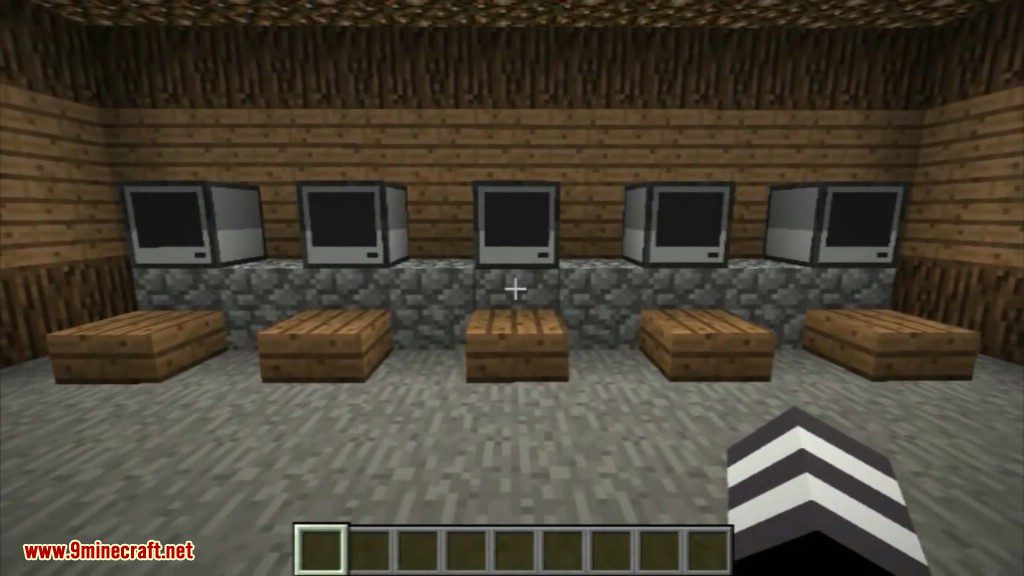
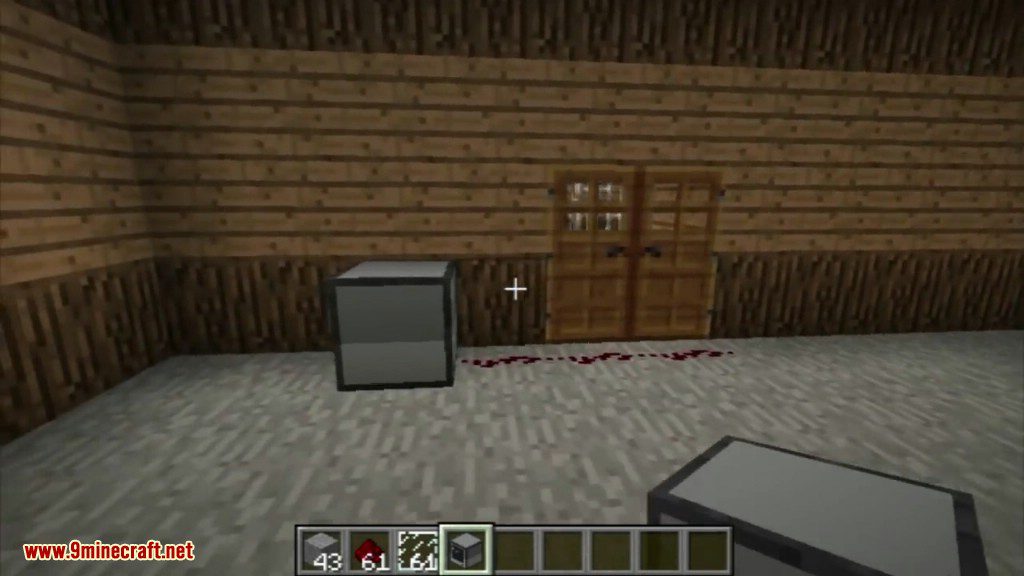
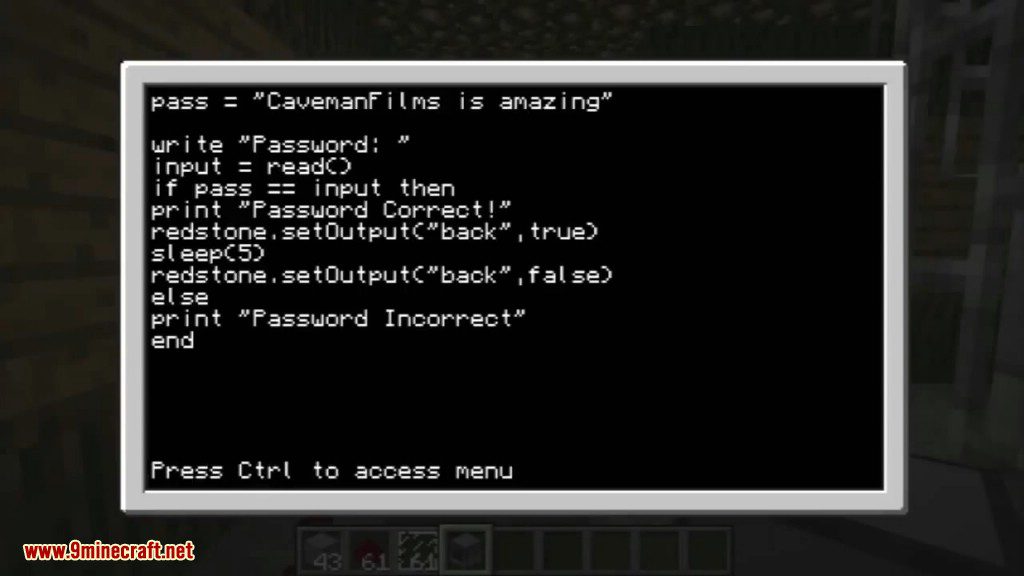
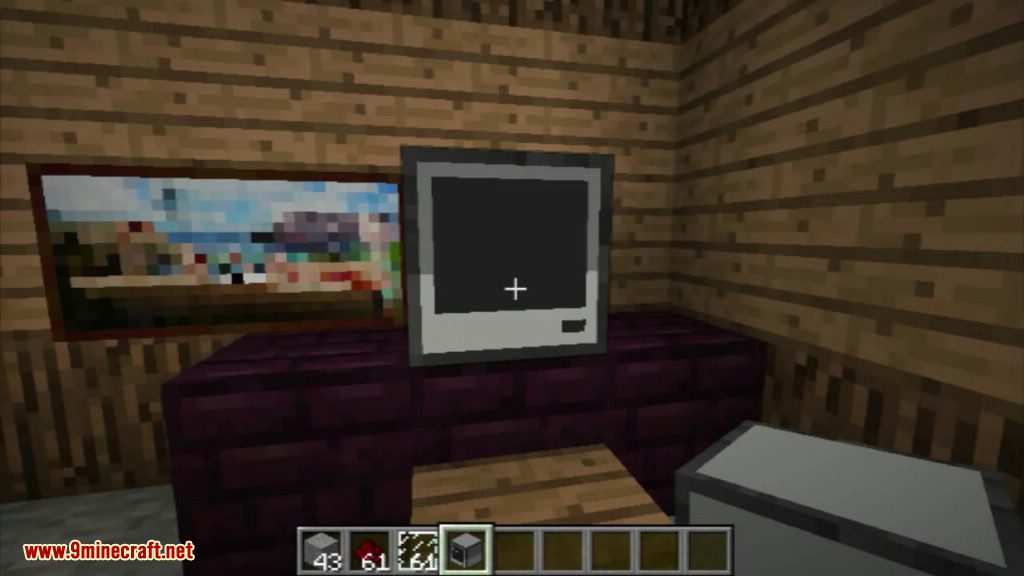
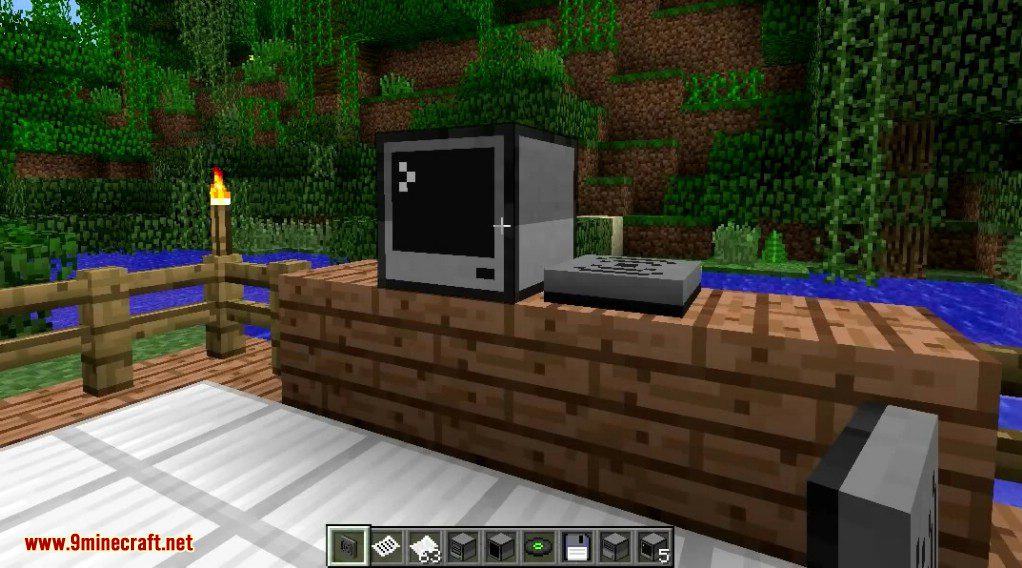
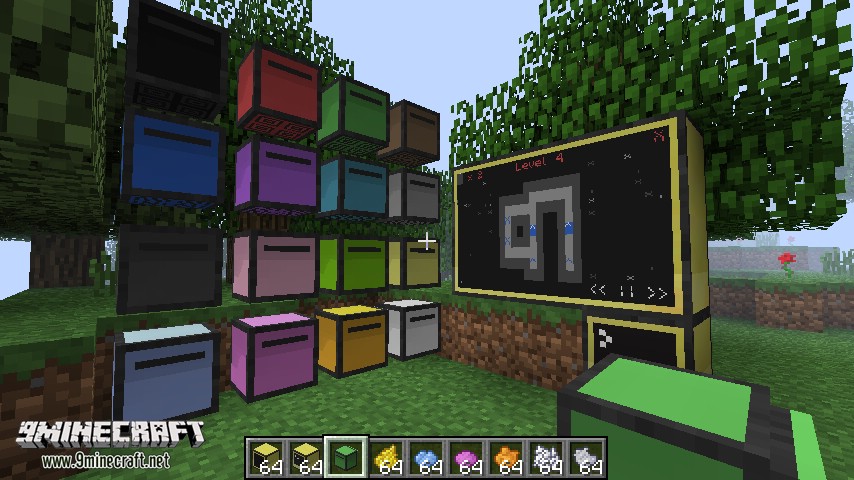
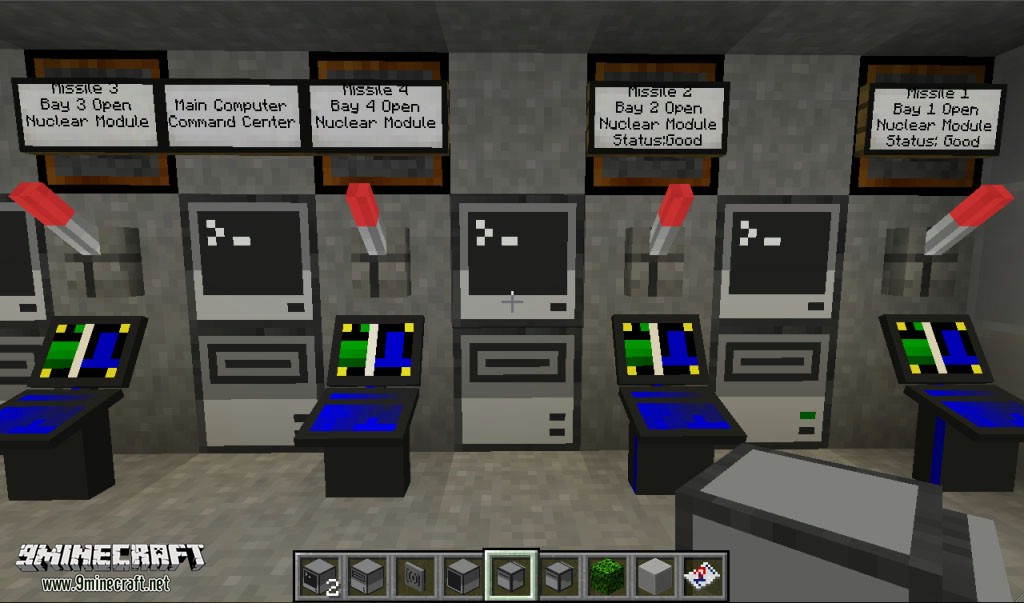
ComputerCraft is a Minecraft mod (with full multiplayer support) that adds in-game Computers. Each Computer has an operating system, a filesystem, a suite of builtin programs (including a text editor, a realtime Lua interpreter, and two games), and can be programmed to do anything you want with the easy-to-use Lua programming language. Computers can interact with redstone wiring and bundled cables from the RedPower2 mod, meaning they can be used to fully automate and control your worlds. With peripheral devices, the capabilities of computers can be expanded further, with Disk Drives adding the ability to transfer files between computers and play music, Wireless Modems adding Wireless Networking between machines, Monitors adding external large external displays and Printers adding printing capabilities.

Important: ComputerCraft now uses Forge config files, instead of the old ModLoader ones. If you edited mod_ComputerCraft.cfg or mod_CCTurtle.cfg in a previous version to change Block or Item IDs, you need to change them correspondingly in the new ComputerCraft.cfg and CCTurtle.cfg before loading your old worlds, or you will lose your ComputerCraft items.

Recipes:

First, build a Computer (or its Advanced counterpart):

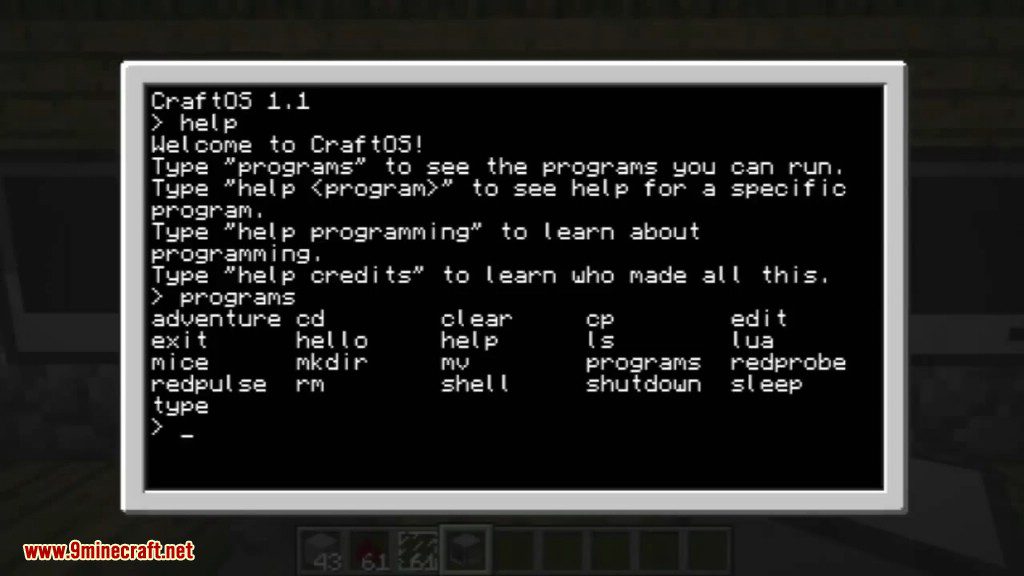
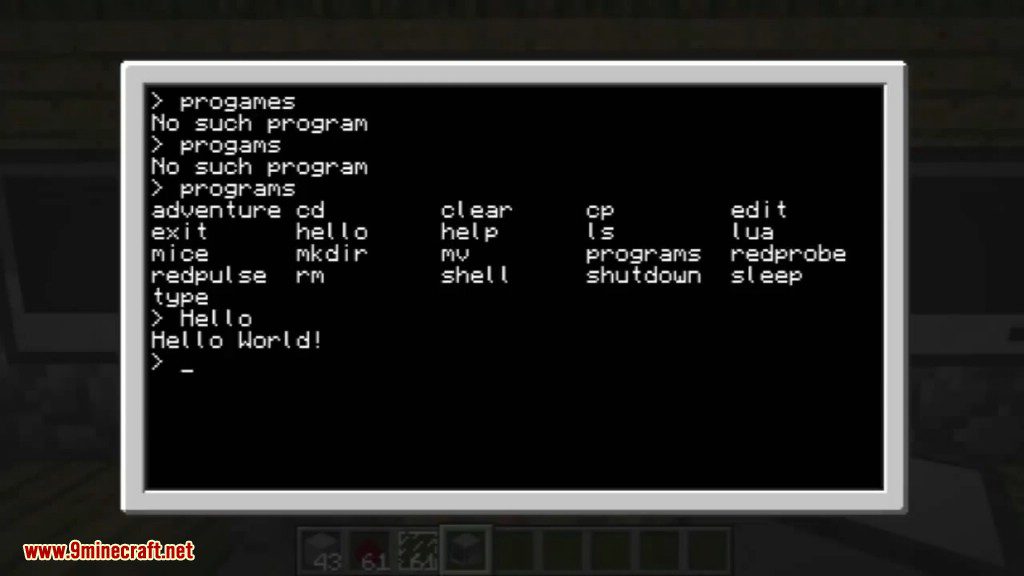
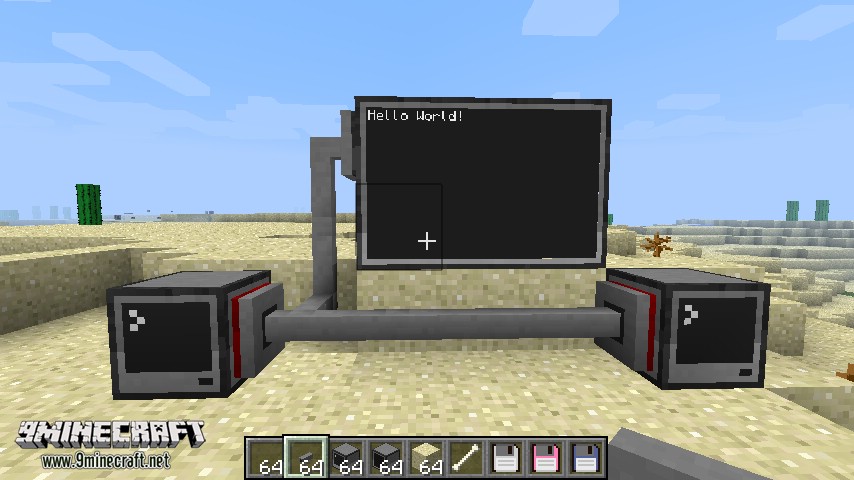
Then right click on its screen to interact. You’re now in the command prompt. Type “help” for an introduction, then type “programs” to see the list of programs you can run. Try running some of them. Type “help” followed by the name of a program to find out what it does. Don’t miss “worm” and “adventure”! When you’re ready to start creating your own programs, type “help programming” for advice on learning the Lua programming language, then use “edit” to create programs or “lua” to just start entering code. All the programs and APIs on the system have their own help pages.

Want more? Build a Disk Drive and Floppy Disks like so:

Place the disk drive next to the computer, put a disk into the drive, and access your computer again. Type “list”, and you’ll see that each Floppy Disk has it’s own folder. Now you can use the “copy” or “move” commands to move your programs onto disks, and carry the disks around to transfer files between machines! For some light entertainment, try putting a record into a disk drive and running the “dj” application.

Computer Disk Drives too static for you? Maybe you’re ready to craft some Turtles:


Access your Turtle like a computer, and you’ll see the similarities. Turtles run programs just like Computers, but have access to new programs and a new API to make them move around and interact with the world. Add some coal to the turtle and fuel up your turtle with “refuel”, then try experimenting with the “go”, “excavate” or “craft” programs. To write your own turtle programs, use “lua” or “edit” just as with the computer, and call functions from the “turtle” API. There’s a lot these little guys can do!

For truly advanced worlds, try building Wireless Modems and Wireless Turtles:

Attach your modem to your computer (sneak-click to place it on the side), or craft it together with a Turtle, and you now have devices that can use the “rednet” API to wirelessly send each other messages. This is one of the more advanced areas of the Mod, and requires programming, but anybody who’s used the internet knows the potential of wireless communication.

New in ComputerCraft 1.31 is the Monitor peripheral, build it like so:

Build lots of monitor blocks, and place them together, and you will see they expand to one contiguous display. If your computer is touching the display, it can be programmed to draw text to this screen, which will be visible to anyone who walks past. Try the monitor out by running the “monitor” program, like “monitor left hello”. Try to find the secret program added in 1.31 designed especially for monitors!

New in ComputerCraft 1.42 is the Printer:

Place a printer down next to your computer, supply it with paper and ink, or dye of any colour, and print messages for your friends! Either interact with the printer yourself using lua, or print documents using the “edit” program! Try feeding a printed page back into the input and changing the ink to print in different colours!

Installation:

  • Install the Minecraft Forge
  • Download ComputerCraft from one of the links above, and place it in the “mods” folder in your minecraft directory.
  • You’re done! You should now be able to run the game, and start crafting and placing computers.
  • (Optional) If you wish to view, edit or add to the programs that come installed with ComputerCraft, create a new folder called “ComputerCraft” in your mods directory, extract ComputerCraft.zip there, and delete the zip.

Changelogs:

v1.52

http://www.img.9minecraft.net/download.png

For 1.5.1

http://www.dl3.9minecraft.net/index.php?act=dl&id=1364292063

http://www.dl4.9minecraft.net/index.php?act=dl&id=1364291826

http://www.dl2.9minecraft.net/index.php?act=dl&id=1364316705

For 1.5

http://www.dl4.9minecraft.net/index.php?act=dl&id=1363304138

http://www.dl3.9minecraft.net/index.php?act=dl&id=1363304146

http://www.dl2.9minecraft.net/index.php?act=dl&id=1363329038

For 1.4.6/1.4.7

http://www.dl2.9minecraft.net/index.php?act=dl&id=1357243261

http://www.dl3.9minecraft.net/index.php?act=dl&id=1357243506

For 1.4.5

http://www.dl2.9minecraft.net/index.php?act=dl&id=1353444267

http://www.dl.9minecraft.net/index.php?act=dl&id=1353444370

Credits: dan200

Do you like this post? Add to Favorites