
Figura Mod (1.21.4, 1.20.1) – Wear Custom Player Models
 19,859
 0


Figura Mod lets you customize your Minecraft player model with custom 3D avatars. It works with Blockbench so you can build custom shapes, play animations, add glowing textures, and write optional Lua scripts. You can pick saved looks in a wardrobe menu, trigger moves with an action wheel, and place custom plushie player heads in your world. A built-in permission system keeps gameplay fair by letting you control or reveal tiny and invisible avatars from other players. This mod runs on the client side, so other players see your custom avatar without needing any server mods. To upload or download avatars safely, you need an official Mojang account on an online-mode server.

Figura Mod – Video Showcase
Features:
- Custom Blockbench Avatars: Lets you build custom 3D player models, meshes, and animations in Blockbench and bring them straight into Minecraft.
- Client-Side Visibility: Shows your custom avatar to other players with no mods required on the server.
- Optional Lua Scripting API: Lets you write Lua scripts to hide default player parts, play Blockbench animations, and create custom avatar behavior.
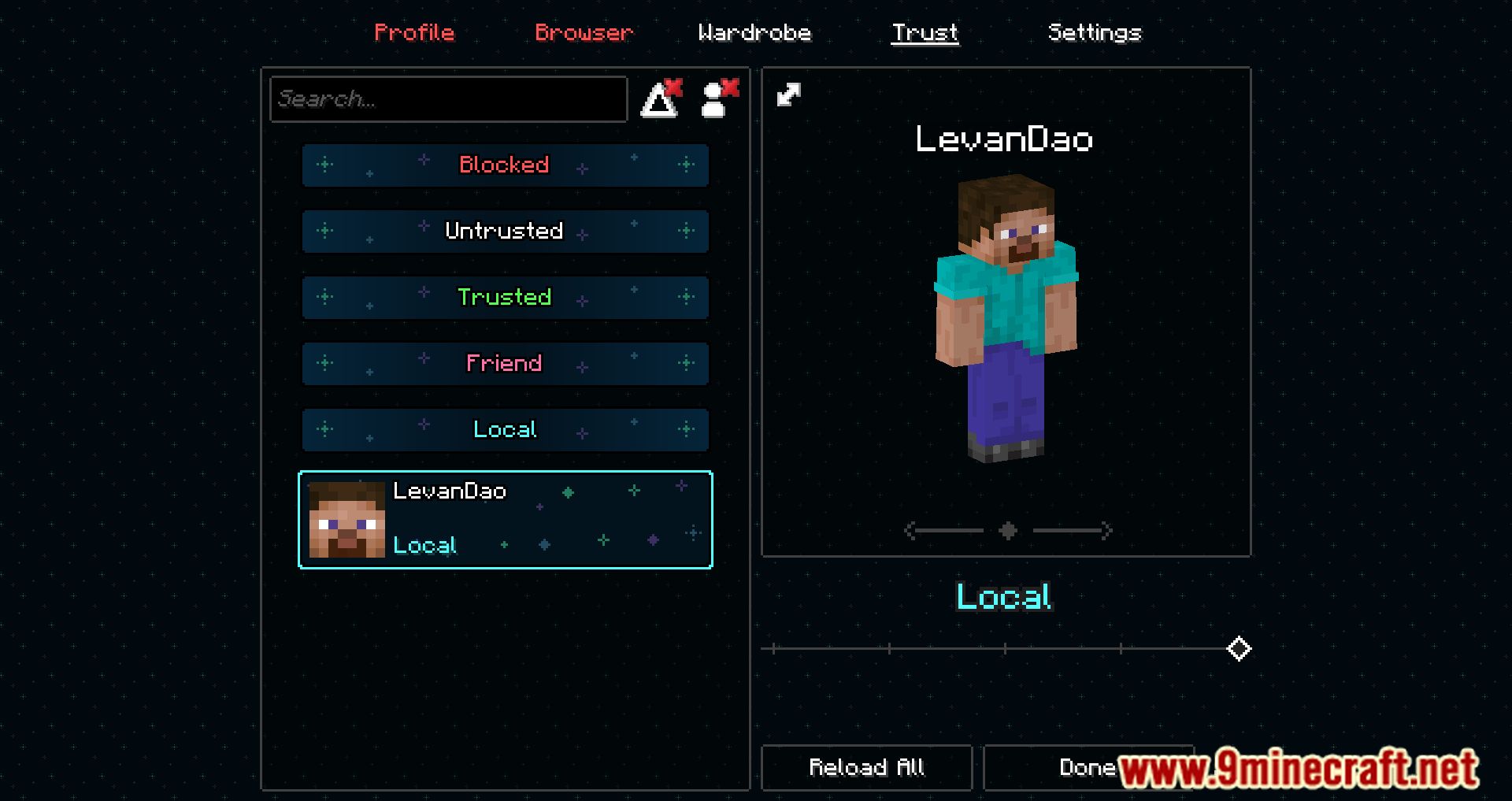
- Permission and Trust System: Gives you safety controls to manage other players’ avatars, handle tiny or invisible models, and reveal hidden players.
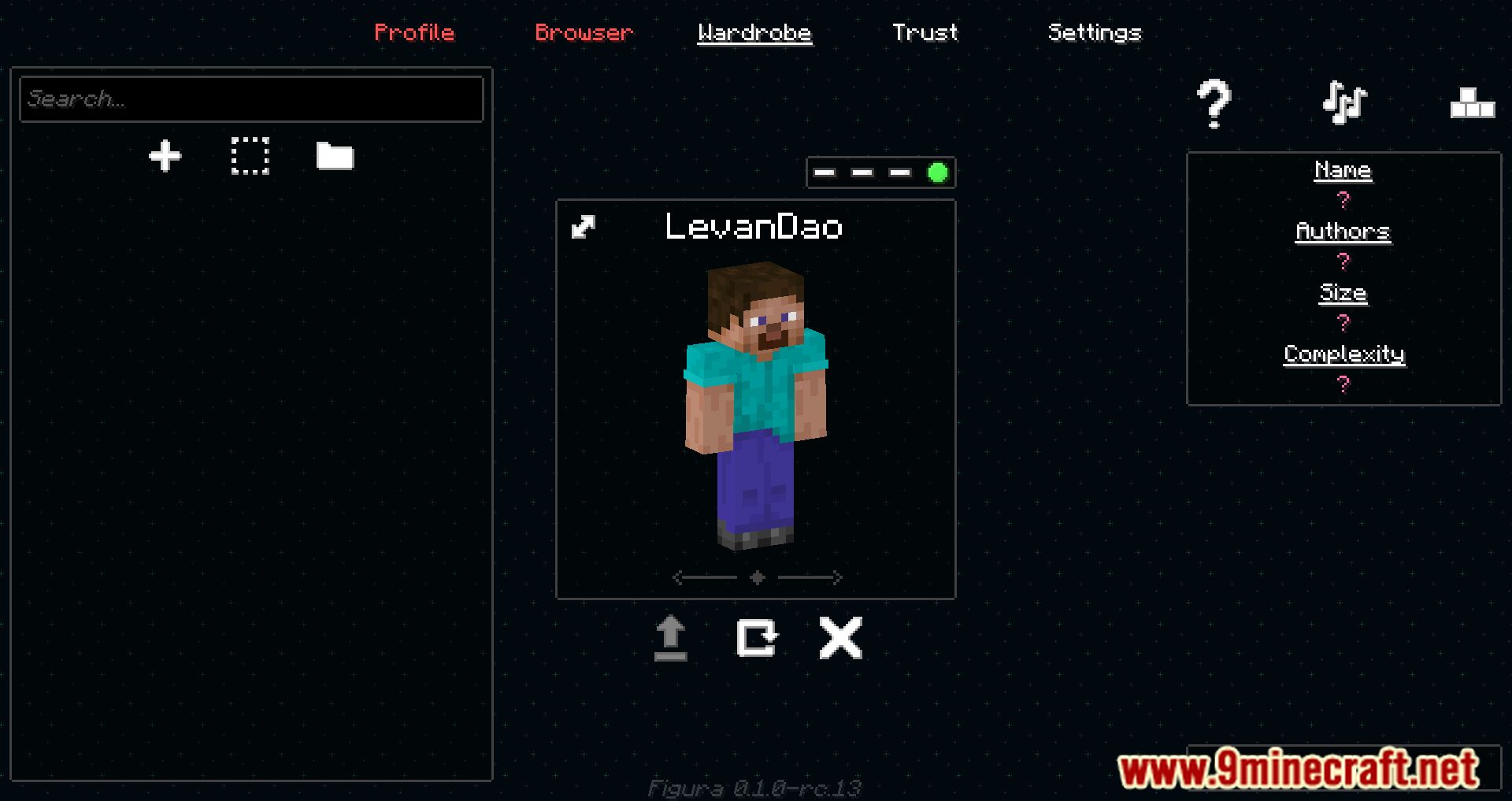
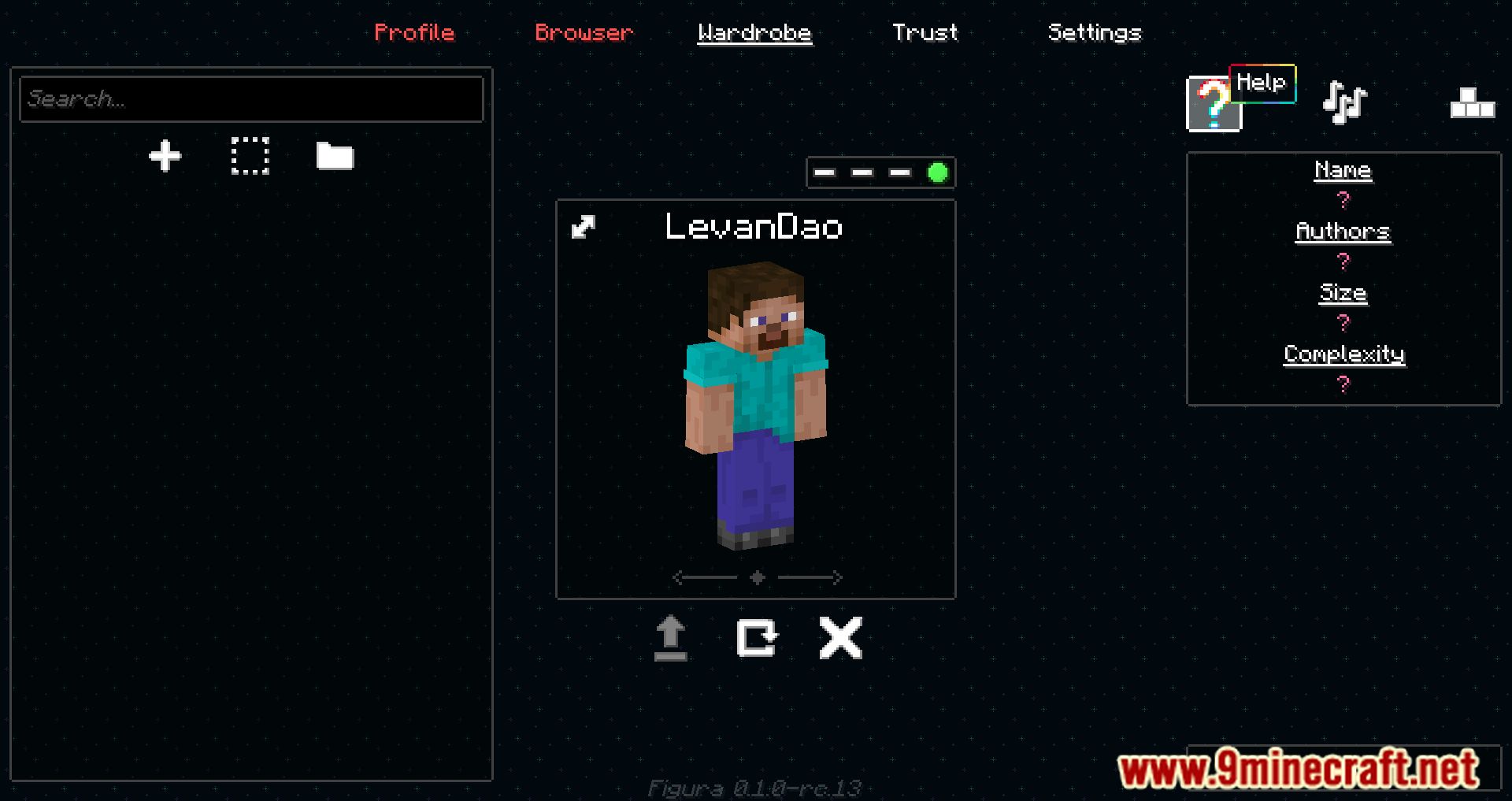
- Wardrobe and Action Wheel: Includes a wardrobe menu for picking saved avatars and a radial action wheel for running custom actions fast.
- Supports glowing emissive textures when you add
_eto the end of a matching texture name and set non-glowing areas to transparent black (#00000000). - Includes an emissive compatibility setting turned on by default to render glowing textures at fullbright, and lets you switch to the
EYESrender type for proper glow and bloom with Iris or OptiFine shaders. - Displays a corner paper doll on your screen to preview your custom avatar as you play.
- Supports custom plushie-style player heads that you can place in your world.
- Syncs keypresses and action wheel clicks from the host player to everyone else using Lua pings, with built-in content, size, and rate limits.
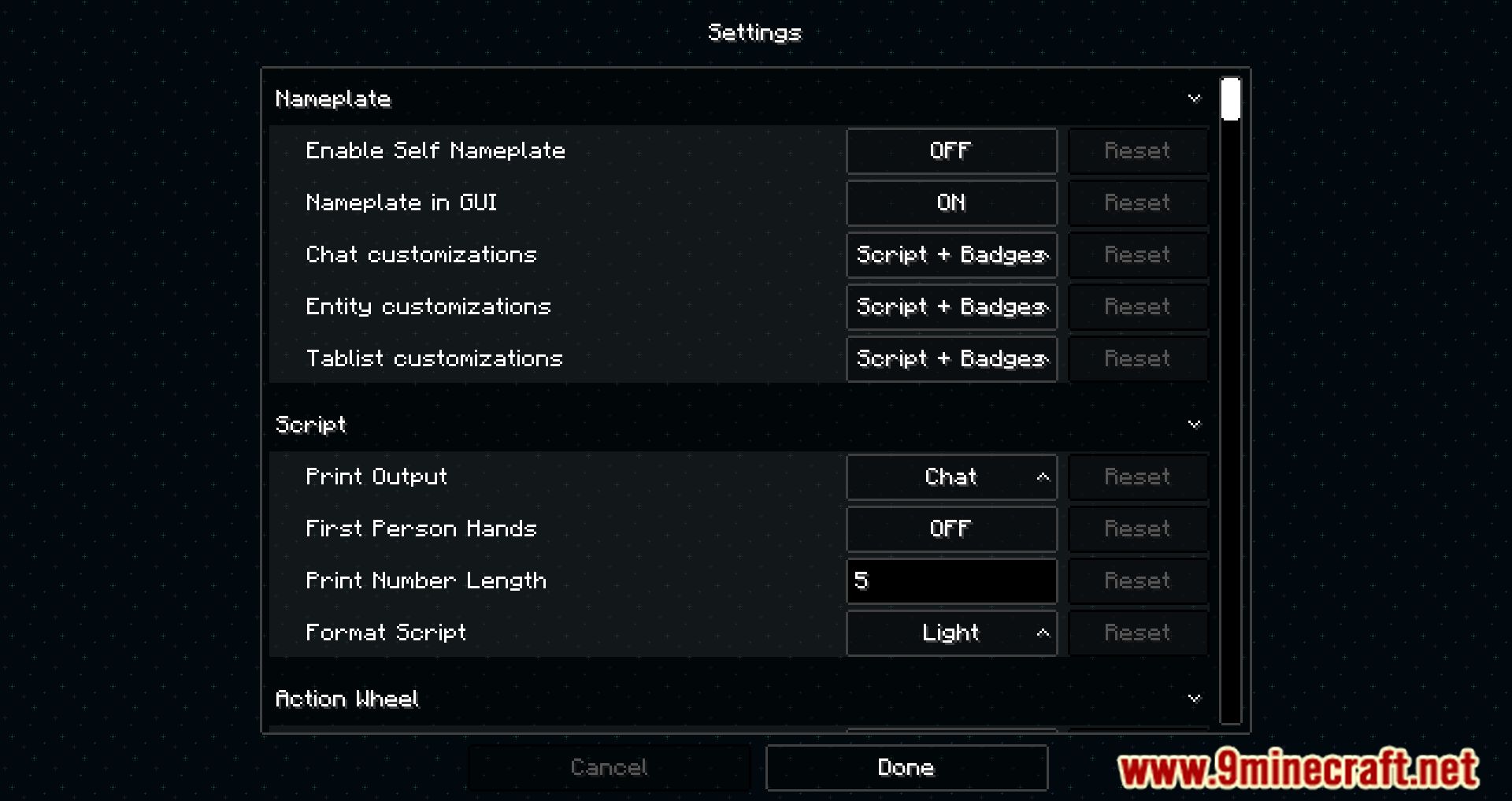
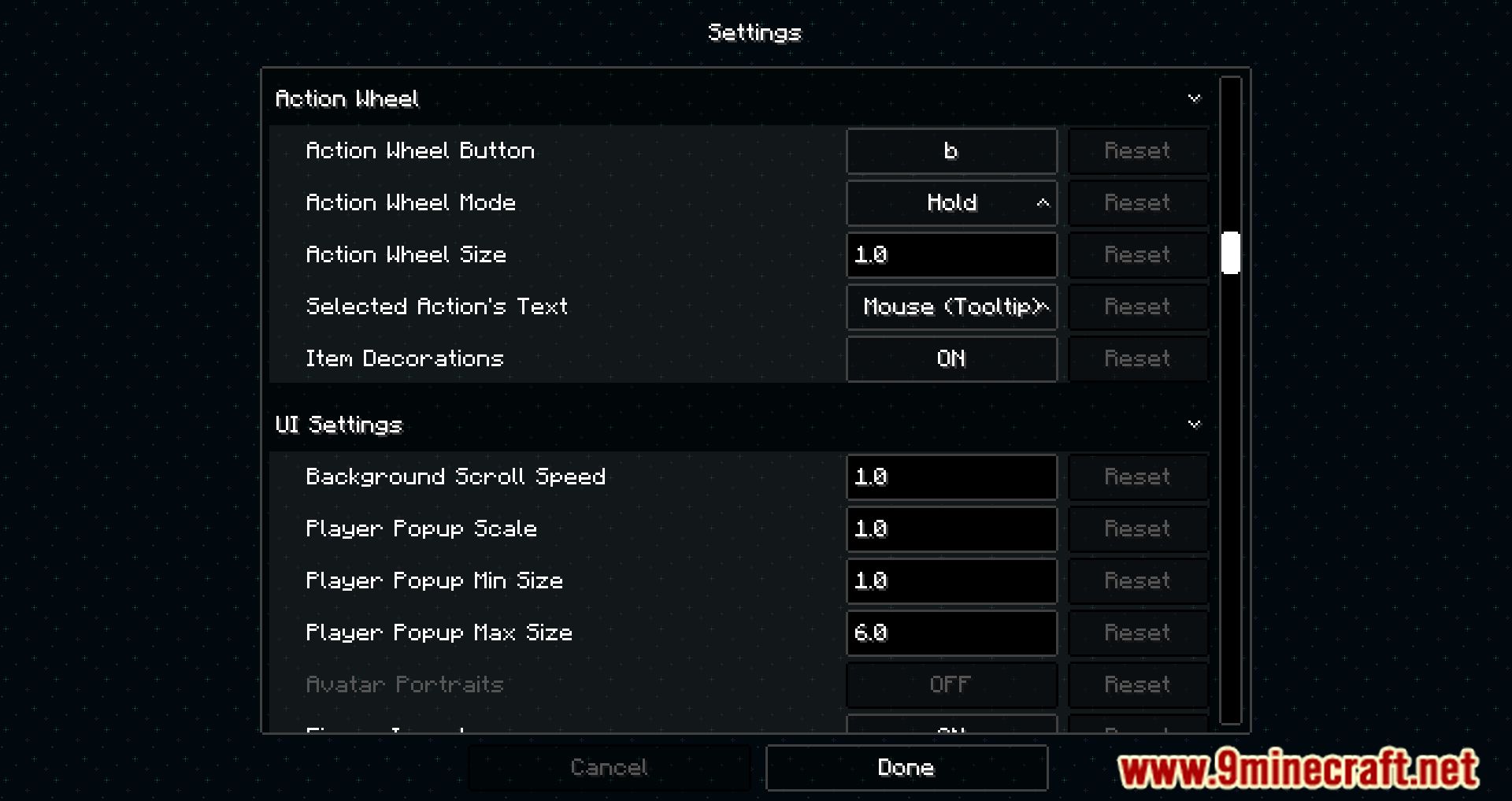
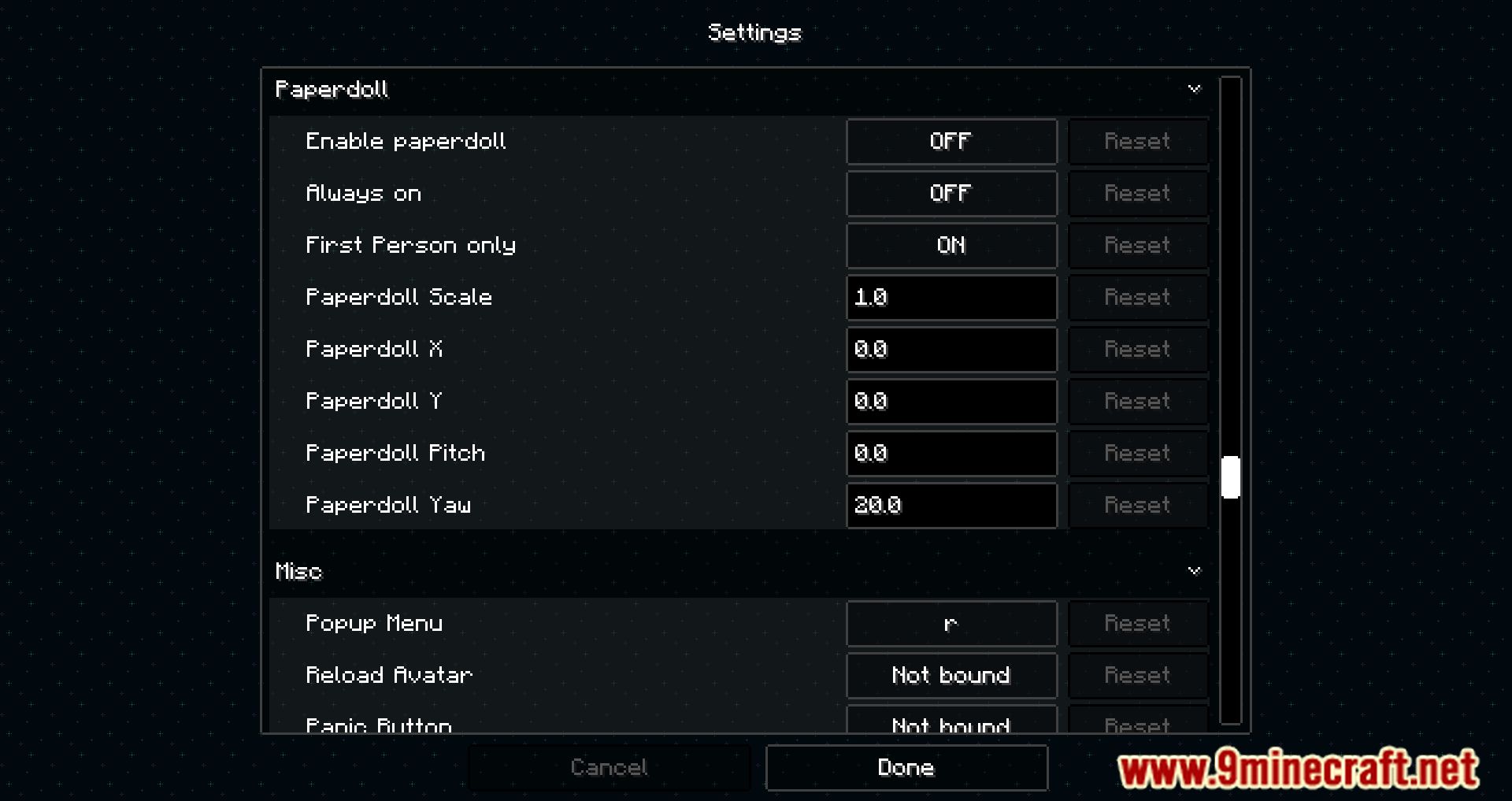
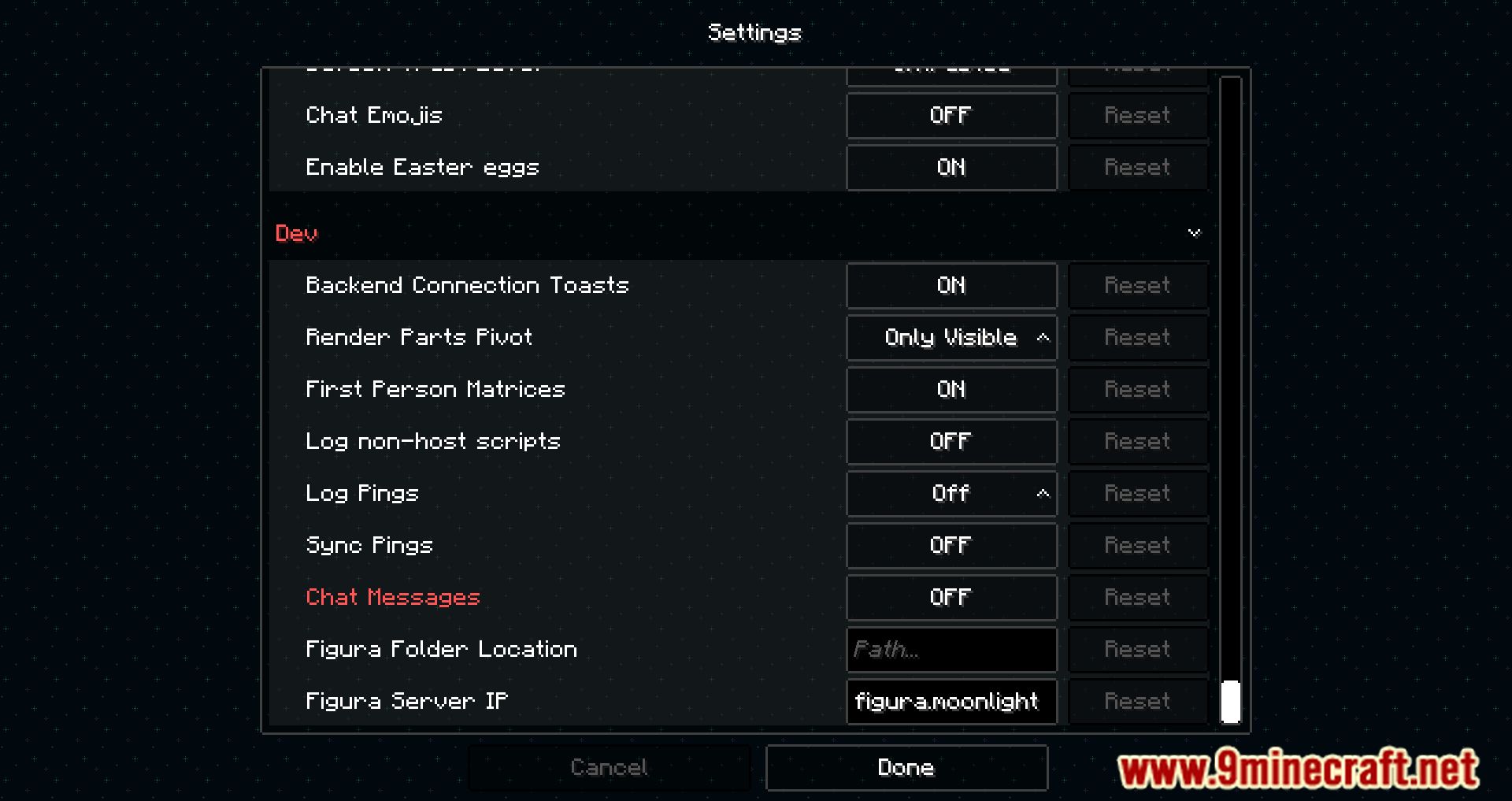
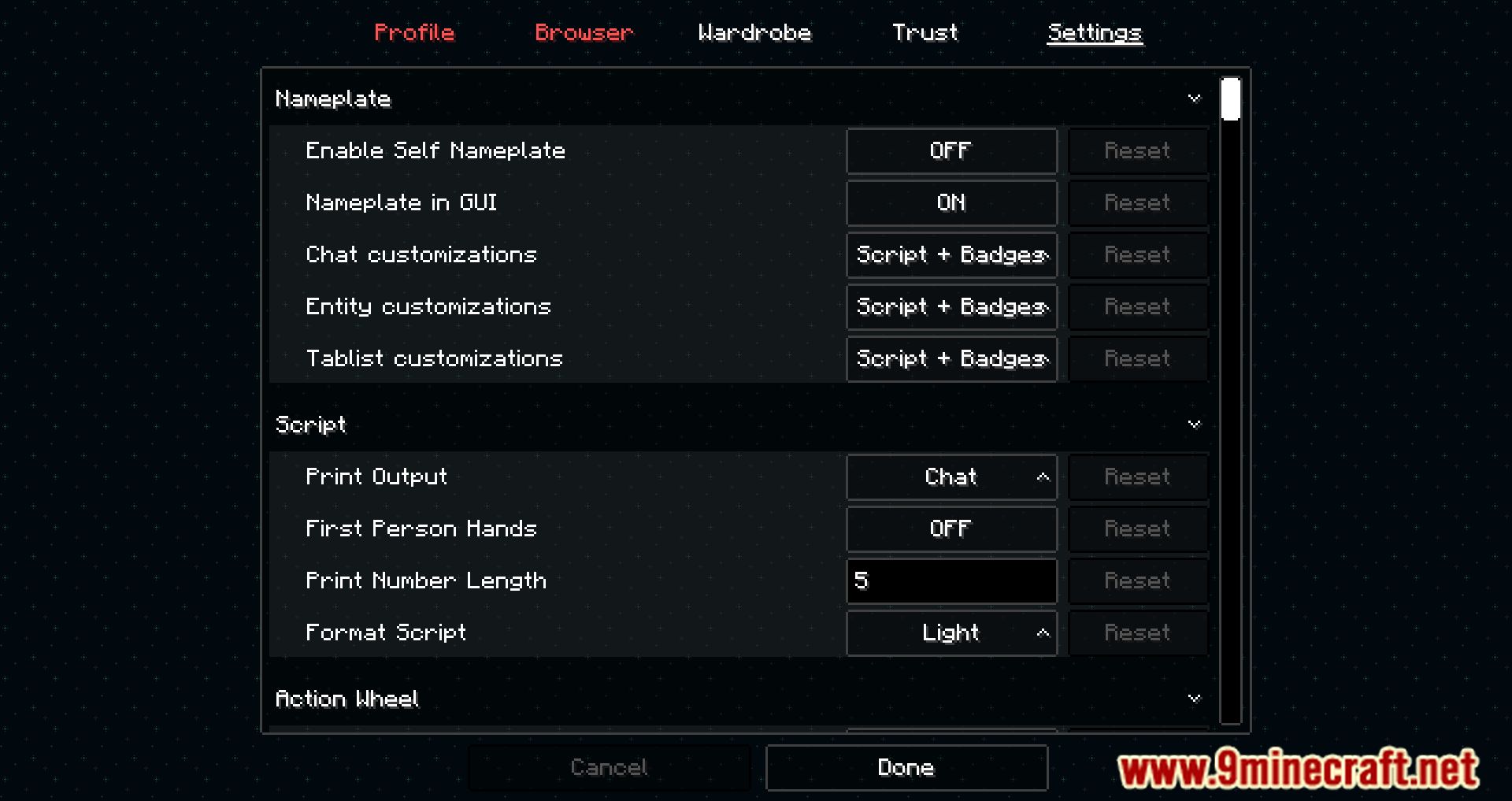
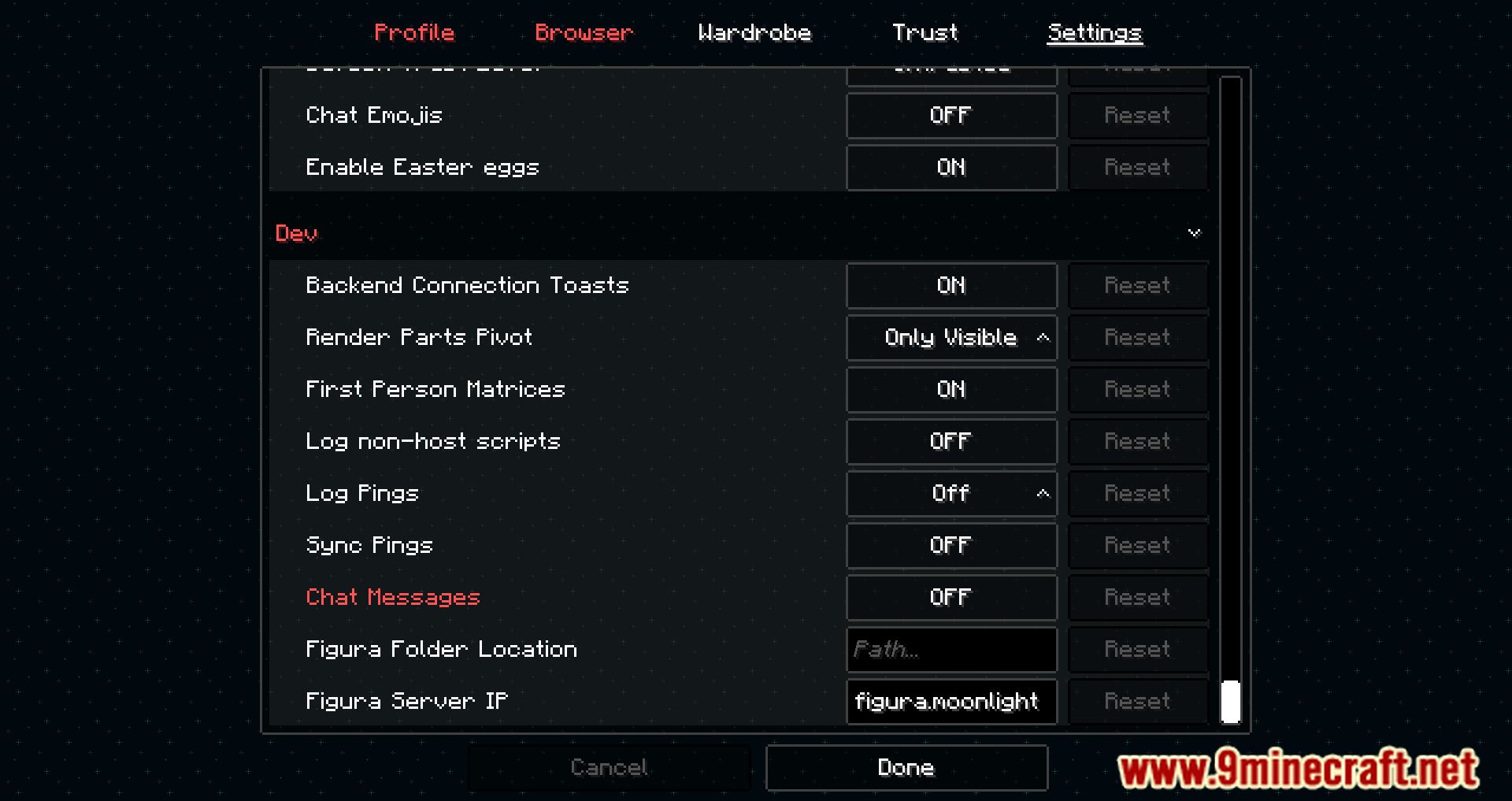
- Provides in-game settings menus for player nameplates, scripts, action wheel, user interface choices, paper doll display, miscellaneous tweaks, and developer options like server IP and folder paths.
- Includes built-in in-game documentation so you can check script options and learn how to hide specific vanilla model parts.
- Checks your Mojang account login and UUID to stop bad or unwanted uploads, which means non-premium accounts and offline-mode servers cannot upload or download avatars.
- Works best with Sodium and Iris on Fabric or Rubidium and Oculus on Forge, and also runs with OptiFine though OptiFine can cause issues.
How to Use:
- Sign in with an official Mojang account and join an online-mode server so your UUID can be verified; this lets you upload and download avatars safely.
- Create your custom 3D model and animations in Blockbench, then put the files in your avatar folder with a file named
avatar.json(the file can be empty, and checking its file extension makes sure Figura Mod detects it in your avatar list). - Add glowing textures by saving a copy of your texture with
_eat the end of its name and setting all non-glowing areas to transparent black (#00000000) so shaders render it properly. - Set your model’s render type to
EYESif glowing textures do not glow or show bloom with Iris or OptiFine shaders; this overrides the default fullbright compatibility setting. - Hide default Minecraft parts by adding
vanilla_model.ALL:setVisible(false)at the top of your Lua script to hide the player, armor, elytra, and held items,vanilla_model.PLAYER:setVisible(false)to hide only the player, orvanilla_model.ARMOR:setVisible(false)to hide only armor; check the in-game docs to hide other specific parts. - Play a Blockbench animation in your Lua script by writing
animations.modelName.animationName:play(), whereanimationsis the global animation table,modelNameis your model’s name, andanimationNameis the animation’s name. - Sync keypresses or action wheel actions to other players by creating a ping with
function pings.myPing(arg1, arg2)ending withend, then running it from the host player withpings.myPing("Hello", "World"); keep ping data short because pings have content, size, and rate limits. - Open the wardrobe menu to pick your saved avatar, use the action wheel to trigger custom moves, and adjust player permissions in the trust menu to manage or reveal other players’ avatars.
Screenshots:
How to Install:
New to Minecraft? Follow our step-by-step guide to install Mods on your PC.View Guide
Requirements:
Figura Mod Download Links
For Minecraft 1.16.5
Fabric version: Download from Server 1 – Download from Server 2
For Minecraft 1.17.1
Fabric version: Download from Server 1 – Download from Server 2
For Minecraft 1.18.1
Fabric version: Download from Server 1 – Download from Server 2
For Minecraft 1.18.2
Fabric version: Download from Server 1 – Download from Server 2
For Minecraft 1.19
Fabric version: Download from Server 1 – Download from Server 2
For Minecraft 1.19.2
Fabric version: Download from Server 1 – Download from Server 2
For Minecraft 1.19.3
Fabric version: Download from Server 1 – Download from Server 2
For Minecraft 1.19.4
Fabric/Quilt version: Download from Server 1 – Download from Server 2
For Minecraft 1.20.1
Forge version: Download from Server 1 – Download from Server 2
Fabric version: Download from Server 1 – Download from Server 2
For Minecraft 1.20.2
Forge version: Download from Server 1 – Download from Server 2
NeoForge version: Download from Server 1 – Download from Server 2
Fabric version: Download from Server 1 – Download from Server 2
For Minecraft 1.20.4
Forge version: Download from Server 1 – Download from Server 2
NeoForge version: Download from Server 1 – Download from Server 2
Fabric version: Download from Server 1 – Download from Server 2
For Minecraft 1.21.1, 1.21
Forge version: Download from Server 1 – Download from Server 2
NeoForge version: Download from Server 1 – Download from Server 2
Fabric version: Download from Server 1 – Download from Server 2
For Minecraft 1.21.4
Forge version: Download from Server 1 – Download from Server 2
NeoForge version: Download from Server 1 – Download from Server 2
Fabric version: Download from Server 1 – Download from Server 2
How many mods do you usually have active at the same time?
72 responses · See the full results →
You May Also Like
Picked for this page
 Indicatia Mod (26.3, 1.20.1) – Simple In-game Info and Utility
 Enchanting Infuser Mod (26.3, 1.20.1) – New Enchanting System
 No Recipe Book Mod (26.3, 1.20.1) – Remove the Recipe Button from Inventory
 Lootr Mod (26.3, 1.20.1) – Nobody Misses Out on Loot
 Softer Hay Bales Mod (26.3, 1.20.1) – Assassin’s Creed Style
 Stoneworks Mod (26.3, 1.20.1) – Plenty of Vanilla Stone Types
 No Resource Pack Warnings Mod (26.3, 1.20.1) – Disable Pop-up Warning
 Item Obliterator Mod (26.1, 1.20.1) – Curate the Perfect Modpack
 Nether Coords Mod (26.2, 1.20.1) – Custom Coordinates
 Raised Mod (26.3, 1.20.1) – Fixes Hotbar Selector
 FSit Mod (26.3, 1.20.1) – Sit Back And Relax
 Stardew Fishing Mod (26.2, 1.20.1) – A Skill-based Fishing Minigame
Most viewed in Mods over the last 7 days
 Ala Industrial Mod (26.3) – Run Electric Power Grids and Automated Factories
 PleasureCraft Mod (26.3, 1.21.1) – Jenny Mod Remake for Fabric
 Jennycraft Mod (26.3, 1.20.1) – Virtual Girlfriend in Minecraft
 Fapcraft Mod (26.3, 1.12.2) – Comprehensive and Detailed Content
 Jenny Mod (Fapcraft) Official Complete Guide – How to use, Tutorial
 BangCraft Mod (1.20.1) – Jenny, Ellie and Elliot
 Fabric Loader (26.3, 1.20.1) – Fabric Installer for All Minecraft Versions
 The Shooting Star Demo Mod (26.3, 1.20.1) – Vaporize Terrain From Orbit
 Meteor Client Mod (26.3, 1.20.1) – Xray, HUD, Fly
 OptiFine HD (26.3, 1.20.1) – Run Faster, FPS Boost, Shaders Support
 Aristois Client Mod (1.21.4, 1.20.1) – World Class Minecraft Utility
 Prestige Client Mod (1.21.11, 1.21.4) – Powerful Ghost Features for Crystal & Sword PvP
More from Mods
 Fabric ORM Jimmer Mod (26.3, 1.20.1) – Prevent Sudden Server Crashes
 Cafe Core Mod (26.2, 1.21.1) – Bypass Anvil Limits and Tame Pets in Seconds
 GTNH’s Forgelin Mod (1.7.10) – Play Kotlin-Powered Mods on Minecraft 1.7.10
 Nodeflow Mod (26.1.2, 1.21.1) – Wire Custom Redstone Logic on Visual Graph
 Winter Client Mod (1.21.11) – Survive Ruthless PvP on Anarchy Servers
 LARP Client Mod (1.21.11) – Dominate Crystal PvP on Anarchy Servers
 Berlin Client Mod (1.21.11) – Hunt Stashes and Win Crystal Fights
 Kaleidoscope Cookery Refabricated Mod (26.3, 1.20.1) – Cook Hearty Meals
 Minecraft MusicBox Mod (1.21.12) – Play Your Favorite Songs While Mining and Building
 MTR Navigation Mod (1.21.1) – Plan Railway Trips and Never Miss a Train Stop
 TheHouse Mod (1.21.11) – Host Casino Tables and Track Every Bet in Real Time
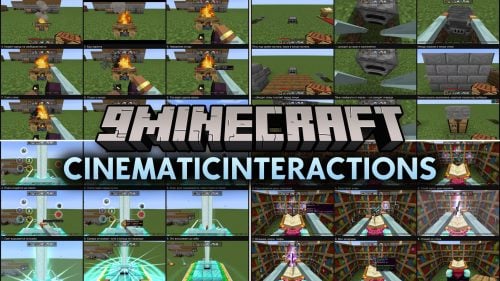 CinematicInteractions Mod (1.21.1) – Watch Your Hands Work at Every Crafting Table

This post has no comments yet. Be the first — your comment will appear here.